Where: Admin portal → Configuration → Company Documents Route:/configuration/company-documents
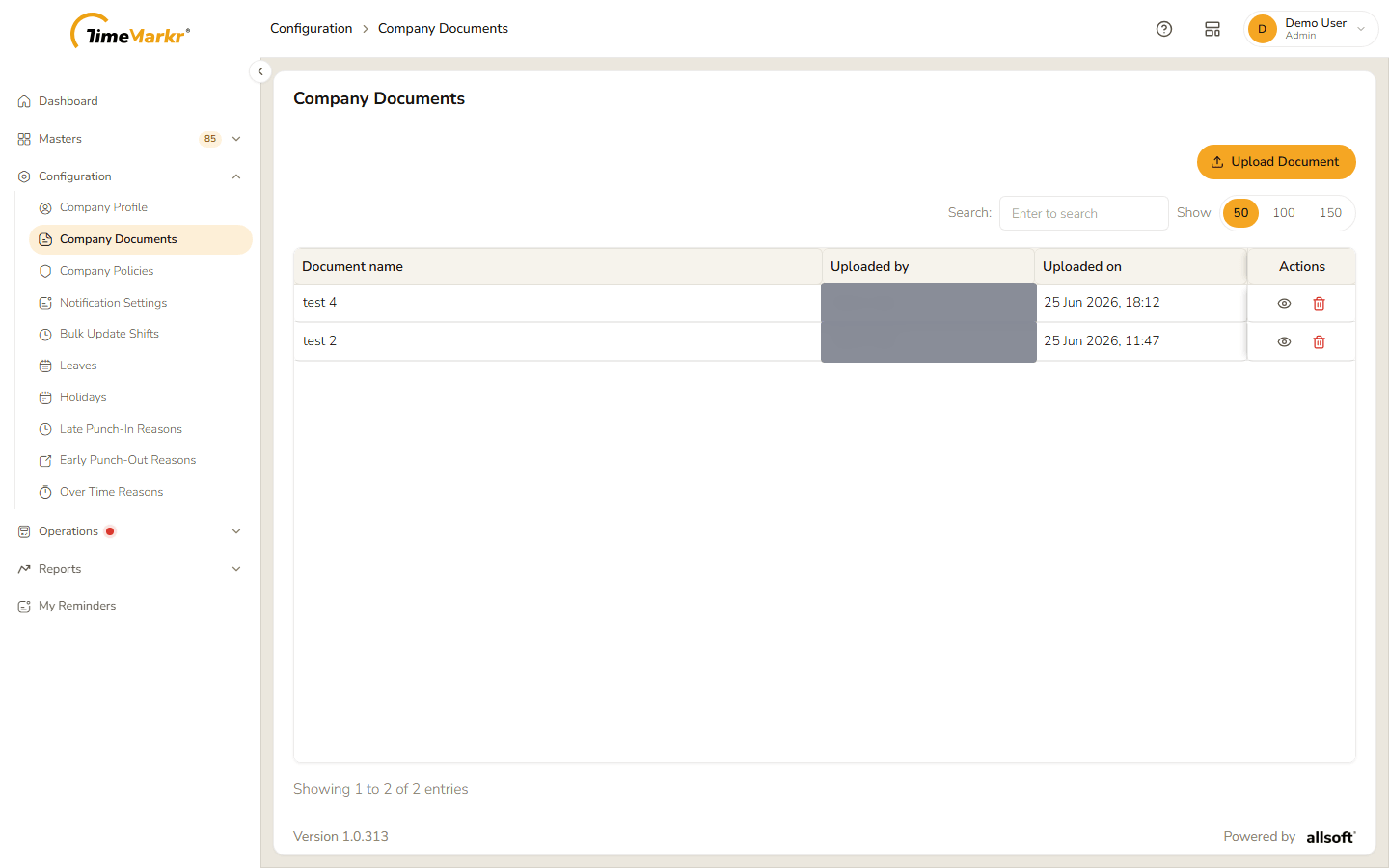
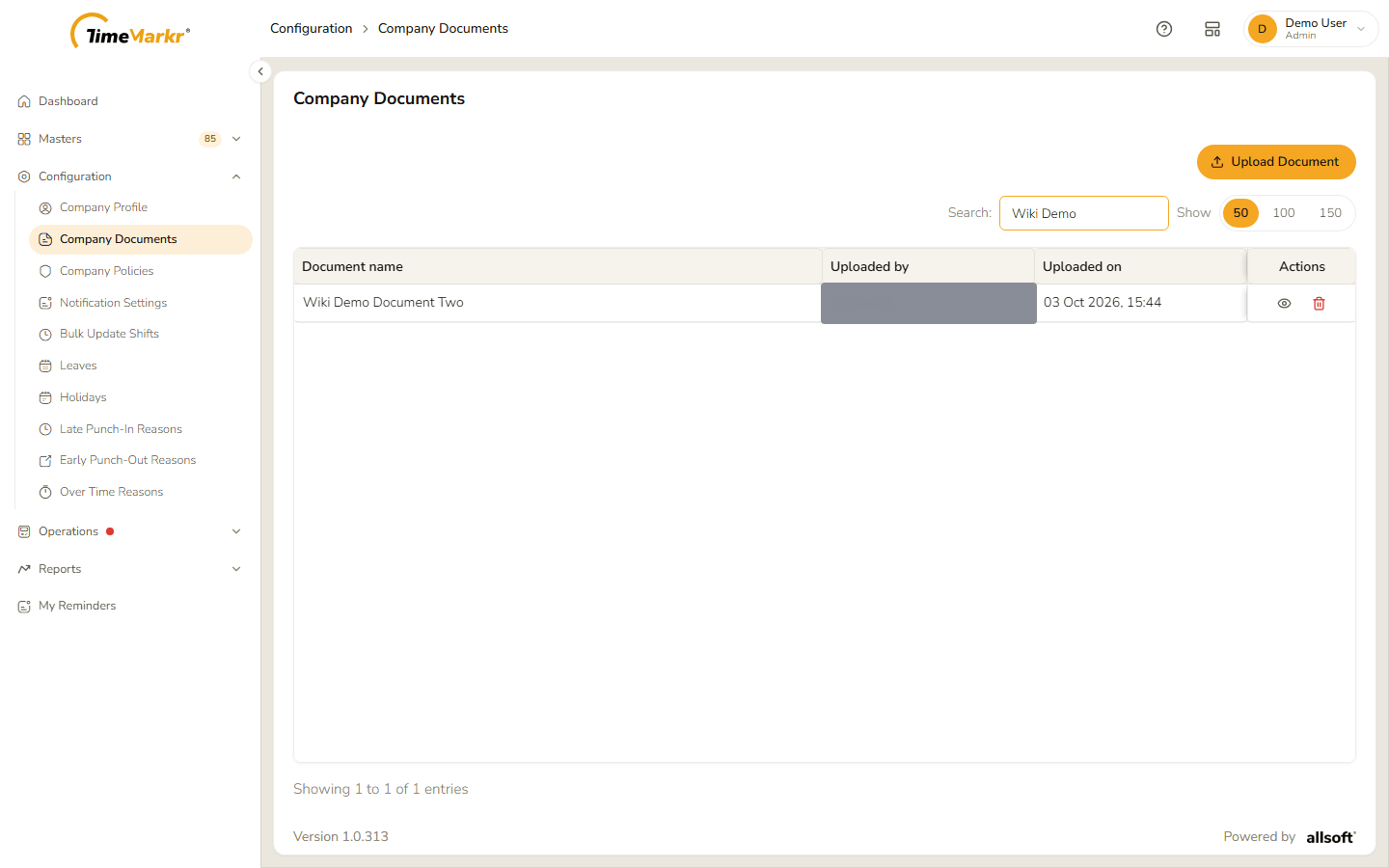
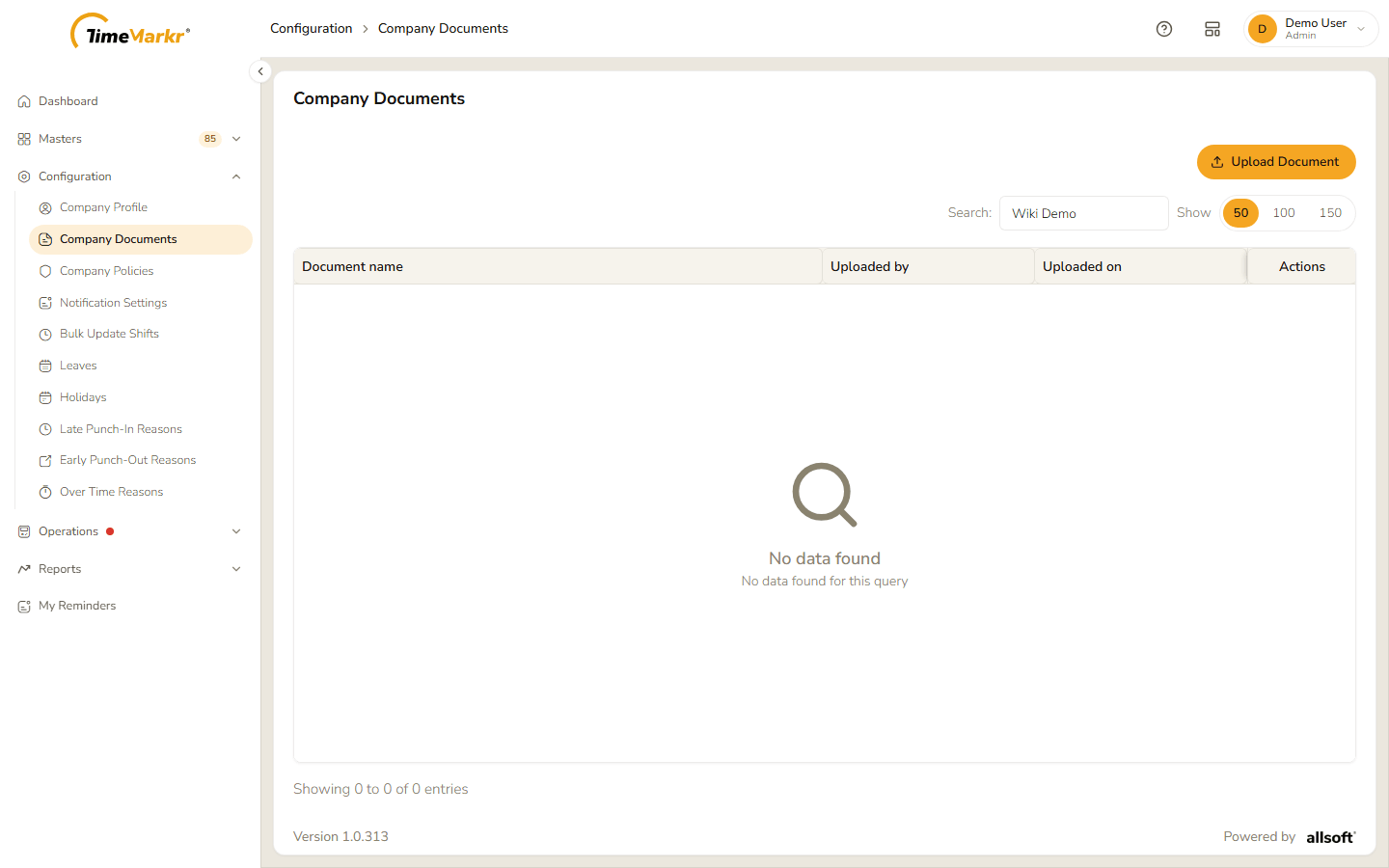
A place to keep your company's own files – for example a registration certificate. Each document has a name, the person who uploaded it and the time it was uploaded.
1. The document list
Company Documents list
Column / control
What it shows or does
Document name
The name given when the file was uploaded.
Uploaded by
Who uploaded it (blurred in the screenshot).
Uploaded on
The date and time of the upload.
Actions
The eye = View document; the bin = Delete.
Upload Document
Opens the upload form.
Search and Show 50 / 100 / 150
Narrow the list and choose how many rows to see.
View document opens the file in a new browser tab.
2. Upload a document
Click Upload Document.
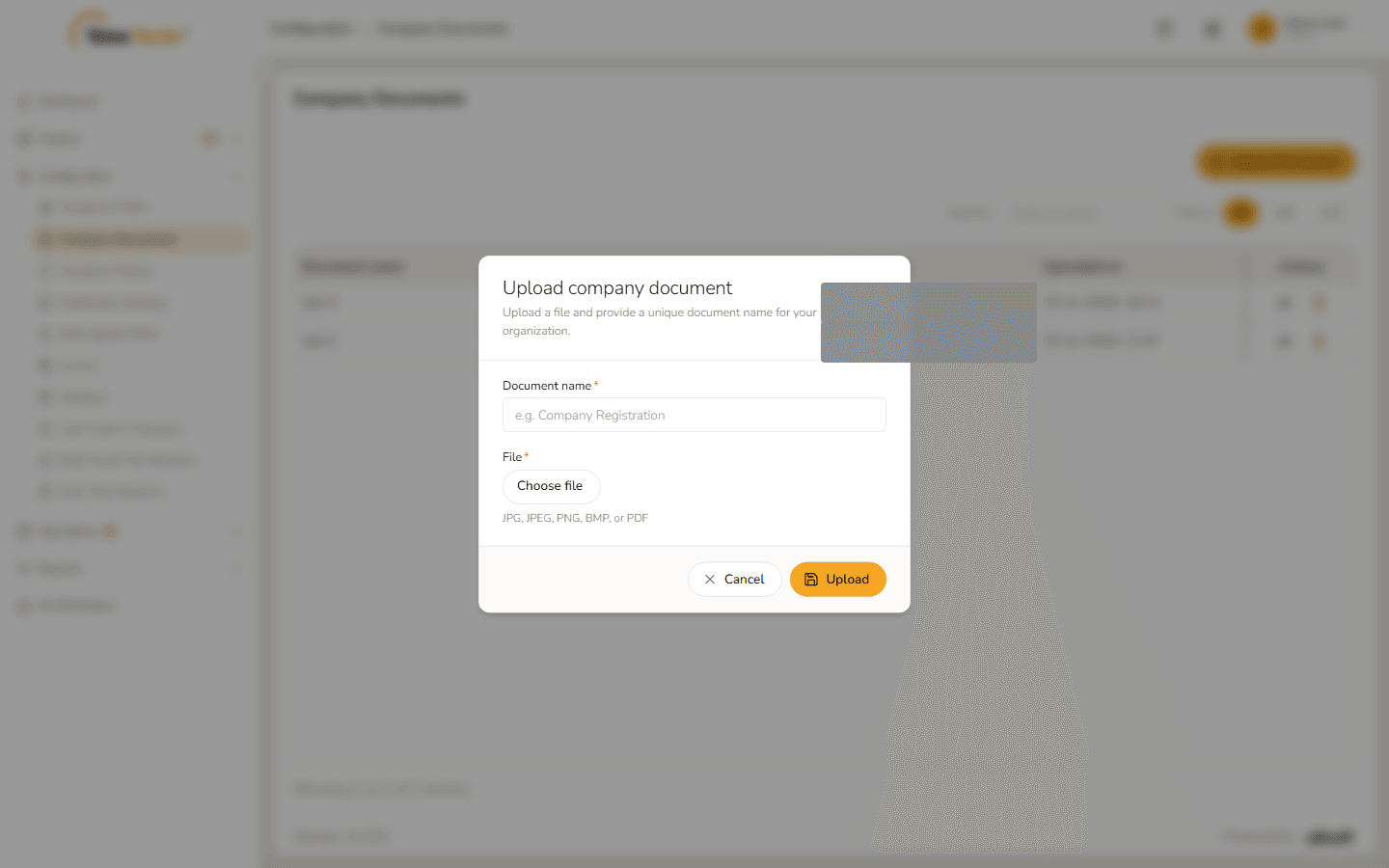
Upload company document form
The form says "Upload a file and provide a unique document name for your organization." Fill it in.
Field
Notes
Document name*
Required, and unique in your organization – see below.
File*
Click Choose file. Accepted: JPG, JPEG, PNG, BMP or PDF.
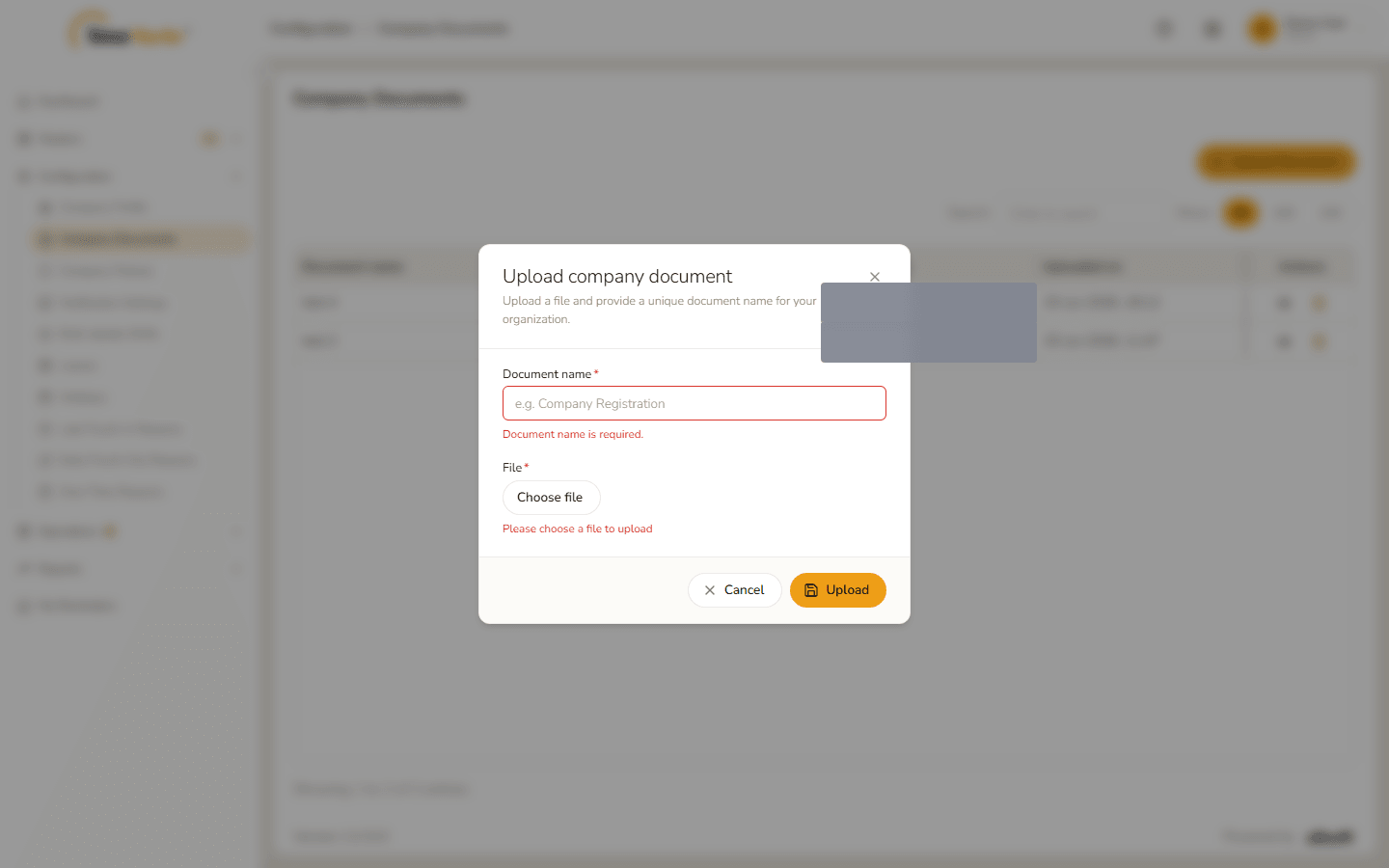
Clicking Upload with both empty marks them in red: "Document name is required." and "Please choose a file to upload".
Required-field messages
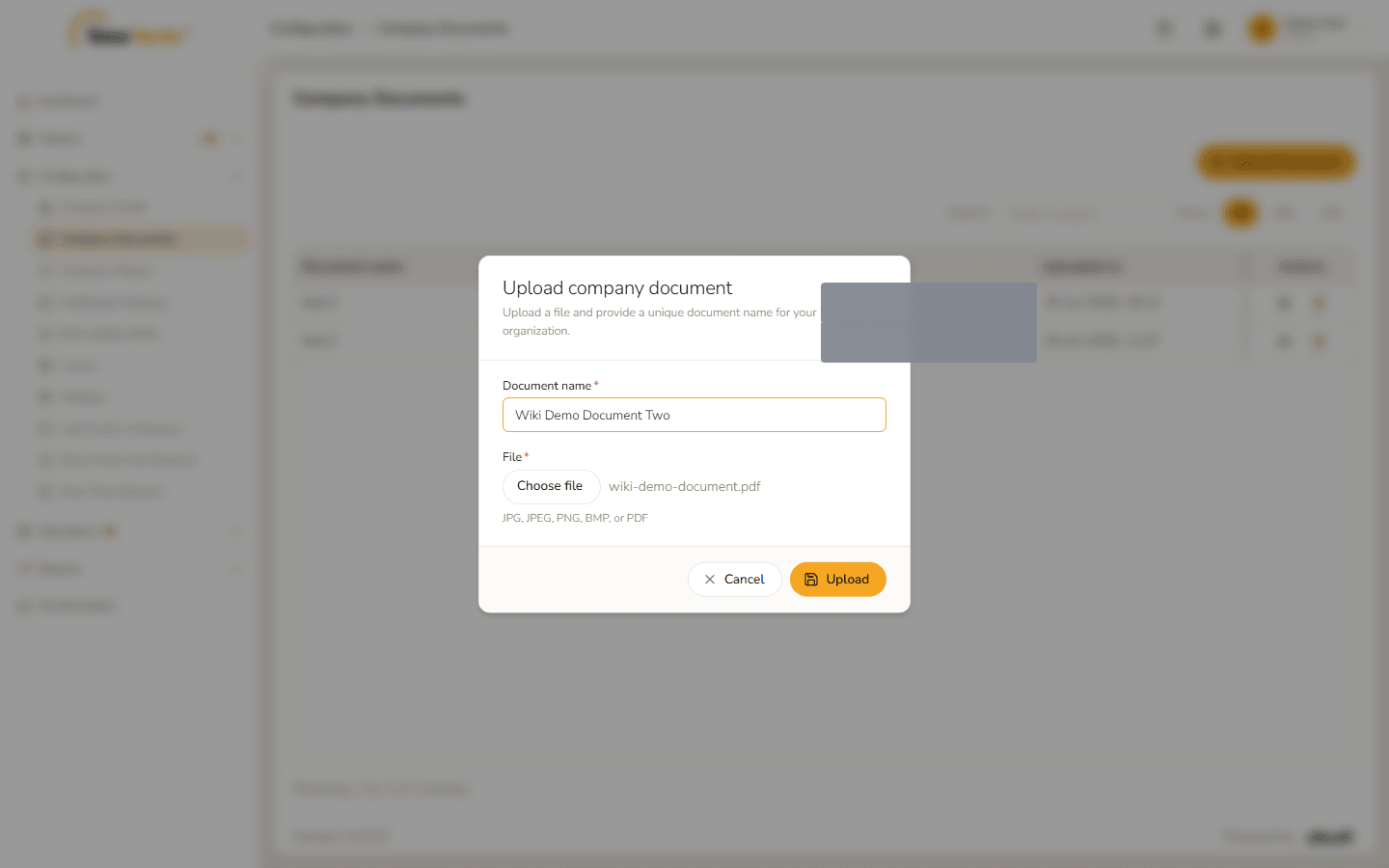
Form filled in
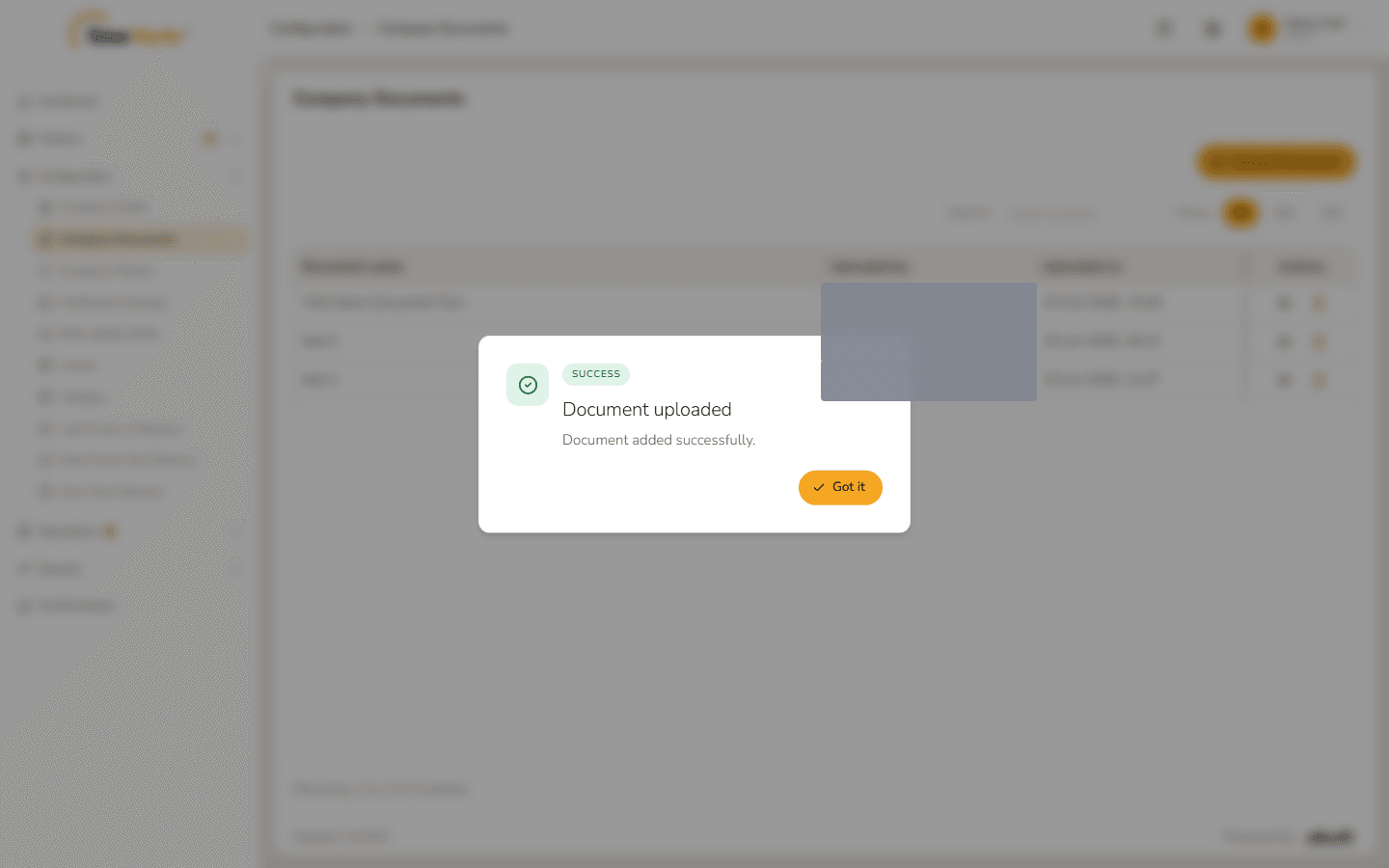
Click Upload. Document uploaded – Document added successfully. confirms it. Click Got it.
Document uploaded
The document is in the list.
New document in the list
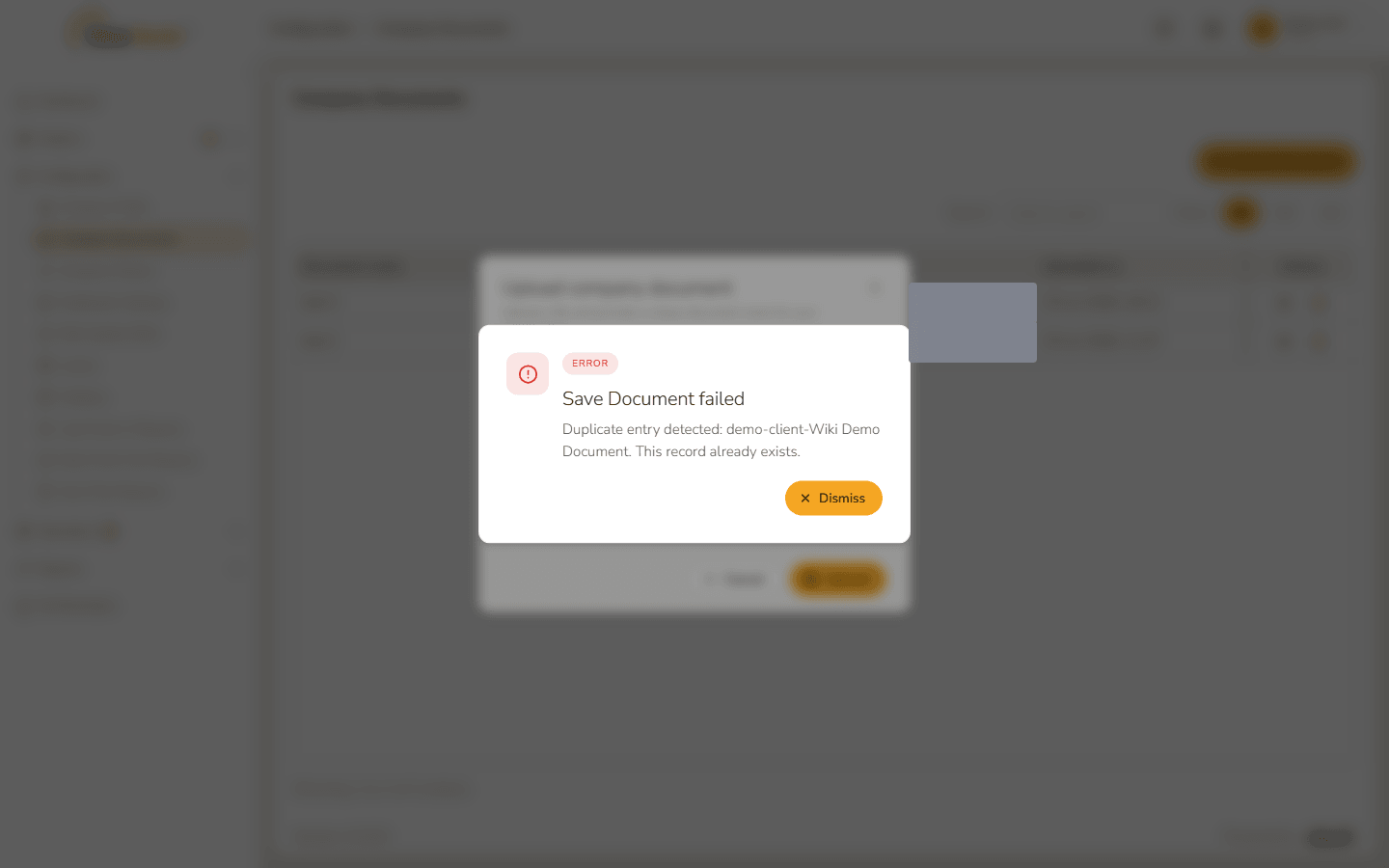
Names must be unique. A name that is already in use is refused with Save Document failed – "Duplicate entry detected: … This record already exists." This also applies to a name you used before for a document you have since deleted – pick a different name.
Duplicate name refused
3. Delete a document
Click the bin on the document's row.
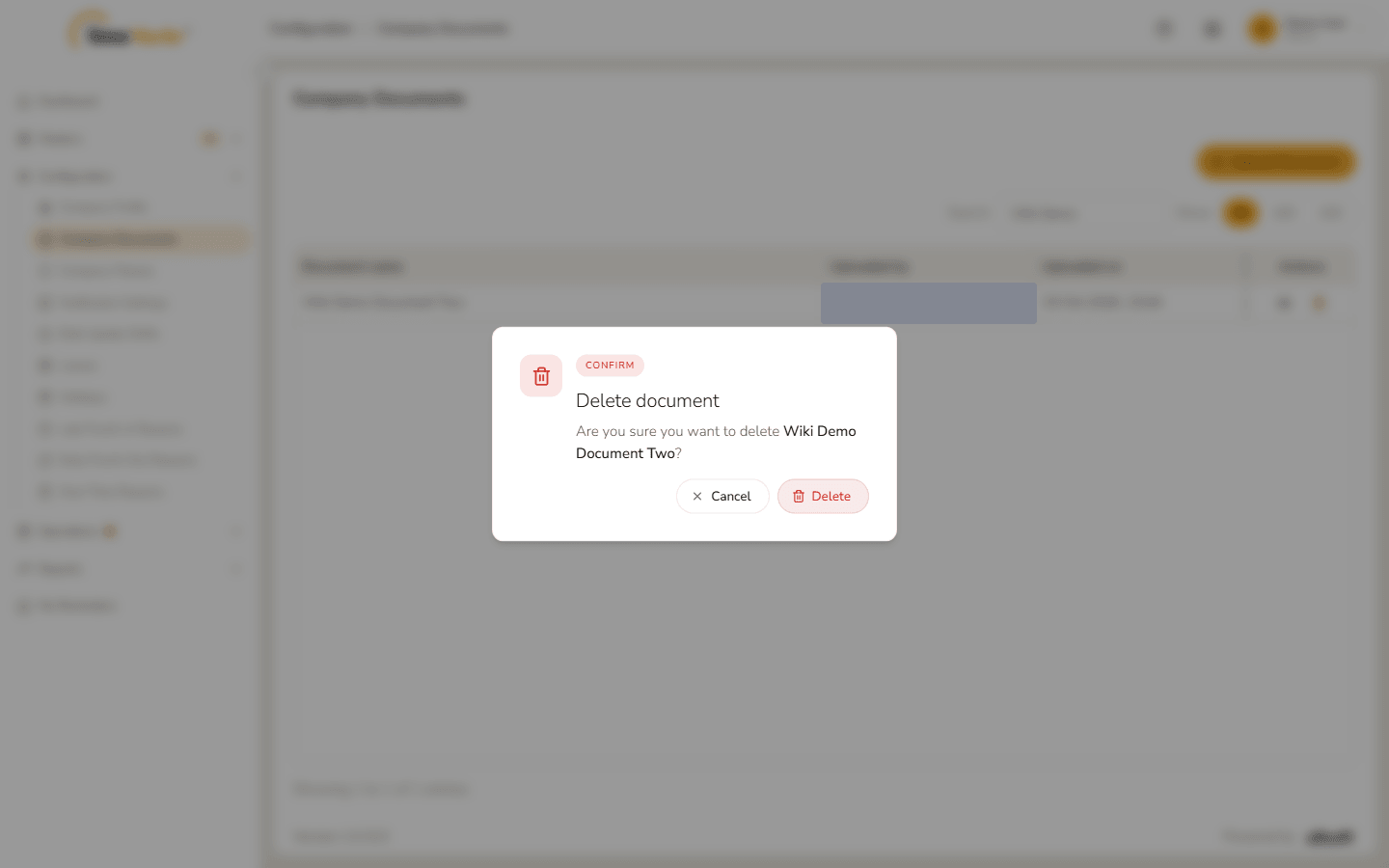
The confirmation names the document: "Are you sure you want to delete <name>?" Click Delete.
Delete confirmation
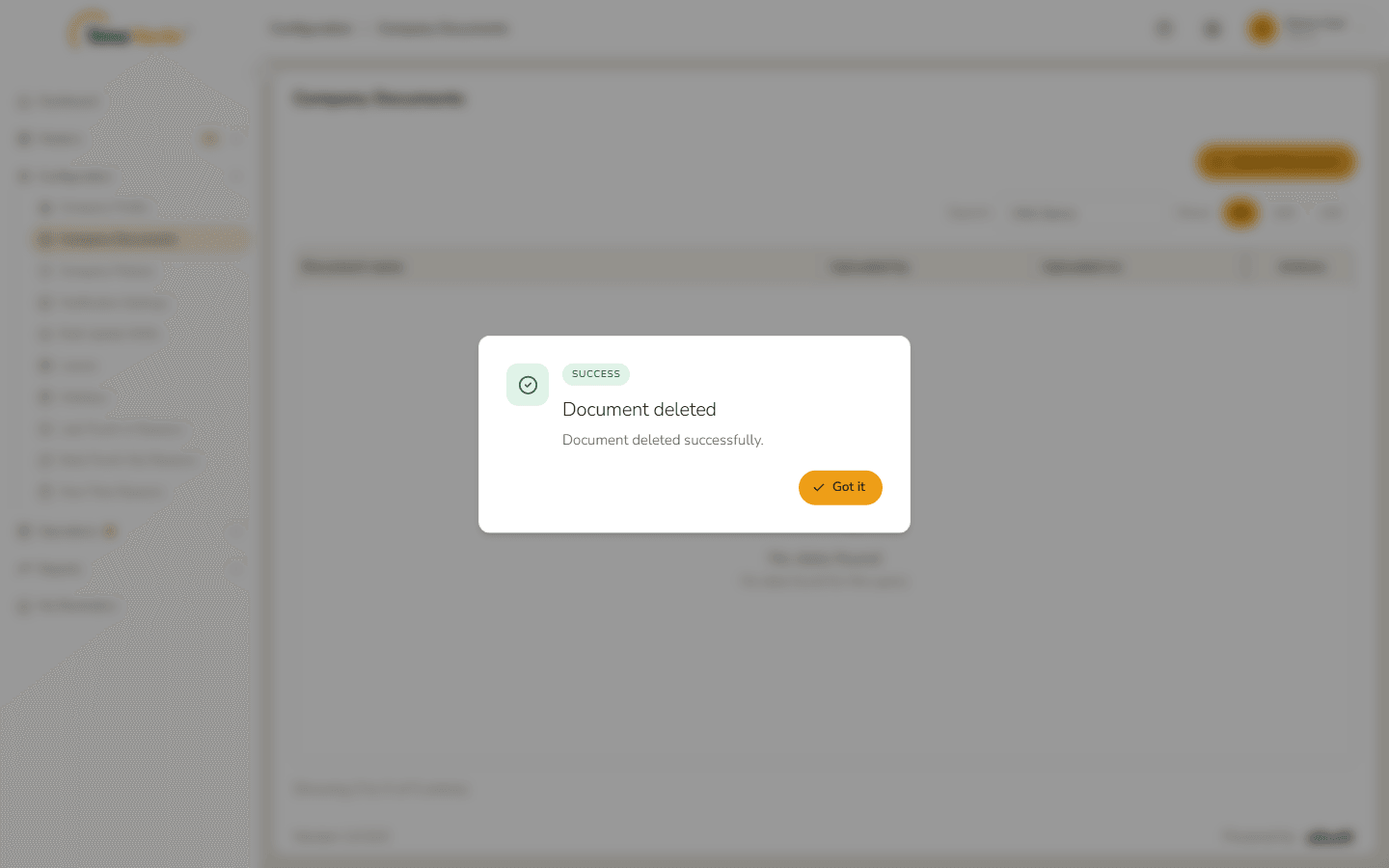
Document deleted – Document deleted successfully. confirms it. Click Got it; the document is gone from the list.