
Task Status
Where: Admin portal → Masters → Task Status
Route: /masters/task-status
The list of statuses a task can be in, such as Open, In Review or Closed. The statuses appear in every task picker and filter in the employee portal. A status has a name, a type that says how it counts (Open, Awaiting sign-off or Finished) and a position in the list.
1. The Task Status list
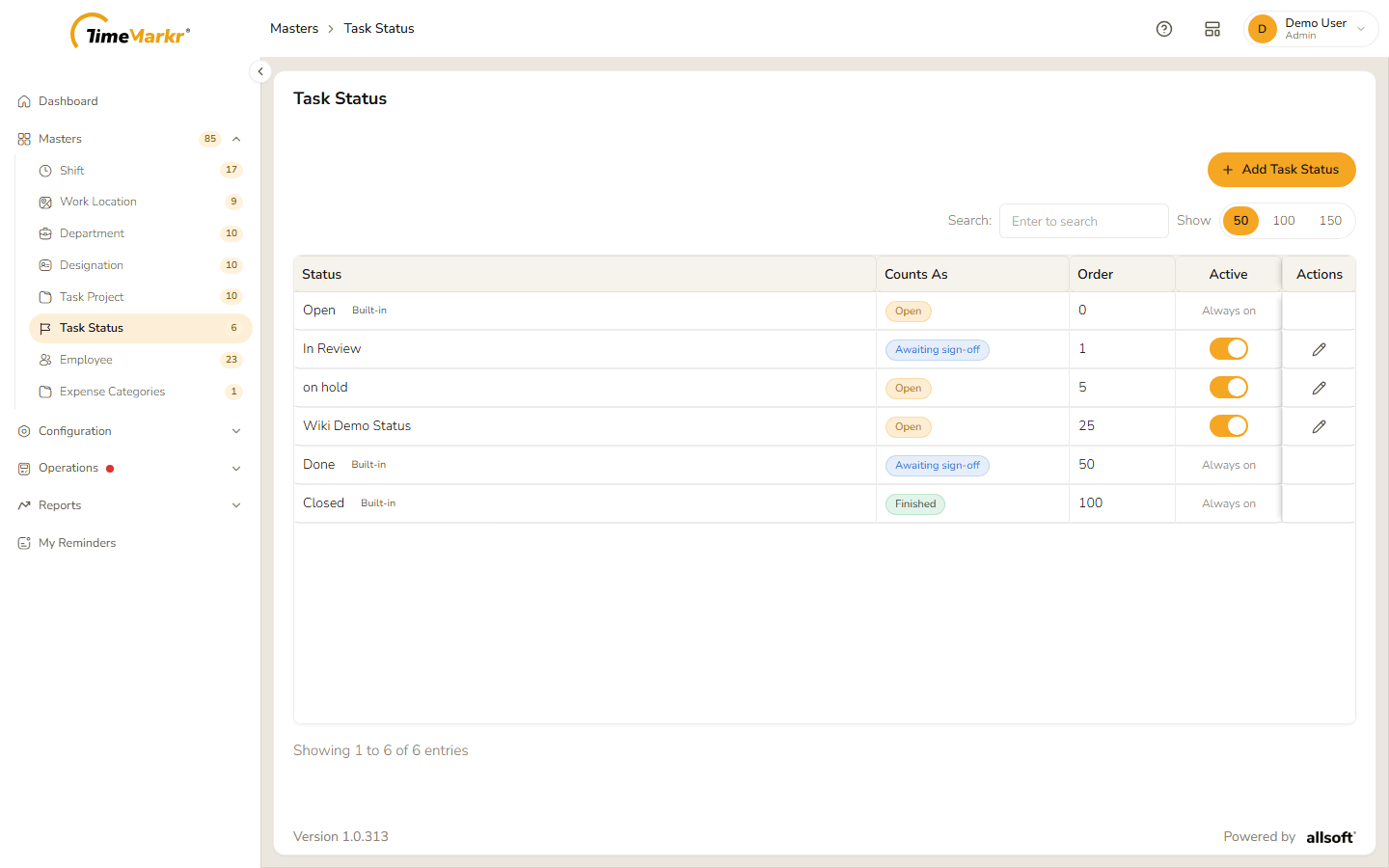
| Column | What it shows |
|---|---|
| Status | The name. The statuses that come with the account carry a Built-in tag. |
| Counts As | The type: Open, Awaiting sign-off or Finished. |
| Order | The position of the status in every picker – lower numbers come first. |
| Active | A switch that shows or hides the status. Built-in statuses show Always on instead. |
| Actions | A pencil to edit the status. Built-in statuses have none. |
There is no delete: a status is only ever shown or hidden (see Hide or show a status).
2. Add a task status
Click Add Task Status.
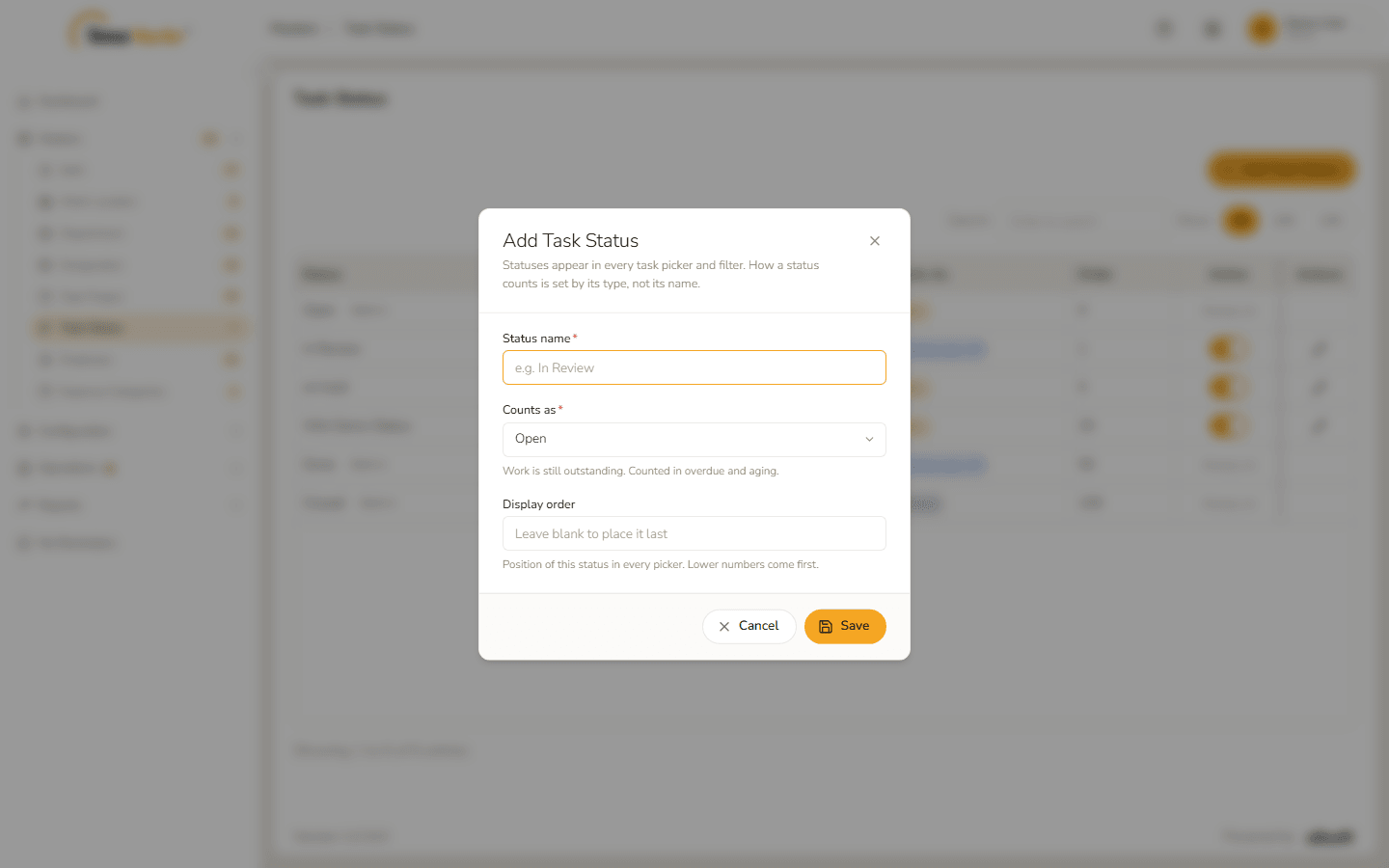
Add Task Status form Fill it in.
Field Notes Status name* Required. Clicking Save with it empty shows "Status name is required." Counts as* Open, Awaiting sign-off or Finished. A line under the field explains the choice: Open – "Work is still outstanding. Counted in overdue and aging."; Awaiting sign-off – "The assignee is finished. Counted as done, but records no closure time."; Finished – "Fully complete. Records the closure time." Display order Optional. A number; the field says "Leave blank to place it last". 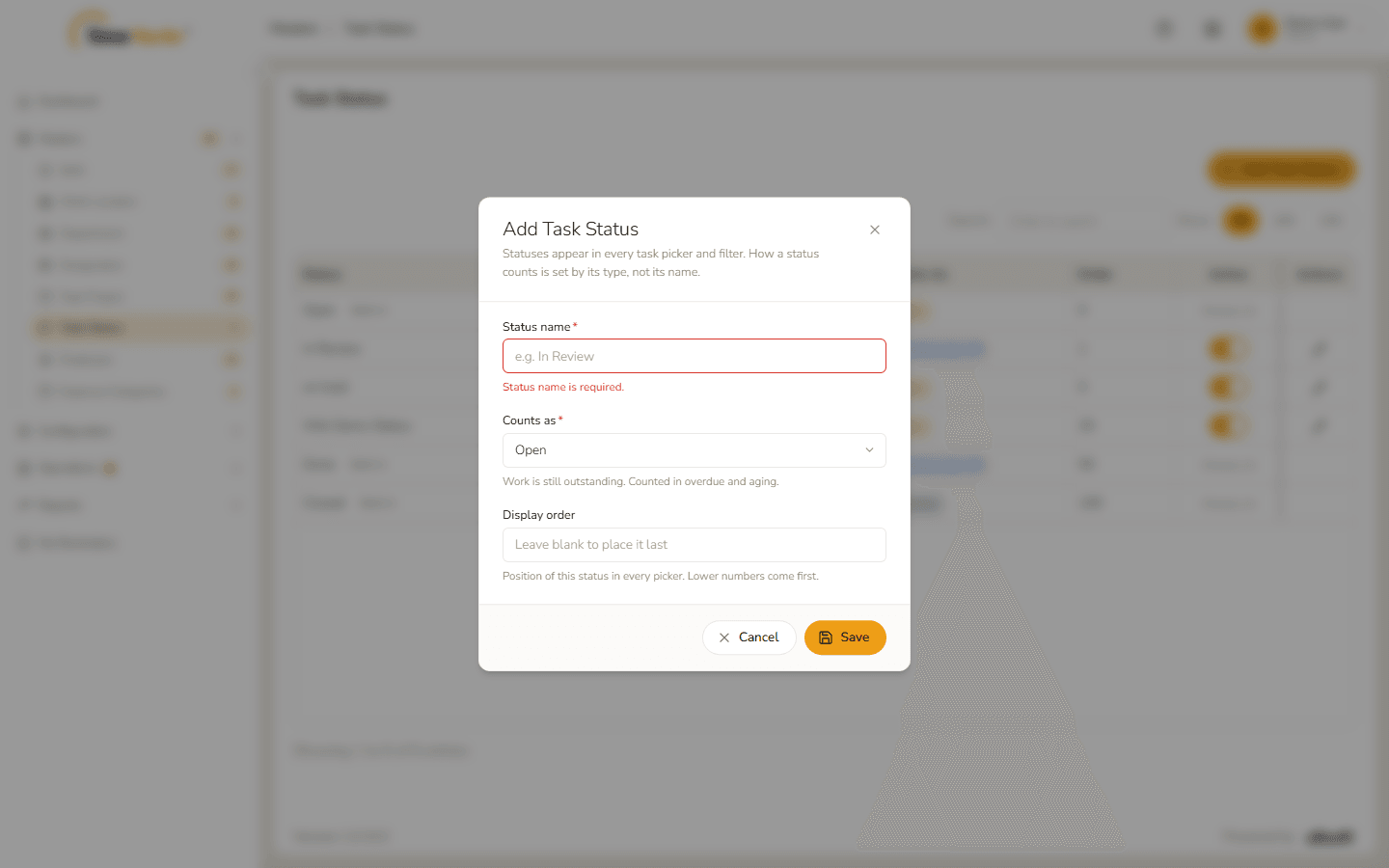
Status name is required 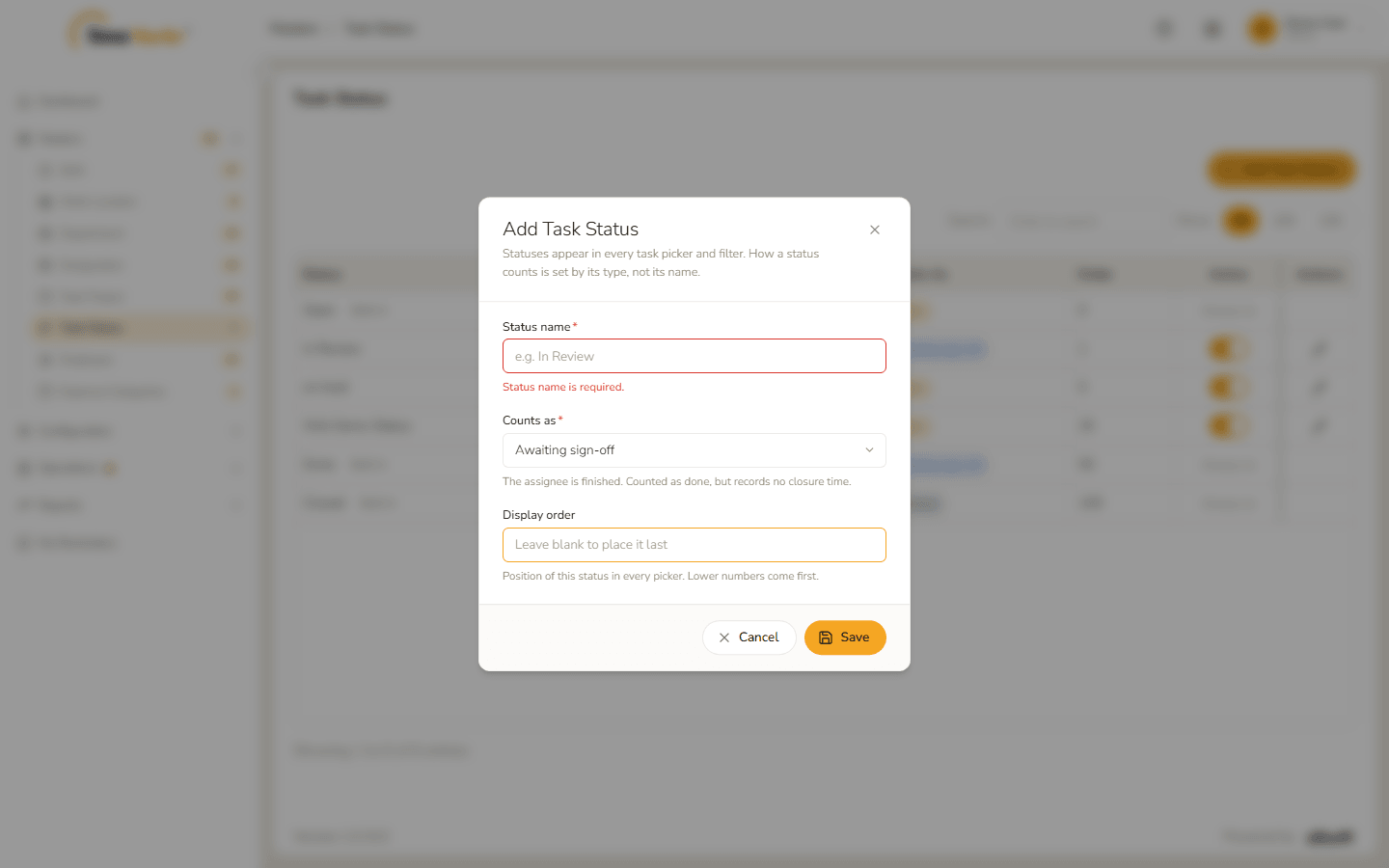
The Awaiting sign-off explanation 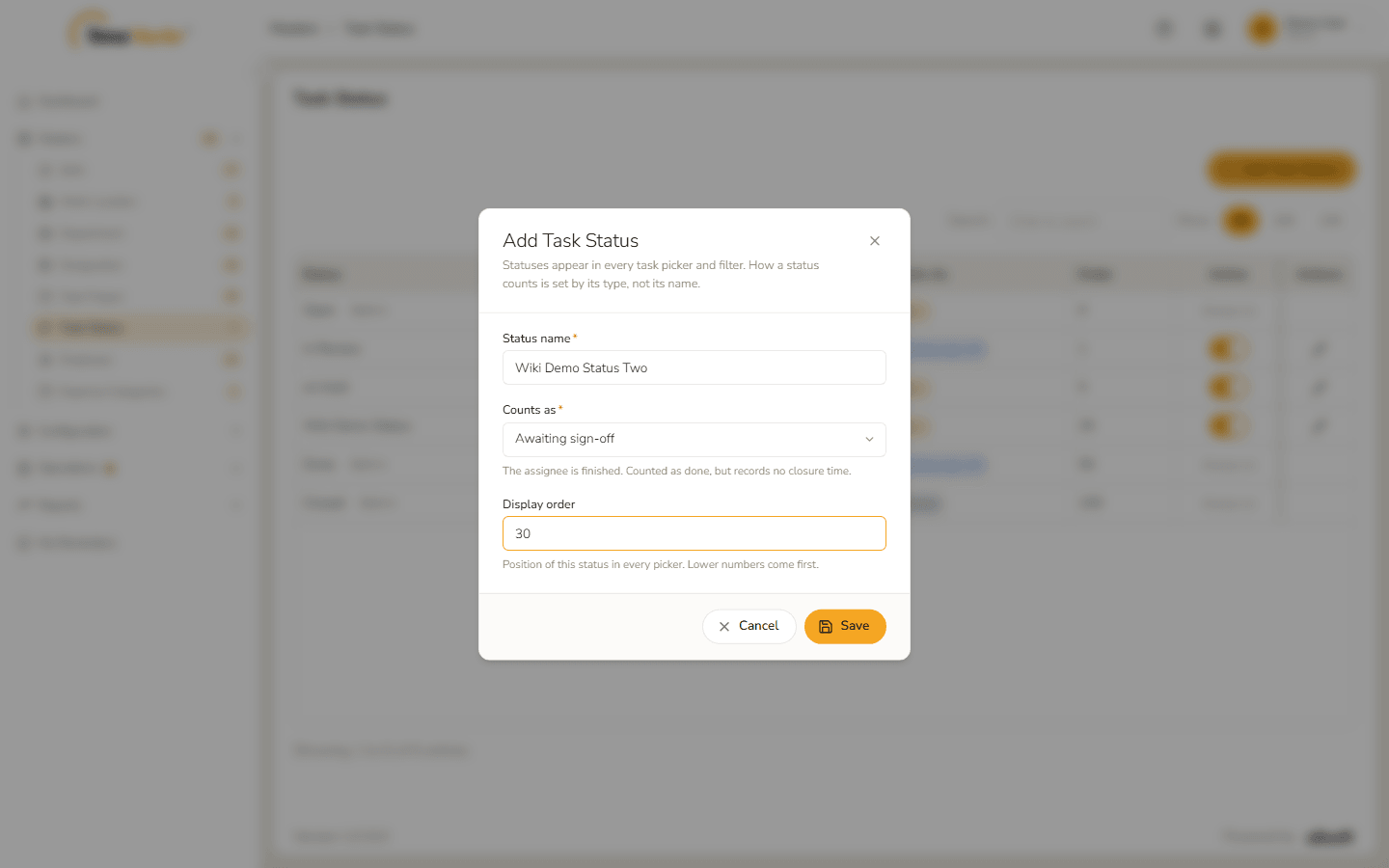
Form filled in Click Save. A Status created message explains what the new status means – it is available to everyone in the company, and which group it is counted in on the Task Dashboard. Click Got it.
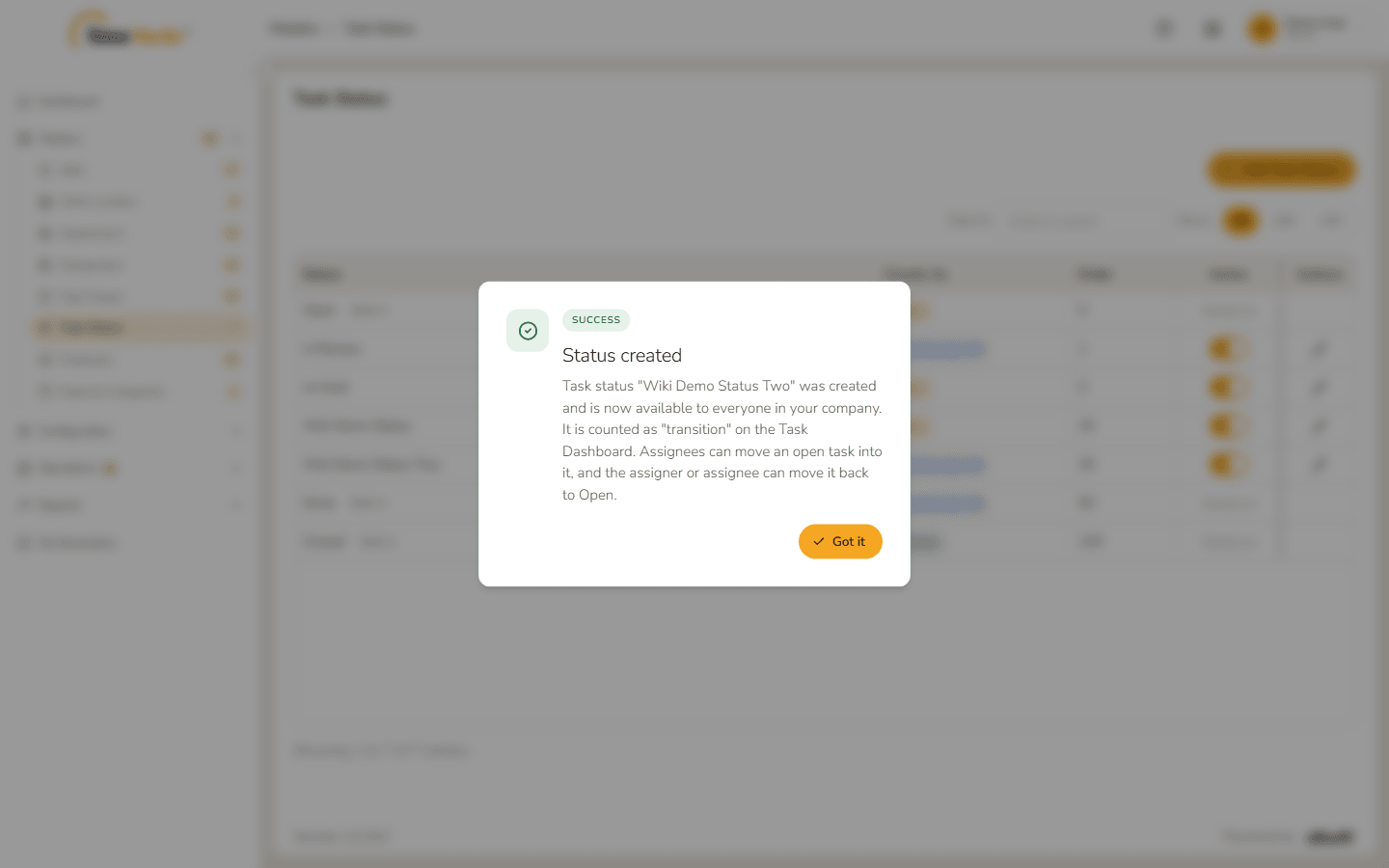
Status created The status is in the list, in its place in the order.
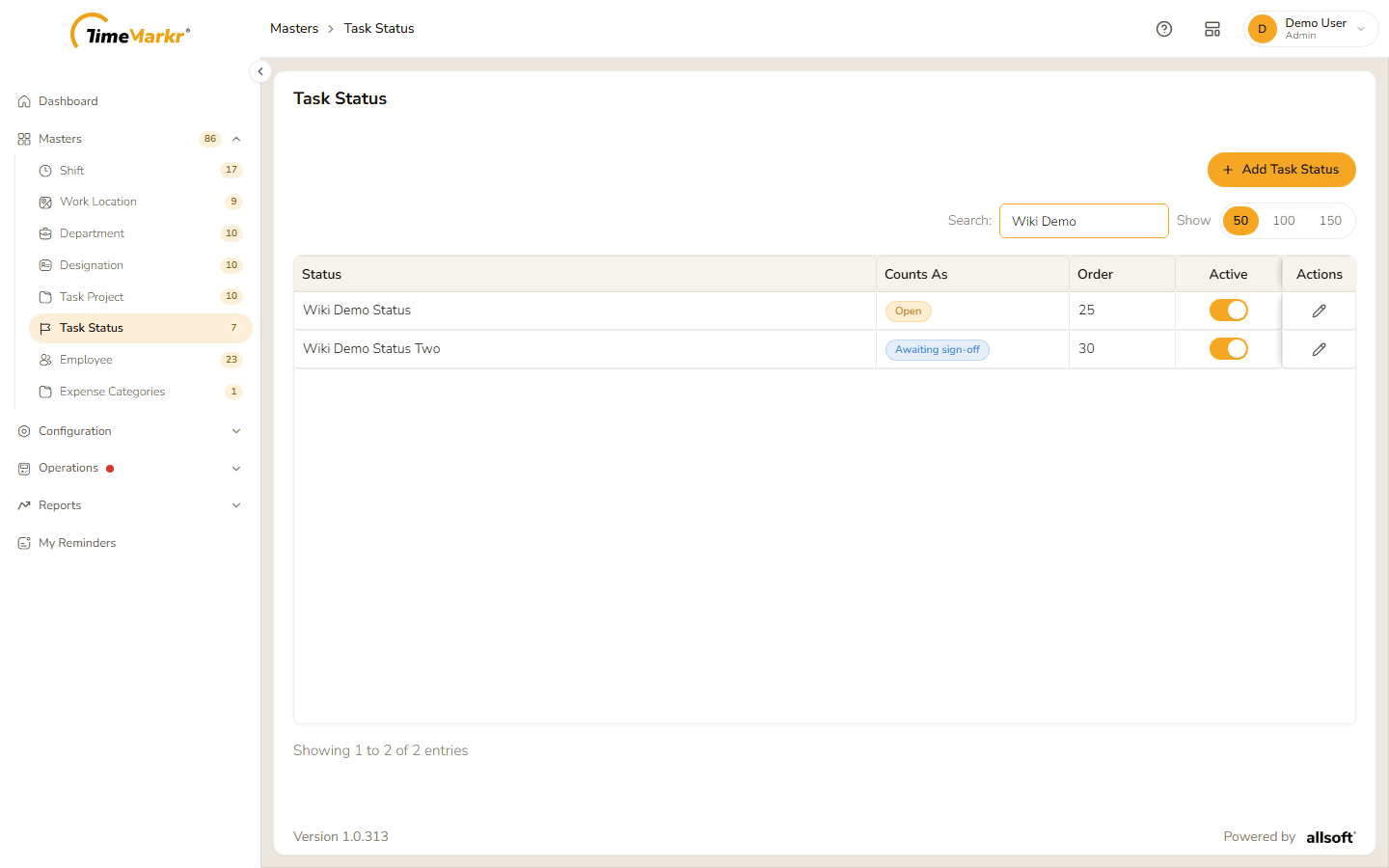
New status in the list
3. Edit a task status
Click the pencil on the status's row.
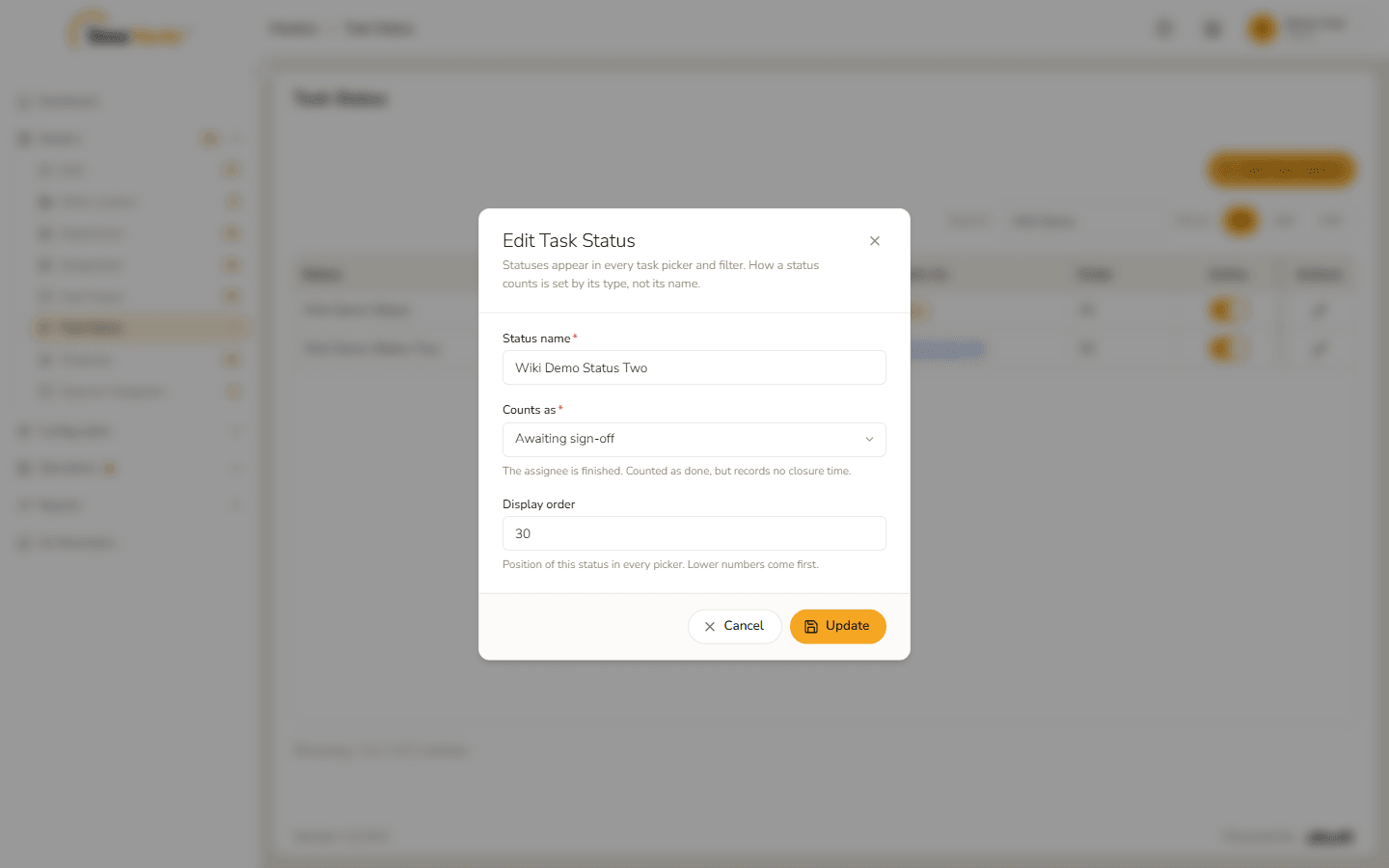
Edit Task Status form Change the name, the type or the display order – here the order becomes 35.
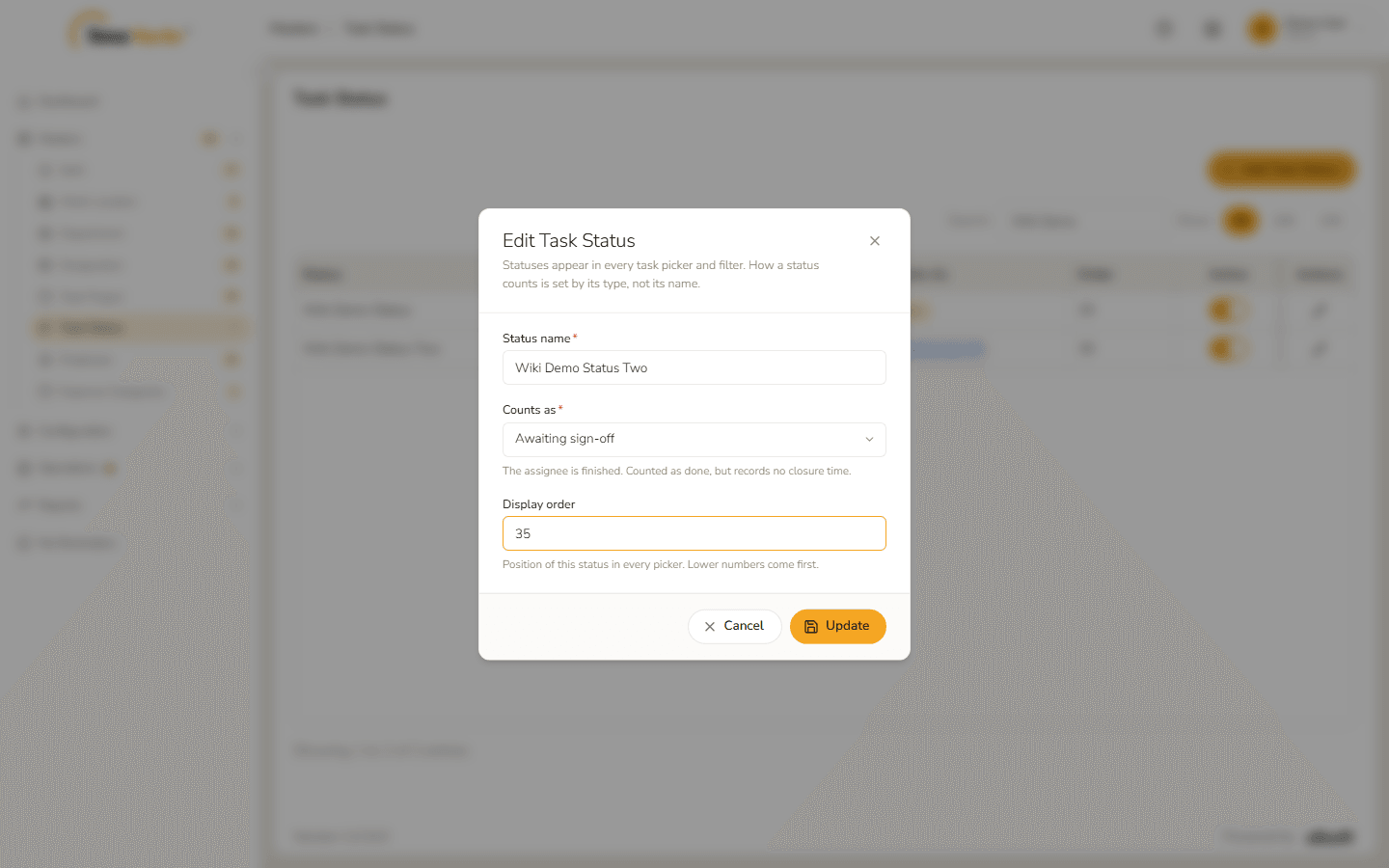
Display order changed Click Update. Status updated explains the result and adds "Tasks already using it keep their status; only the name and the grouping changed."
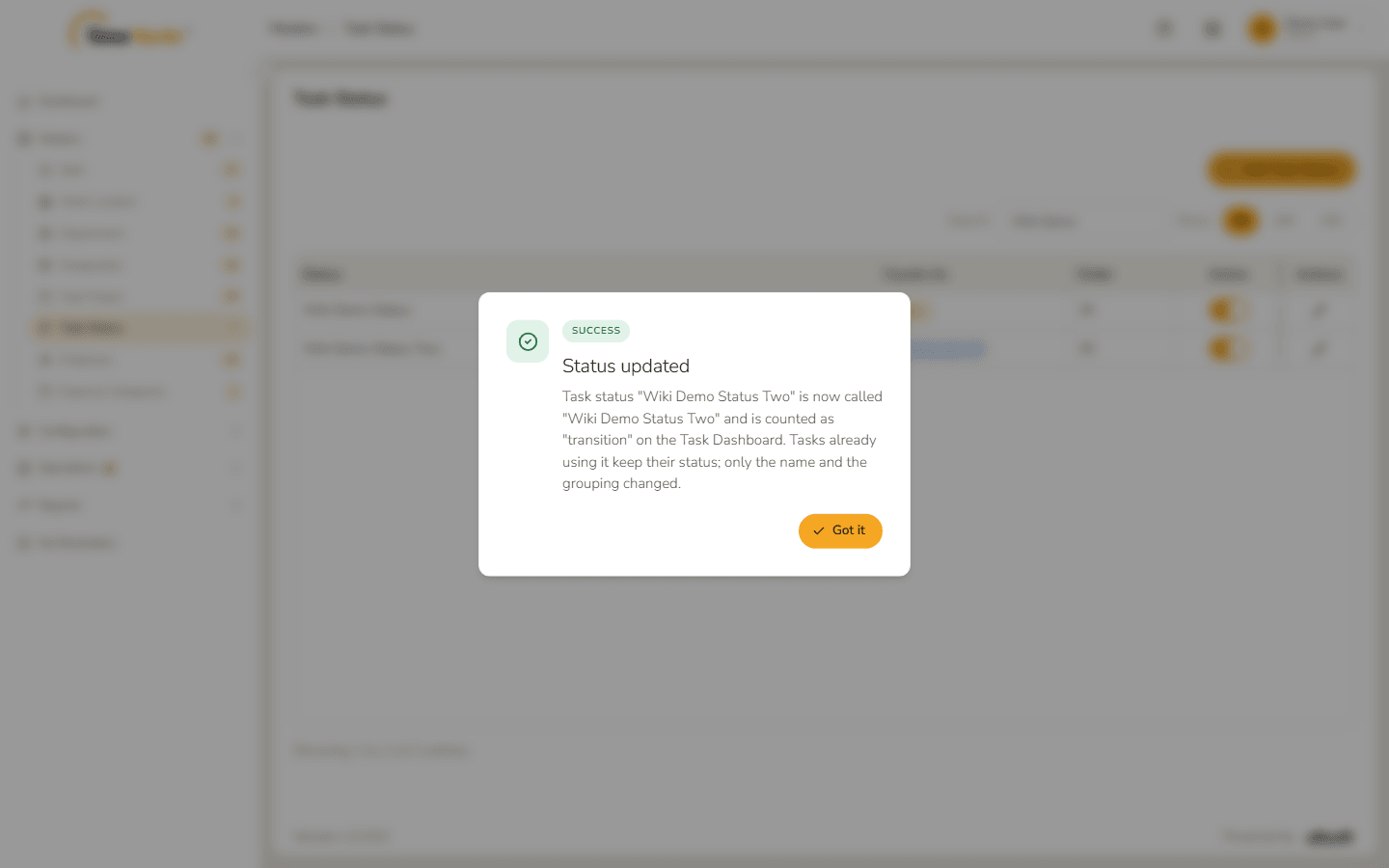
Status updated
Hide or show a status
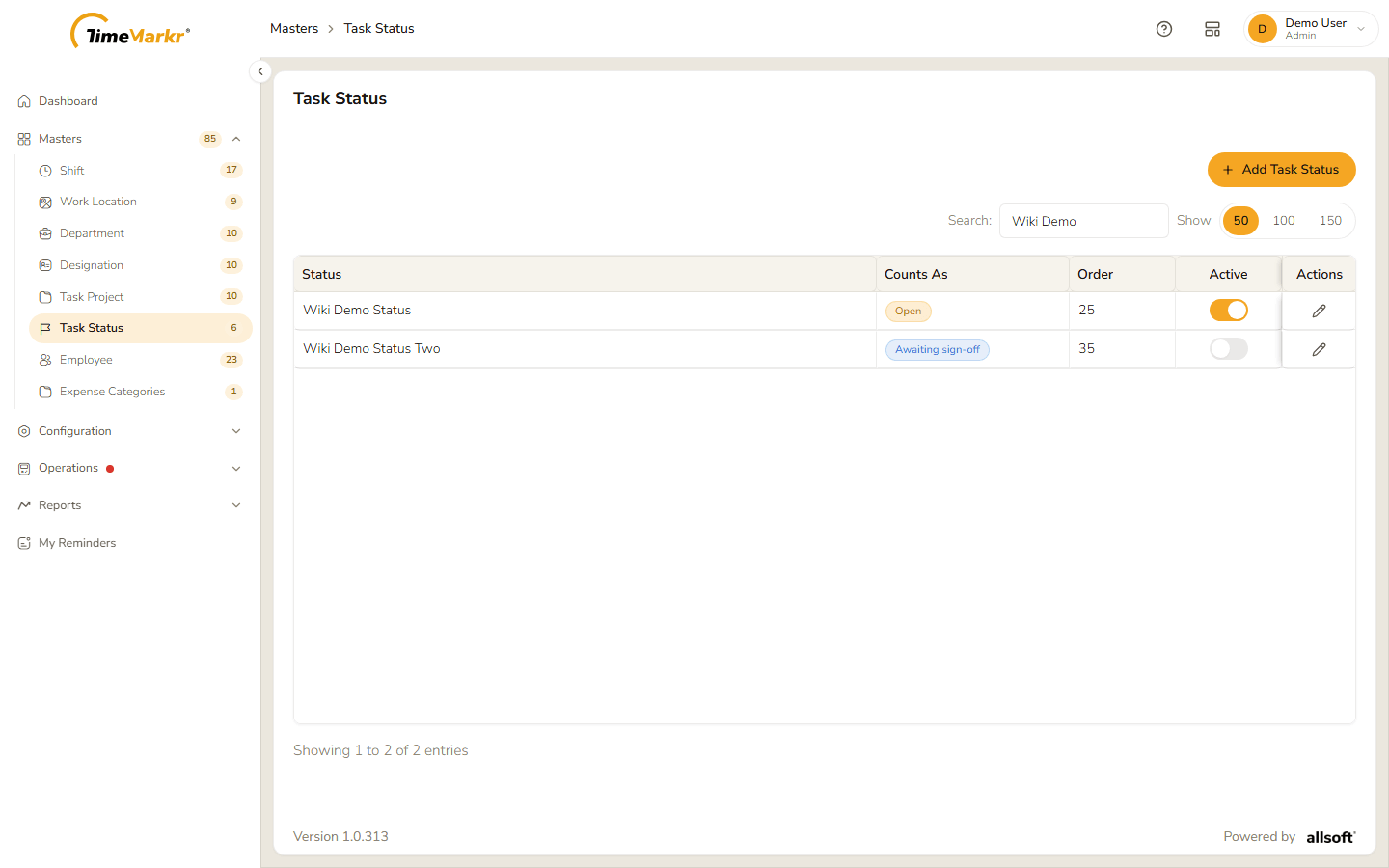
Use the switch in the Active column. Turning it off shows Status visibility updated: the status "is now hidden and cannot be picked on new tasks", and tasks that already use it keep it. Turning it on again says the status "is visible again and can be picked on any open task".
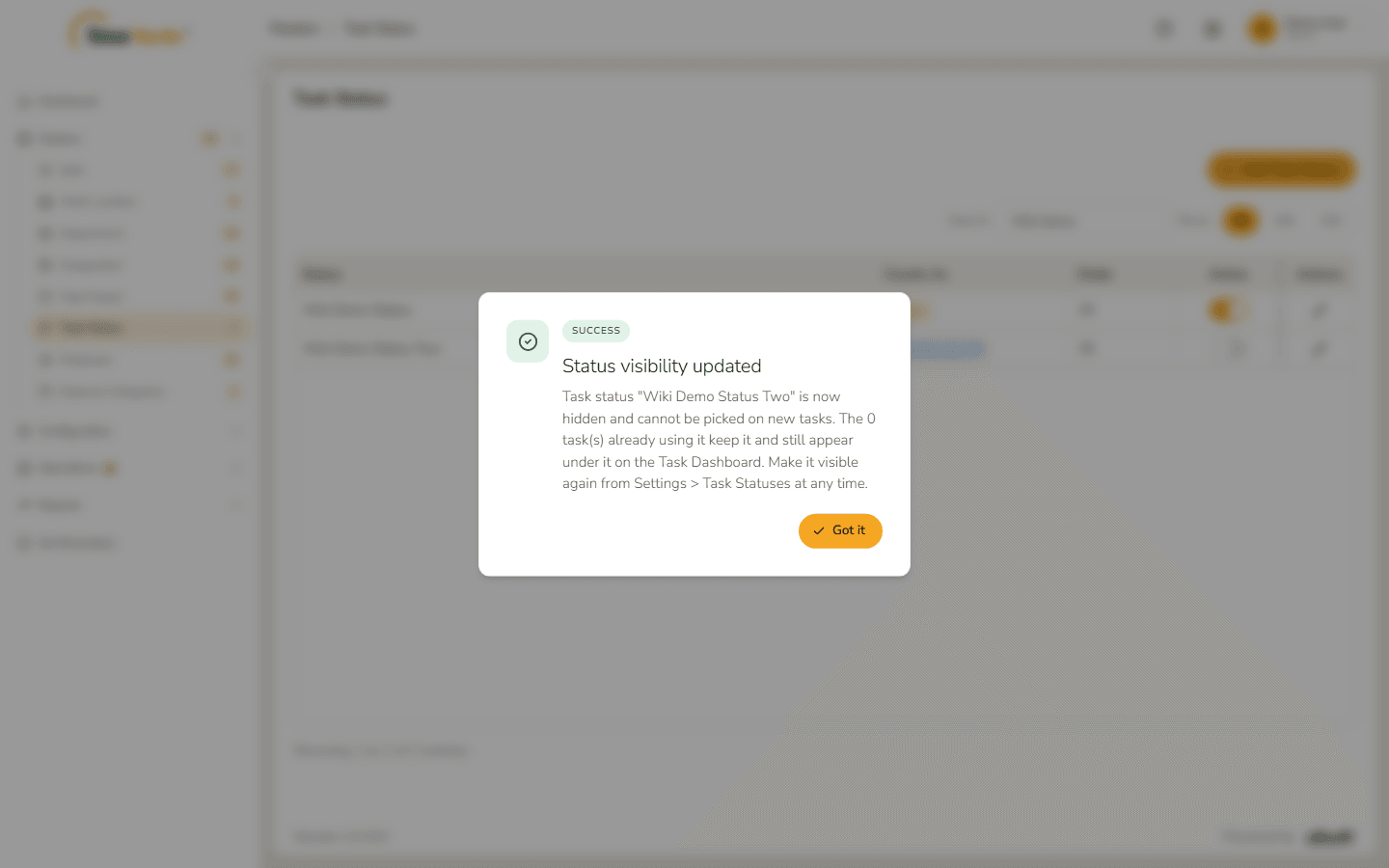
A hidden status stays in the list with its switch off.
Related: Task Project · Tasks (employee portal)