
Notification Settings
Where: Admin portal → Configuration → Notification Settings
Route: /configuration/notification-settings (a notification can be opened directly with ?module=<name>, for example ?module=punch_in_reminder)
Decide when each automatic notification goes out, how it is sent, whether it is switched on and who else receives a copy. The page says: "Every notification is set up the same way: when it goes out, how it is sent, whether it is on, and anyone else who should get a copy." All times are in your company's time zone – the page states it, for example "Every time below runs in Asia/Kolkata."
1. Find a notification
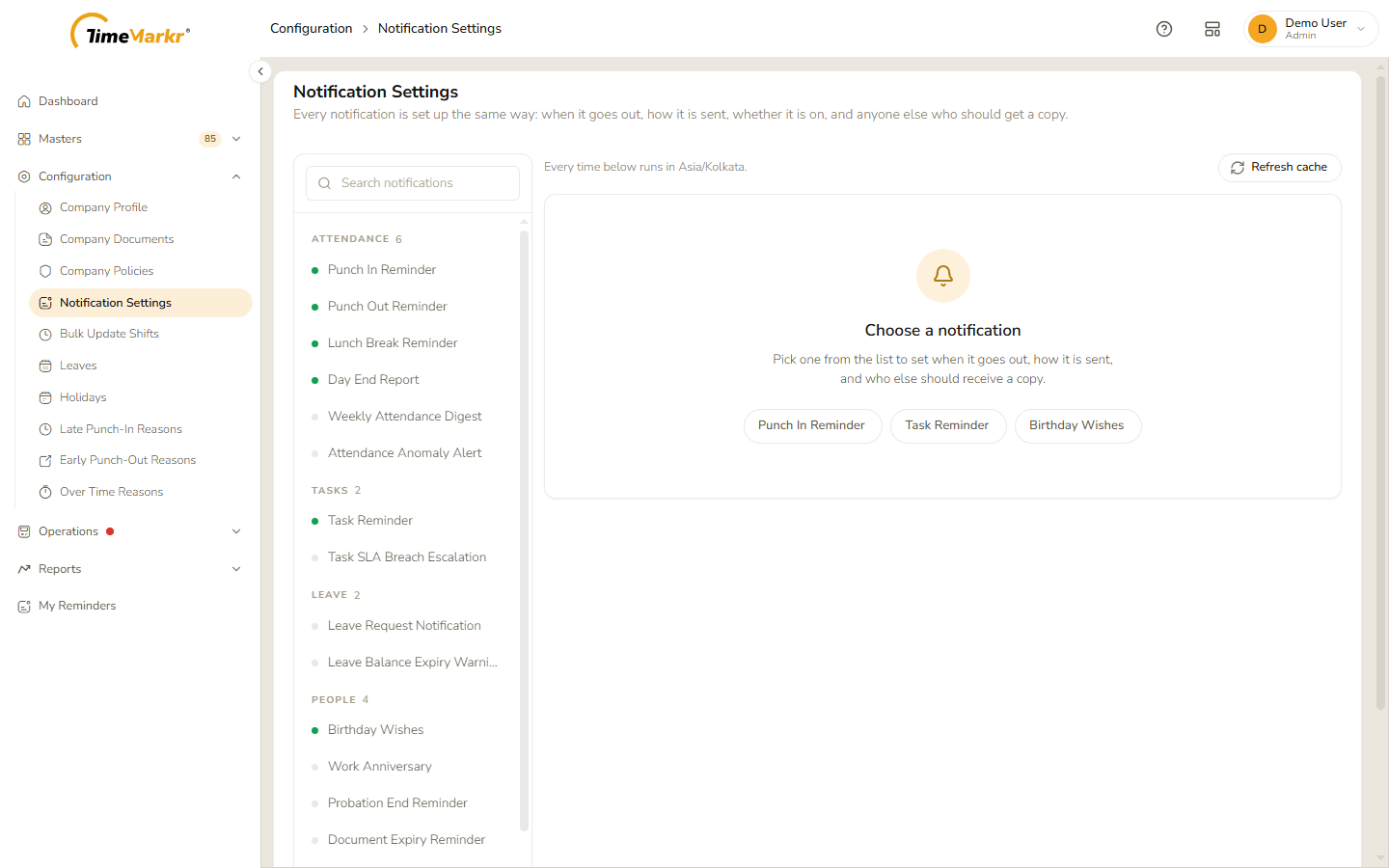
The list on the left groups the notifications. A small dot in front of a name is green when the notification is on.
| Group | Notifications |
|---|---|
| Attendance | Punch In Reminder · Punch Out Reminder · Lunch Break Reminder · Day End Report · Weekly Attendance Digest · Attendance Anomaly Alert |
| Tasks | Task Reminder · Task SLA Breach Escalation |
| Leave | Leave Request Notification · Leave Balance Expiry Warning |
| People | Birthday Wishes · Work Anniversary · Probation End Reminder · Document Expiry Reminder |
| Field & Ops | Daily Work Progress Reminder · Payroll Cutoff Reminder · Geofence Breach Alert · Shift Roster Publish Notice |
Type in Search notifications to filter the list, click a name, or use one of the quick picks (Punch In Reminder, Task Reminder, Birthday Wishes) shown on the empty right-hand side. Until you choose one, the right-hand side says "Choose a notification – Pick one from the list to set when it goes out, how it is sent, and who else should receive a copy."
The Refresh cache button at the top right of the page reloads the settings from the server.
2. A notification's card
Choosing a notification opens its card.
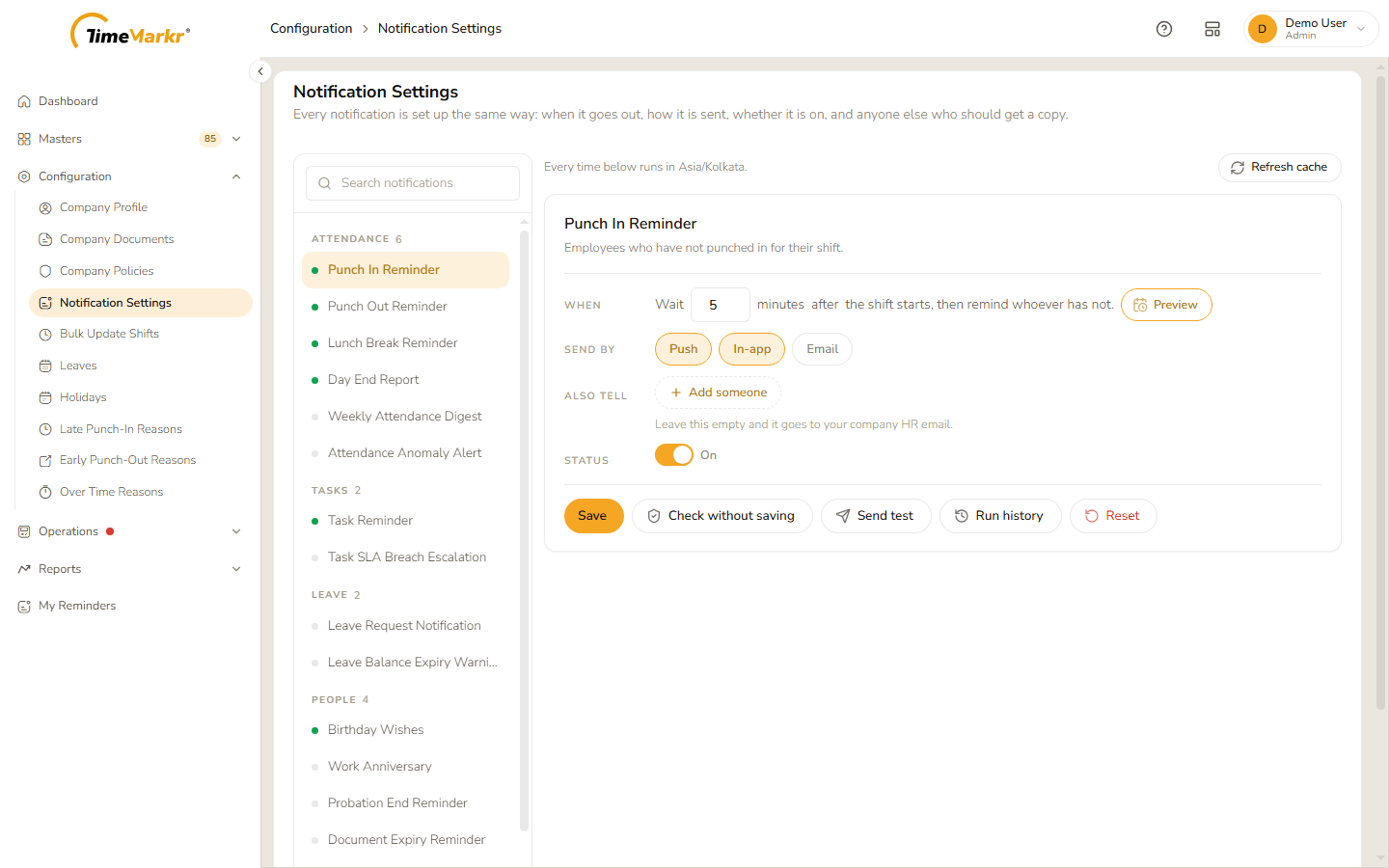
Every card has the same four rows:
| Row | What it does |
|---|---|
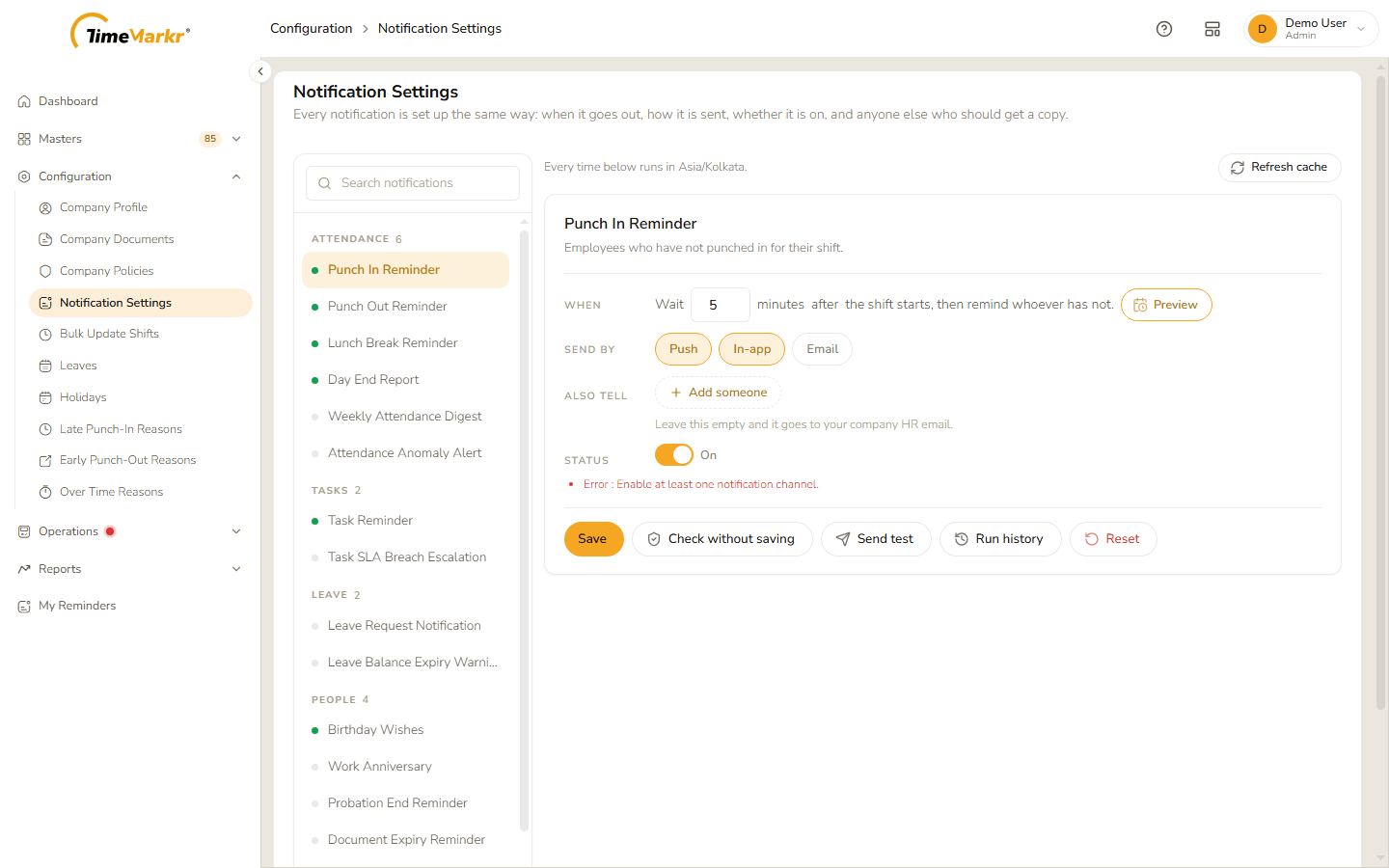
| When | When the notification goes out. It depends on the notification: the Punch In Reminder reads "Wait [5] minutes after the shift starts, then remind whoever has not."; Birthday Wishes reads "At [09]:[00], on the day."; Leave Request Notification reads "As soon as it happens." (fixed, nothing to set). |
| Send by | Three buttons – Push, In-app and Email. A button with an amber fill is selected; click a button to turn that channel on or off. |
| Also tell | Add someone turns into a Search employees list where you pick another recipient. The line underneath says who receives it by default – for most notifications "Leave this empty and it goes to your company HR email."; for the Leave Request Notification "Your company HR address already receives this. Anyone added here is told as well." |
| Status | A switch: On or Off. |
Unsaved changes
As soon as you change a card, an Unsaved changes tag appears on it and a yellow notice at the top of the page says "1 notification has unsaved changes. Save each one before leaving this page, or the edits are lost." and names the notification. If you try to leave the page the browser asks you to confirm.
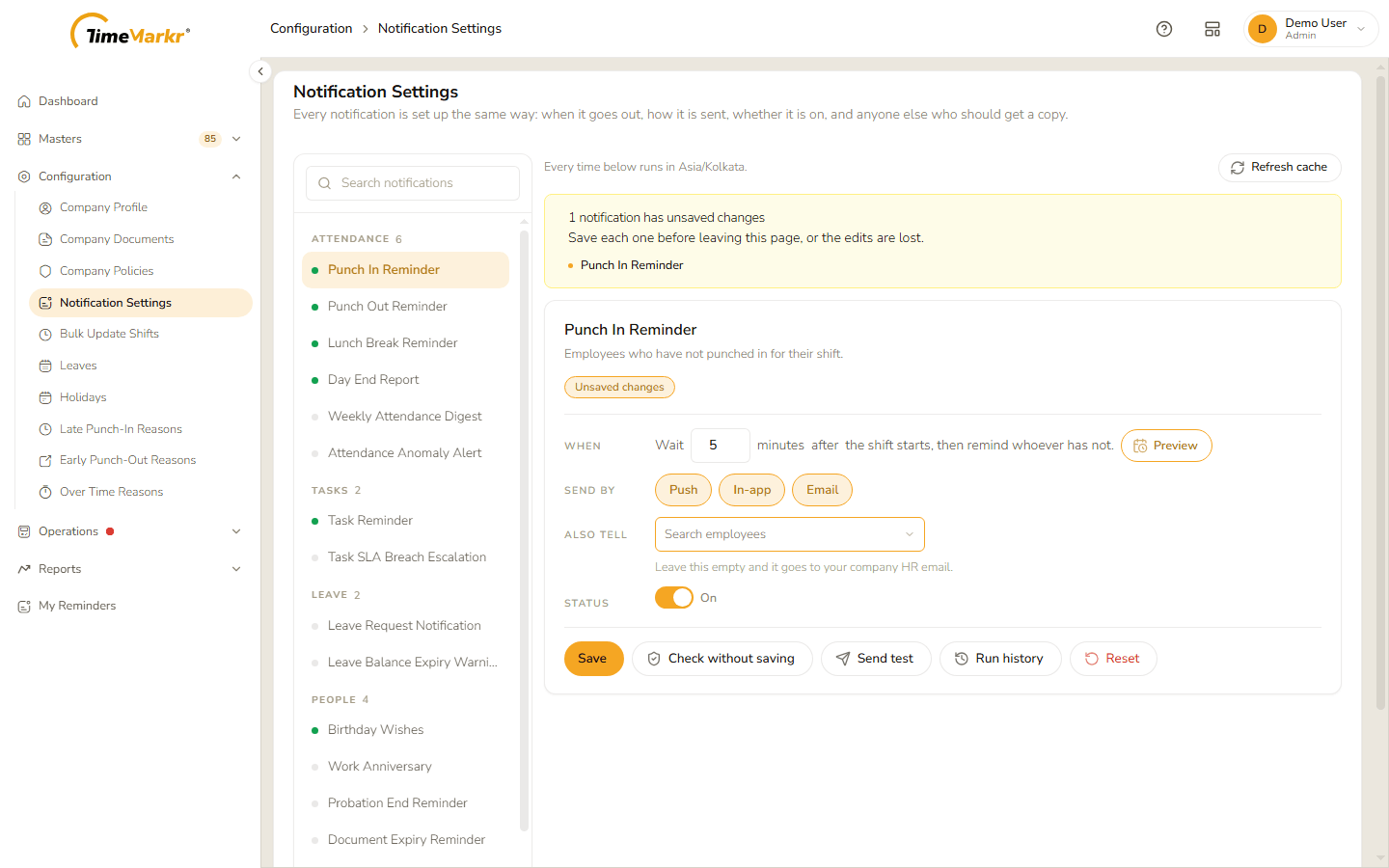
The buttons at the bottom of a card are Save, Check without saving, Run history and Reset. The Punch In Reminder card also has Send test, and the Leave Request Notification card has a More options row.
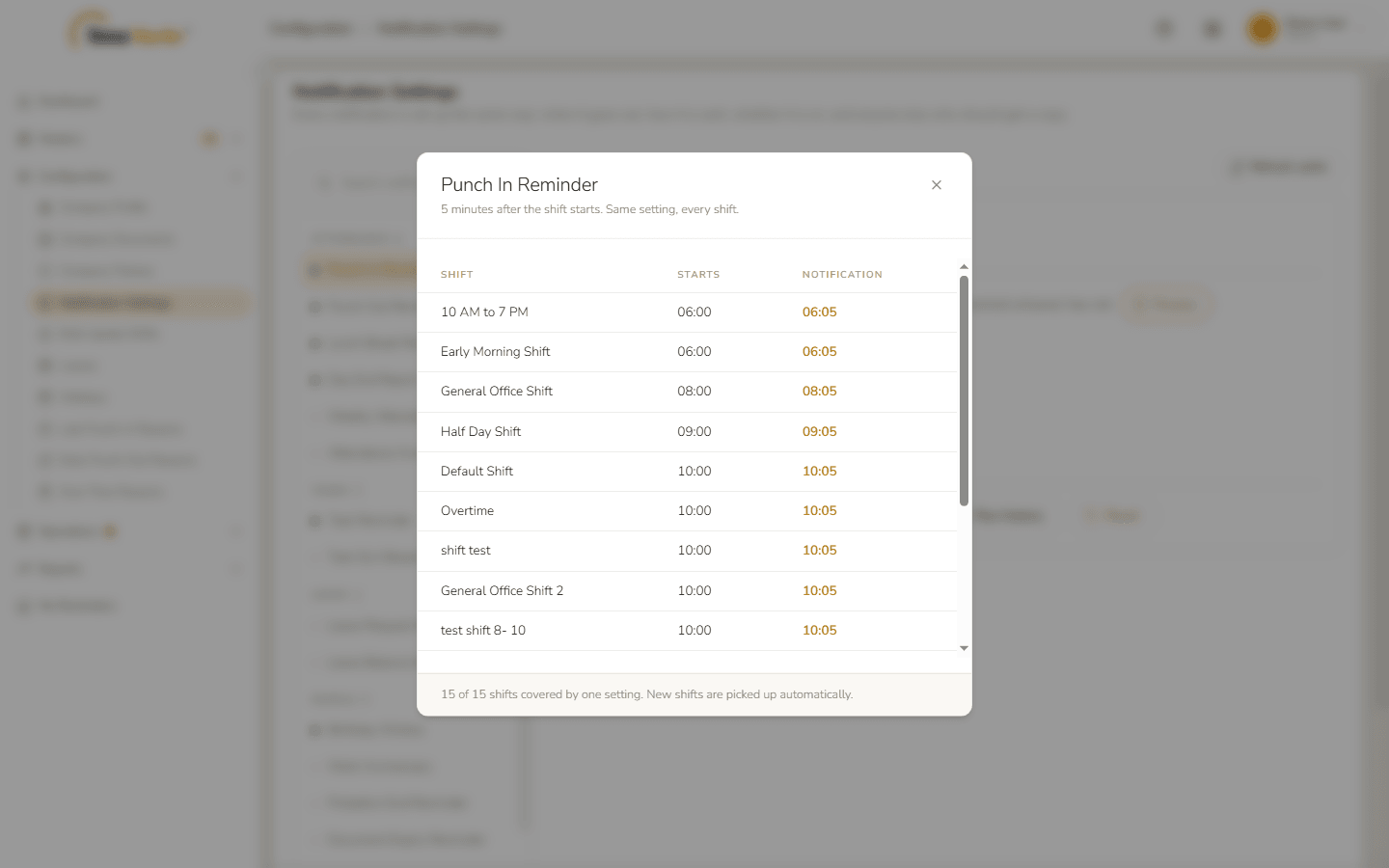
Preview (Punch In Reminder)
The Preview button beside the When row opens a table that shows, for every shift, when the shift starts and when the reminder will go out – for a 5-minute wait, a 10:00 shift gets its reminder at 10:05. The note at the bottom says "15 of 15 shifts covered by one setting. New shifts are picked up automatically."
Check without saving
Click Check without saving to have your settings checked without keeping them. A red line appears under Status when the check finds a problem – for example "Error : Enable at least one notification channel."
Run history
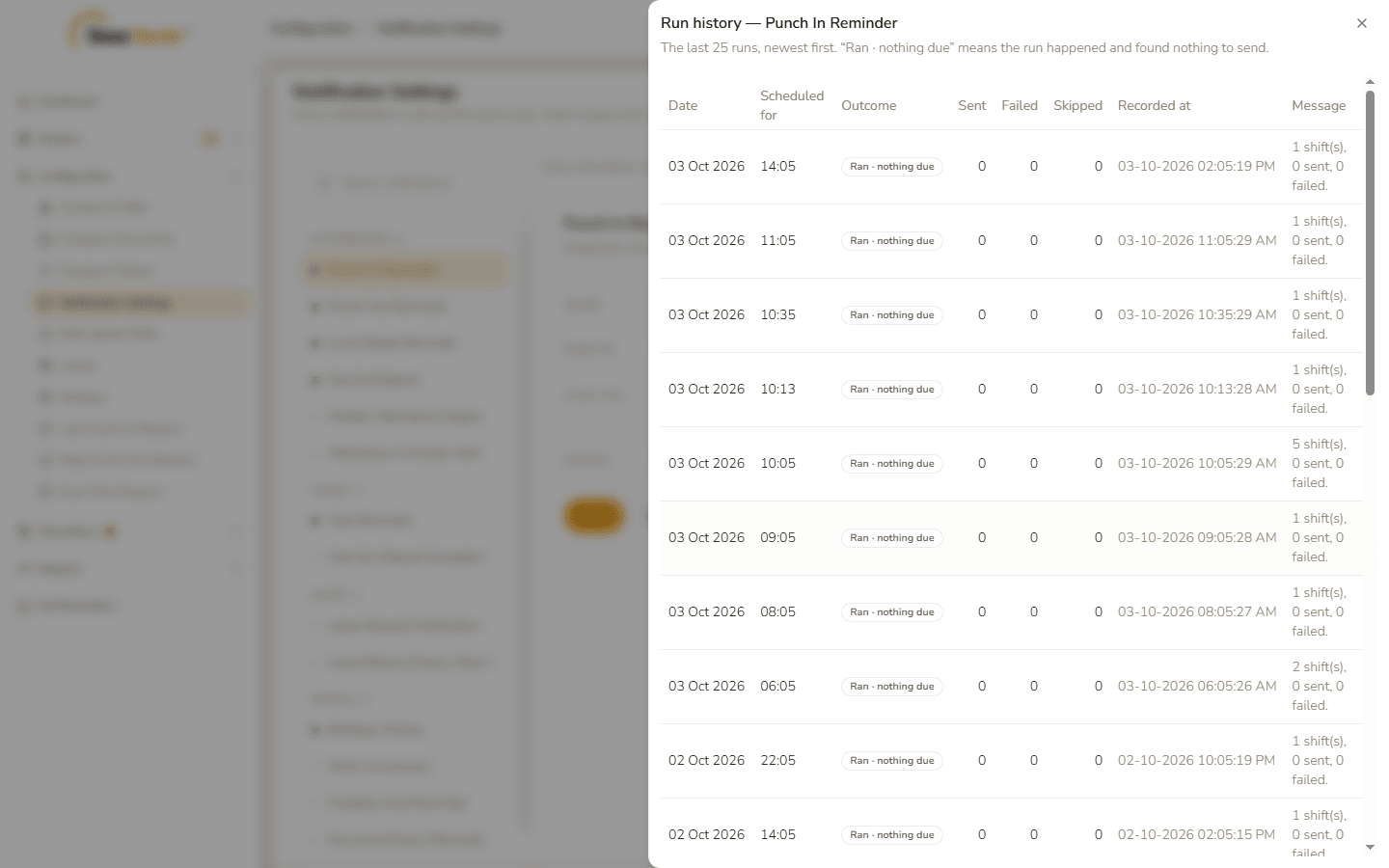
Run history opens "The last 25 runs, newest first." with one row per run: Date, Scheduled for, Outcome, Sent, Failed, Skipped, Recorded at and Message. The page explains the outcome Ran · nothing due: "the run happened and found nothing to send."
3. Other kinds of card
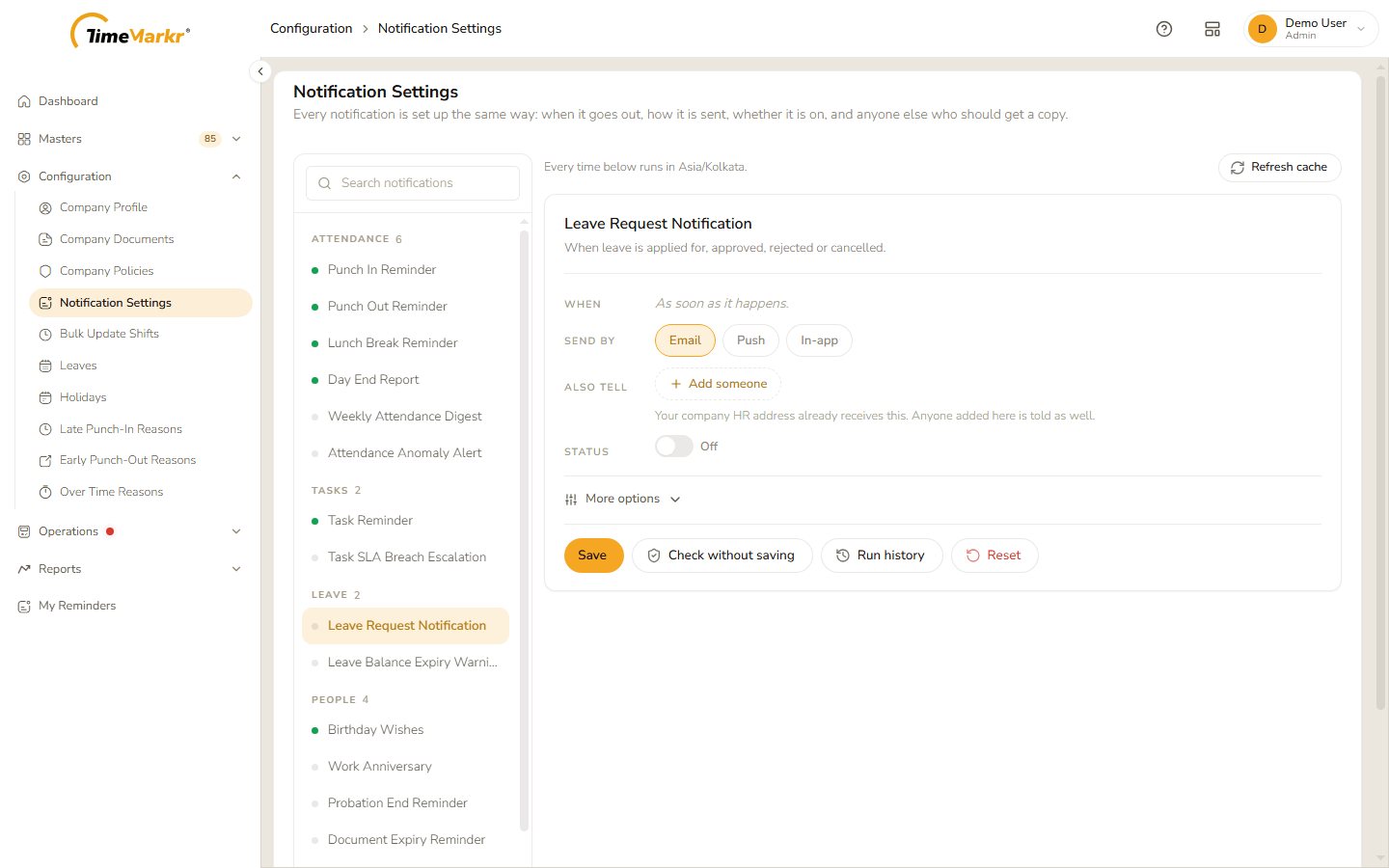
A notification that goes out "as soon as it happens" – such as the Leave Request Notification ("When leave is applied for, approved, rejected or cancelled.") – has nothing to schedule, so its When row is fixed text.
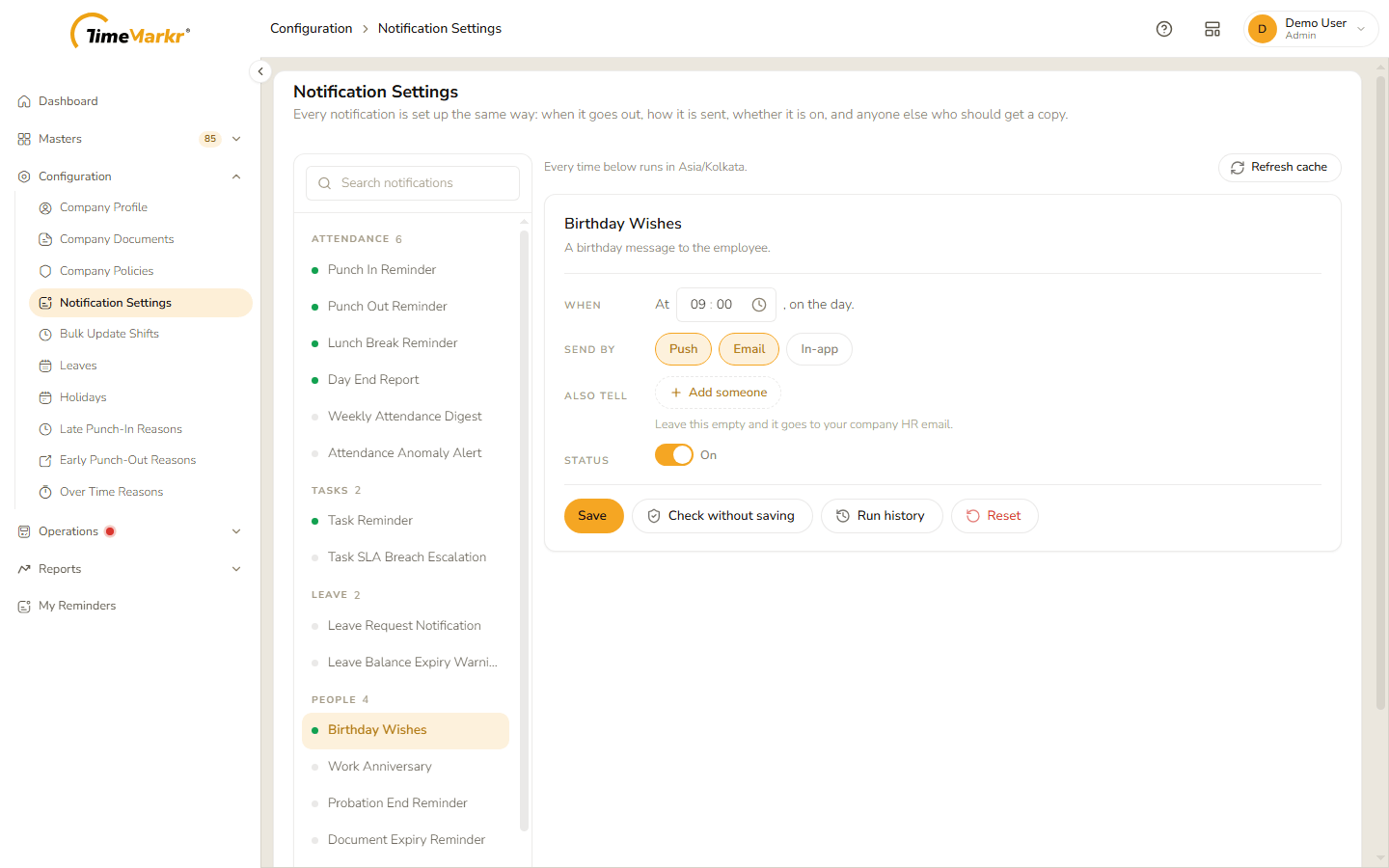
A notification sent at a fixed time of day – such as Birthday Wishes ("A birthday message to the employee.") – lets you set the hour and minute.
Related: Company Profile · Leave Requests · Reminders