
Daily Progress Report
Where: Admin portal → Reports → Daily Progress Report
Route: /reports/daily-progress-report
The daily progress notes your employees have logged – what each person wrote about their day. See Reports – the basics for Search and Show.
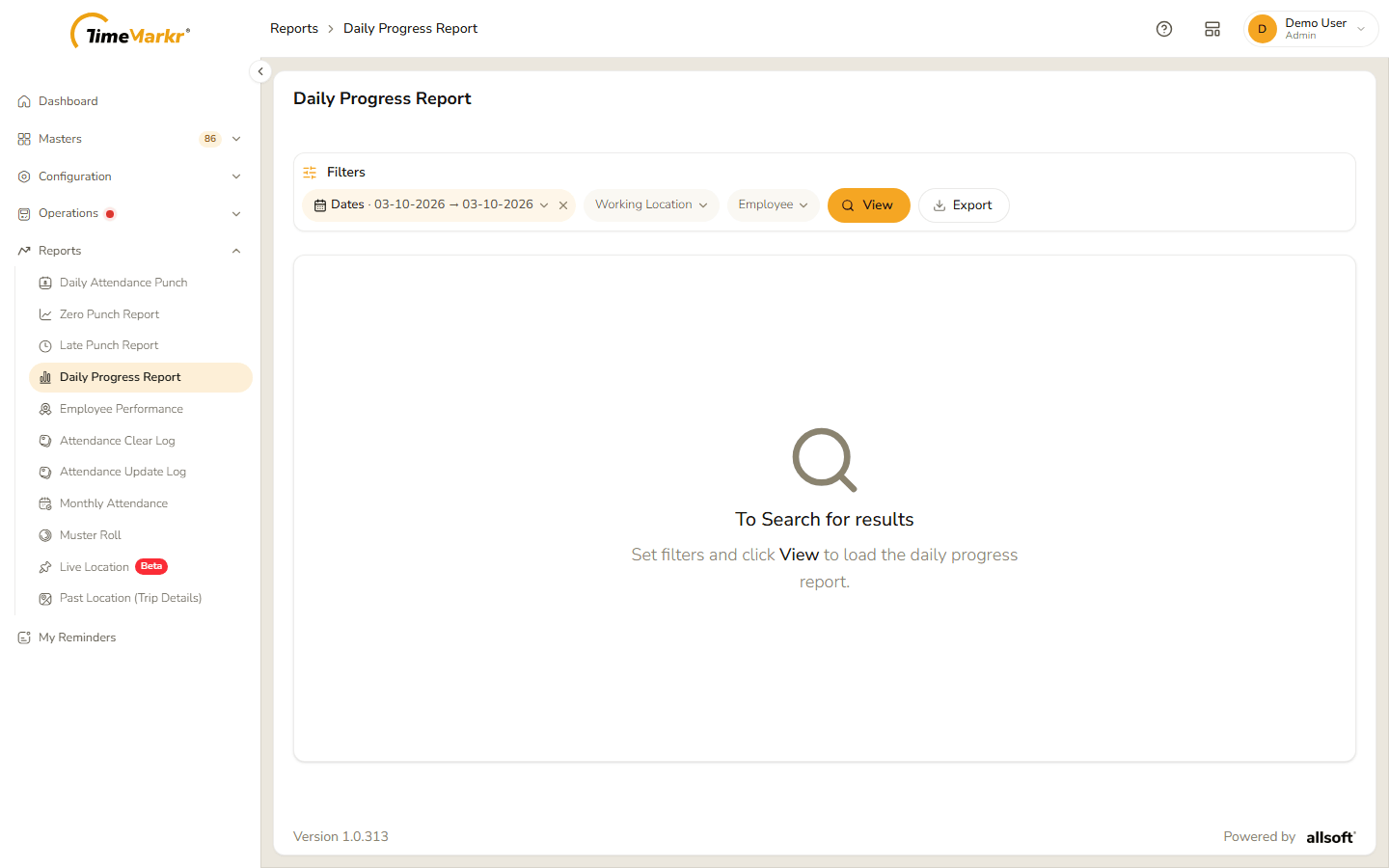
The page opens empty: "To Search for results – Set filters and click View to load the daily progress report."
1. Run the report
- Click the Dates pill, pick the first and the last day in the two boxes and click Done. Both days must be today or earlier.
- Optionally pick a Working Location, and an Employee (type at least three characters of the name and pick the person). Leave the employee empty to see the notes of everyone who matches the dates and the location.
- Click View. Clear all filters starts again.
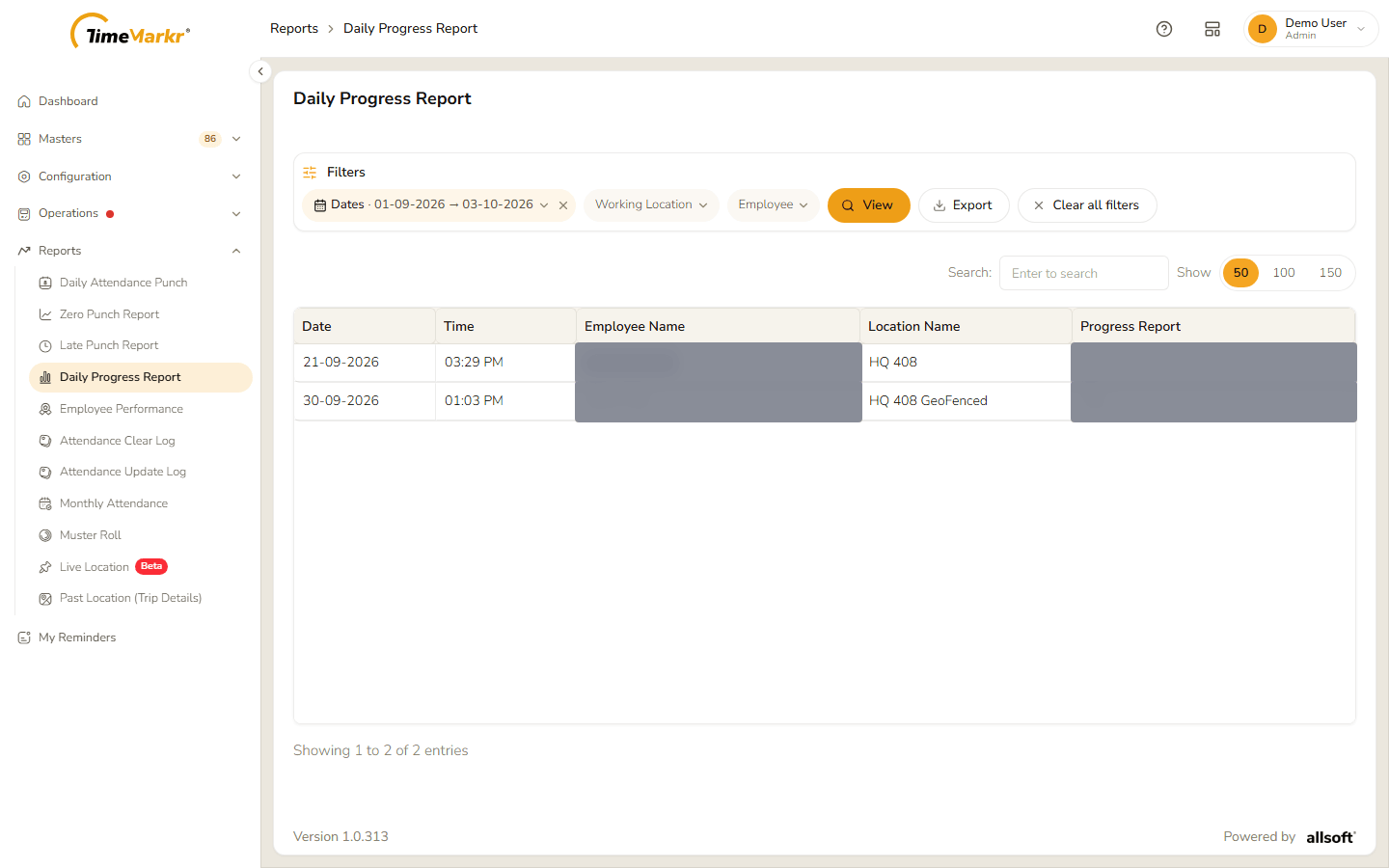
| Column | What it shows |
|---|---|
| Date / Time | When the note was logged. |
| Employee Name | Who wrote it. |
| Location Name | The employee's working location. |
| Progress Report | What the employee wrote. |
Export downloads the notes that match the filters as an Excel file.
Related: Employee Performance · Daily Attendance Punch