
My Reminders
Where: Employee portal → My Reminders
Route: /employee/reminders
Personal reminders. A reminder is a note with a date and a time. At that time it pops up and asks you to snooze it or mark it done. Reminders are "Private to you" – nobody else can see them – and the page says they reach "every device you are signed in on".
The same page exists in the admin portal as My Reminders (
/reminders) and works the same way – see My Reminders (admin).
1. The page
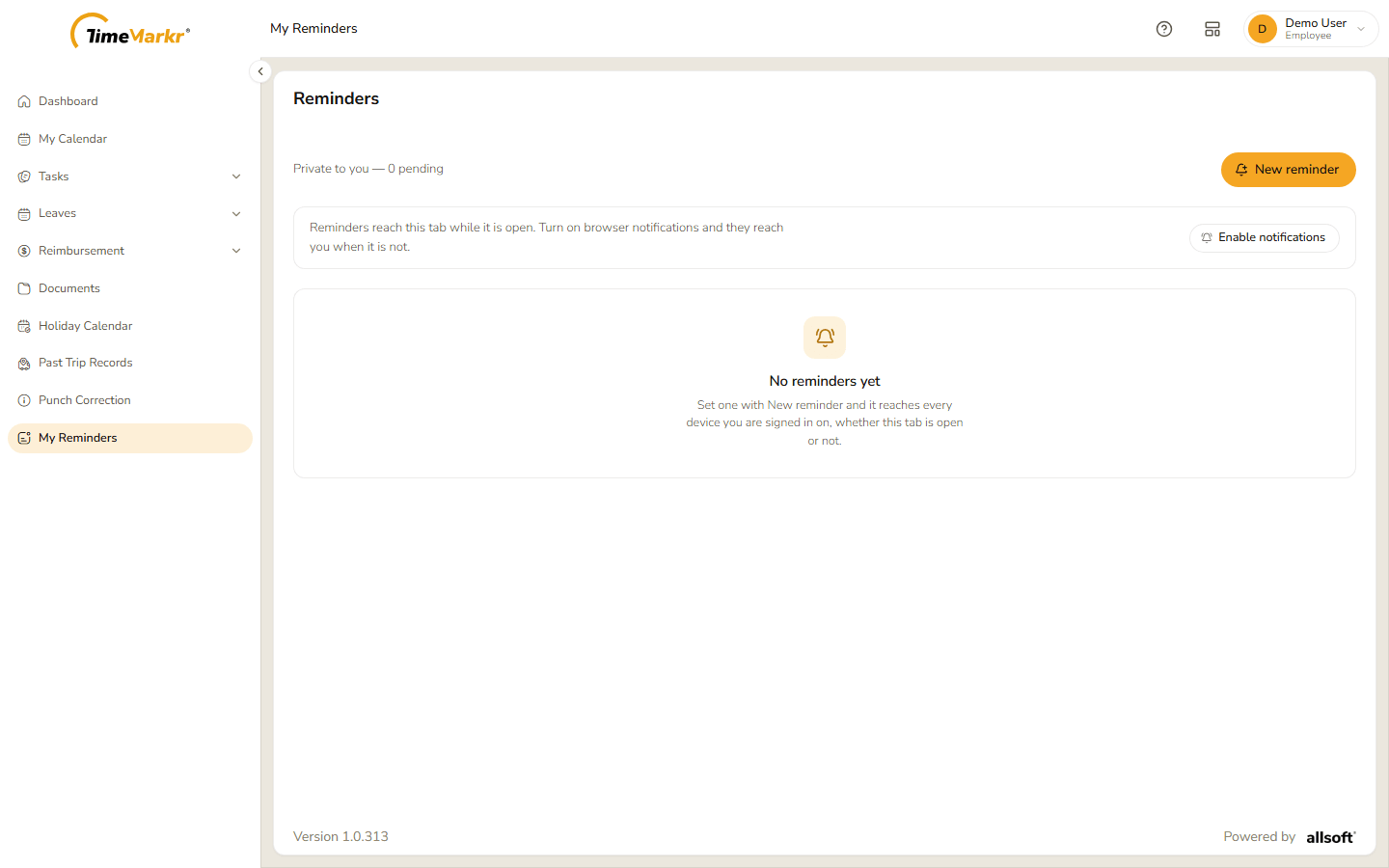
- The line under the heading shows how many reminders are waiting – for example "Private to you — 0 pending".
- New reminder creates one.
- A grey bar says "Reminders reach this tab while it is open. Turn on browser notifications and they reach you when it is not." Click Enable notifications to allow the browser to notify you when the TimeMarkr tab is closed.
- With no reminders the page says "No reminders yet – Set one with New reminder and it reaches every device you are signed in on, whether this tab is open or not."
- The My Reminders entry in the menu shows a number when reminders are waiting.
2. Create a reminder
Click New reminder.
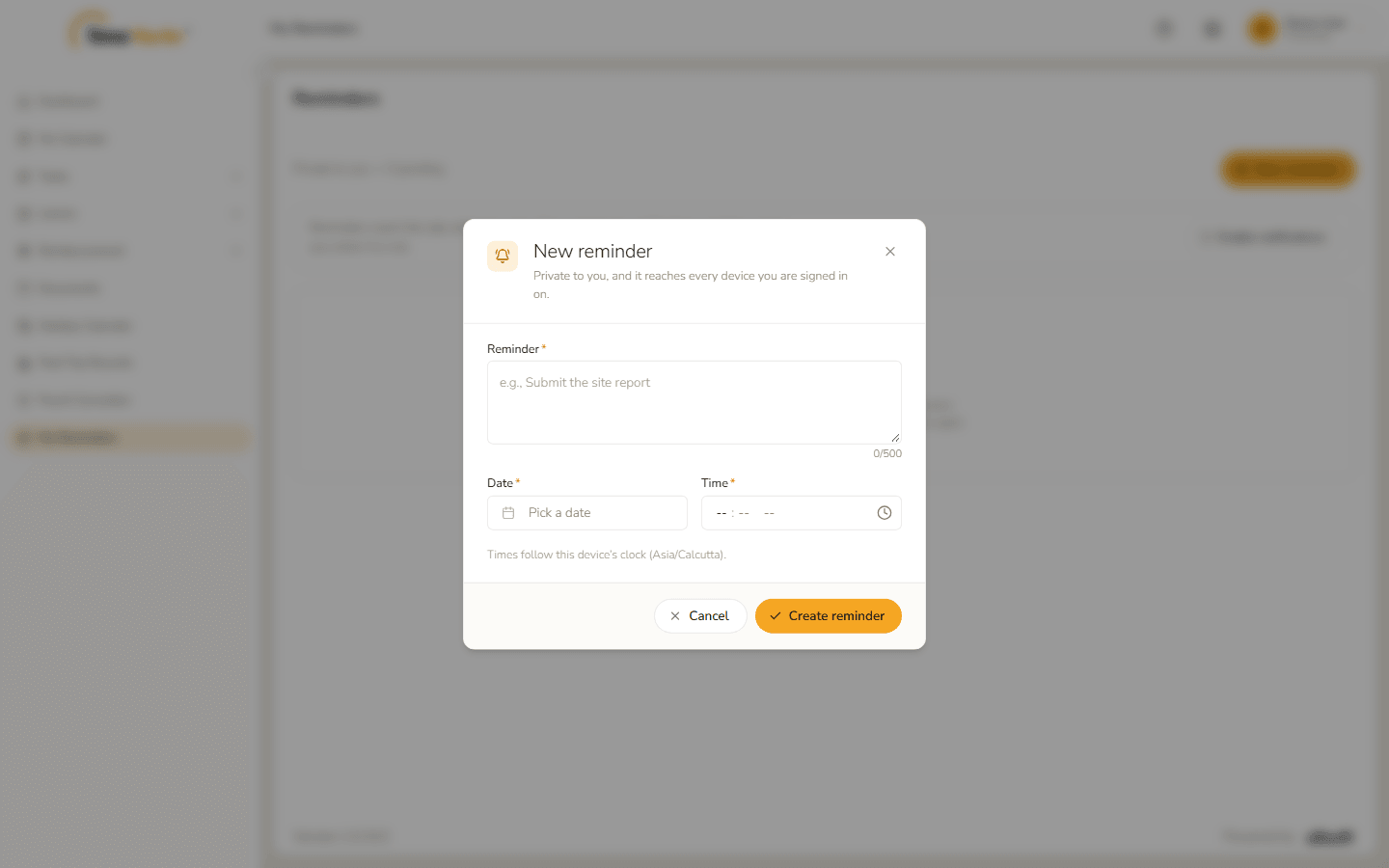
New reminder form Fill it in.
Field Notes Reminder* What to be reminded of, up to 500 characters (a counter such as 52/500shows how many you have used).Date* Click Pick a date and choose the day from the calendar. Time* Hour, minutes and AM/PM. The form notes "Times follow this device's clock (Asia/Calcutta)." – the time zone of the device. 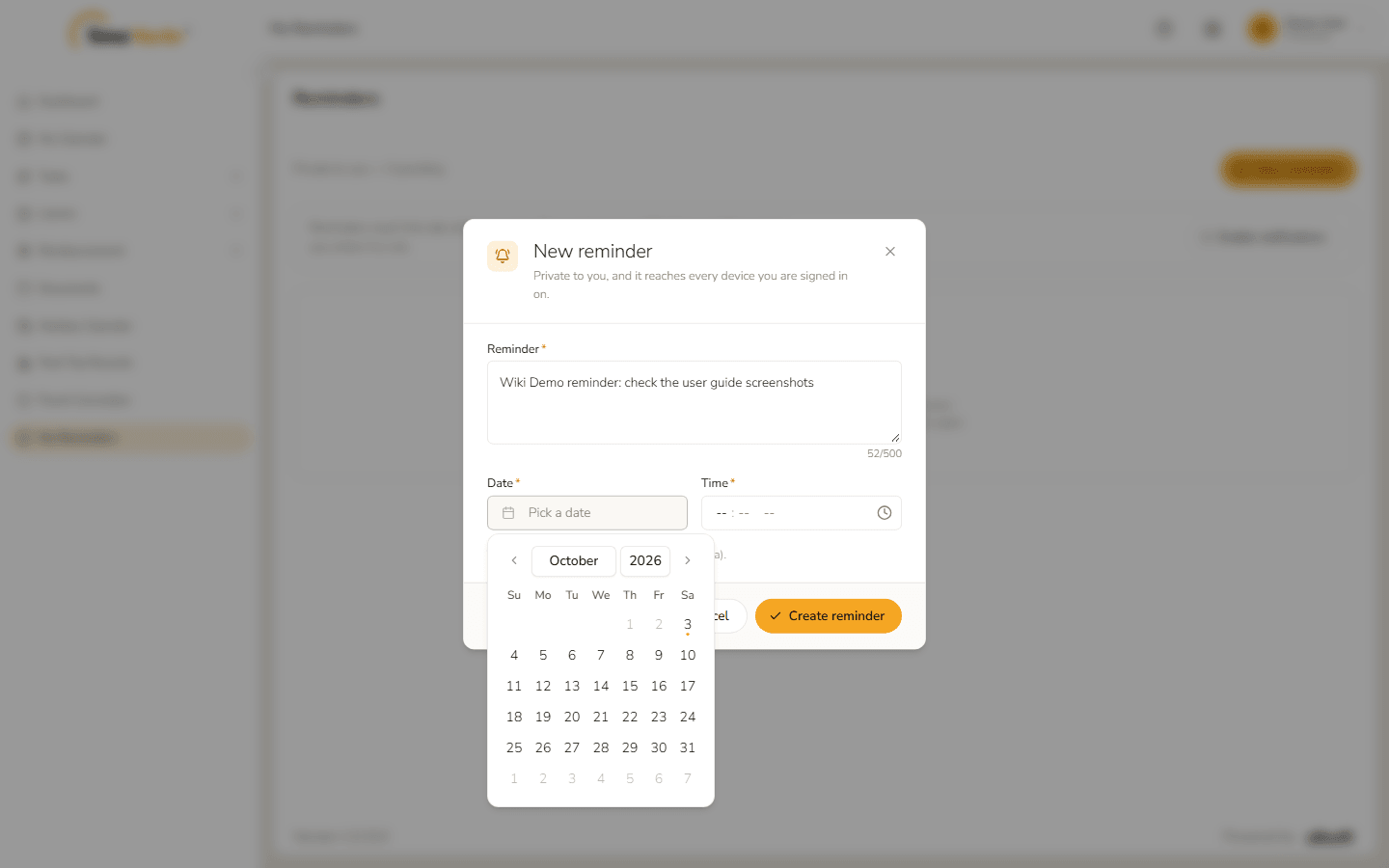
The date picker 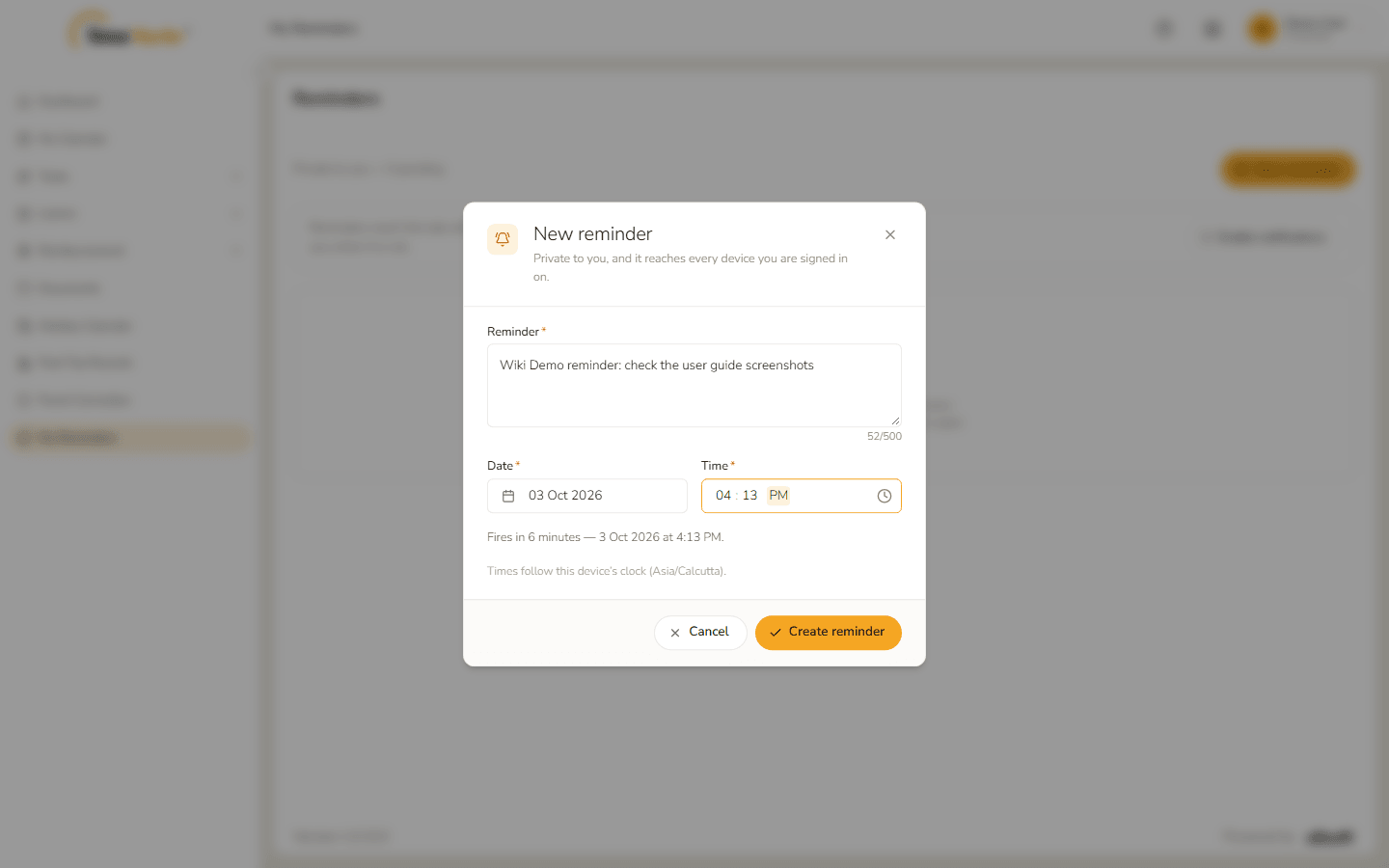
Form filled in Click Create reminder. Reminder saved – Saved. confirms it. Click Got it.
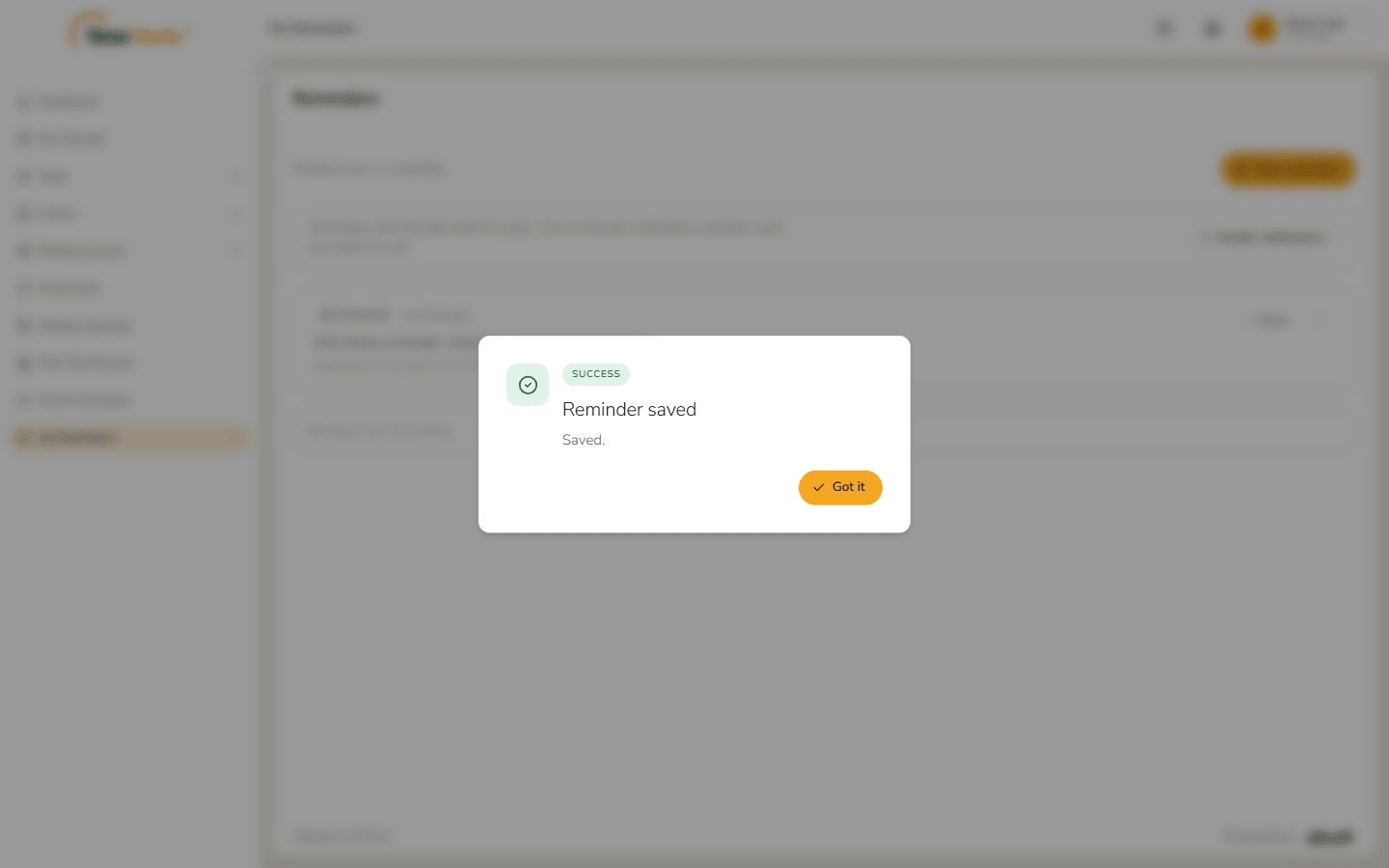
Reminder saved The reminder is on the page, marked Scheduled, with how long is left ("in 6 minutes") and when it will go off ("Scheduled 3 Oct 2026 at 4:13 PM"). Each reminder has a Done button and a ⋮ menu.
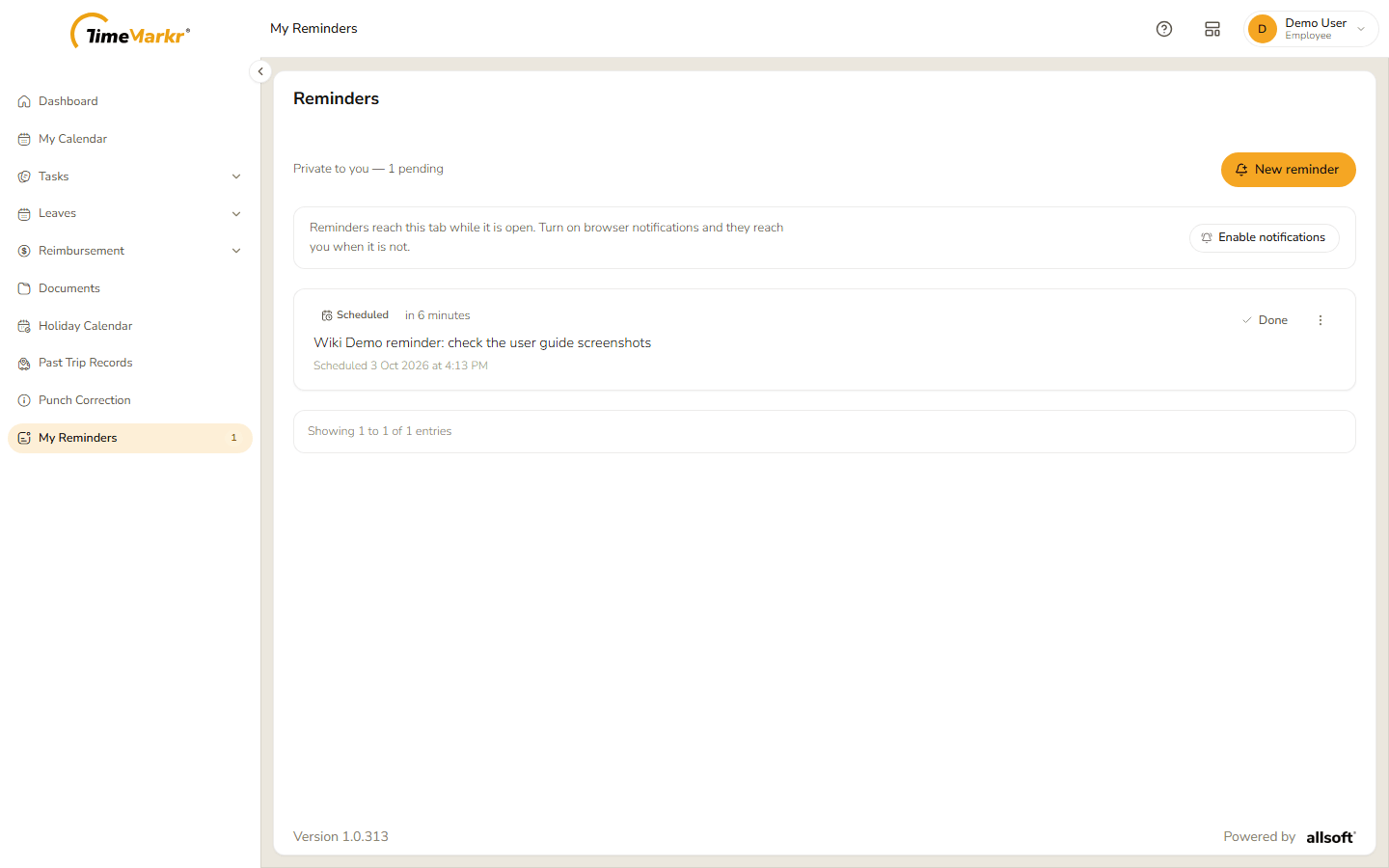
A scheduled reminder
3. When a reminder goes off
At the scheduled time a Reminder due now window opens on whichever screen you are on. It shows the text, when it was scheduled and "Due just now".
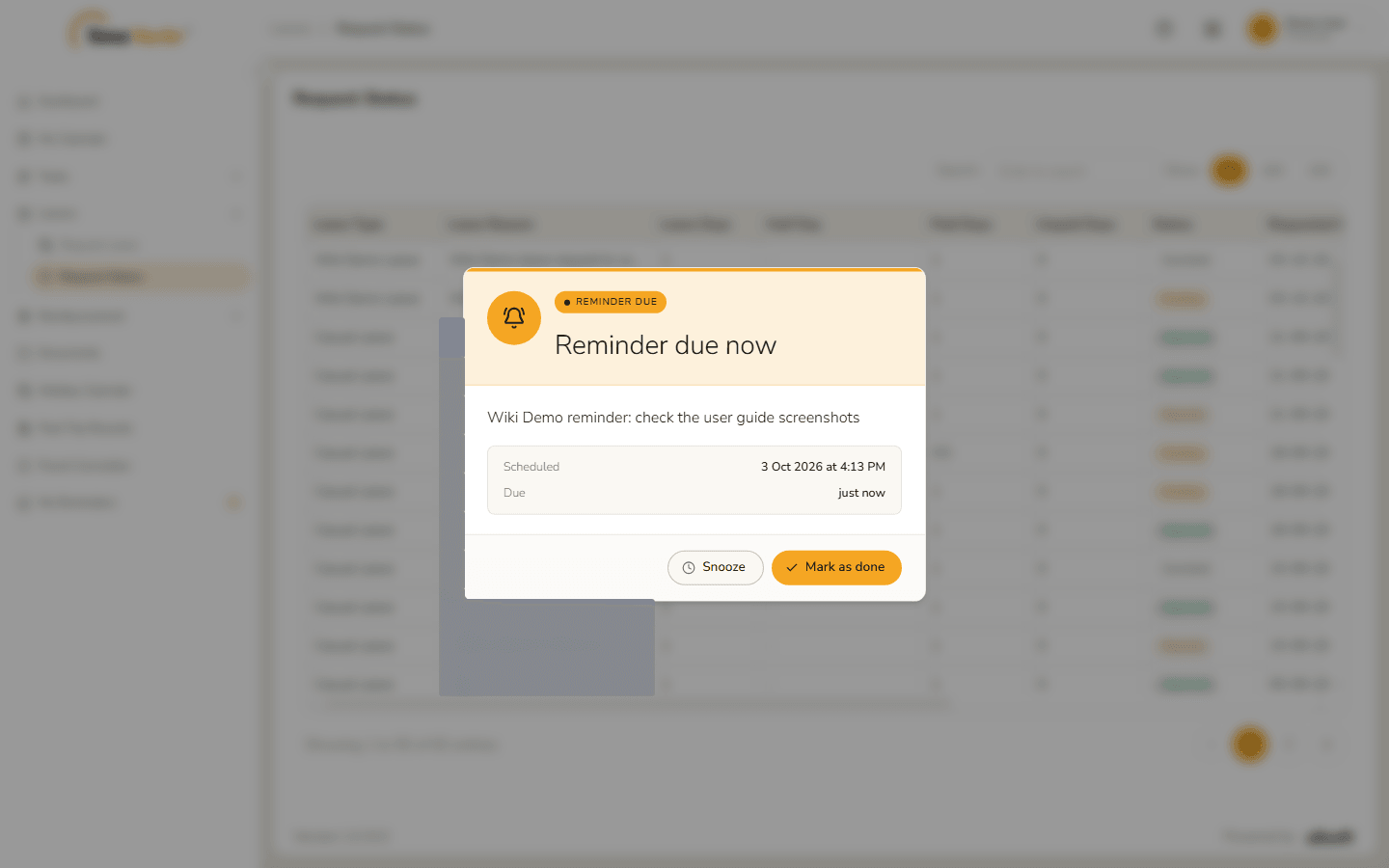
- Mark as done closes it. Marked as done – Updated. confirms it, and the reminder leaves the list.
Snooze asks how long to wait. The window shows "Snooze for" with the choices 15 minutes, 30 minutes, 1 hour, 3 hours, 6 hours and Custom…, an optional Reason, and a line such as "Comes back today at 4:28 PM." Confirm snooze sets it; Back returns to the previous window.
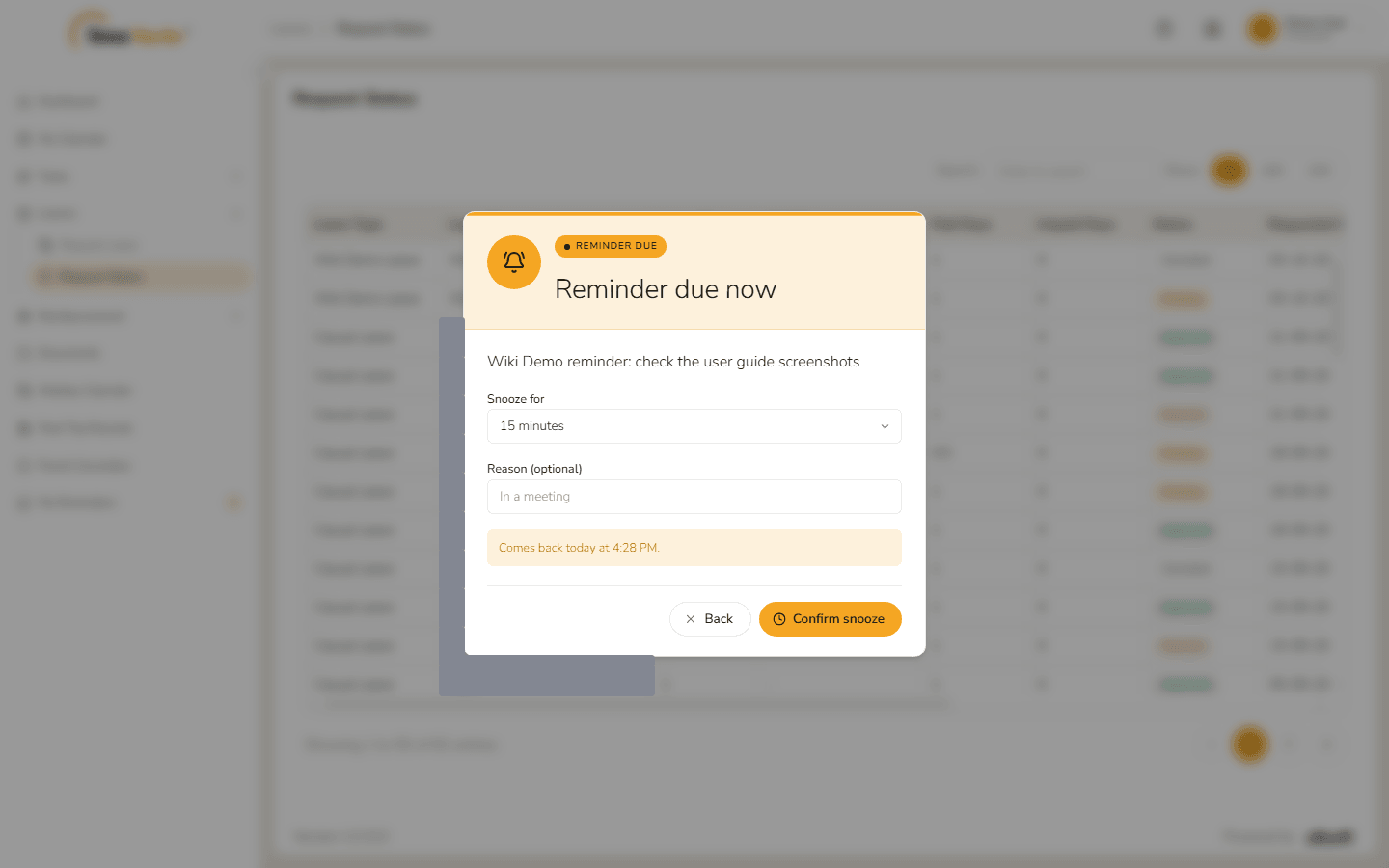
Snooze options 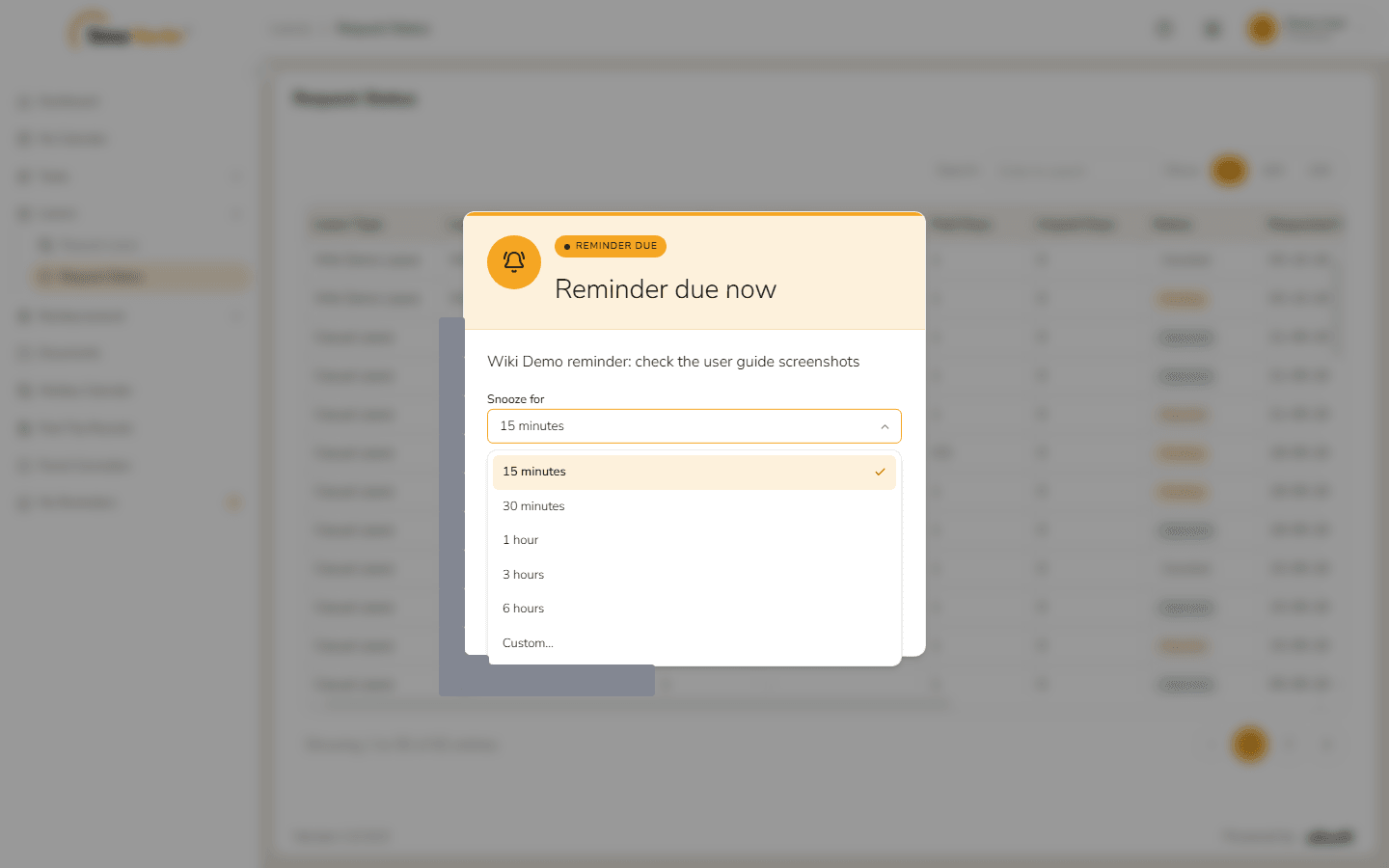
The snooze durations
4. Edit or delete a reminder
Click the ⋮ on a reminder. The menu offers Edit and Delete.
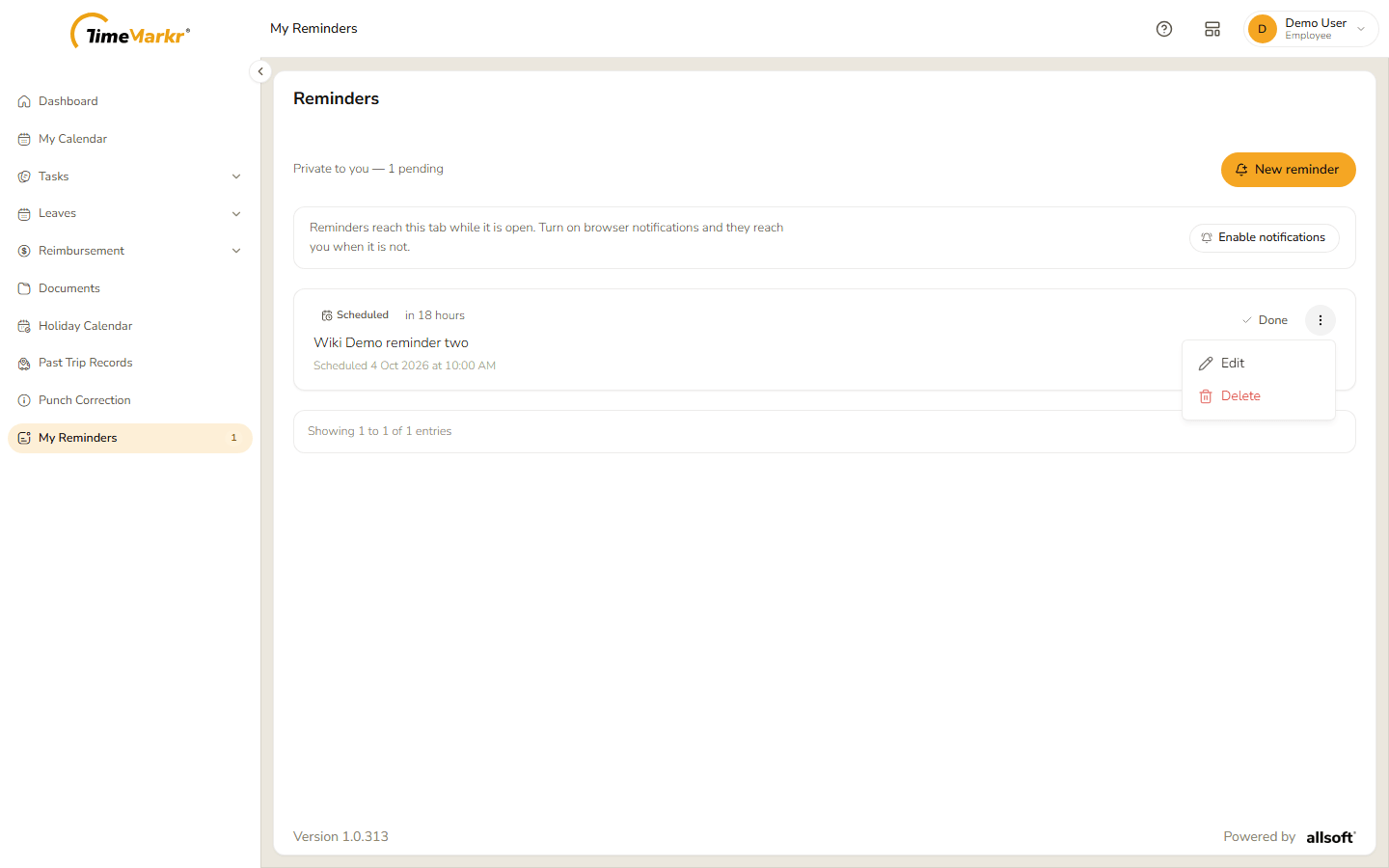
The reminder menu Edit opens Edit reminder – "Every device you are signed in on picks up the change." with the same fields and a line that says when it will fire, for example "Fires in 18 hours — 4 Oct 2026 at 10:00 AM." Change what you need and click Save changes. Reminder updated – Updated. confirms it.
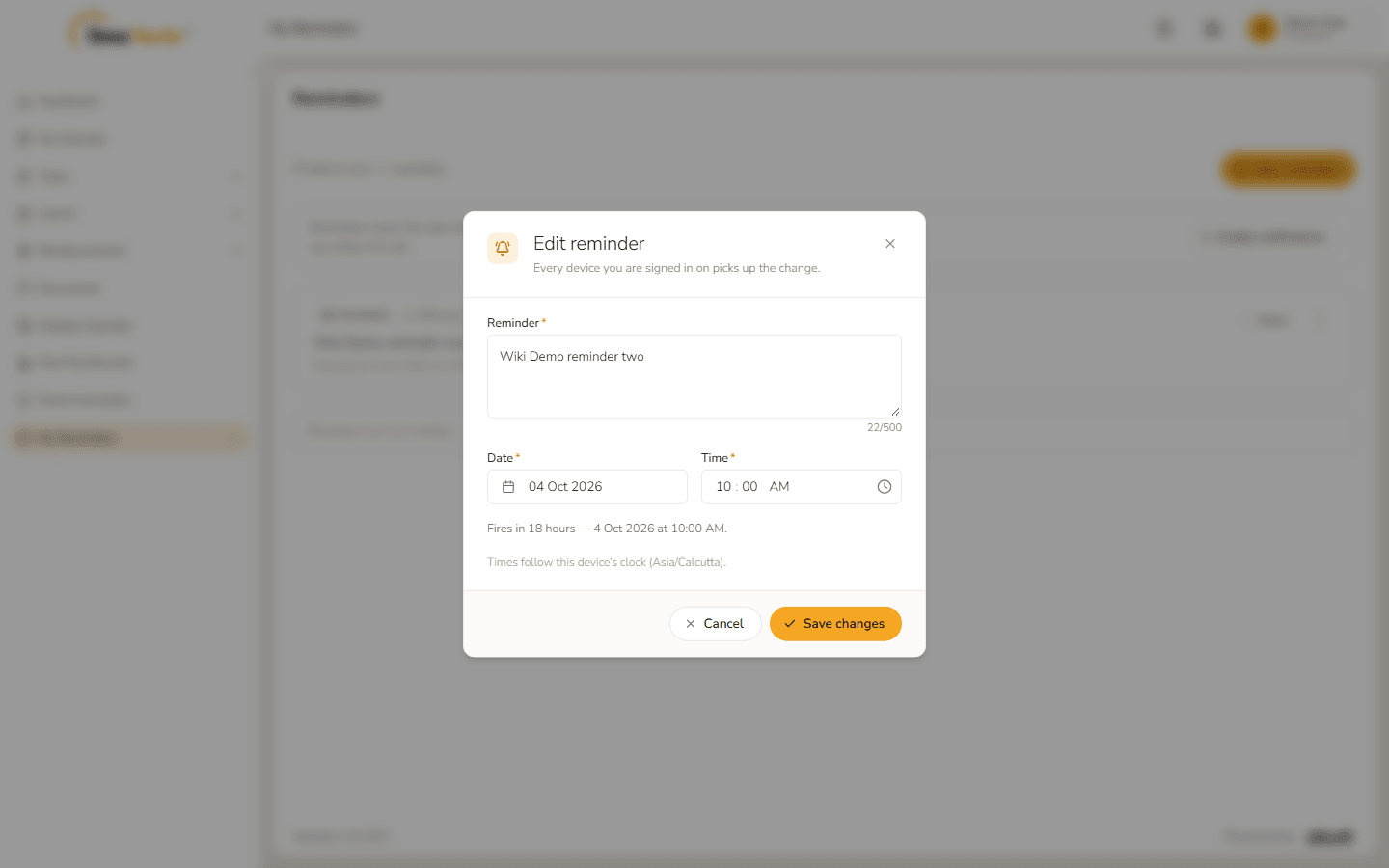
Edit reminder 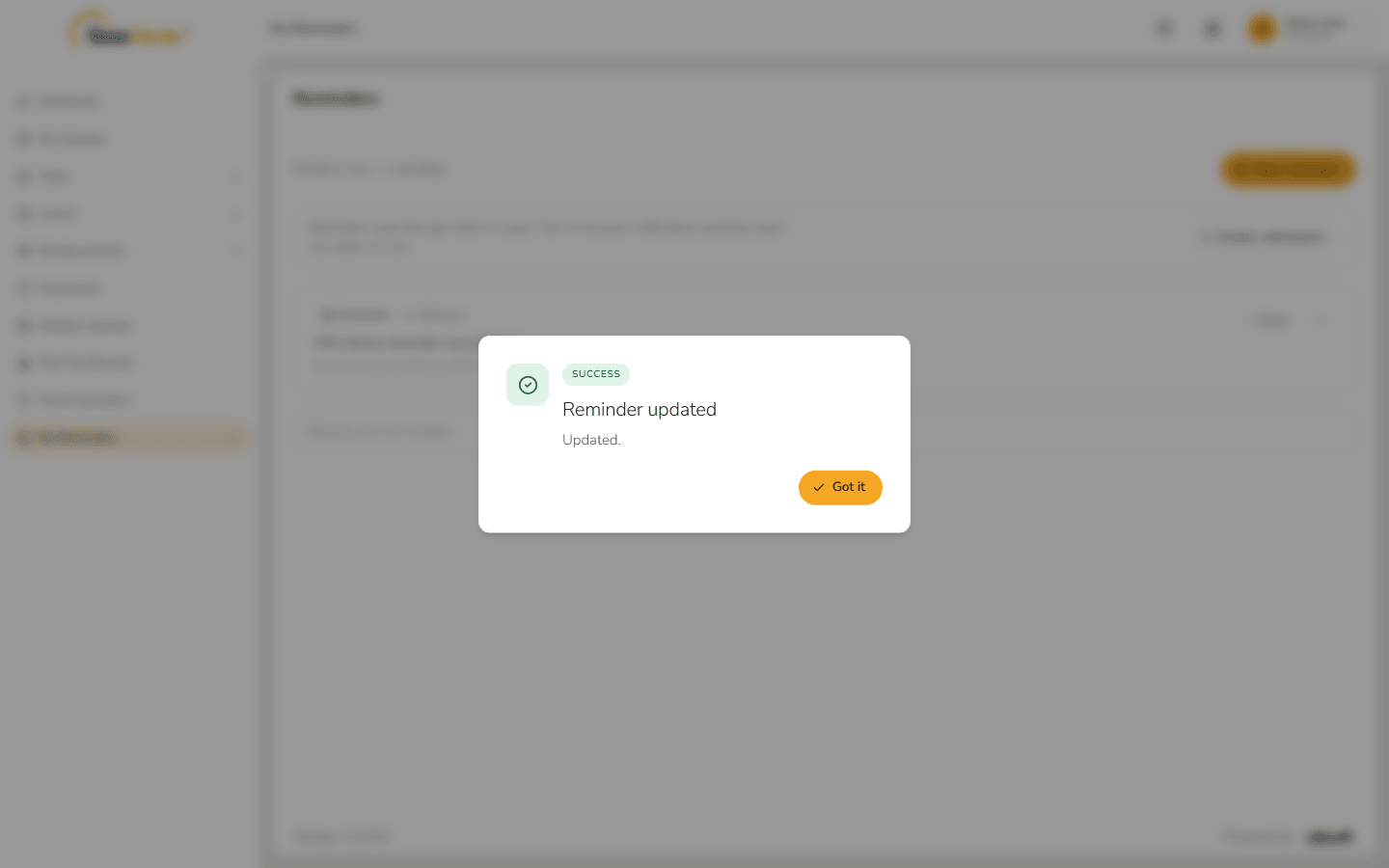
Reminder updated Delete asks "Delete “<reminder>”?" and warns that it is permanent: "This is permanent and it is not undoable from anywhere. The reminder, every snooze it has ever recorded and its notification-centre entries are removed from the server and from every device you are signed in on. It will not fire again." Click Delete permanently, or Keep reminder to change your mind.
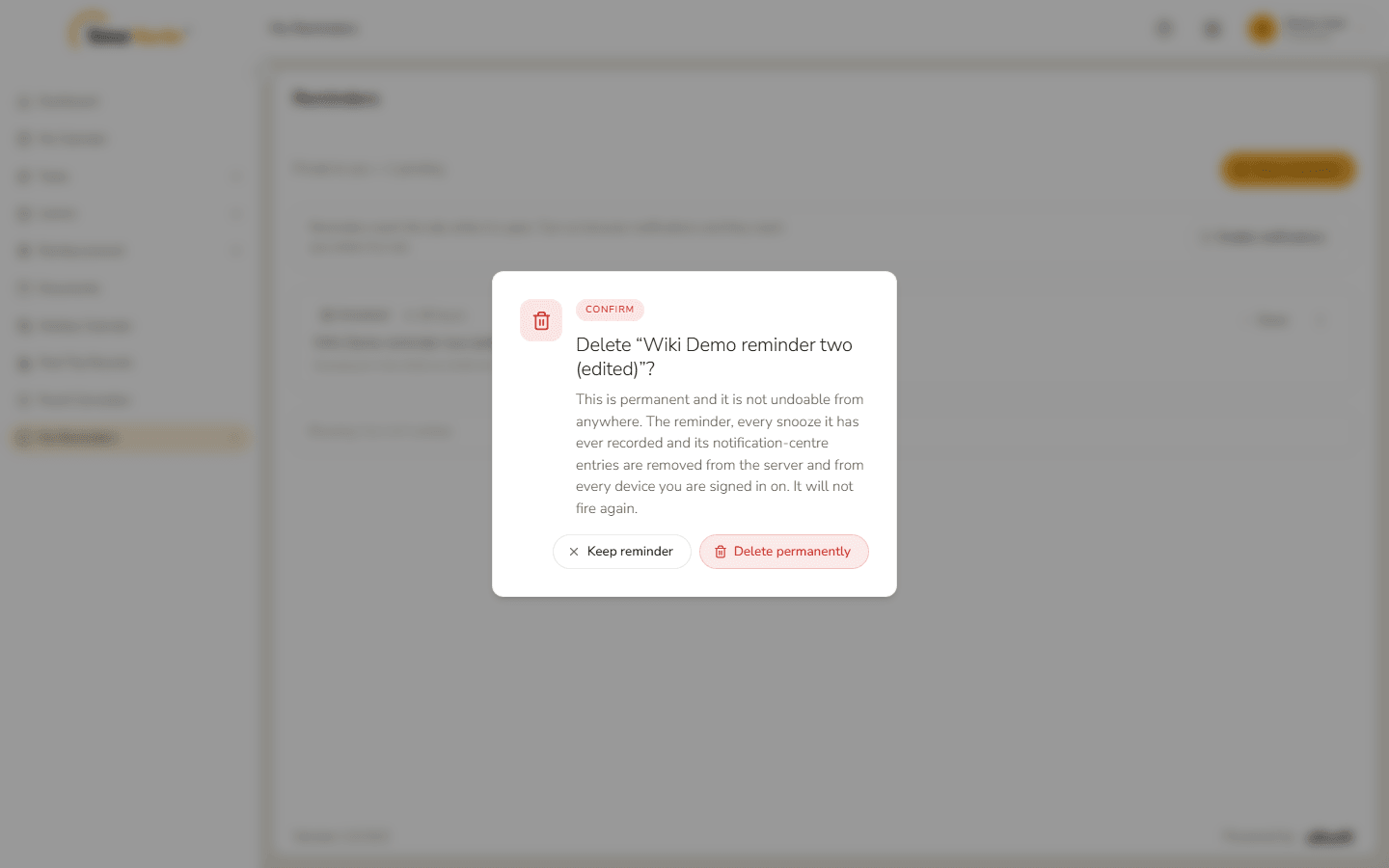
Delete confirmation Reminder deleted – Deleted. confirms it.
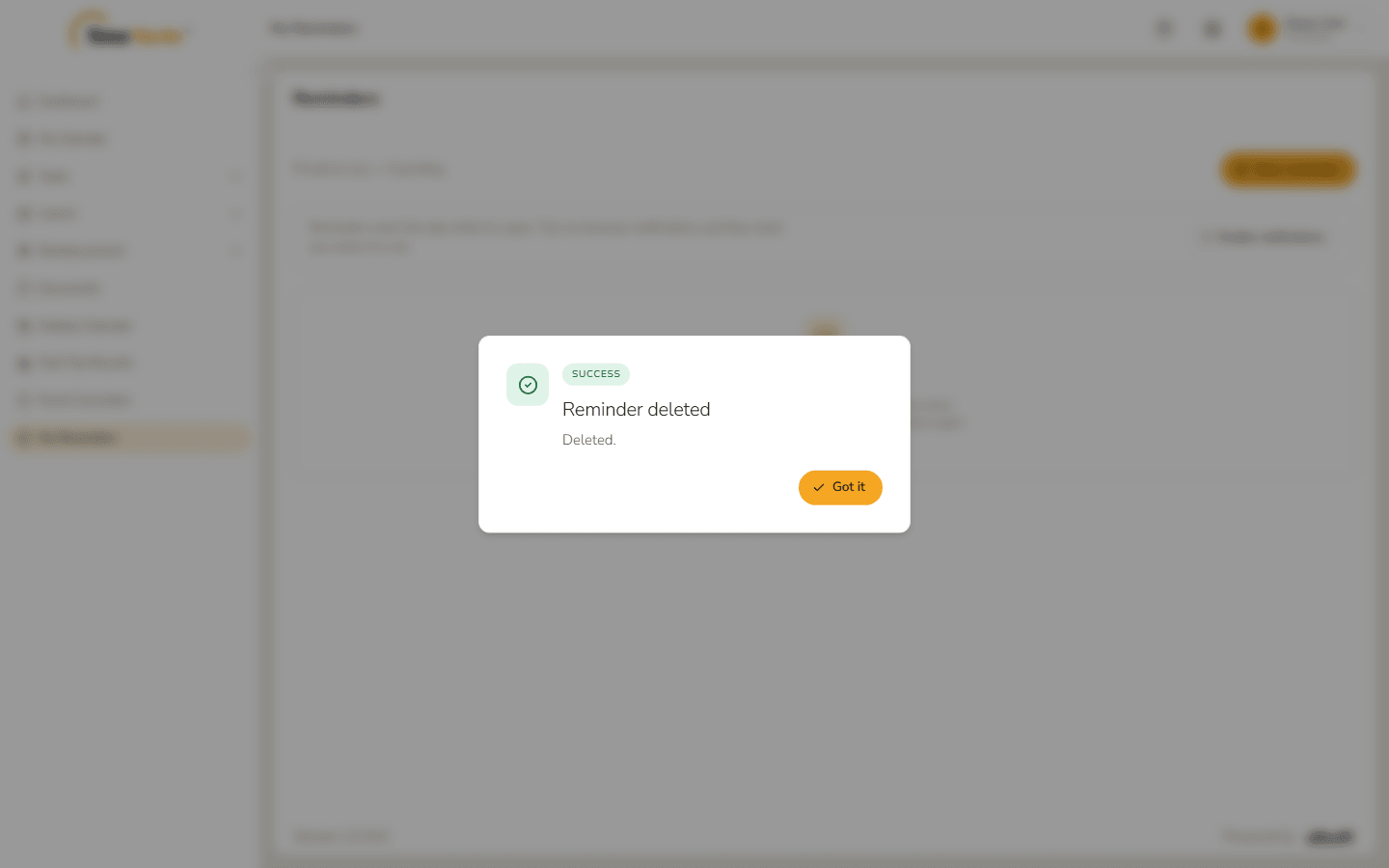
Reminder deleted
Related: My Reminders (admin) · Notification Settings