
Muster Roll
Where: Admin portal → Reports → Muster Roll
Route: /reports/muster-roll
The whole month on one grid: a row for every employee and, for every day, the punch-in and punch-out times, the hours worked and a status code. It is the printable register of who was present, late, absent or on leave. See Reports – the basics for Search and Show.
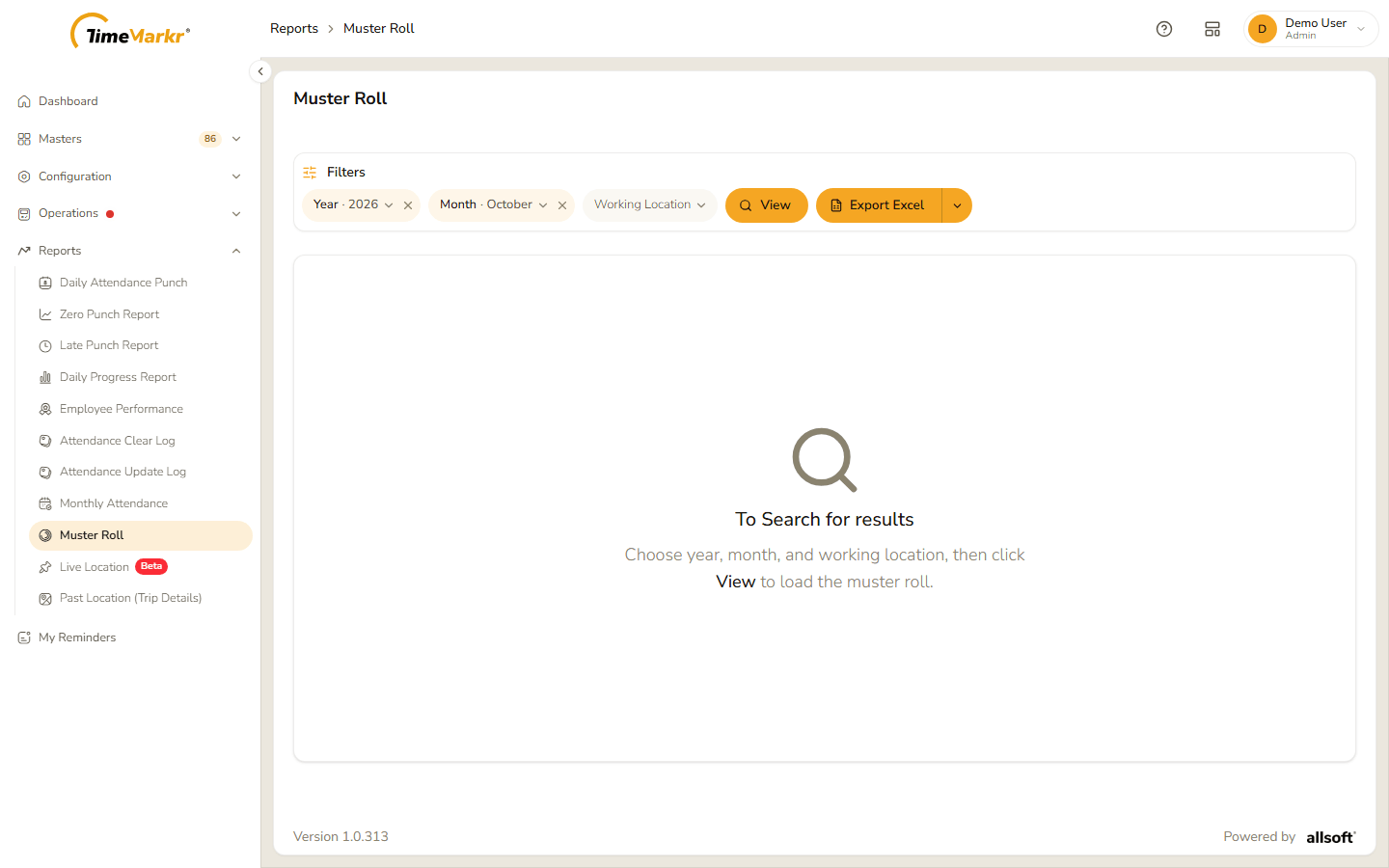
The page opens empty: "To Search for results – Choose year, month, and working location, then click View to load the muster roll."
1. Run the report
- Click the Year pill and choose the year.
- Click the Month pill and choose the month.
- Click the Working Location pill and choose a location, or All.
- Click View. Clear all filters starts again.
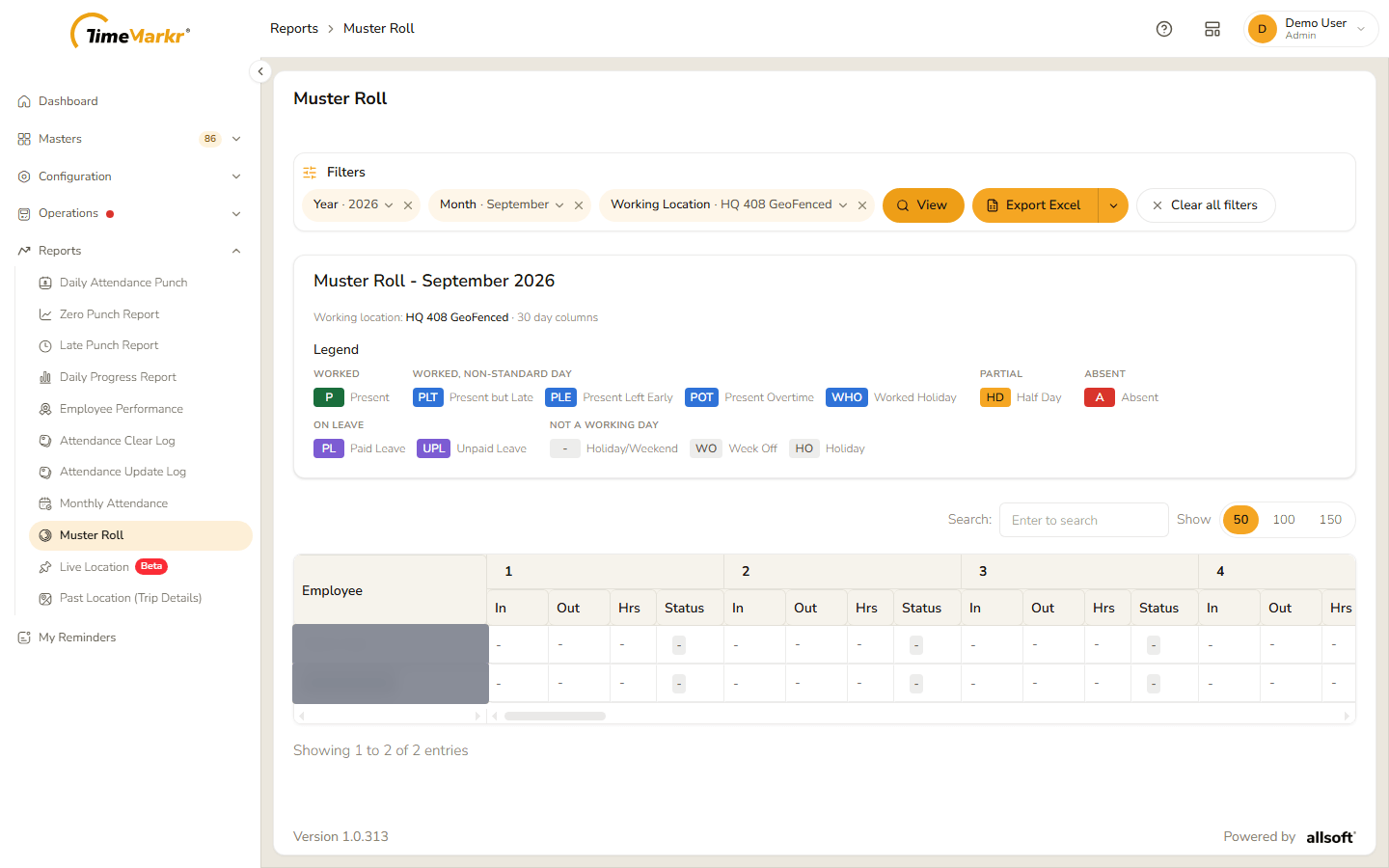
Above the grid the page repeats what it shows – Muster Roll – September 2026, the working location and the number of day columns – and a Legend explains every status code:
| Group | Code | Meaning |
|---|---|---|
| Worked | P | Present |
| Worked, non-standard day | PLT | Present but late |
| PLE | Present, left early | |
| POT | Present, overtime | |
| WHO | Worked on a holiday | |
| Partial | HD | Half day |
| Absent | A | Absent |
| On leave | PL | Paid leave |
| UPL | Unpaid leave | |
| Not a working day | - | Holiday or weekend |
| WO | Week off | |
| HO | Holiday |
2. Read the grid
The first column is the employee. After it come the days of the month, each with four columns – In, Out, Hrs and Status. The grid is wider than the window: scroll sideways to move through the month.
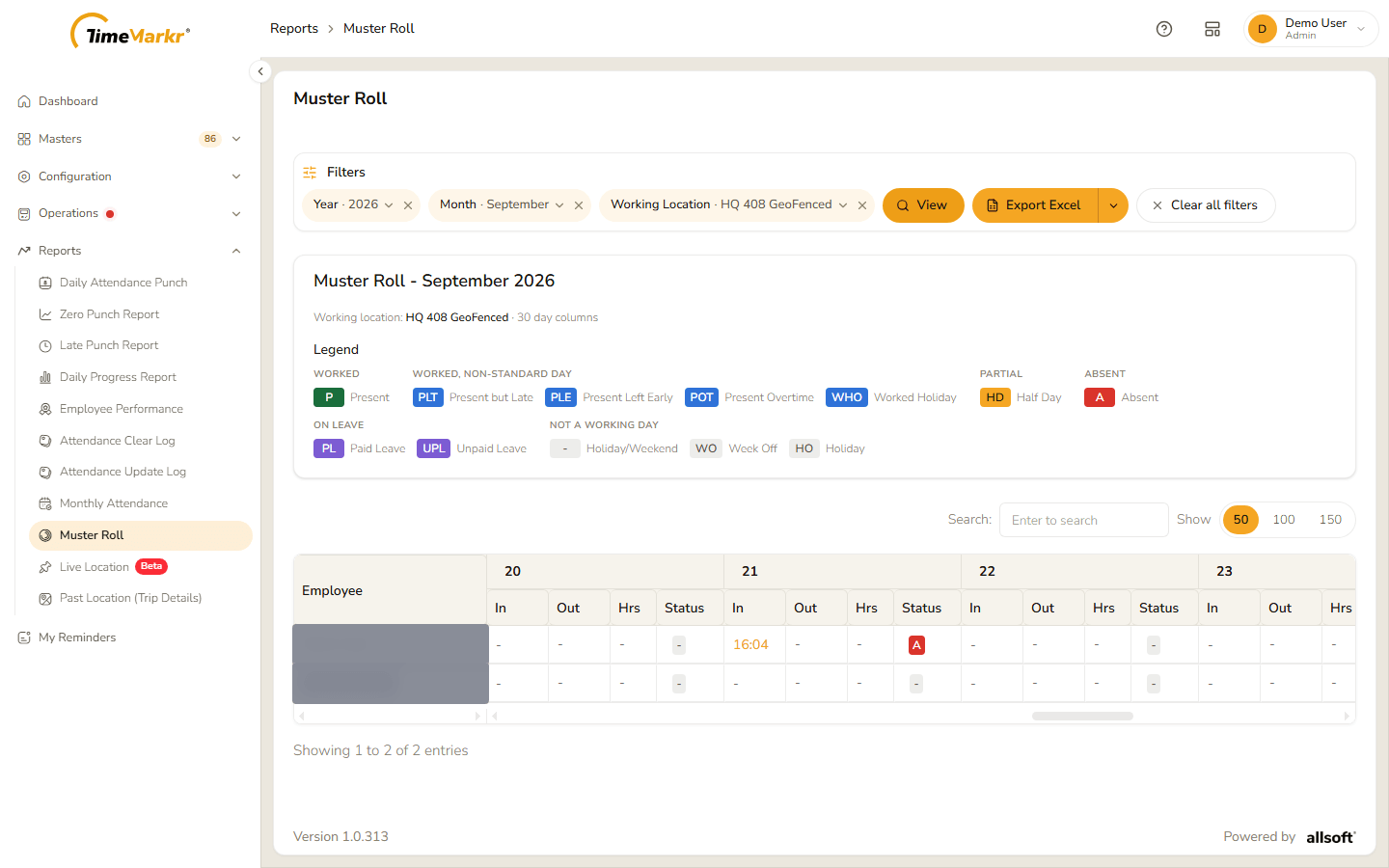
A dash means there is nothing for that cell. Use Search to find an employee and Show 50 / 100 / 150 to choose how many rows to see.
3. Export
Export Excel downloads the roll as a spreadsheet. The arrow beside it lists the formats: Export Excel and Export PDF.
Related: Monthly Attendance · Daily Attendance Punch