
Reports – the basics
Where: Admin portal → Reports
The Reports group has eleven pages. They look different but share the same few parts, which are described here once.
| Report | What it answers |
|---|---|
| Daily Attendance Punch | Who punched in and out on one day at a location, with places and photos. |
| Zero Punch Report | Which employees have never punched. |
| Late Punch Report | Who punched in late, how often and for how long. |
| Daily Progress Report | What employees wrote about their day. |
| Employee Performance | One employee's performance figures for a month. |
| Attendance Clear Log | Which punches were cleared, by whom and why. |
| Attendance Update Log | Which punches were changed by HR, by whom and why. |
| Monthly Attendance | Working days, absences and late days for every employee in a month. |
| Muster Roll | The whole month, day by day, for every employee. |
| Live Location | Where employees are right now (Beta). |
| Past Location (Trip Details) | The trips employees recorded, with route playback. |
Choosing what to see
Most reports open empty with a message such as "To Search for results – Set date range and click View to load the report." Choose the filters first, then click View (on Past Location the button is called Generate). Clear all filters starts again. The Zero Punch Report is the exception: it loads by itself.
The Dates pill
A report about a period has a Dates pill that starts on today. Click it and a small panel opens: "Leave a box empty for no limit. Both boxes filled means between those two days."
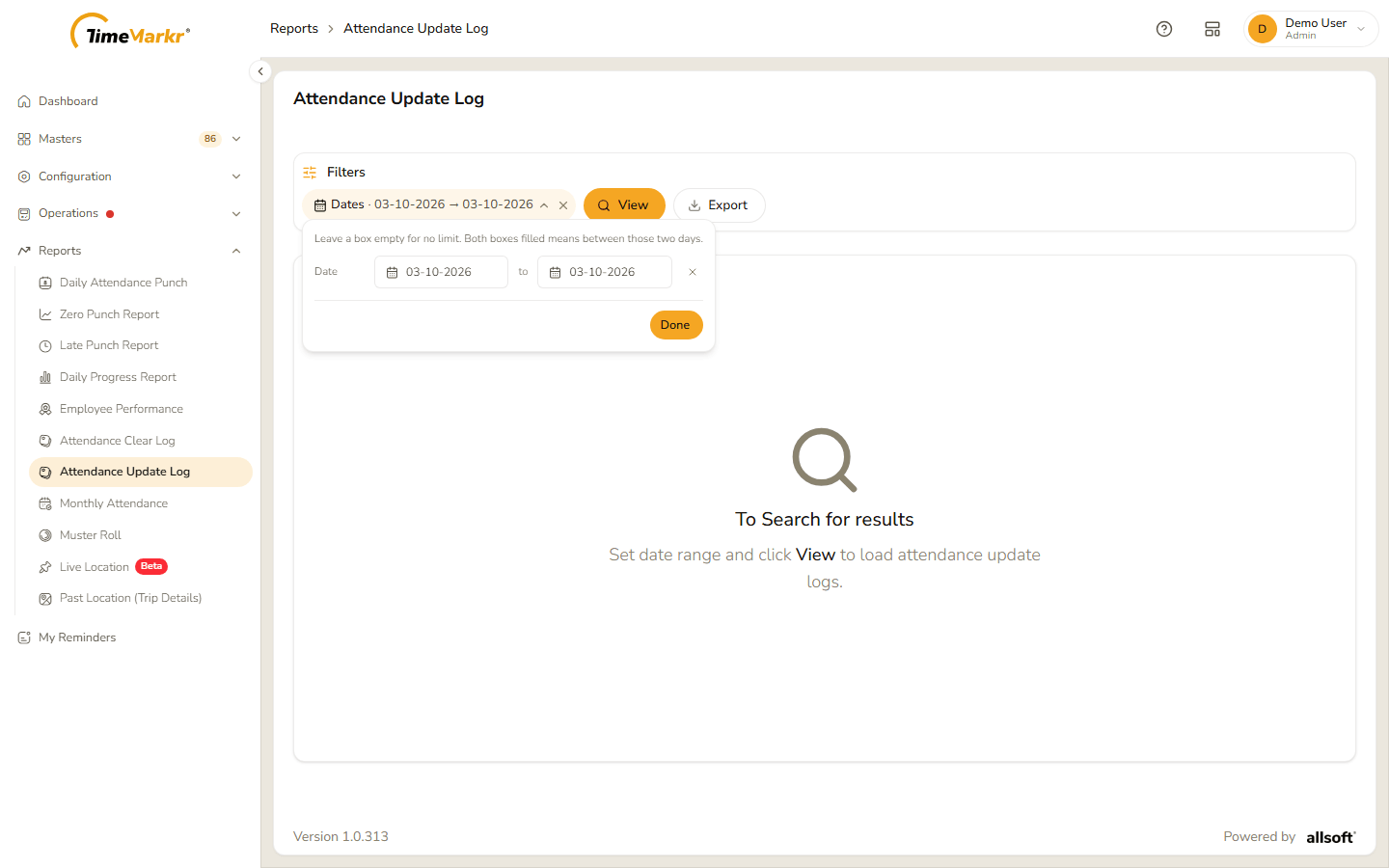
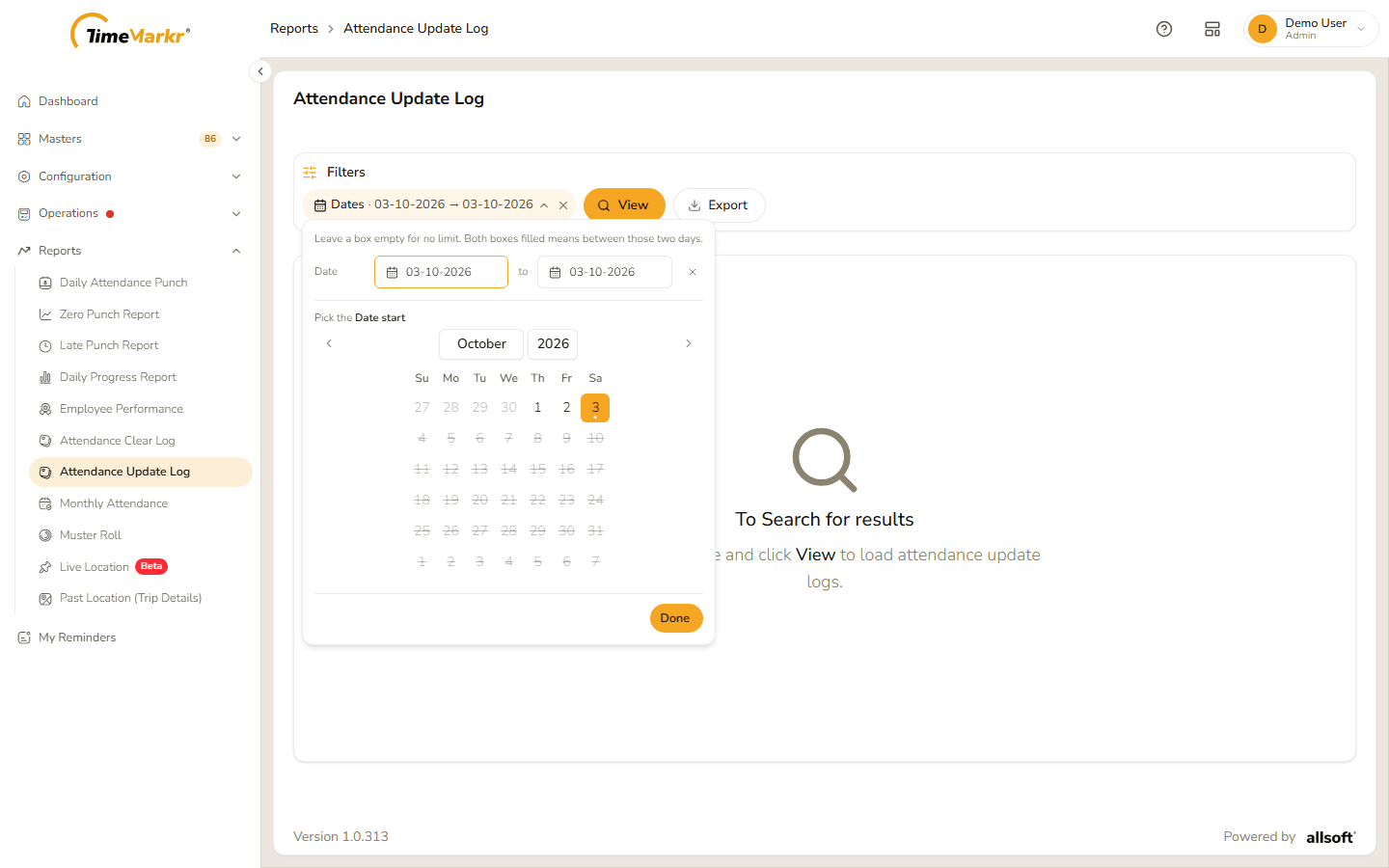
Click the first box (the start) or the second (the end) and a calendar opens. Use the two lists at the top for the month and the year and click the day, then click Done. Days that have not happened yet are struck through and cannot be chosen. A report about a single day has a Date pill that works in the same way.
Year, Month, Working Location and Employee
- Year and Month are lists. For the current year only the months up to the current one are offered.
- Working Location is a list of your working locations; All stands for every location where the report offers it.
- Employee is a search: type at least three characters of the name and pick the person from the suggestions – a name that is only typed is not enough.
Reading the result
- Search above a table filters the rows already loaded, as you type.
- Show 50 / 100 / 150 chooses how many rows fit on a page; the page numbers under the table move through a long list.
- A table can be wider than the window. Scroll it sideways to reach the other columns.
- An eye icon at the end of a row opens the details of that row.
Exporting
Export (or Export Excel) downloads what you see as an Excel file. Where the button has an arrow beside it, the arrow lists the formats – Export Excel and Export PDF.
Related: Dashboard · Work Location