
Searching the guide
The search box at the top of every page finds the part of the guide you need. Type a word (shift) or ask it the way you would ask a colleague ("I forgot to punch in", "how do I ask for a day off") – the guide matches what you mean, not only the exact words.
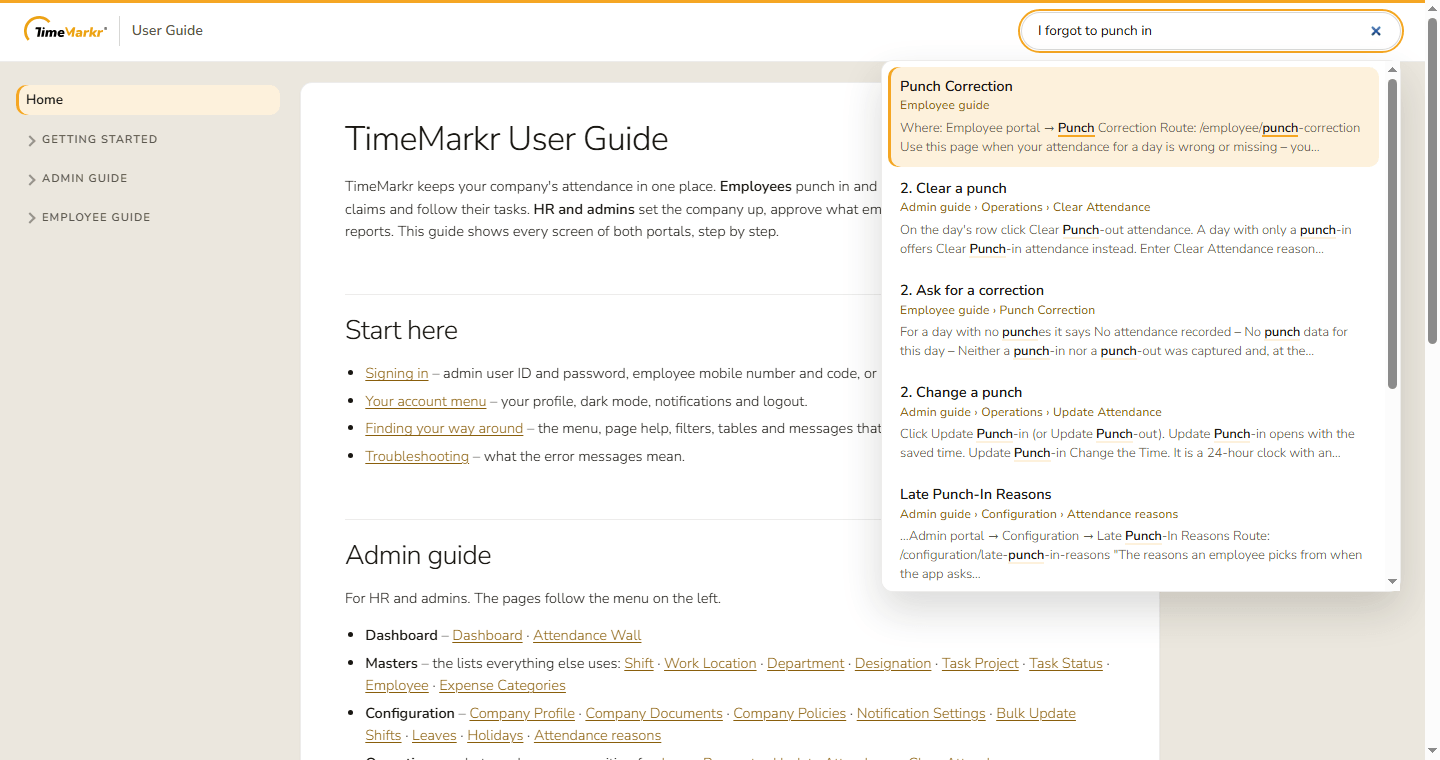
How to search
- Click the search box, or press Ctrl + K (⌘ K on a Mac) anywhere on the page.
- Start typing. Results appear after two letters and update as you type. A half-typed last word is fine, and so is a small typing mistake.
- Choose a result with the mouse, or move with ↑ and ↓ and press Enter.
- Press Esc to close the results.
Each result shows the section heading, where it sits in the guide (for example Employee guide › Punch Correction) and a short extract with your words in bold. Choosing it takes you straight to that section.
Smart search
The first time you search, your browser loads a small language model in the background (about 37 MB; your browser usually keeps it for later visits). Until it is ready the results are keyword matches and a note under them says Smart search is loading. When it finishes the same results improve on their own, a few seconds later – for example I forgot to punch in finds Punch Correction, the page for fixing a missed punch.
Everything runs in your browser. What you type is never sent anywhere.
If the note says Smart search is unavailable, keyword matches still work; reload the page to try again. If it keeps appearing, tell your administrator – the guide's server may be blocking the model files.
If you find nothing
- Use the words you see on screen – a button, a field or a menu name.
- Try fewer or different words. A search can be up to 200 characters, and only its first 12 meaningful words are matched.
- Browse from the menu on the left, or see Troubleshooting.