
Shift
Where: Admin portal → Masters → Shift
Route: /masters/shift
A shift is a named set of working hours: when the day starts, when it ends and when the lunch and other breaks are. Create your shifts here once, then pick them wherever a shift is asked for.
1. The Shift list
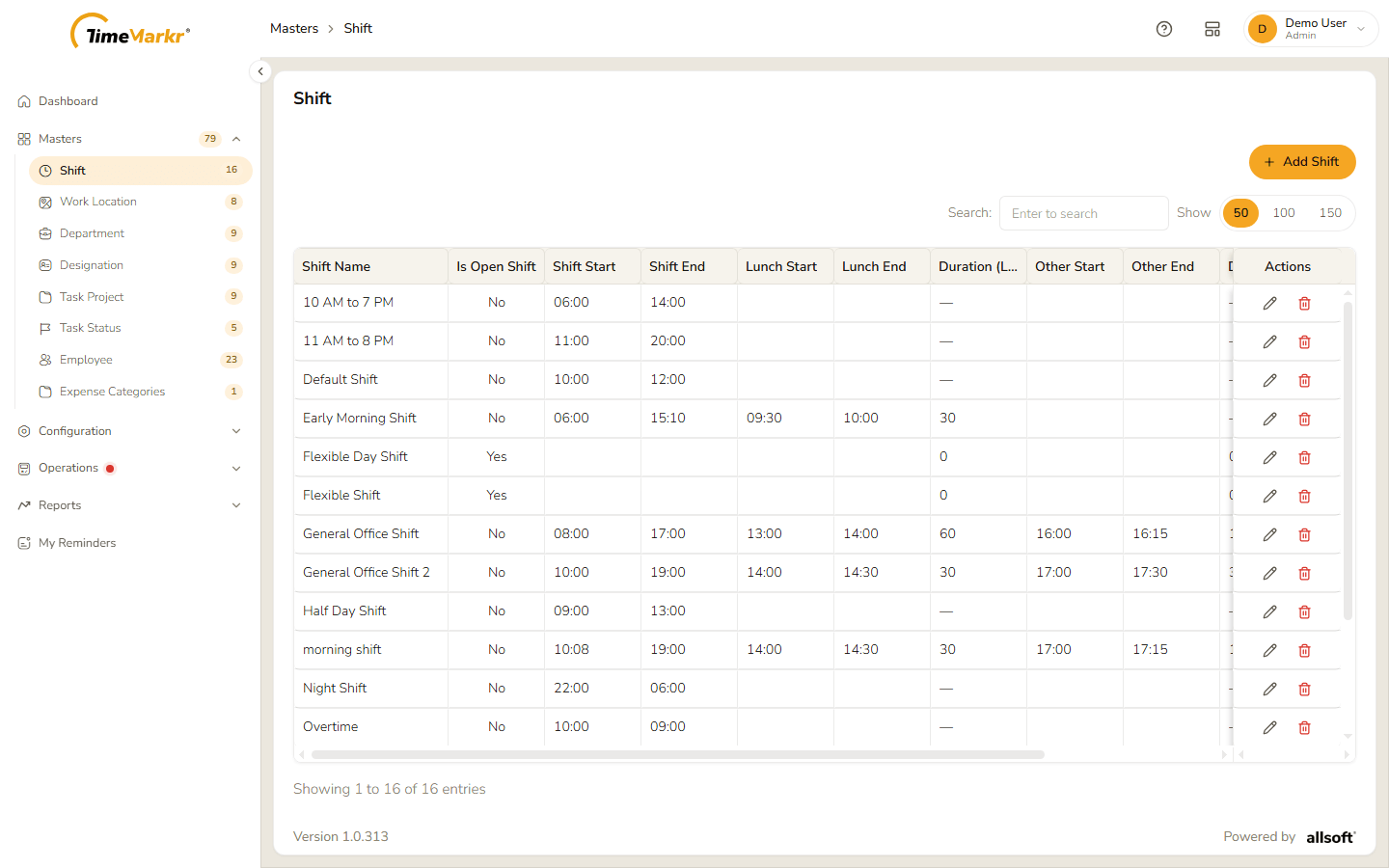
| Column / control | What it shows or does |
|---|---|
| Shift Name | The name you gave the shift. |
| Is Open Shift | Yes for a shift with no fixed hours, otherwise No. |
| Shift Start / Shift End | The working hours, in 24-hour time. |
| Lunch Start / Lunch End | The lunch break, if the shift has one. |
| Duration (Lunch) | Length of the lunch break in minutes. |
| Other Start / Other End / Duration (Other) | A second break, if the shift has one. |
| Final Shift Duration | Shift length minus both breaks, as hours:minutes (a 10:00–19:00 shift with a 30-minute lunch shows 08:30). |
| Actions | Pencil = Edit, bin = Delete. |
| Search | Narrows the list as you type. |
| Show 50 / 100 / 150 | How many rows to show. |
| Add Shift | Opens the form to create a shift. |
2. Add a shift
Click Add Shift.
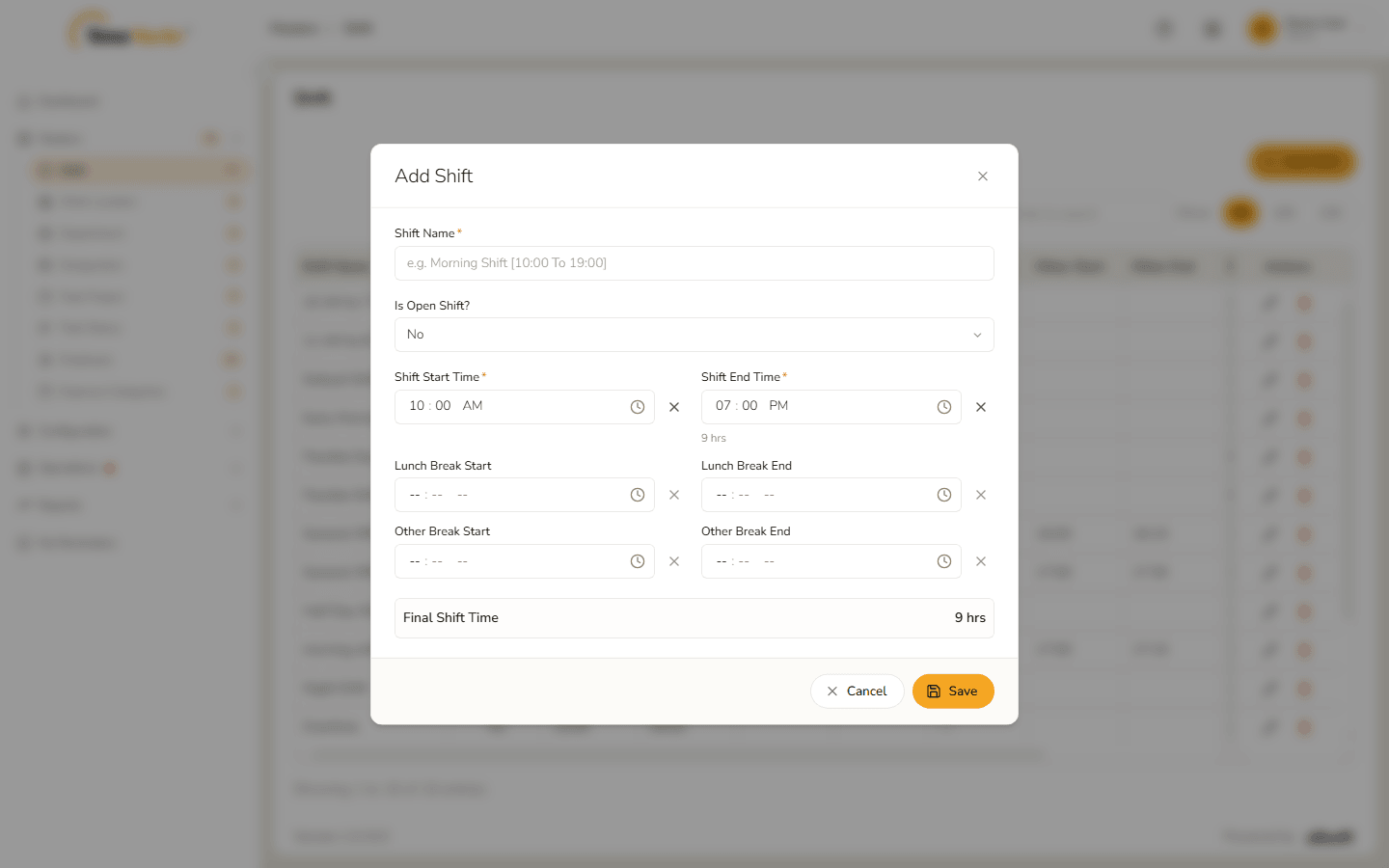
Add Shift form Fill in the form.
Field Notes Shift Name* Required. Is Open Shift? No (default) for a timed shift; Yes for a shift with no fixed hours – see Open shifts. Shift Start Time* Required. Type the hour, minutes and AM/PM, or click the clock icon. The cross clears the field. Shift End Time* Required. A night shift can end the next morning – see Night shifts. Lunch Break Start / End Optional. When you set the start, the end fills in 30 minutes later; change it if the break is longer or shorter. Other Break Start / End Optional second break. Final Shift Time Calculated for you: the shift length minus the breaks. It updates as you type. If you leave the name empty and click Save, the field turns red and says "Shift Name is required."
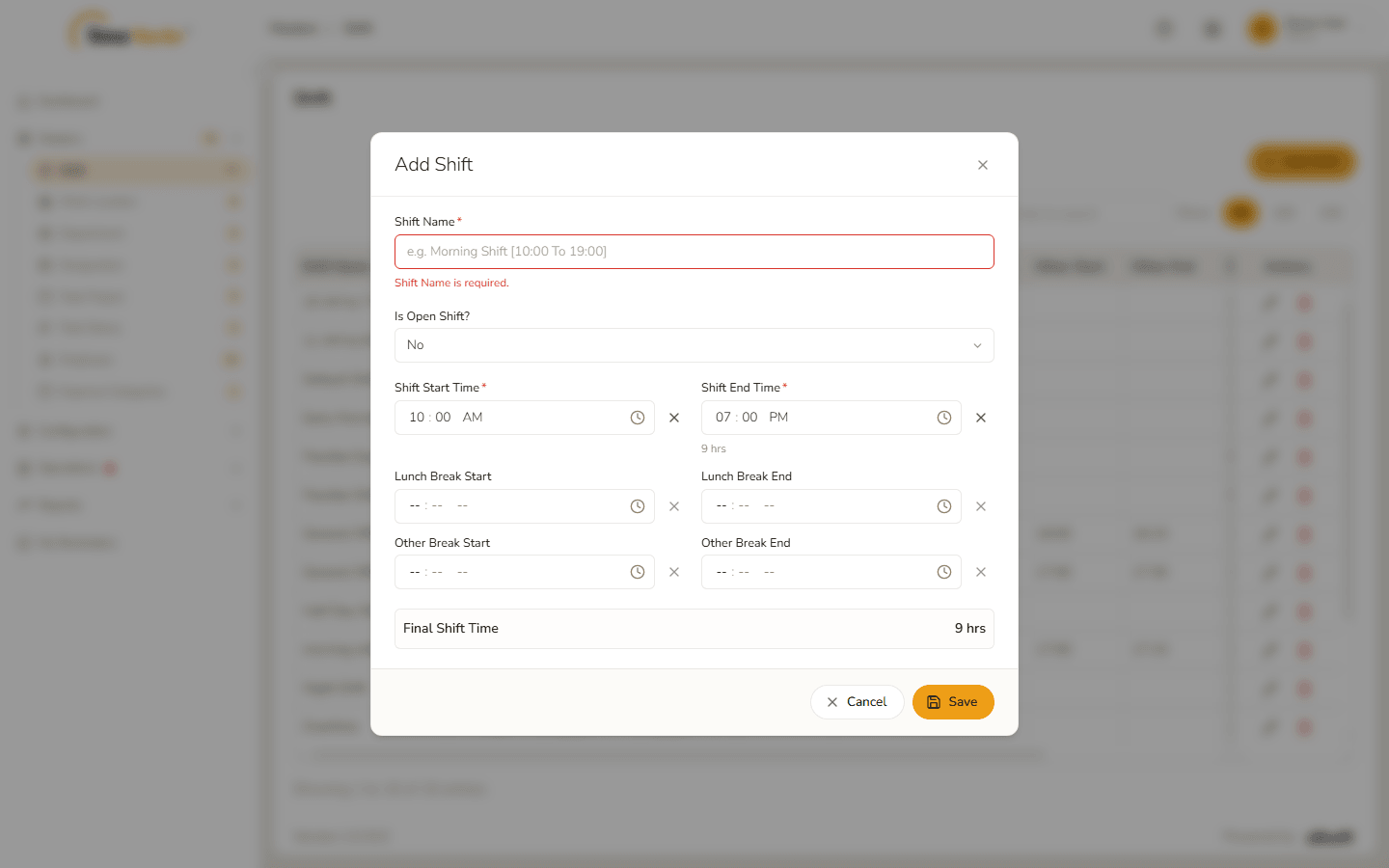
Shift Name is required 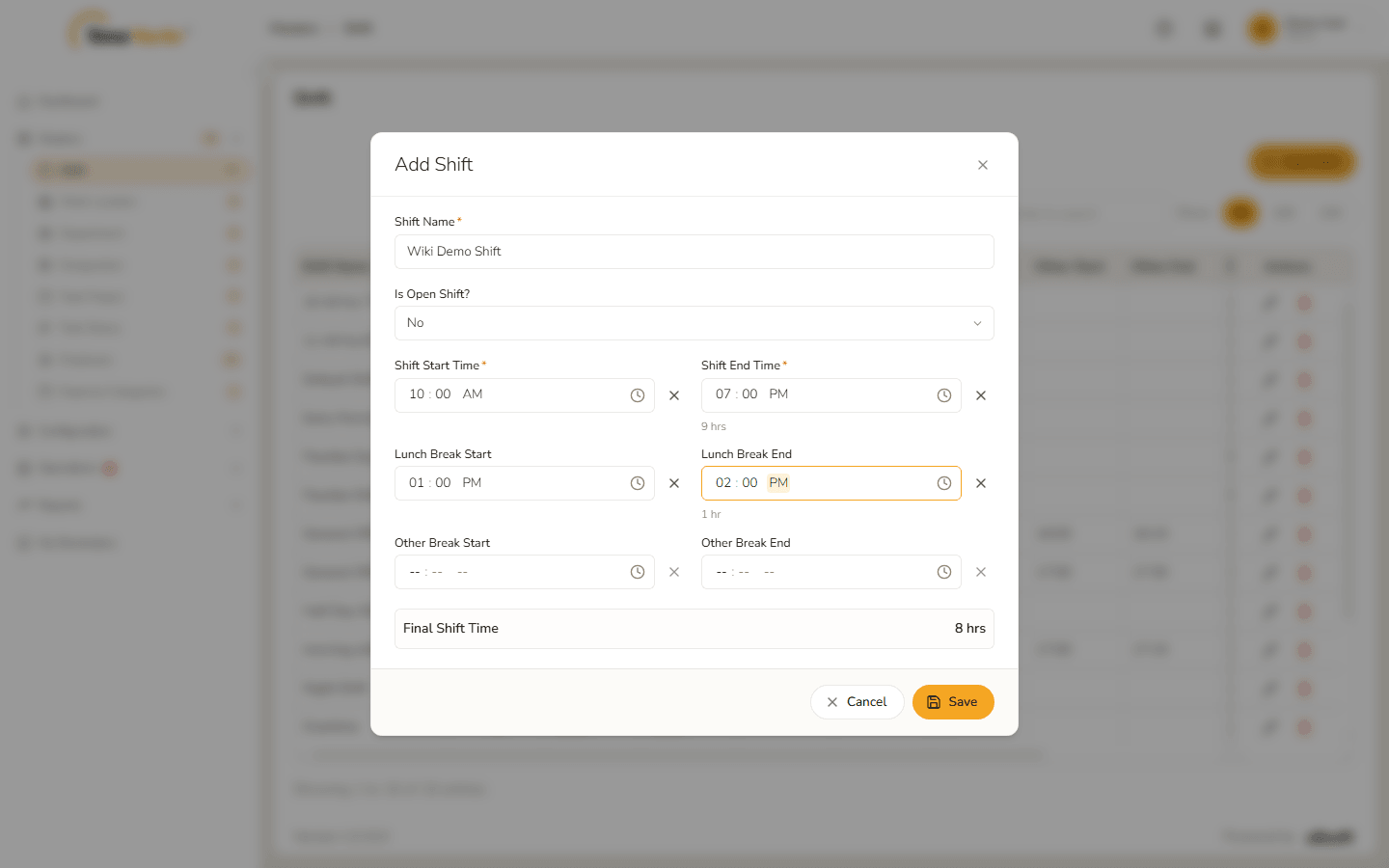
Form filled in Click Save. A Shift saved – Success. Created. message confirms it. Click Got it.
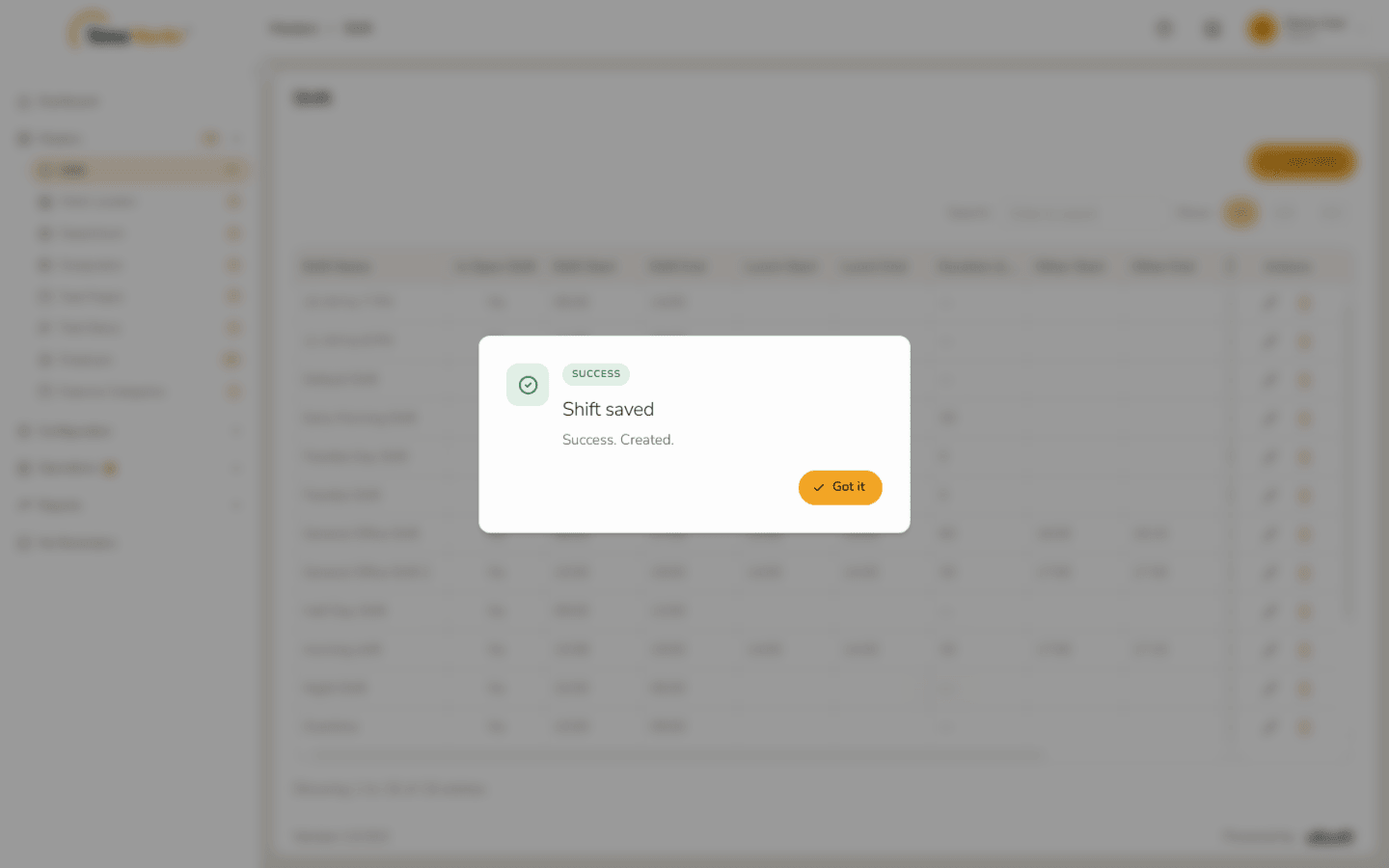
Shift saved The new shift is in the list. Use Search to find it.
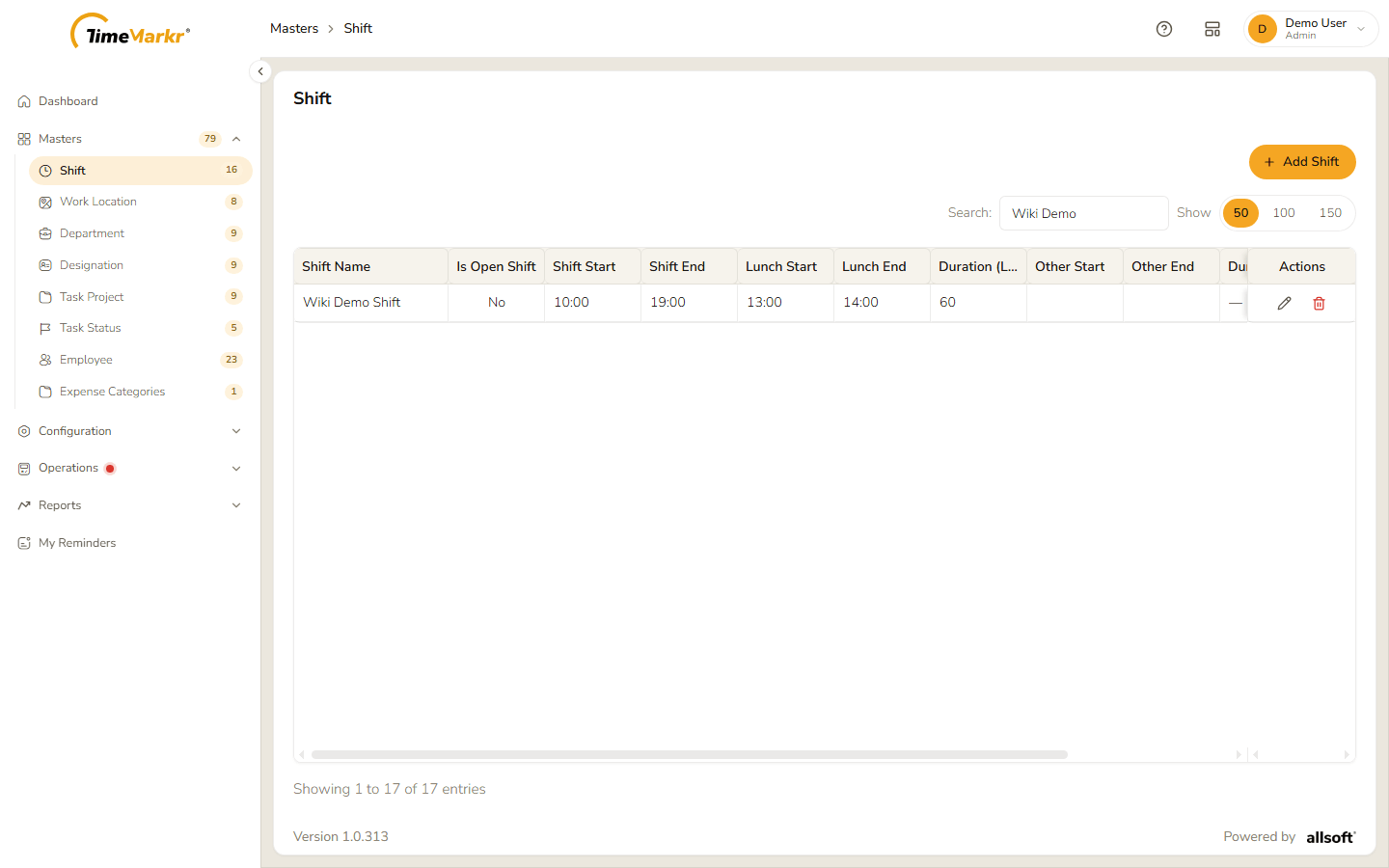
New shift in the list
Night shifts
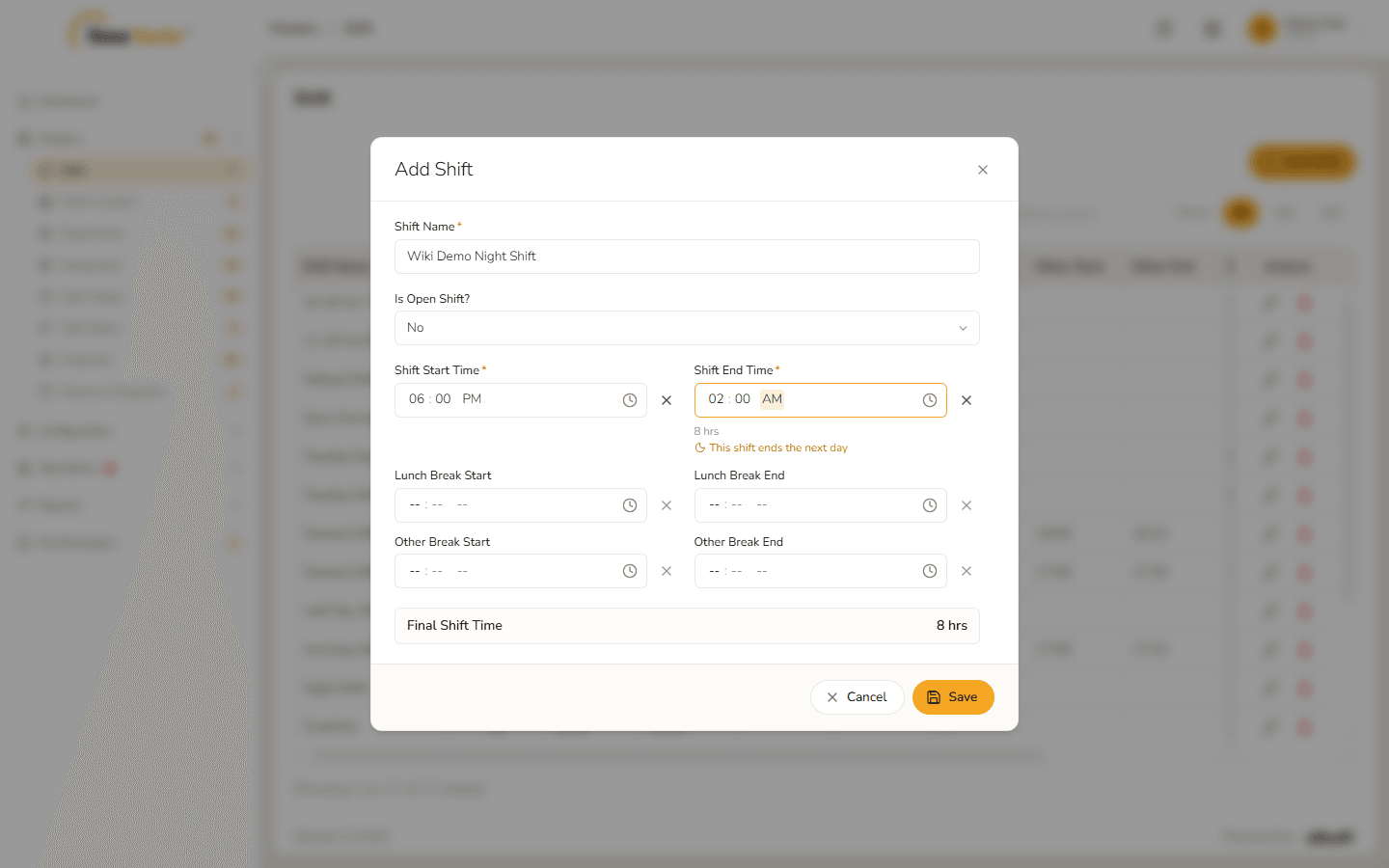
Set an end time that is earlier than the start time – for example 06:00 PM to 02:00 AM – and the shift ends on the next day. Under Shift End Time the form shows the length of the shift and the line This shift ends the next day, and Final Shift Time counts across midnight.
Open shifts
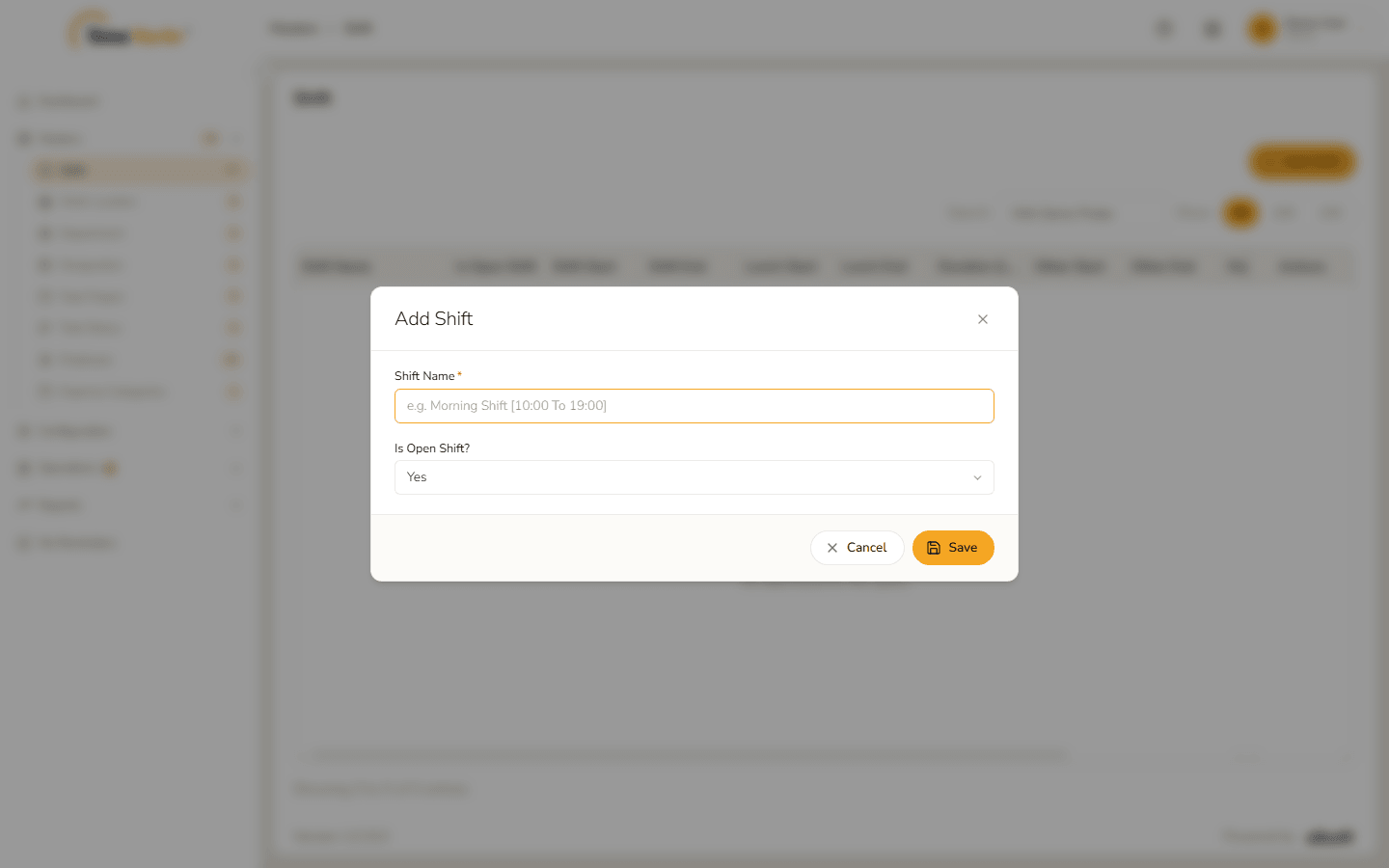
Choose Yes under Is Open Shift? and the time and break fields disappear – only the name is needed.
3. Edit a shift
Click the pencil on the shift's row. The form opens with the saved values.
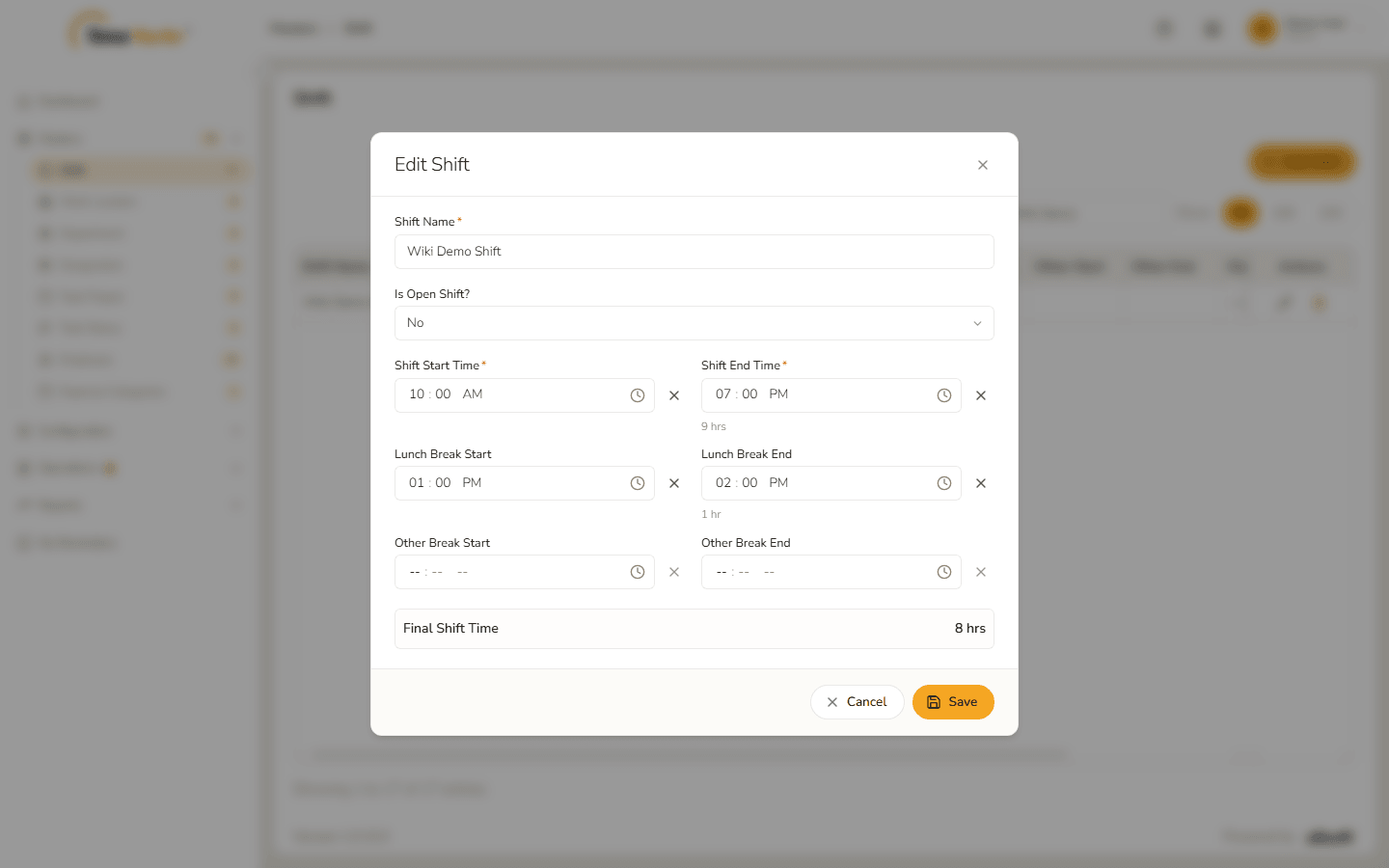
Edit Shift form Change what you need. Here the lunch break is lengthened to end at 2:30 PM, and Final Shift Time drops to 7 hrs 30 mins.
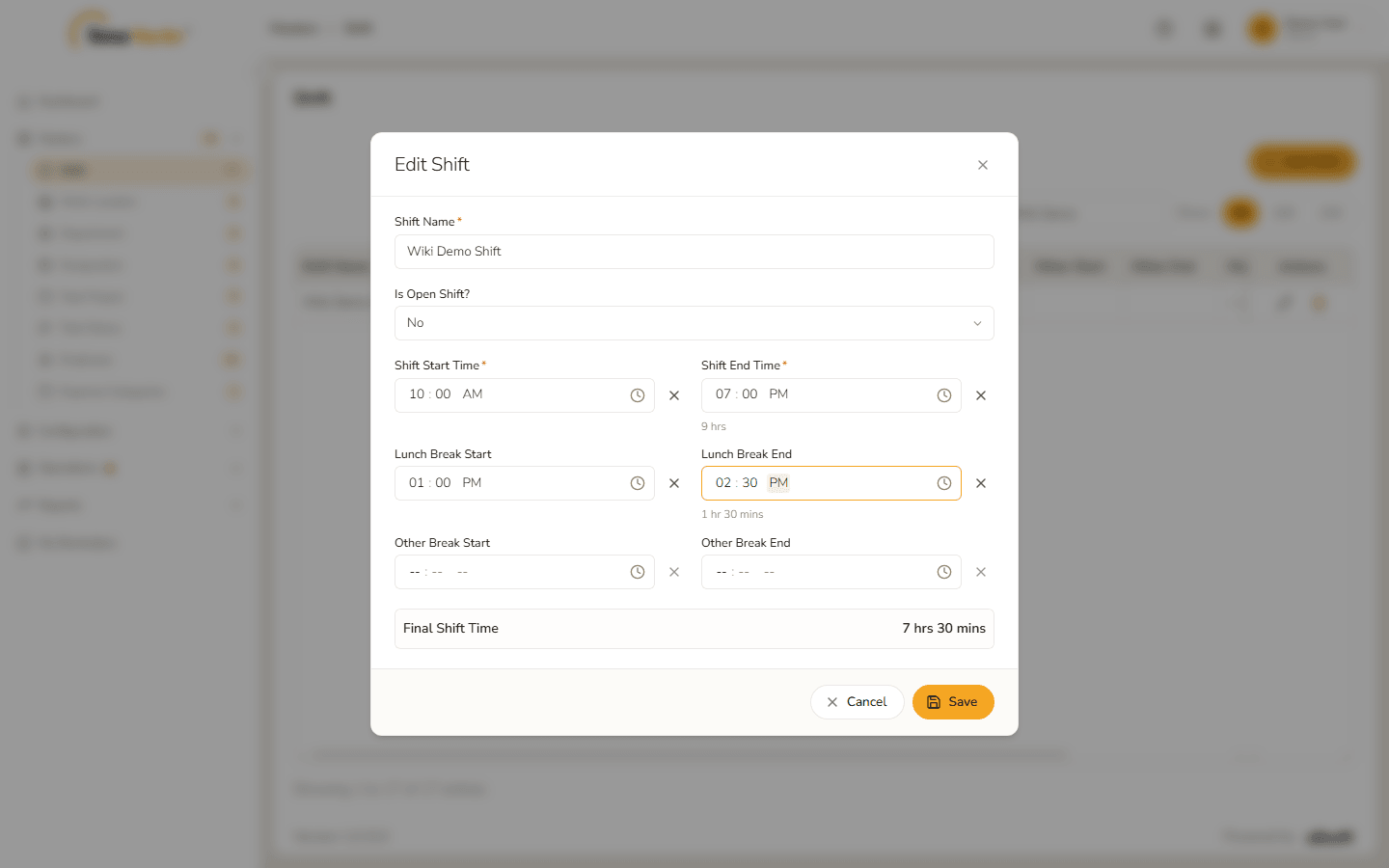
Lunch break changed Click Save. Shift saved – Success. Modified. appears.
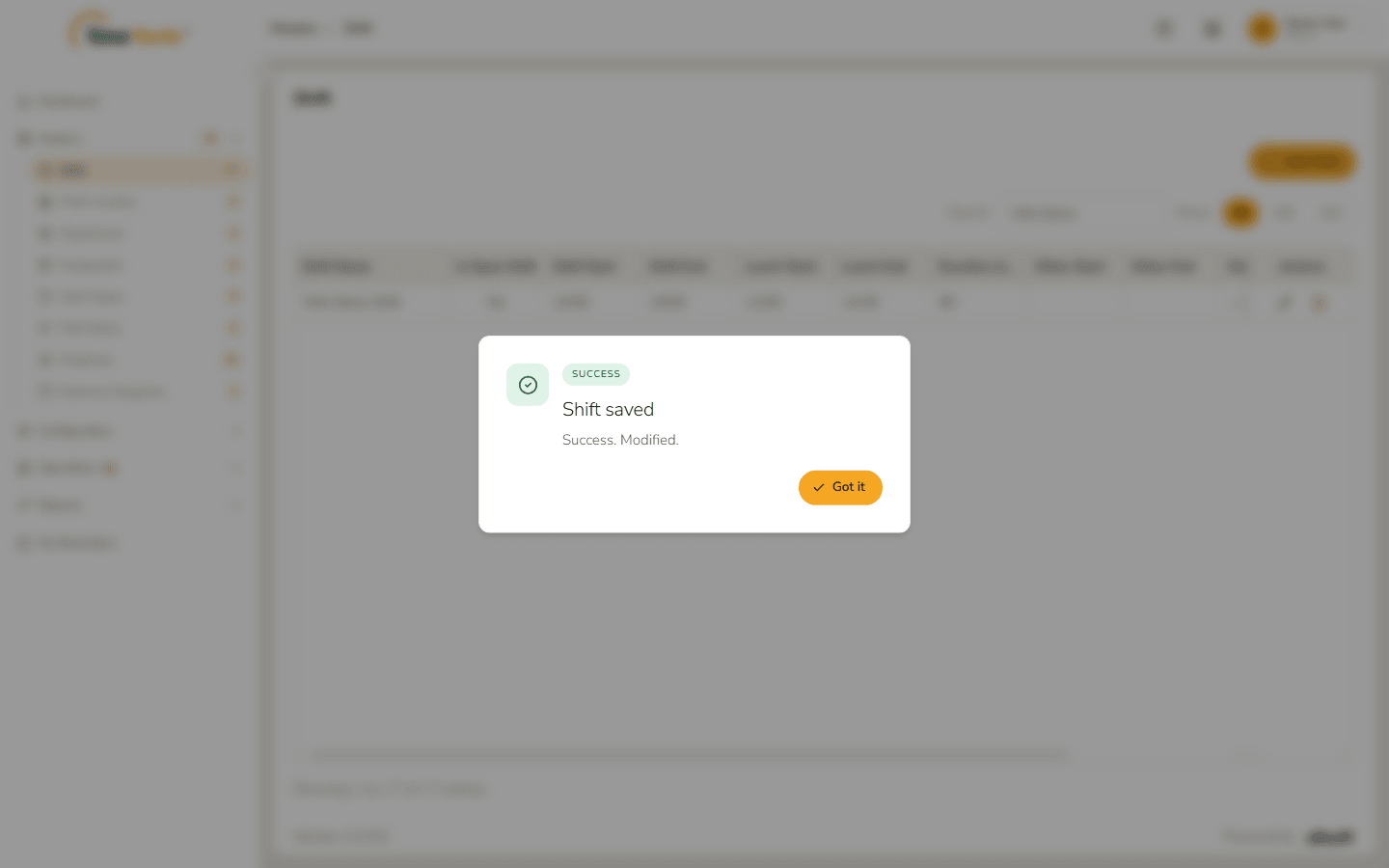
Shift modified
4. Delete a shift
- Click the bin on the shift's row.
The confirmation names the shift and warns "This cannot be undone." Click Delete.
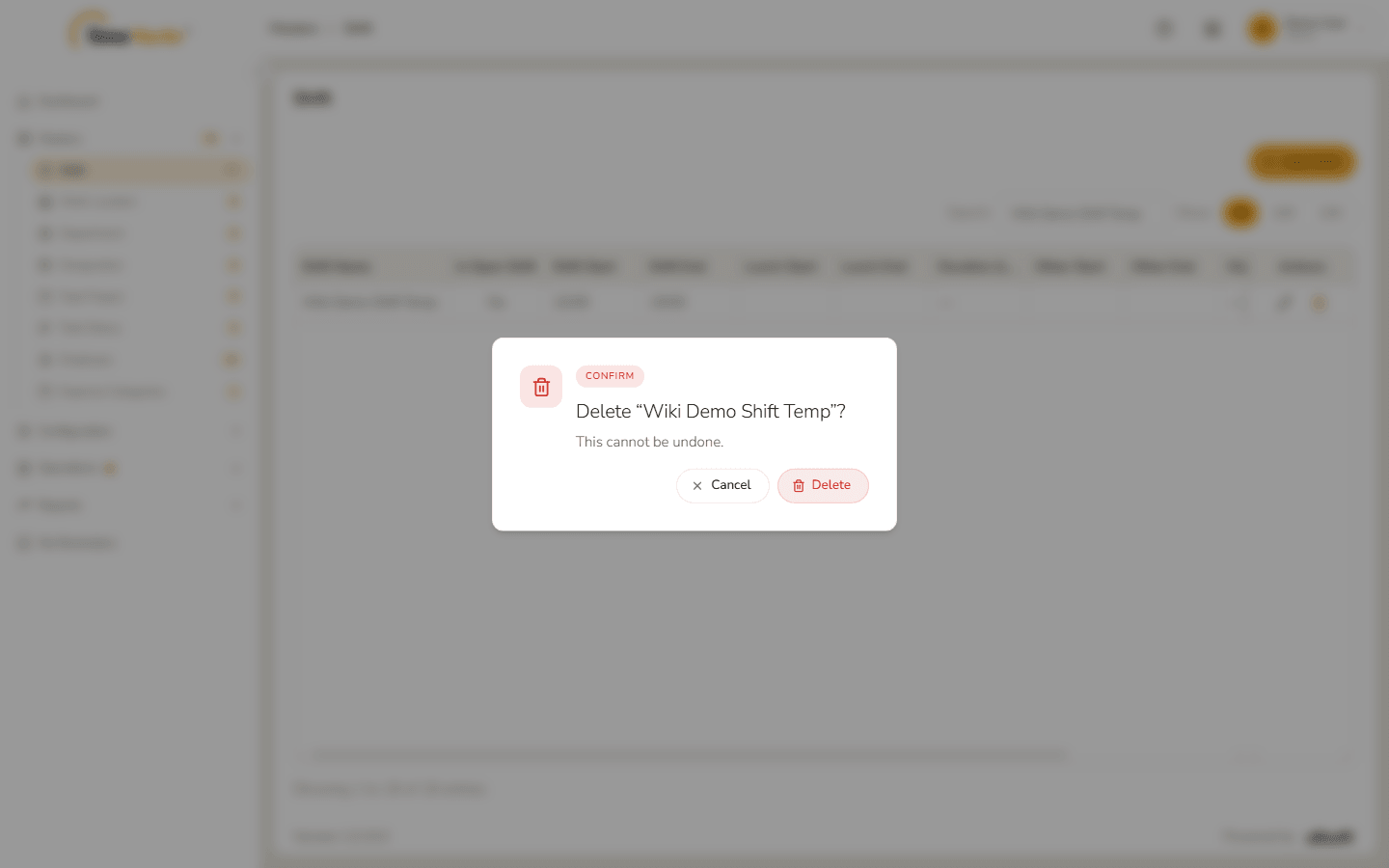
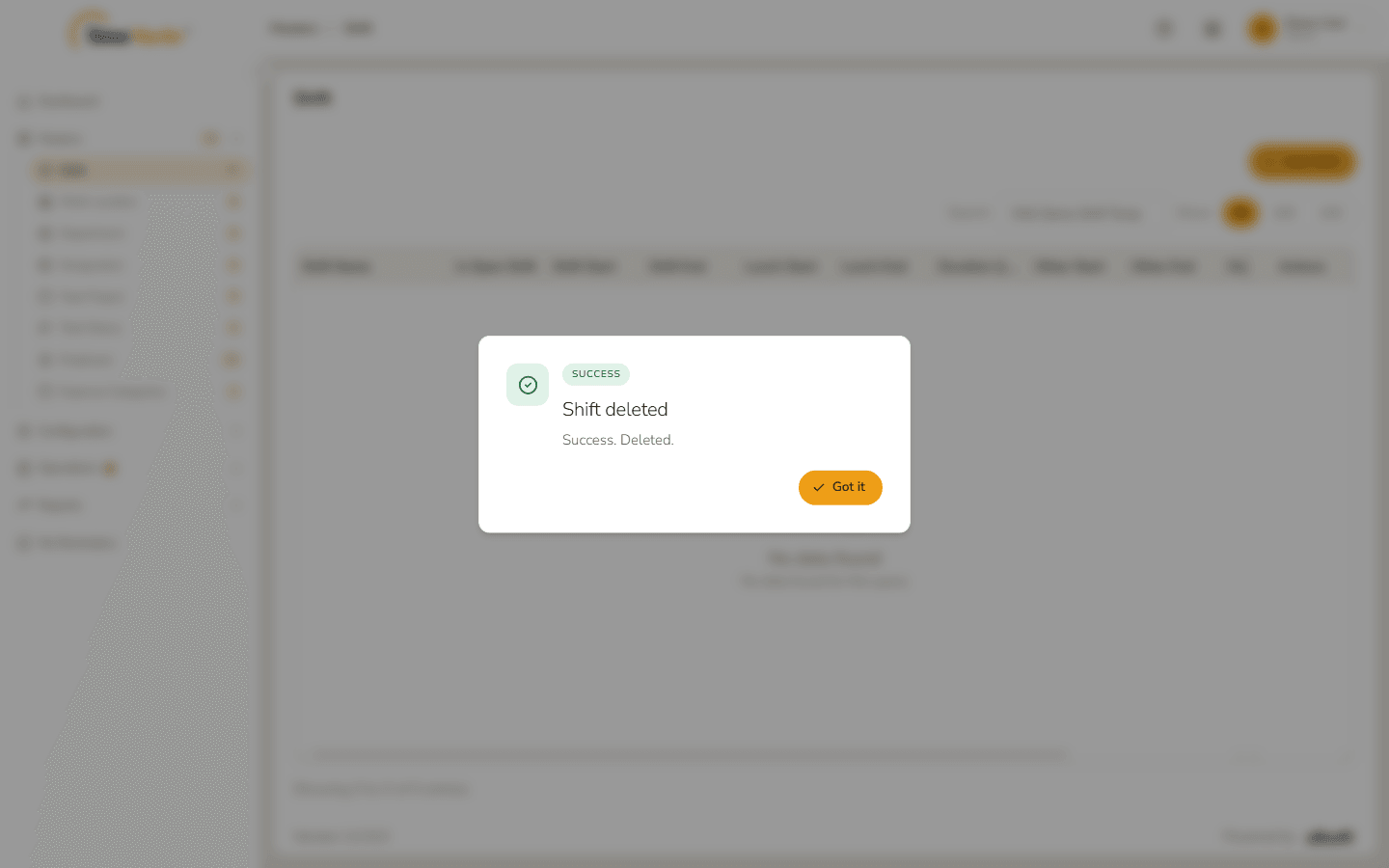
Delete confirmation Shift deleted – Success. Deleted. confirms it. Click Got it; the shift is gone from the list.
Shift deleted 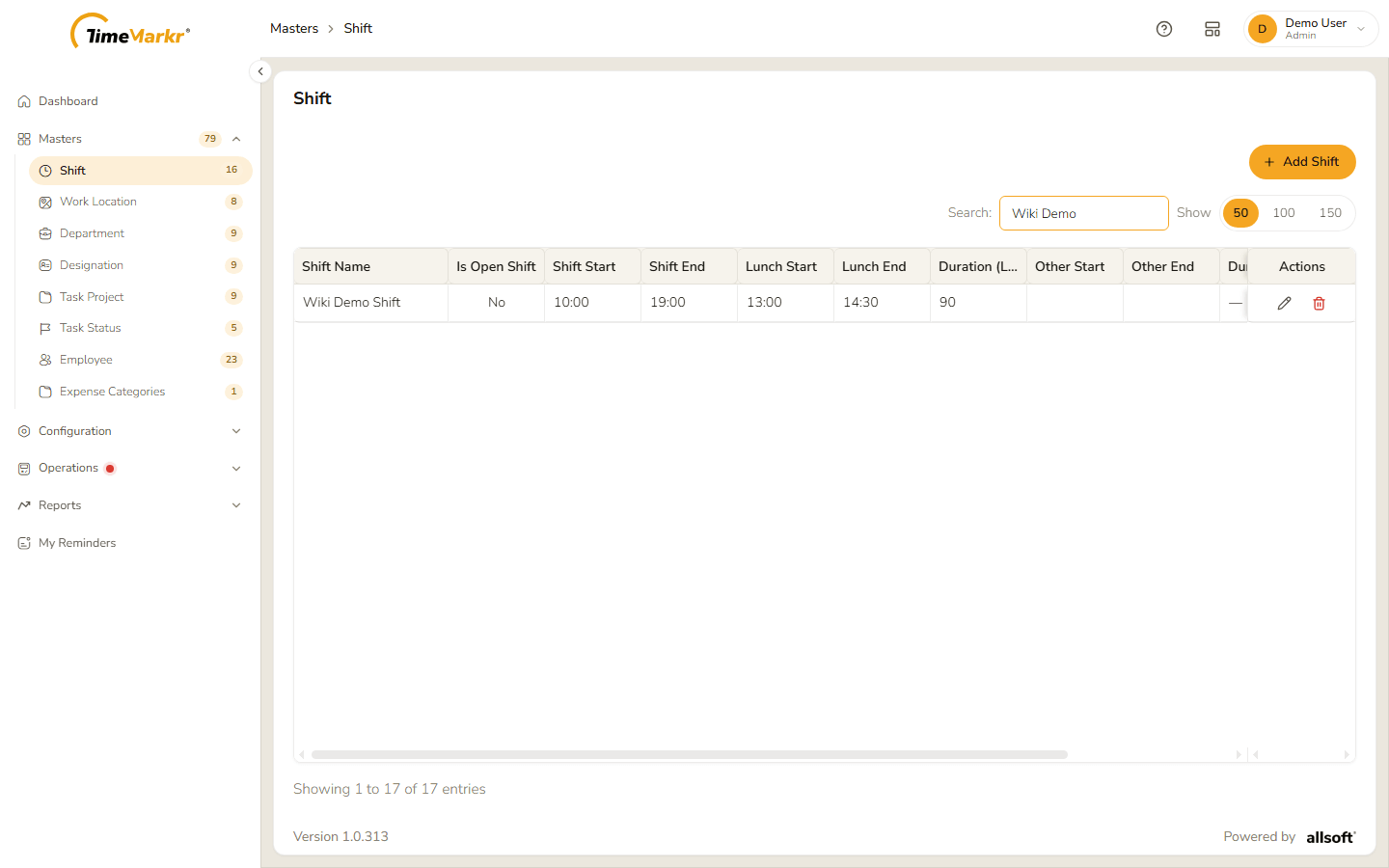
List after the delete
Related: Work Location · Bulk Update Shifts · Employee