
Regularization Requests
Where: Admin portal → Operations → Regularization Requests
Route: /operations/regularize-requests
The attendance corrections your employees ask for from Punch Correction: a missed punch-in, a missed punch-out, or both. Approving a request writes the requested times into the employee's attendance. The number beside Regularization Requests in the menu counts the requests that are Pending.
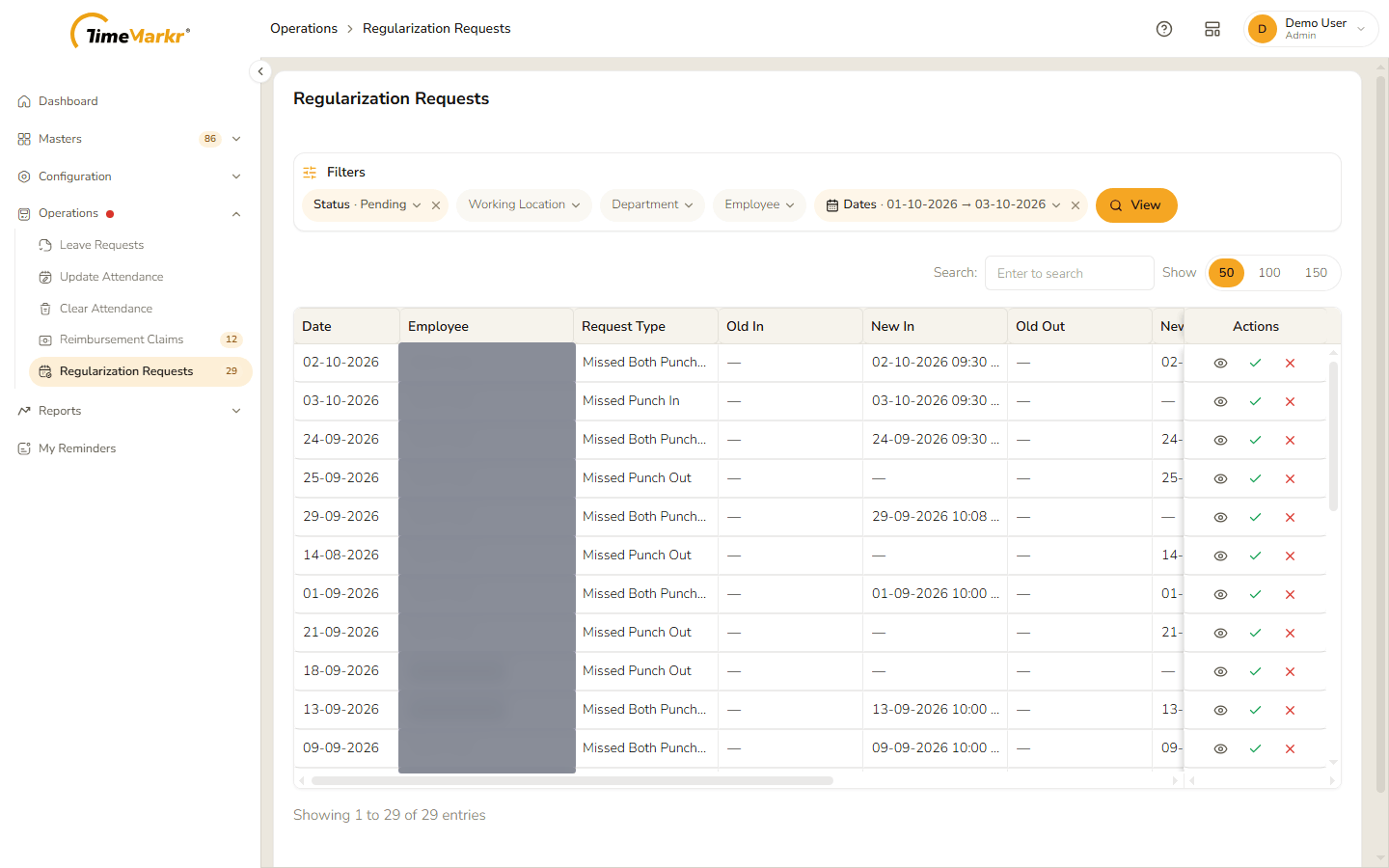
1. The list
The page opens with the pending requests.
| Column | What it shows |
|---|---|
| Date | The attendance day to be corrected. |
| Employee | Who asked. |
| Request Type | Missed Punch In, Missed Punch Out or Missed Both Punches. |
| Old In / Old Out | The punch times in the attendance now – a dash means nothing was recorded. |
| New In / New Out | The times the employee asks for. |
| Remarks | What the employee wrote. |
| Actions | View request details (eye), Approve (green tick) and Reject (red cross). |
Filters
Status (All, Pending, Approved, Rejected), Working Location, Department, Employee (type at least three characters and pick the person) and Dates. Click View to apply them and Clear all filters to start again. Search filters the rows on screen and Show 50 / 100 / 150 chooses how many to see.
2. Read a request
Click the eye icon. Regularization request – Requested punch corrections submitted by the employee opens.
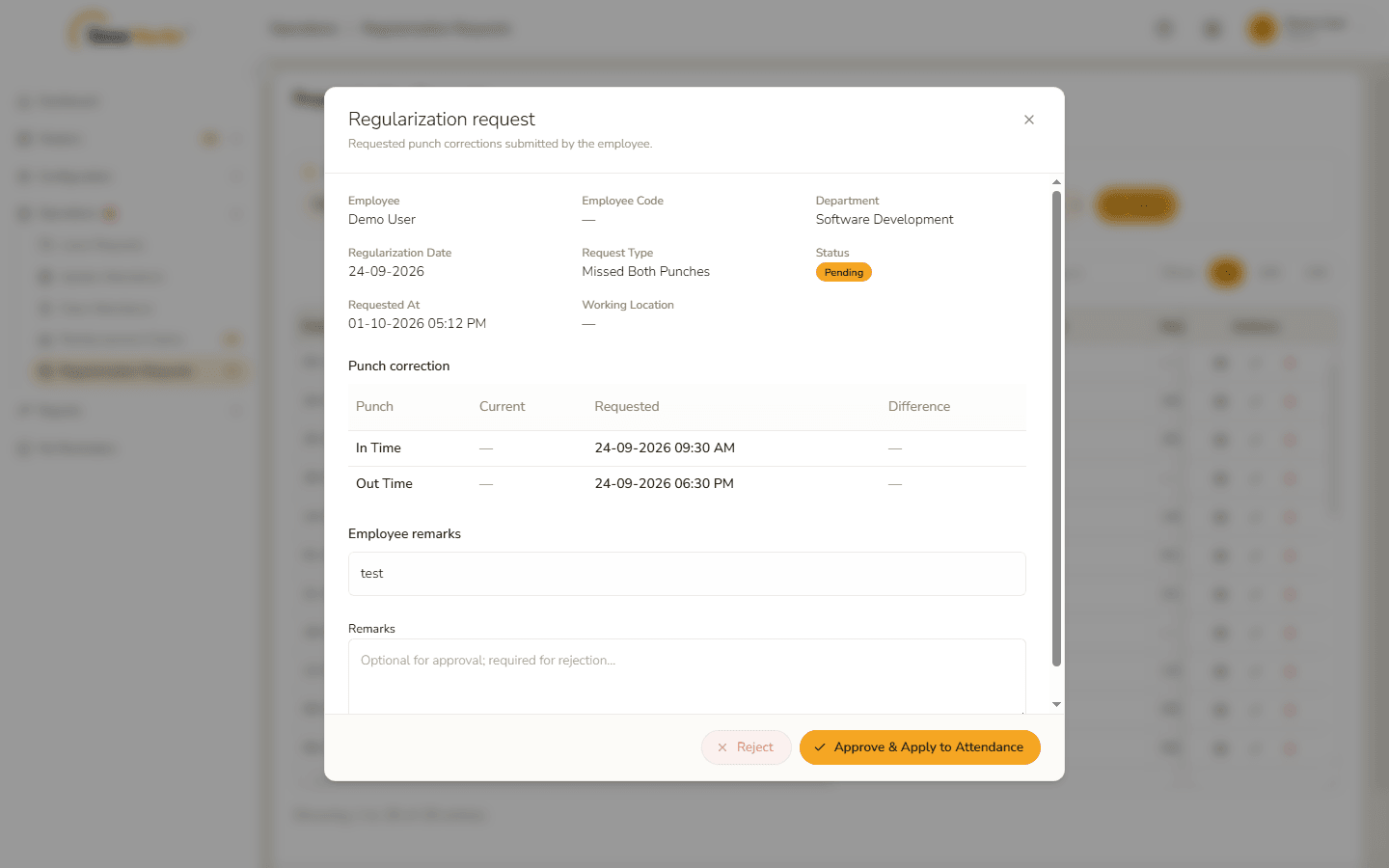
- The top block shows the Employee, Employee Code, Department, Regularization Date, Request Type, Status, when it was Requested At and the Working Location.
- Punch correction compares the Current time with the Requested one for In Time and Out Time. The Difference column shows how far the requested time is from the current one (for example 46 minutes before or 1 hour 5 minutes after). When the times match or there is no current punch, it shows a dash.
- Employee remarks is what the employee wrote.
- Remarks is your own note: "Optional for approval; required for rejection."
3. Approve a request
Write a Remarks note if you want one.
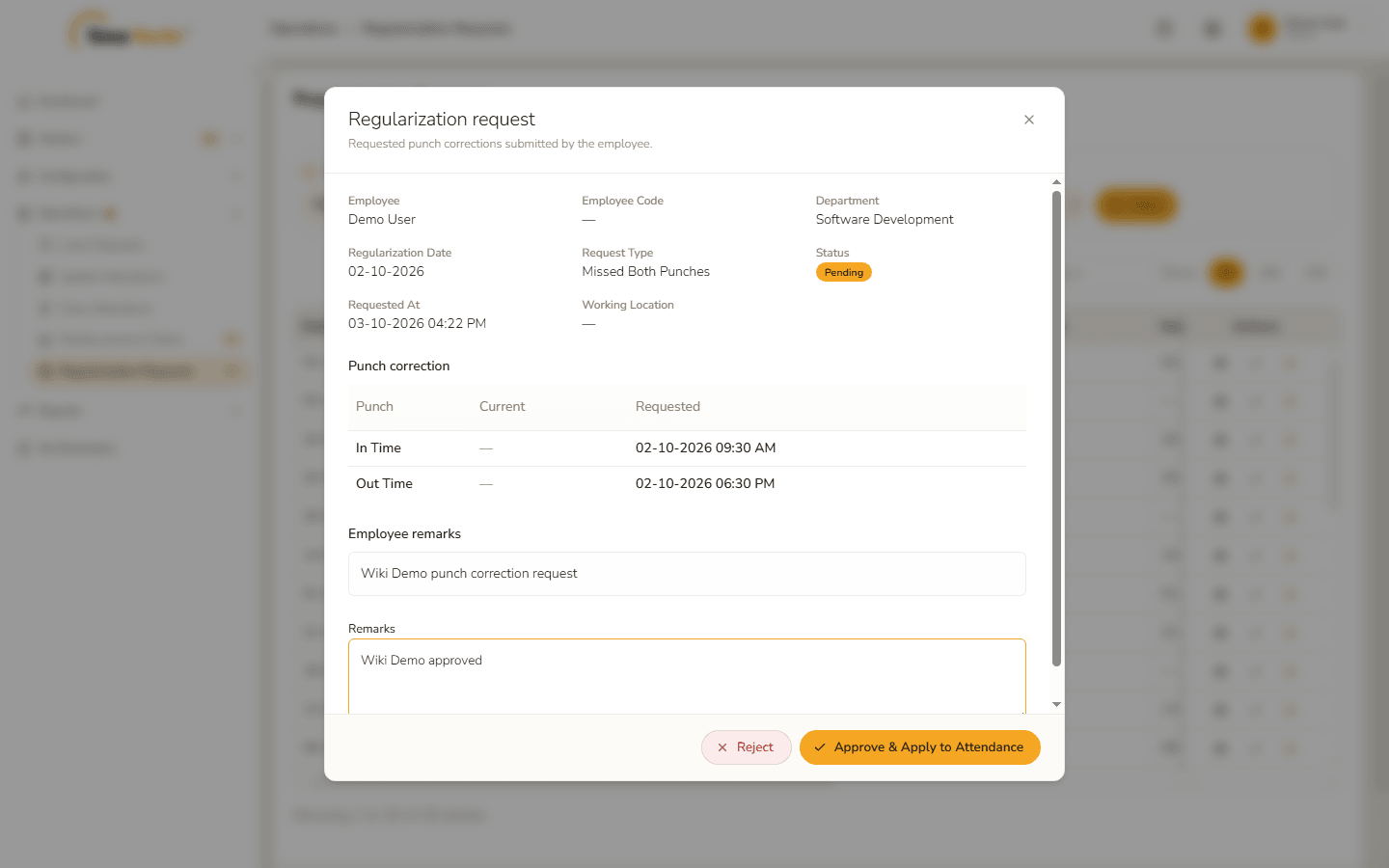
Remarks written Click Approve & Apply to Attendance. A confirmation says what was done – Request #96 approved. … attendance for 02-Oct-2026 is now punch-in 09:30 AM and punch-out 06:30 PM (session #188881). Late/overtime/hours were recalculated and … has been notified by app and email. Click Got it.
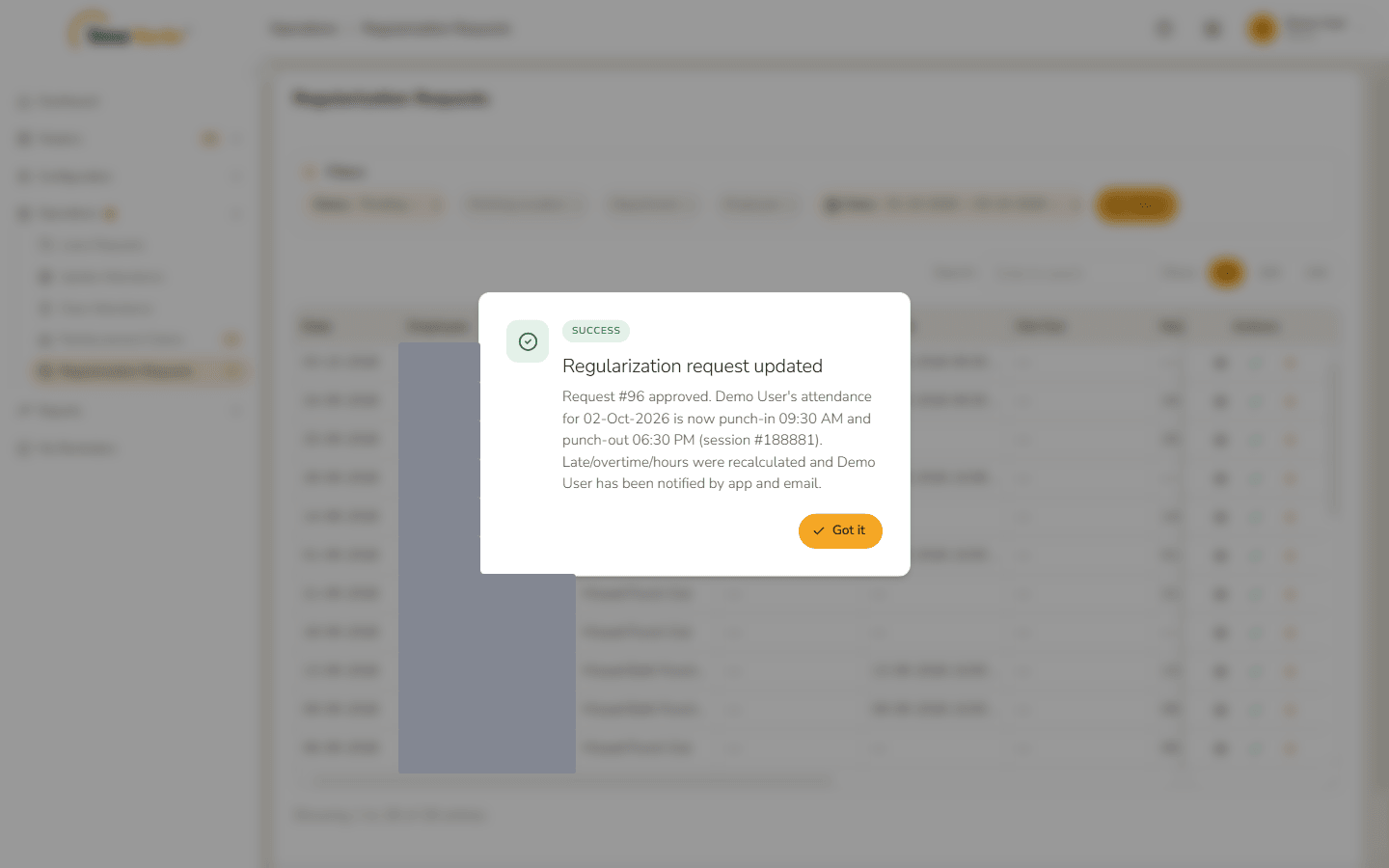
Request approved The request leaves the pending list and the count in the menu goes down.
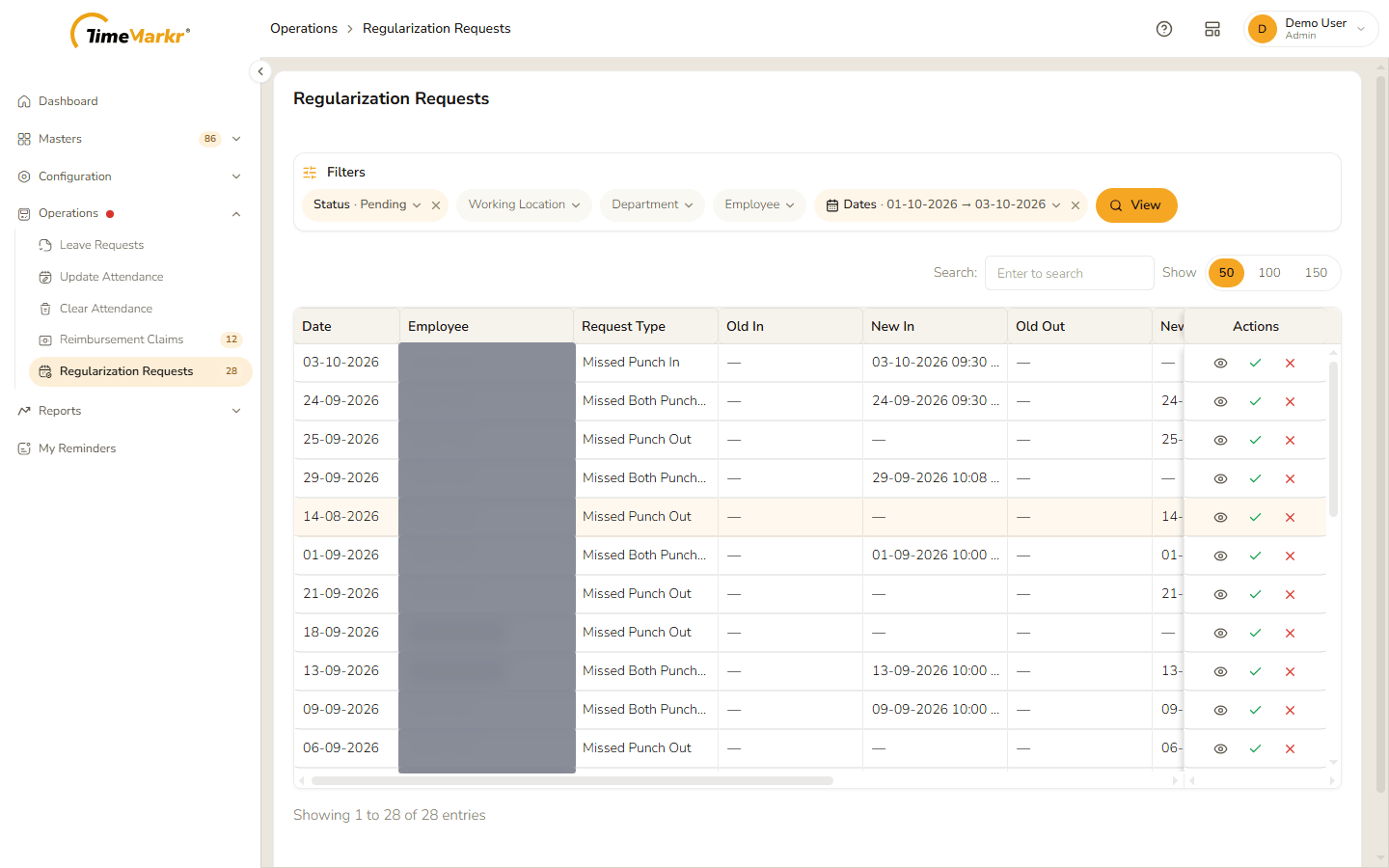
The list after approving
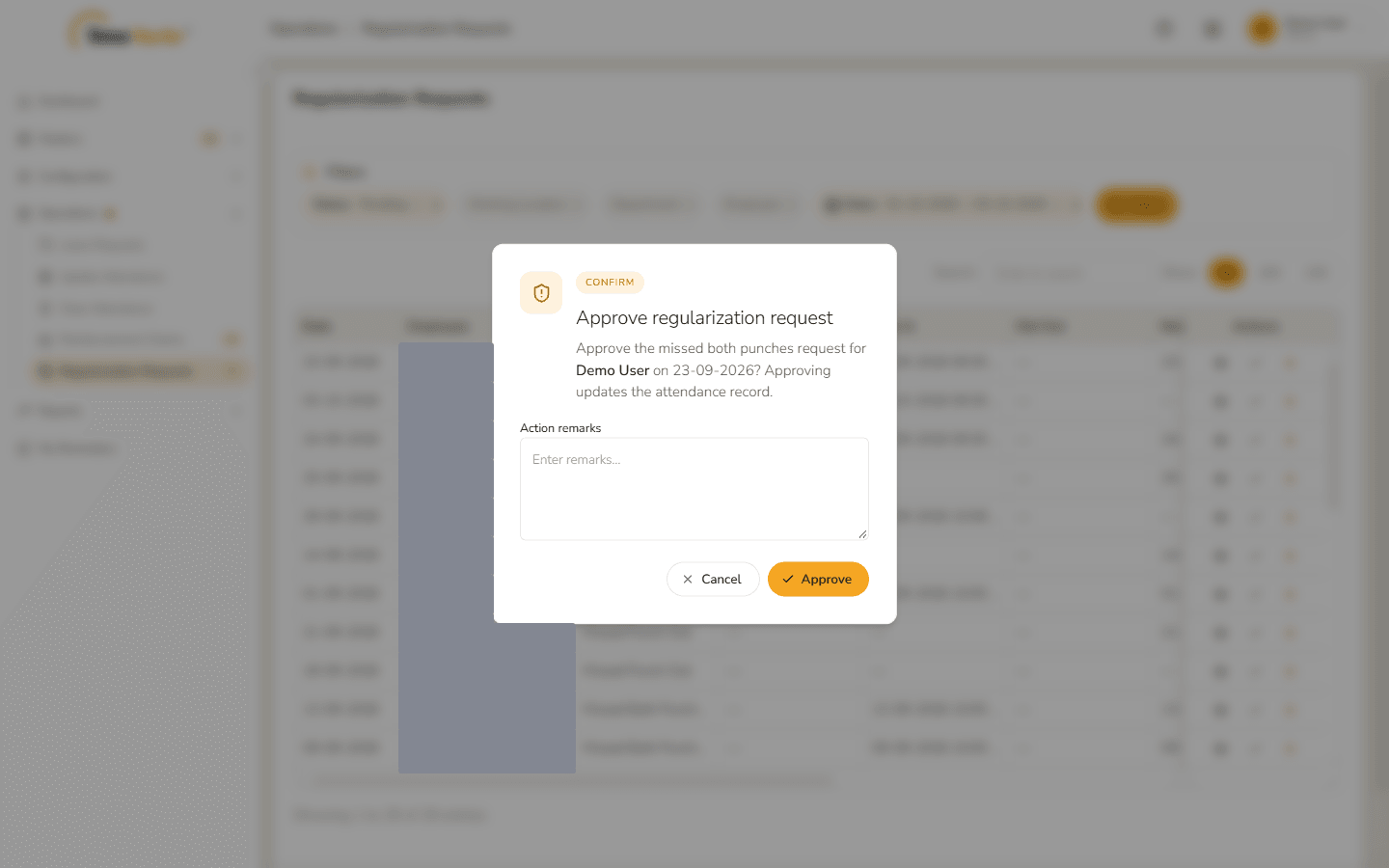
You can also approve straight from the list: the green tick asks "Approve the missed both punches request for <employee> on 23-09-2026? Approving updates the attendance record." and has an Action remarks box, then Approve does the same as above.
4. Reject a request
Click the red cross on the request (or Reject inside the request details). Reject regularization request – Reject the missed punch in request for <employee> on 22-09-2026? opens with an Action remarks box. Reject stays pale until you have written a reason.
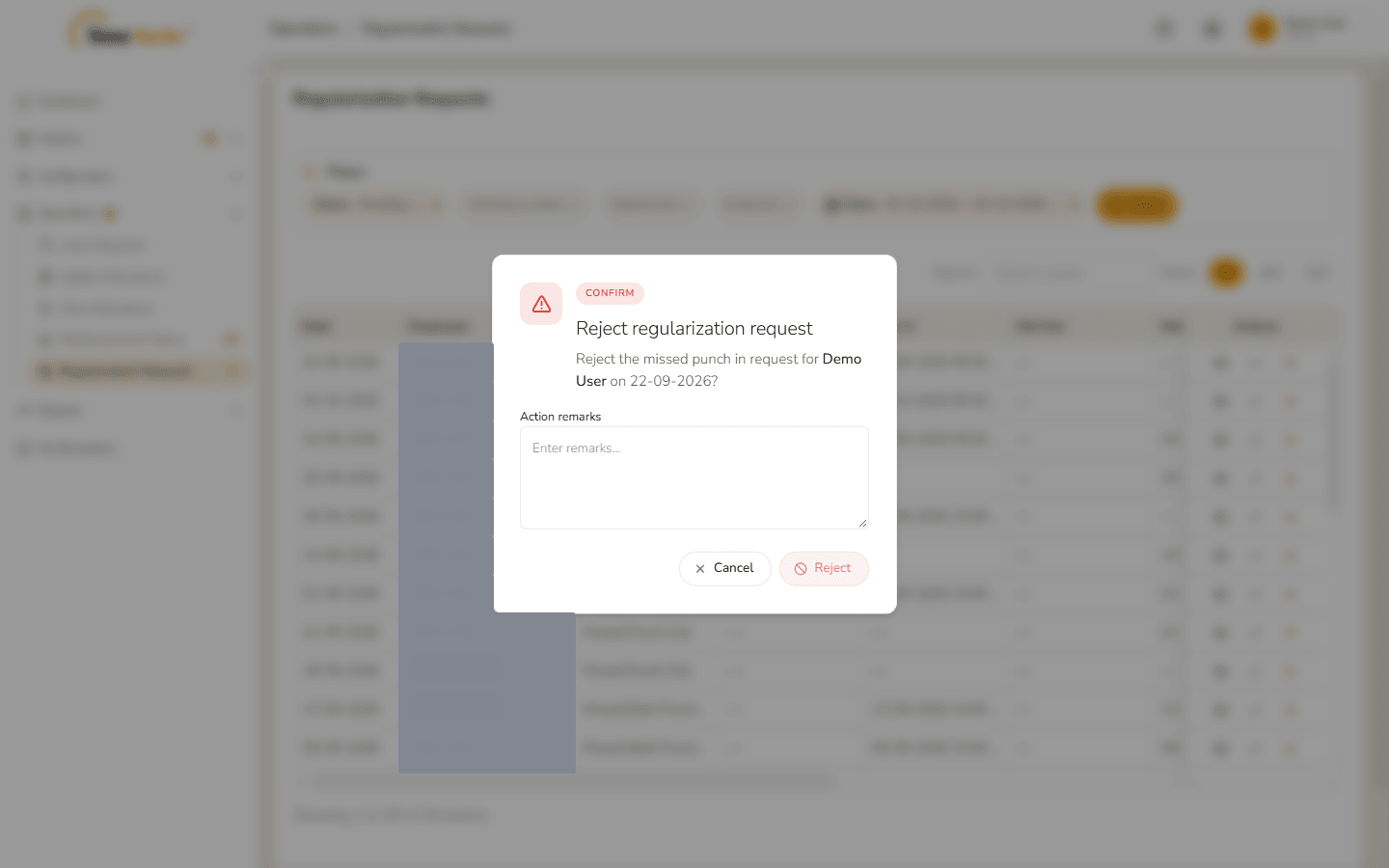
Reject regularization request Click Reject. A confirmation says that the attendance was left unchanged and that the employee has been notified, with your remarks, by app and email. Click Got it.
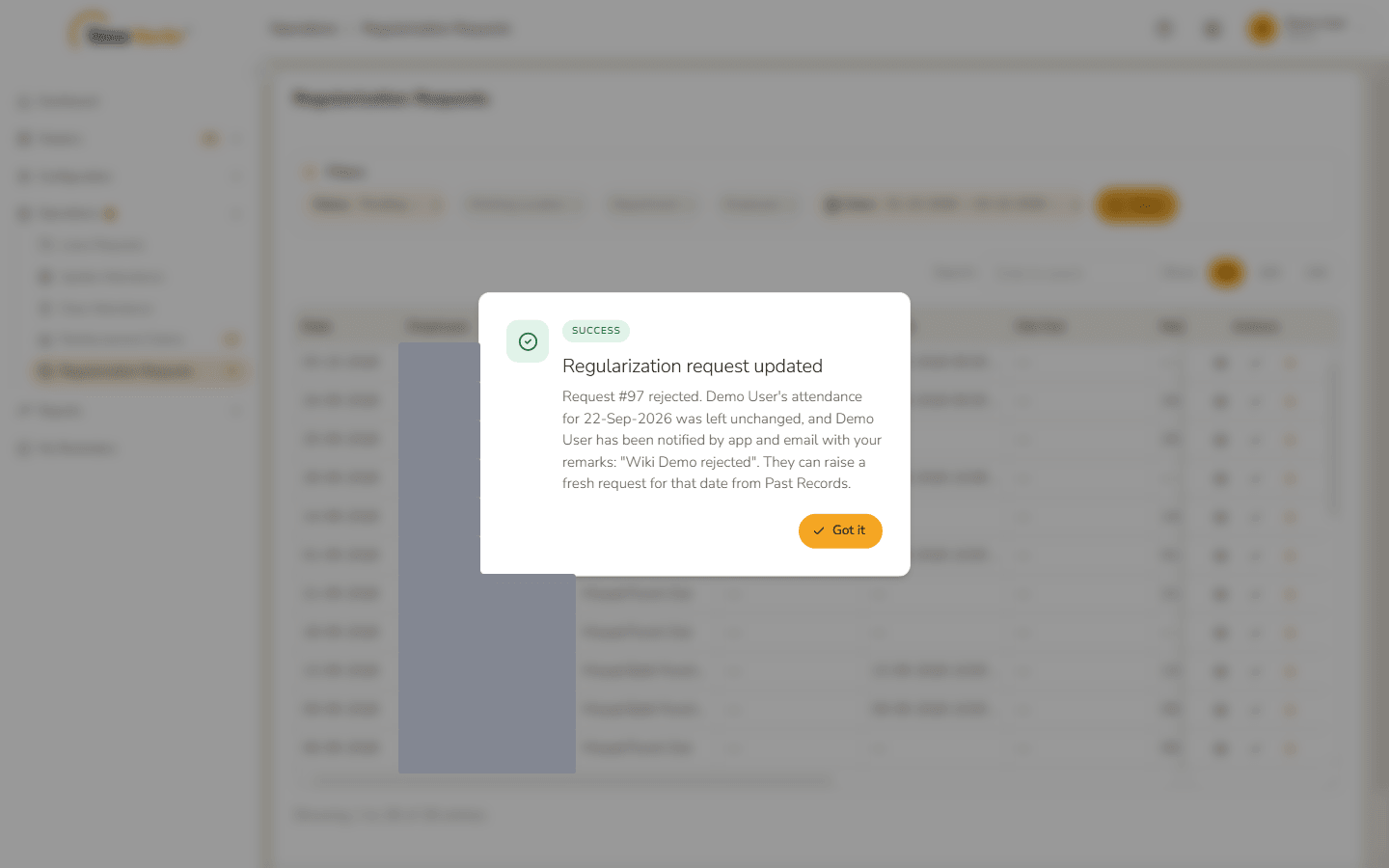
Request rejected
Cancel closes the window and leaves the request pending.
Related: Punch Correction (employee portal) · Update Attendance · Attendance Update Log