
Employee Performance
Where: Admin portal → Reports → Employee Performance
Route: /reports/employee-performance
One employee's performance figures for one month. See Reports – the basics for the parts every report shares.
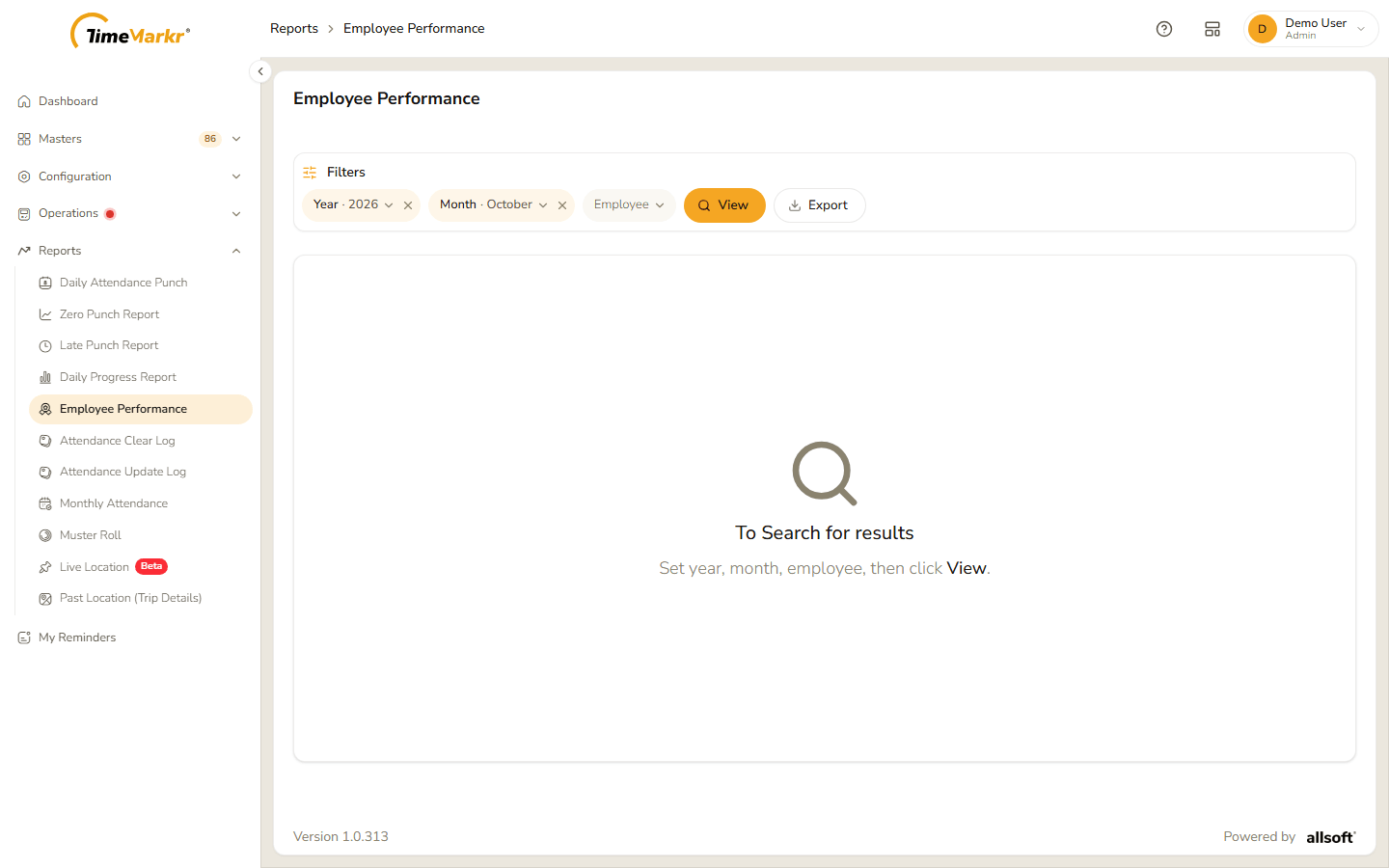
The page opens empty: "To Search for results – Set year, month, employee, then click View."
Run the report
- Click the Year pill and choose the year (the list holds this year and last year).
- Click the Month pill and choose the month. For the current year only the months up to the current one are offered.
- Click the Employee pill, type at least three characters of the name and pick the person from the suggestions – a name that is only typed is not enough. "Pick an employee from search suggestions." appears if you try to continue without picking one.
- Click View. Clear all filters starts again.
- Export downloads the same figures as an Excel file.
Note: in the demo account this guide was written against, the server answered every request for this report with an error – Employee performance – The server did not return report data. – so the figures themselves are not shown here. If you see that message too, try again later and tell your TimeMarkr contact if it keeps happening.
Related: Daily Progress Report · Monthly Attendance