
Tasks
Work you give to others and work others give to you, with a conversation attached to every task. Three pages sit under Tasks in the employee portal:
| Page | Route | What it is |
|---|---|---|
| Overview | /employee/tasks | The figures: how many tasks are open, late or closed, and how they break down. |
| Open | /employee/tasks/open | The tasks still being worked on, with the details and the chat of each. |
| Close | /employee/tasks/closed | The tasks that are finished. |
1. Overview
Where: Employee portal → Tasks → Overview
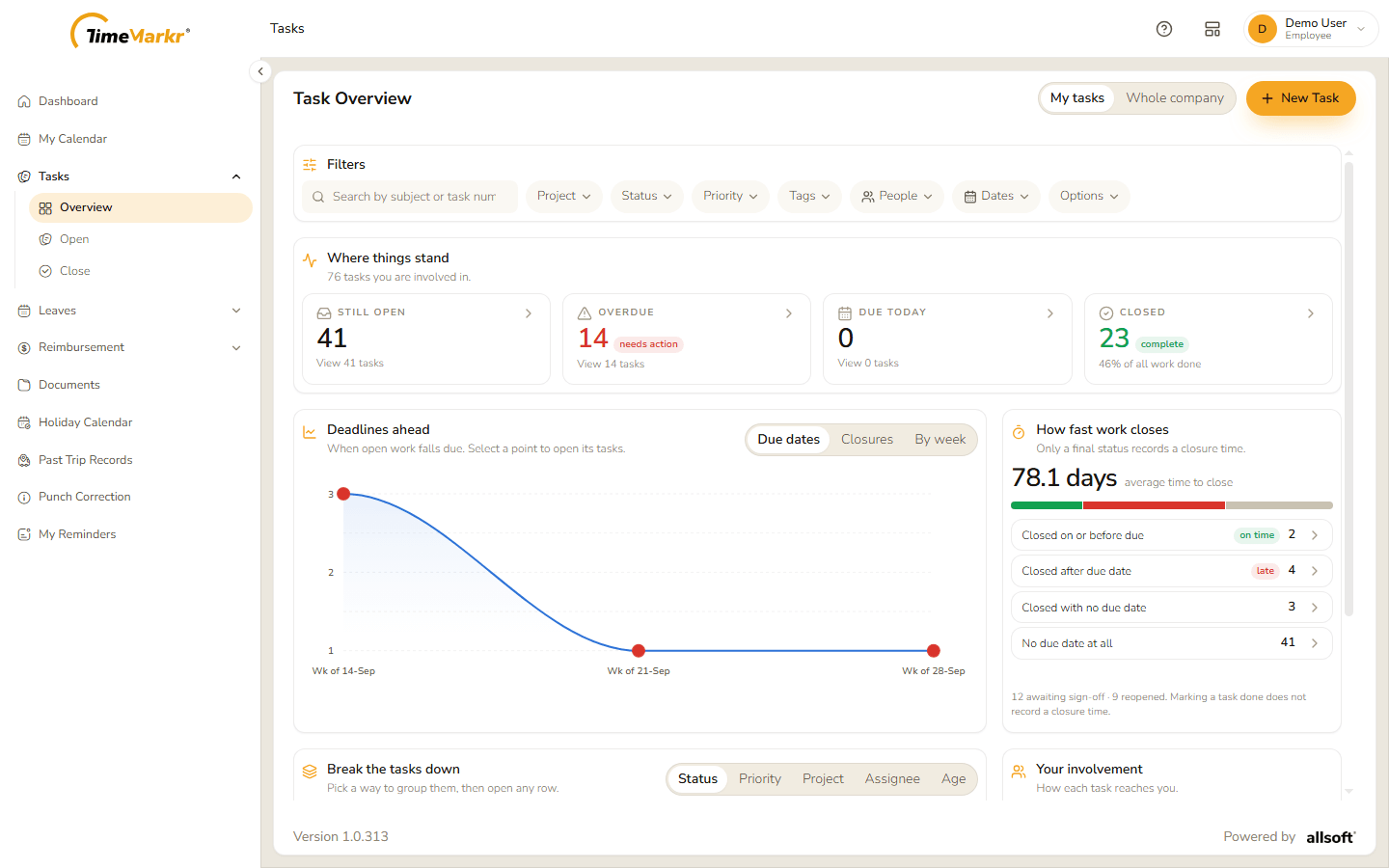
- The My tasks / Whole company switch at the top right chooses whose tasks the page counts. New Task starts a task (see New Task).
- Filters narrow everything on the page: a search box ("Search by subject or task number") and the pills Project, Status, Priority, Tags, People, Dates and Options.
- Where things stand counts the tasks you are involved in: Still open, Overdue (needs action), Due today and Closed (complete, with the share of all work that is done). Each tile has a View … tasks link that opens them.
- Deadlines ahead draws when open work falls due. Switch it between Due dates, Closures and By week; select a point to open its tasks.
- How fast work closes gives the average time to close, and sorts closed tasks into Closed on or before due, Closed after due date, Closed with no due date and No due date at all. A task marked Done has no closure time yet – only a final status records one.
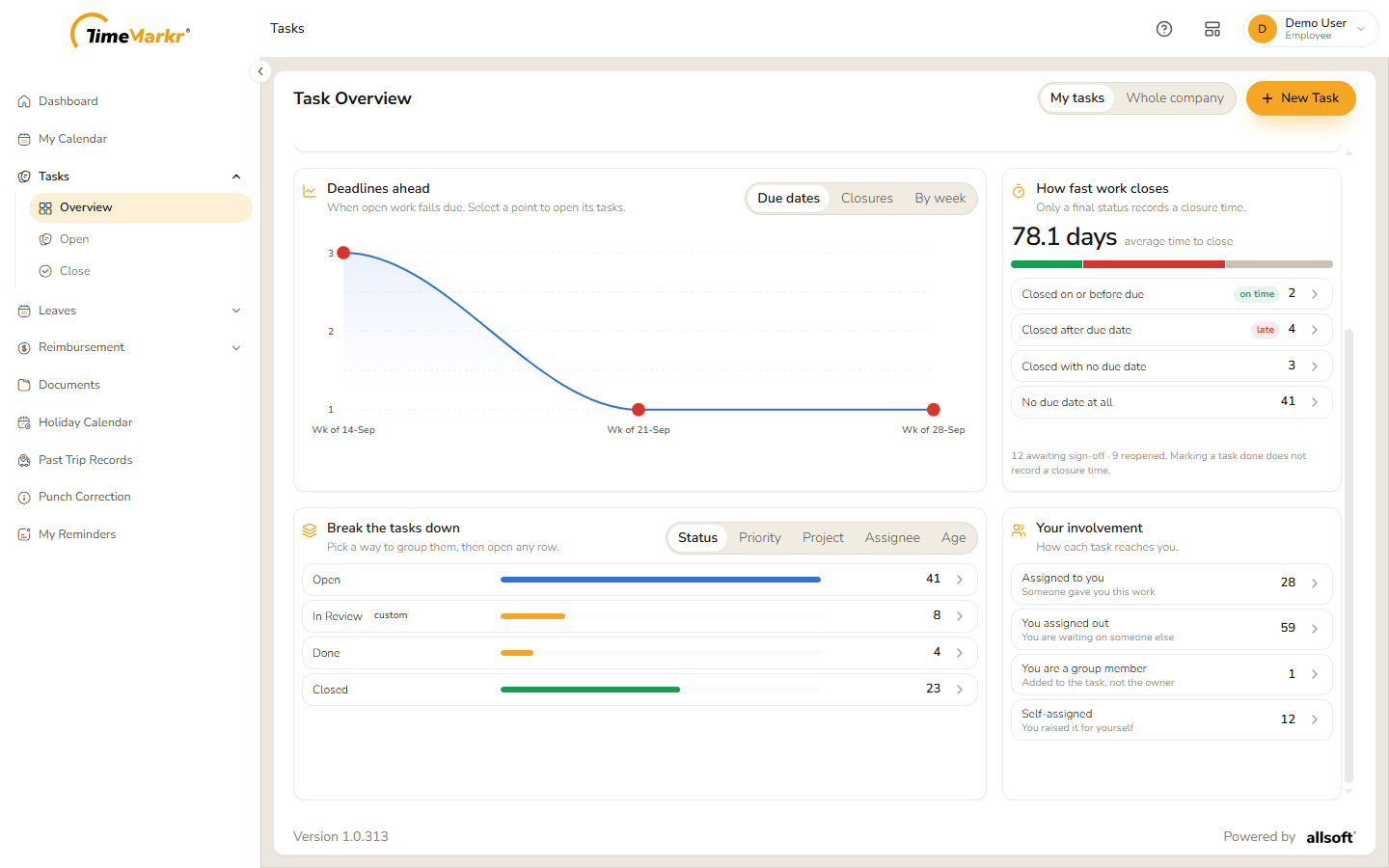
- Break the tasks down groups the tasks by Status, Priority, Project, Assignee or Age; open any row to see its tasks.
- Your involvement shows how tasks reach you: Assigned to you (someone gave you this work), You assigned out (you are waiting on someone else), You are a group member (added to the task, not the owner) and Self-assigned (you raised it for yourself).
2. Open and Close
Where: Employee portal → Tasks → Open (or Close)
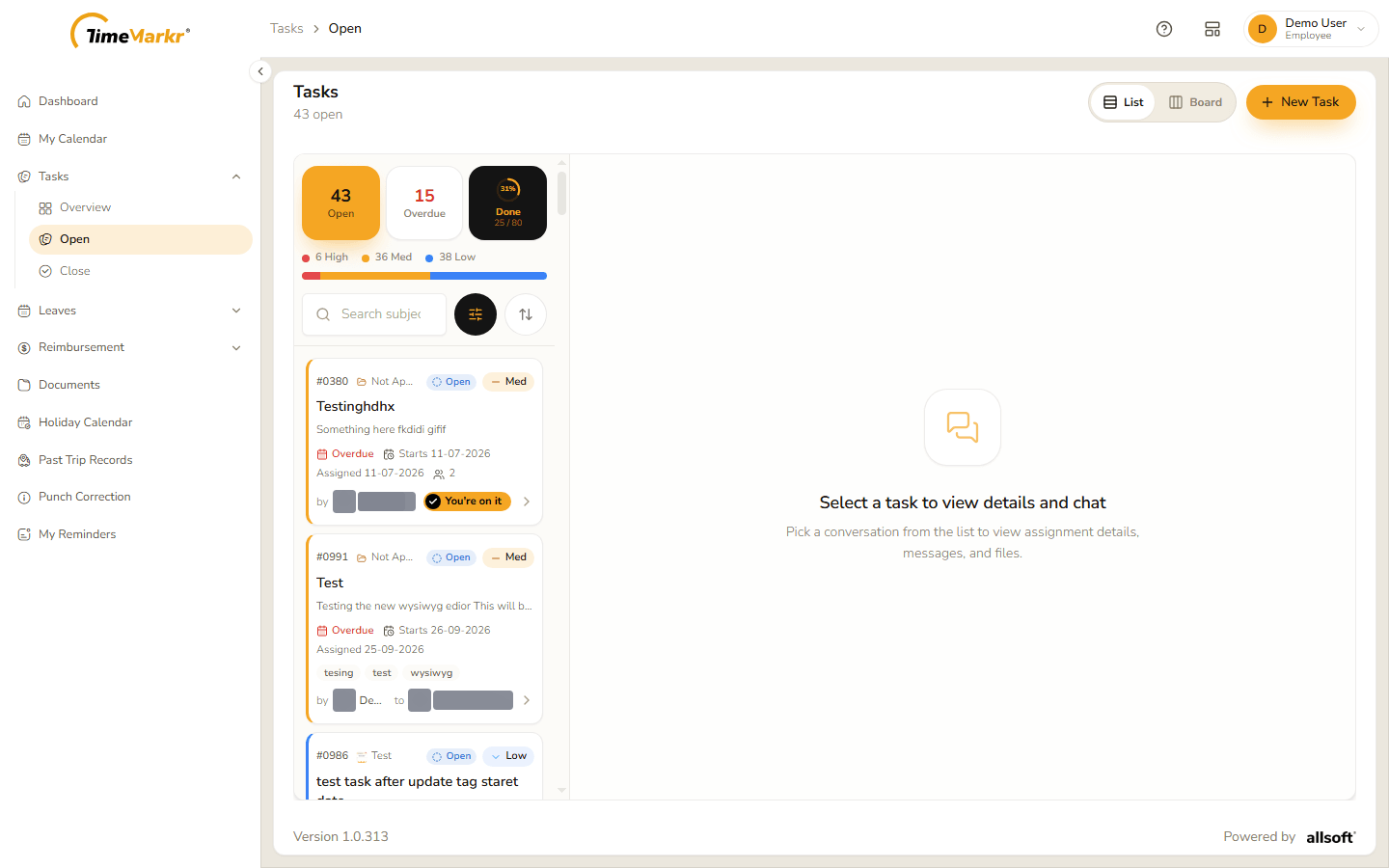
The page has two panes. On the left is the list of tasks; on the right, once you click one, its details and its chat. List and Board at the top right switch between this layout and a board.
The top of the list shows three counters – Open, Overdue and Done with how many of all the tasks are done – and a bar that splits the tasks by priority (6 High · 36 Med · 38 Low). Under them are a search box, the filter button and the sort button.
Each task is a card:
- its number (
#0380), its project, its status and its priority; - the subject and the start of the description;
- Overdue in red or the due date, the start date and the date it was assigned;
- its tags, how many members and files it has;
- who gave it (by) and who has it (to), and You're on it when it is yours.
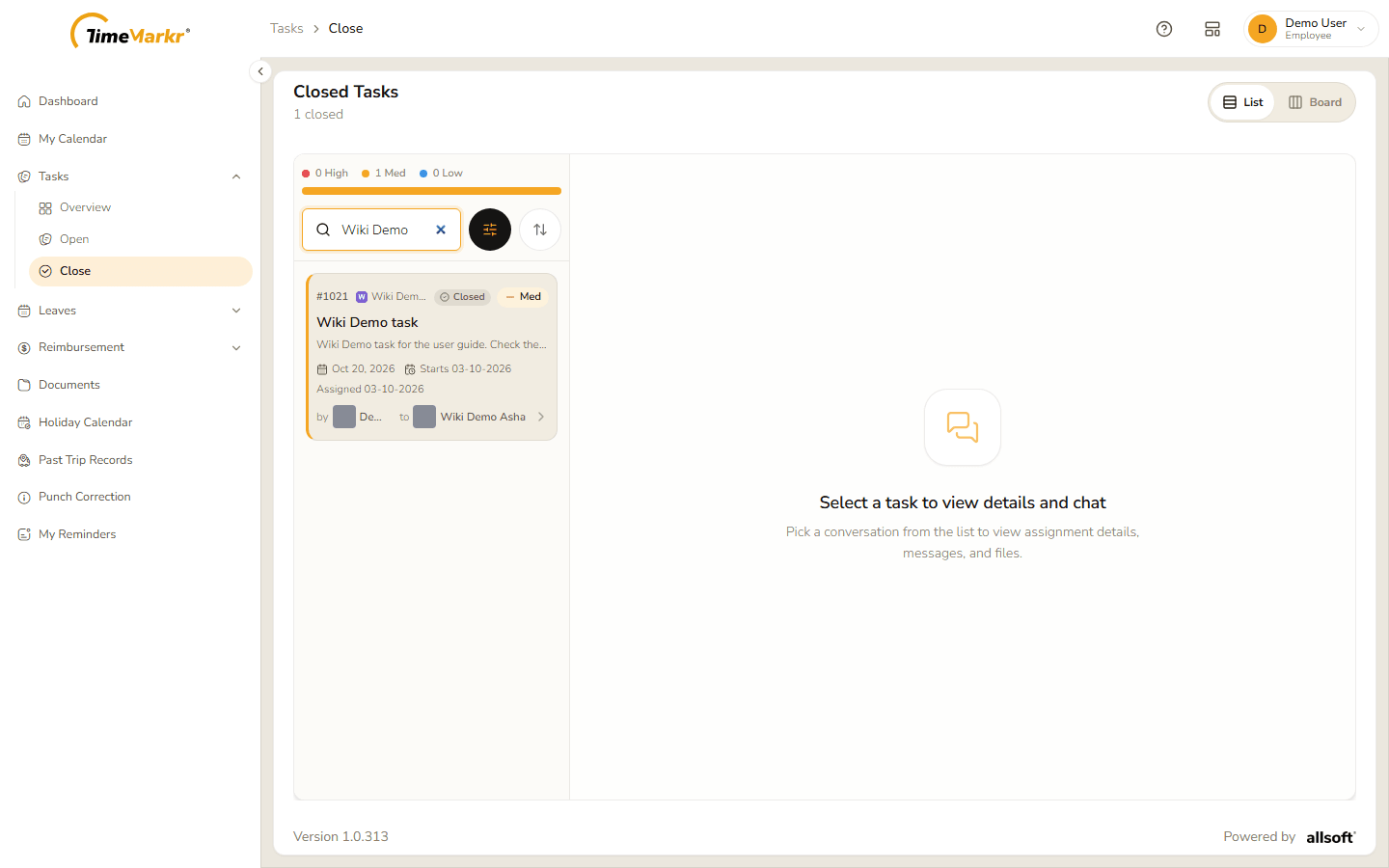
The Close page is the same, headed Closed Tasks, and lists the tasks whose status is Closed.
Filter the list
The filter button opens Filter tasks.
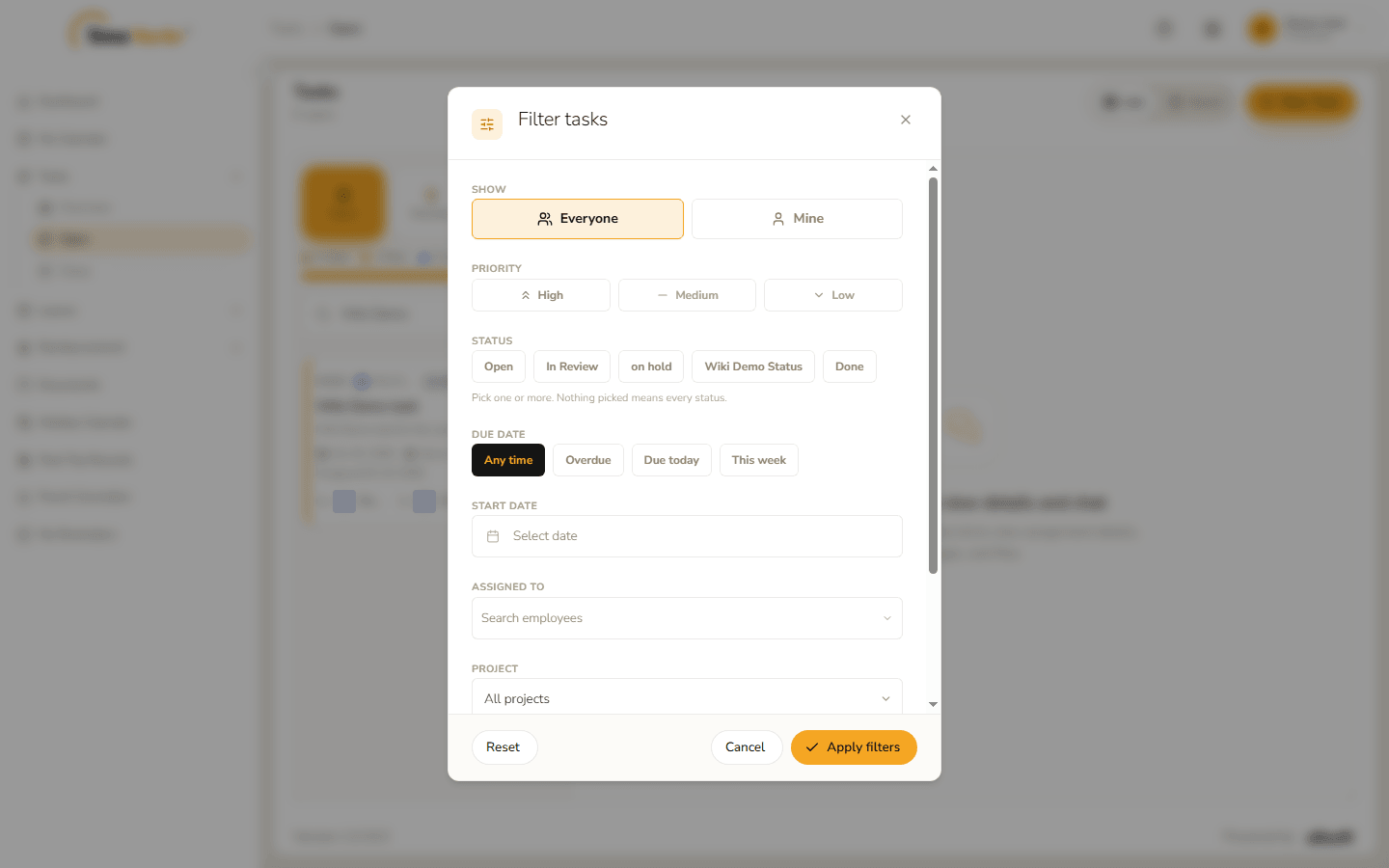
| Filter | Choices |
|---|---|
| Show | Everyone or Mine. |
| Priority | High, Medium, Low. |
| Status | Pick one or more of your task statuses; nothing picked means every status. |
| Due date | Any time, Overdue, Due today, This week. |
| Start date | A day. |
| Assigned to | Search for an employee. |
| Project | All projects or one project. |
| Tags | One or more tags. |
| Read-unread task | All, Unread or Read. |
Apply filters applies them, Reset clears them and Cancel closes the window. The sort button next to it changes the order of the list.
3. Create a task
Click New Task. New task – Assign work and start a conversation thread opens.
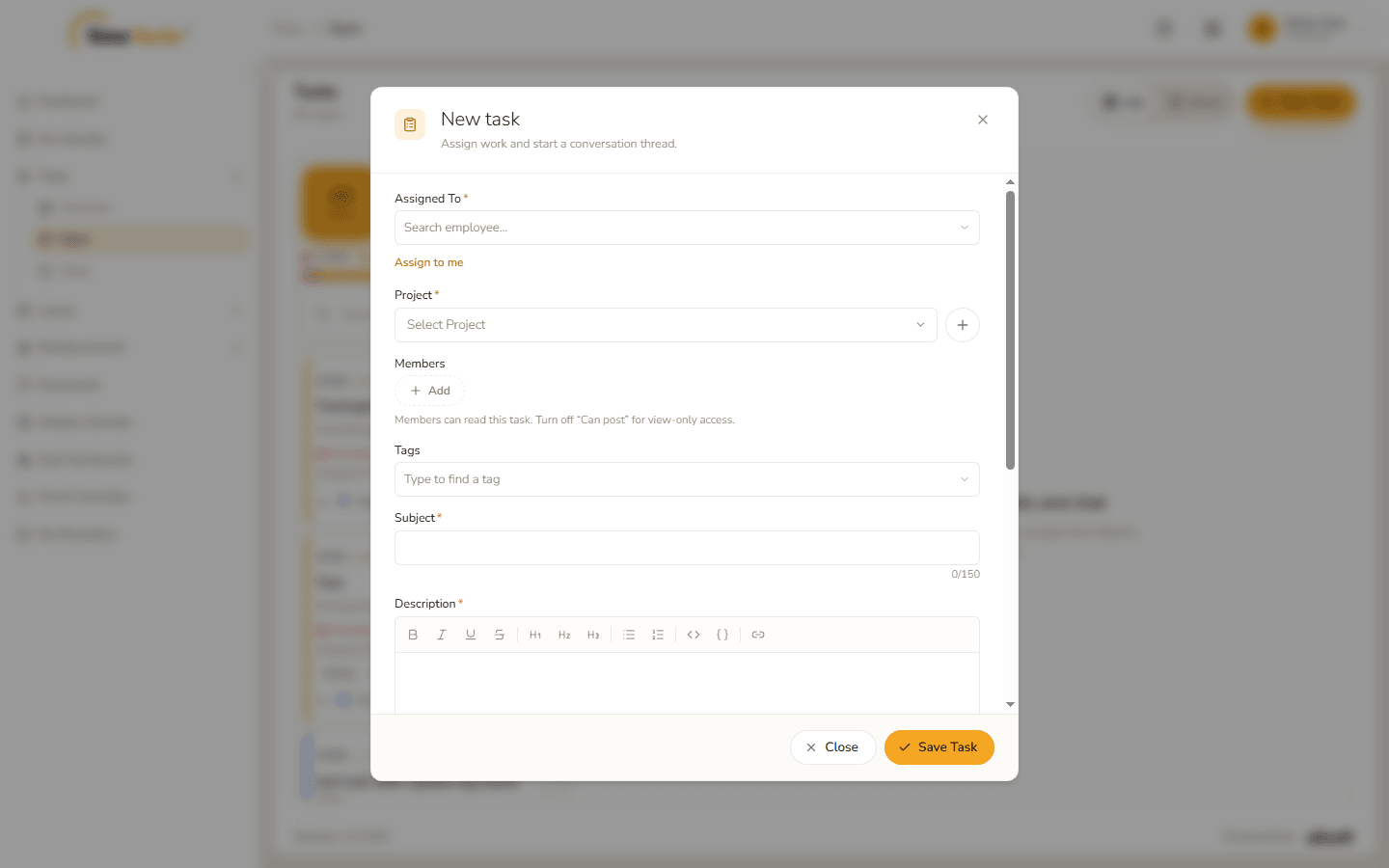
New task Fill it in.
Field Notes Assigned To* Type a name and pick the employee who has to do the work. Assign to me picks you. Project* The project the task belongs to. The + beside the list adds a new project. Projects are set up by HR – see Task Project. Members Add opens Select members. Members can read the task and the chat; turn off Can post for view-only access. Tags Optional labels – type to find a tag. Subject* A short title, up to 150 characters. Description* What has to be done. The toolbar offers bold, italic, underline, strike-through, three heading sizes, bulleted and numbered lists, inline code ( <>), a code block ({}) and links. Put raw JSON, a command or a log line in a code block: it keeps its spacing and anyone reading the task can copy it in one click.Attachment Optional files – "Image, video, audio, PDF, spreadsheet or script · images 5 MB, video 50 MB". Drop them in, Browse, or press Ctrl + V to paste a screenshot. Task Priority* Low, Medium or High. Start date* Today by default. Deadline Optional. 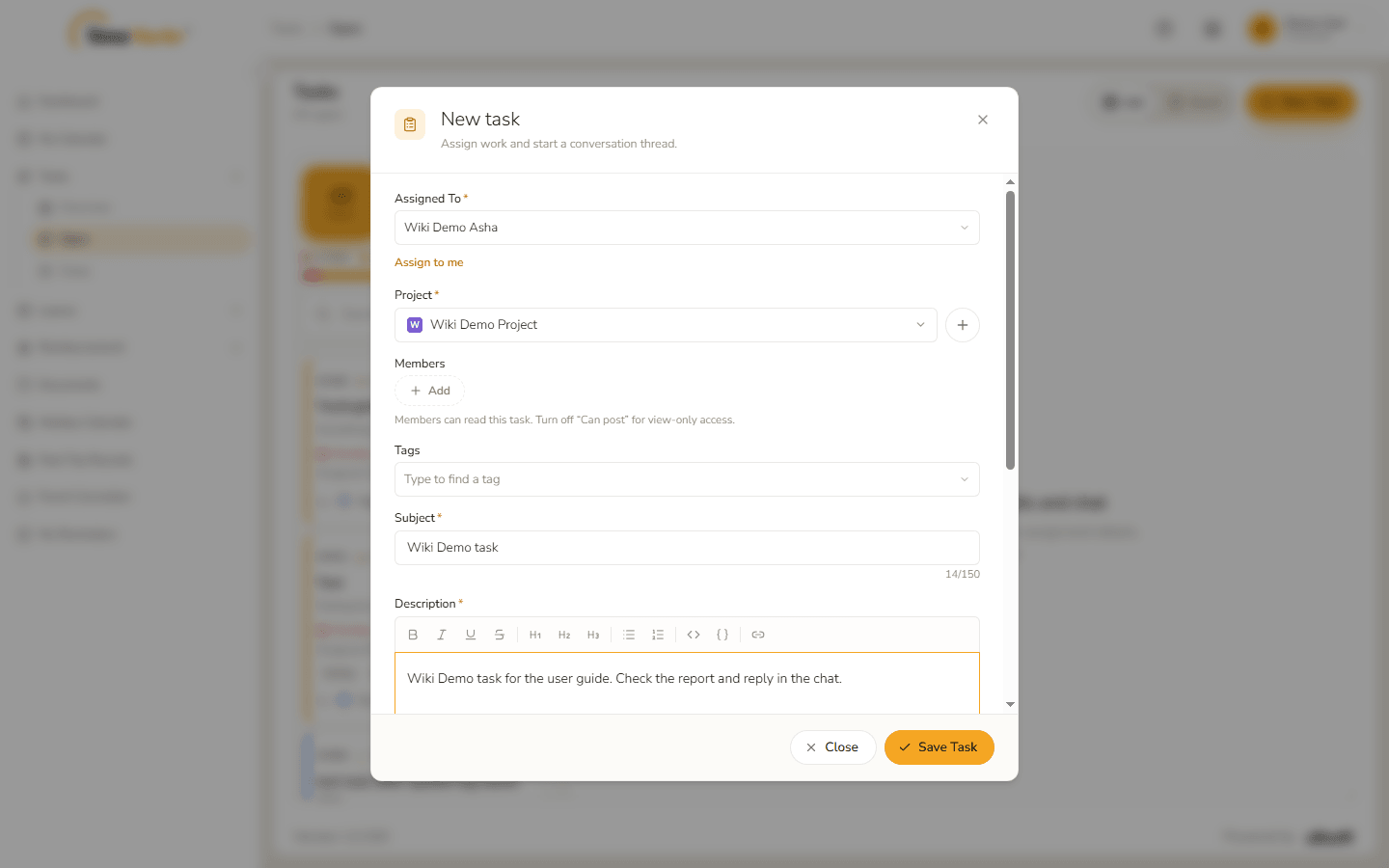
Assignee and project chosen 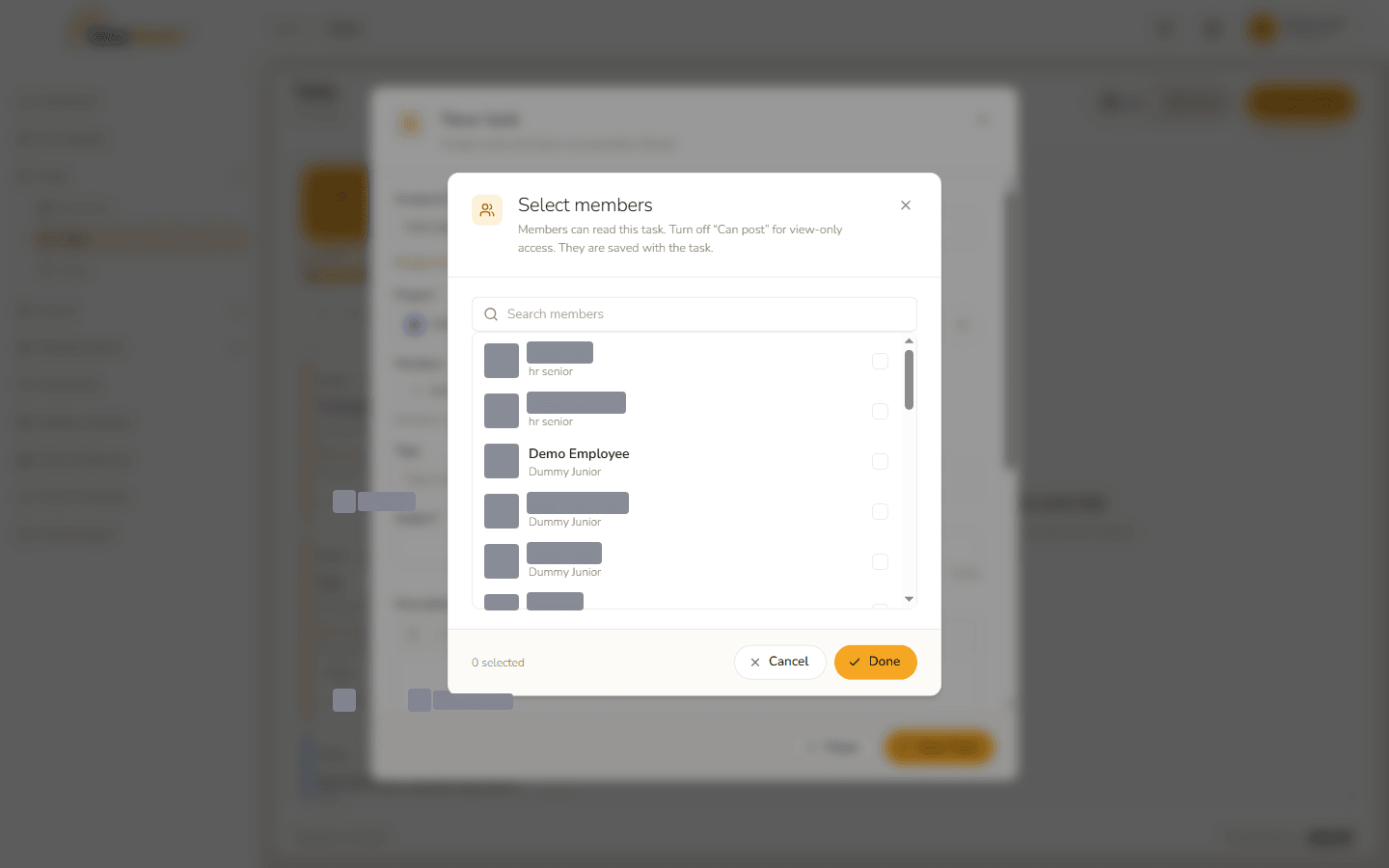
Members 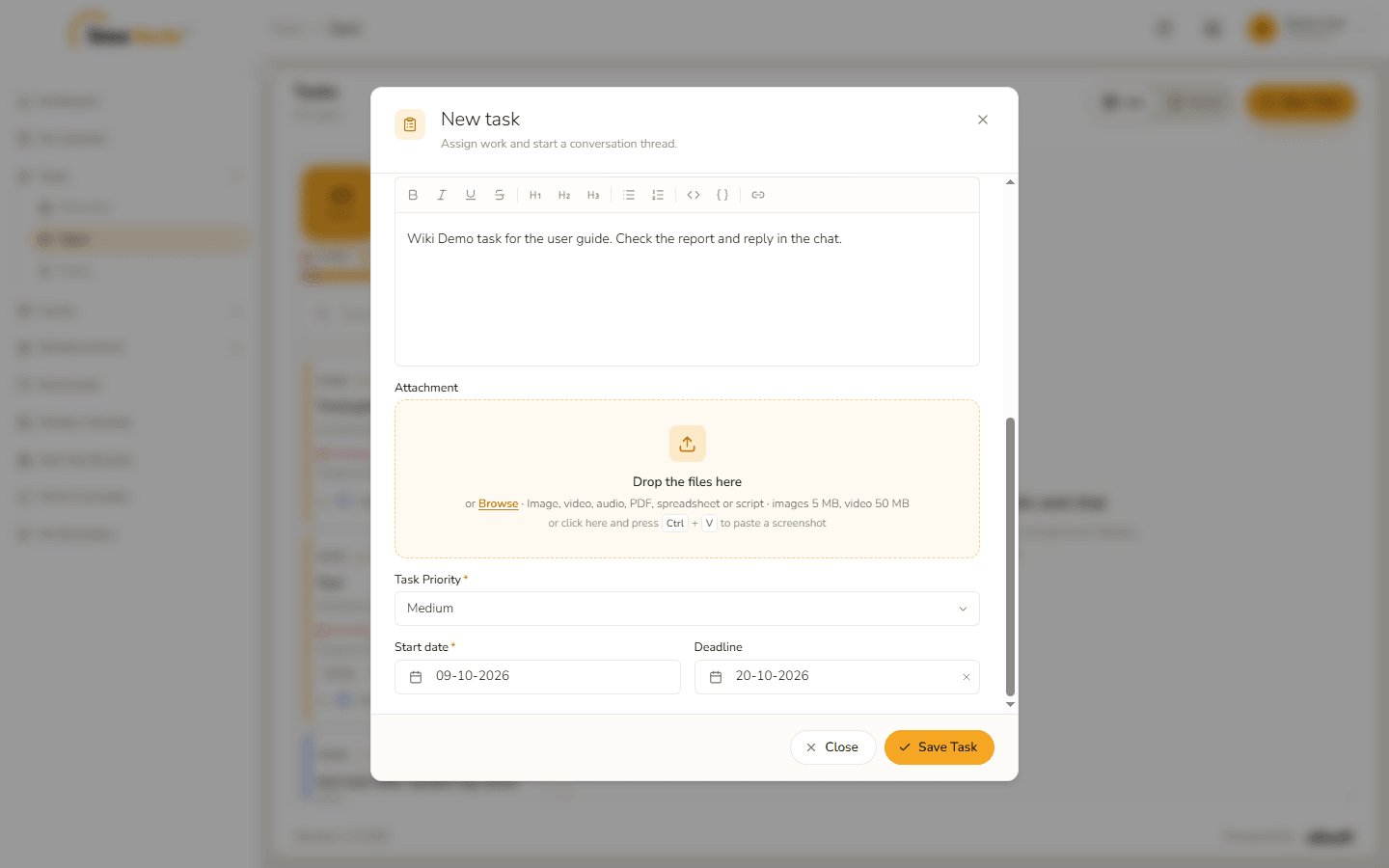
Priority and dates Click Save Task. Task created – Success. Created. confirms it. Click Got it.
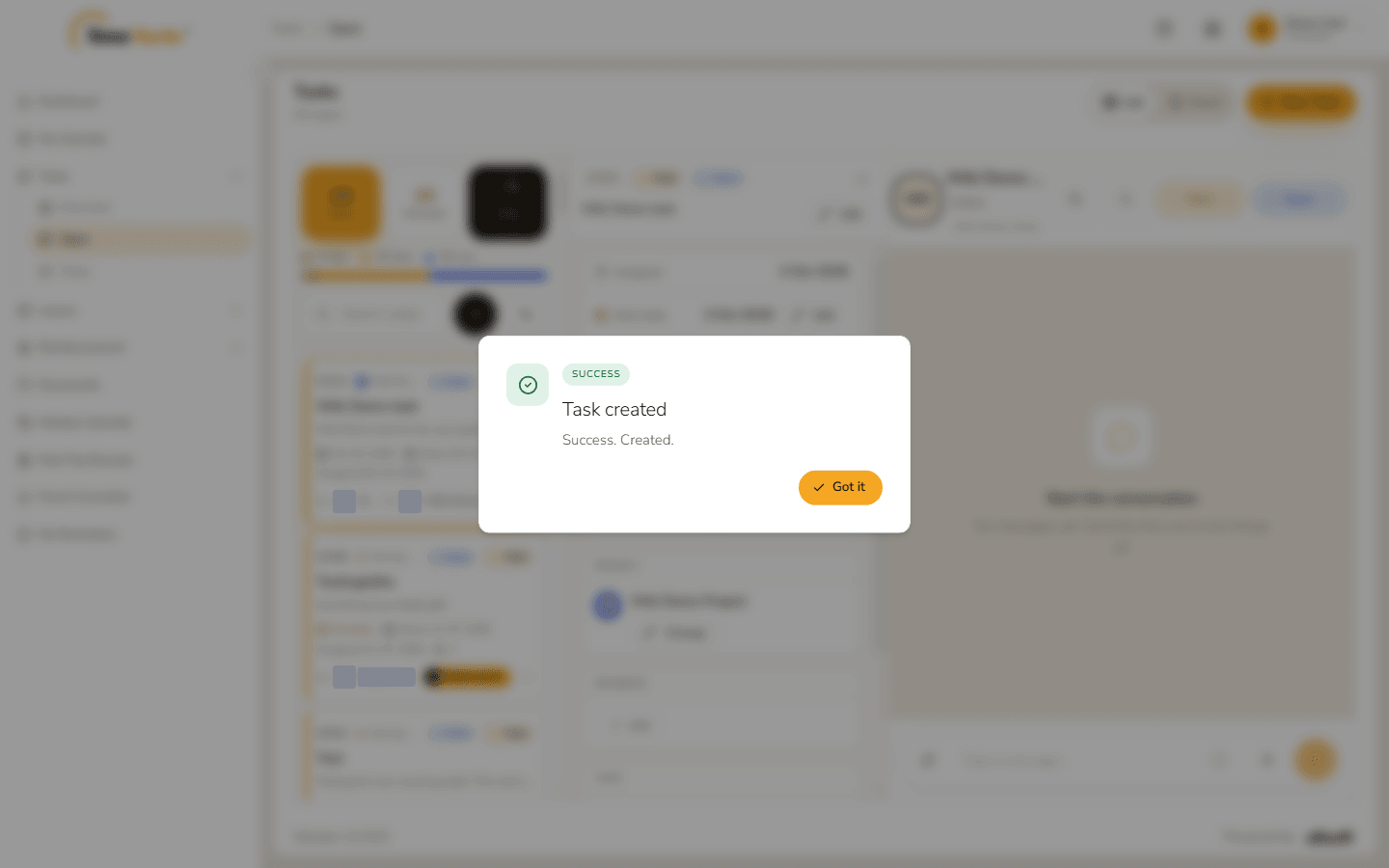
Task created - The task is first in the list and its details and chat open on the right.
4. Details and chat
Click a task to open it.
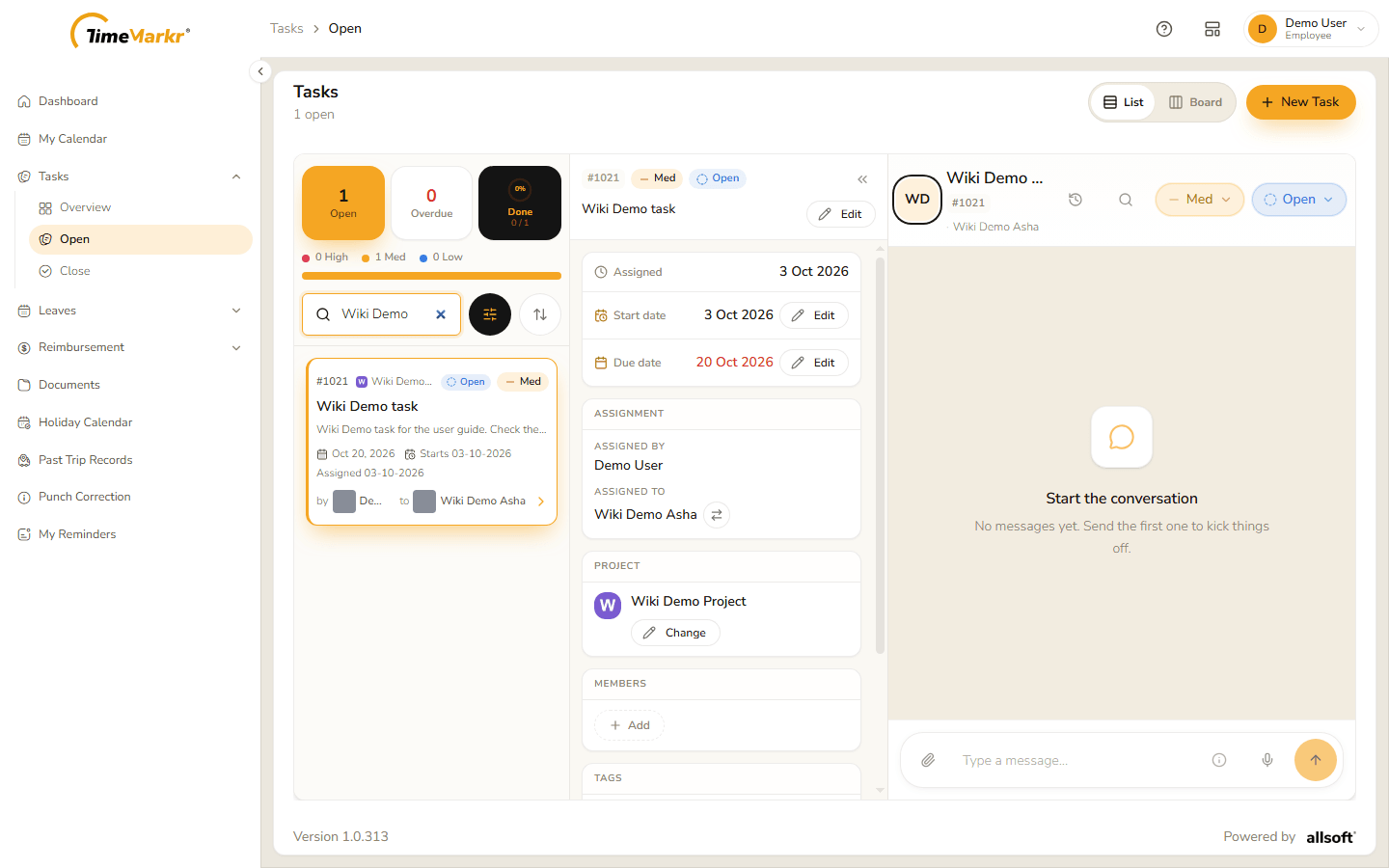
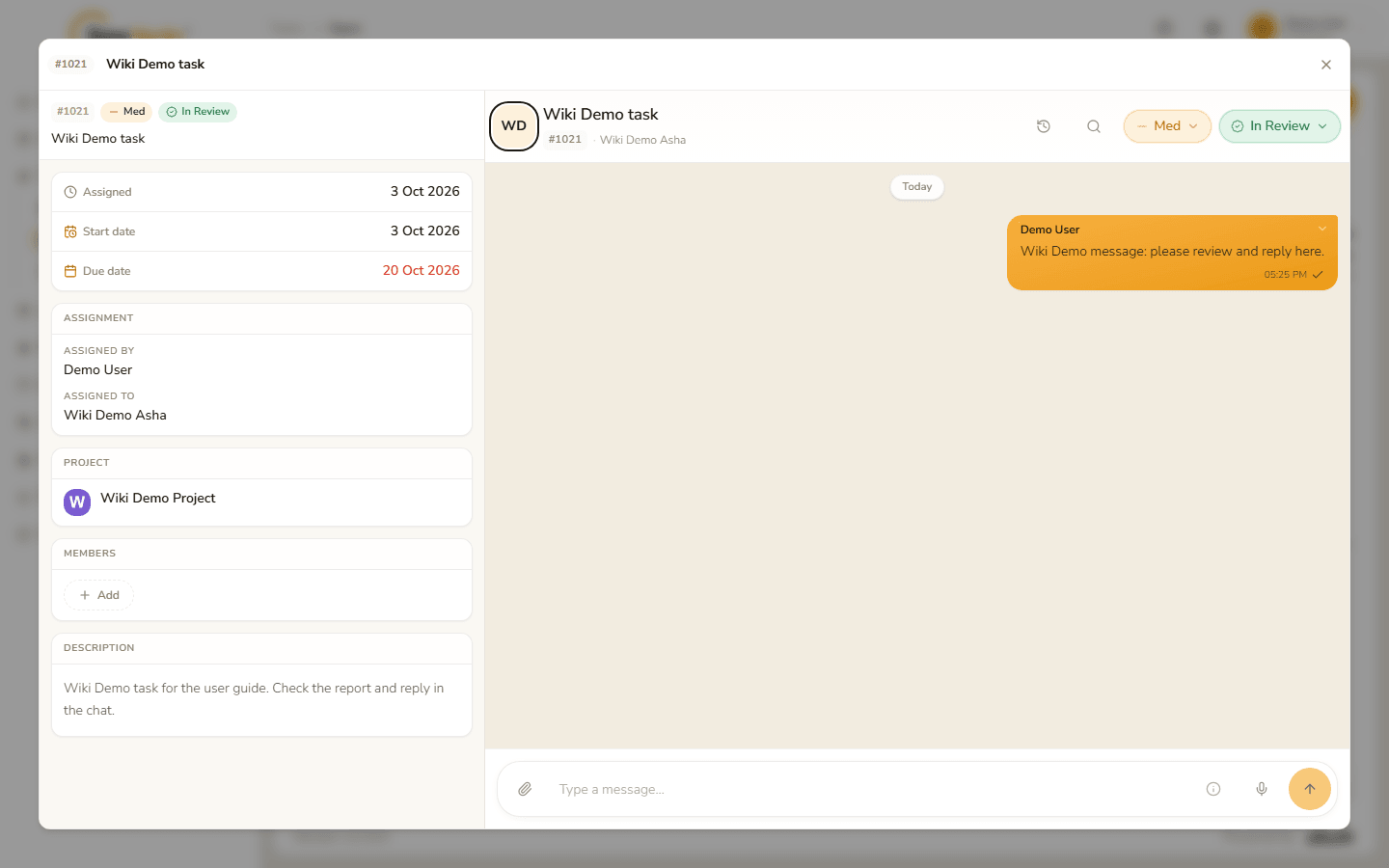
Details (the middle pane):
- Assigned, Start date and Due date – the start and due dates have an Edit button. A due date that has passed is shown in red.
- Assignment – Assigned by and Assigned to, with a button beside the assignee to change who has the task.
- Project – with a Change button.
- Members – the people who can follow the task; Add adds more.
Tags and Description. Every code block in the description has a copy button in its top-right corner: click it – the icon turns into a tick for two seconds and the whole block is on your clipboard. The same button appears wherever the description is shown, including the Assignment details pane beside the chat on a narrower window.
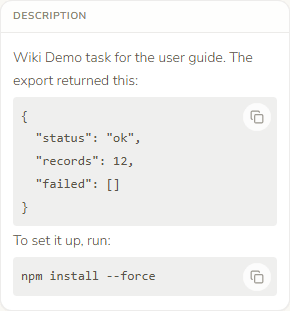
A code block with its copy button
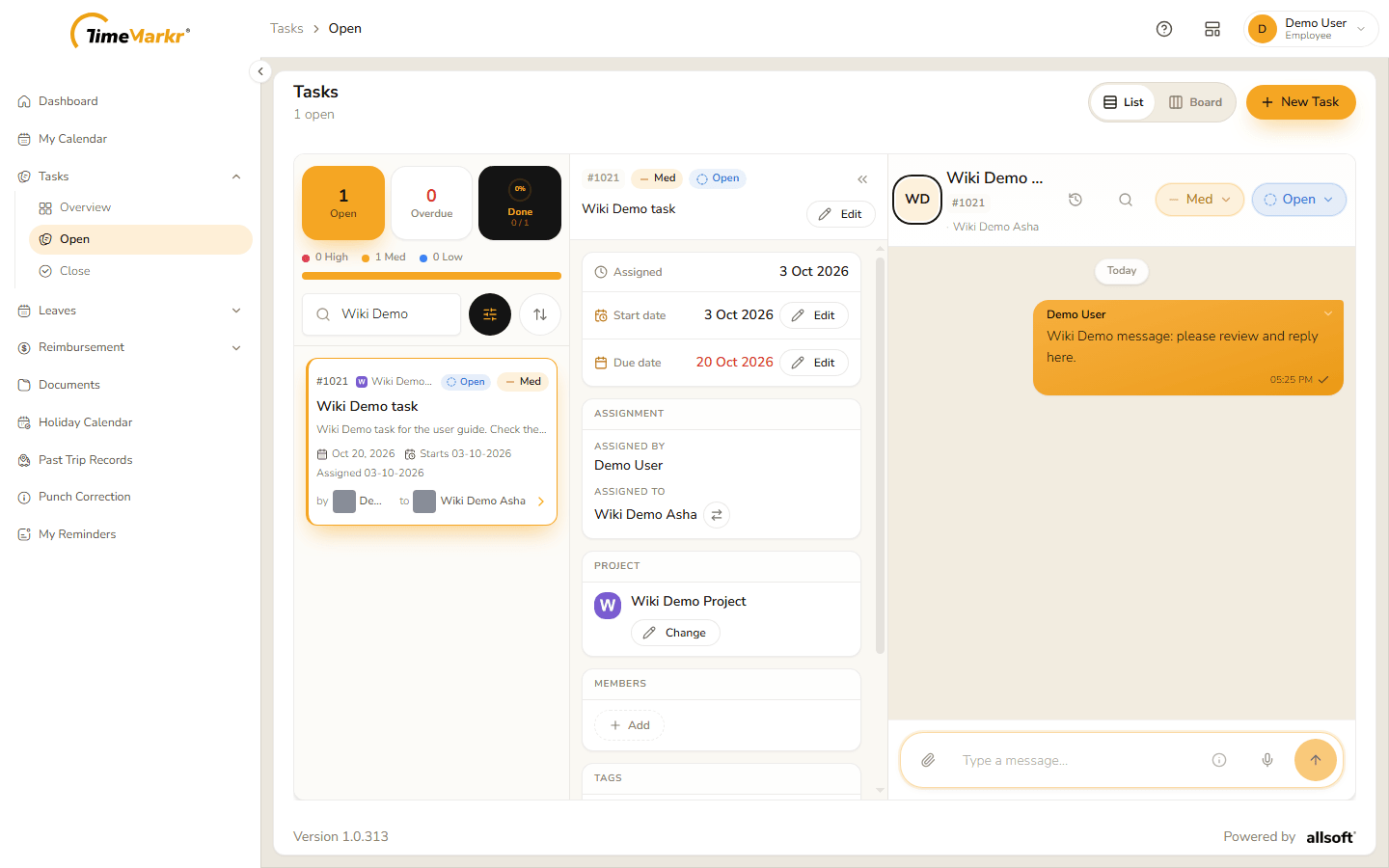
Chat (the right pane): the header shows the task's number and assignee, the Task history and Search messages buttons, and two lists – the task's priority and its status.
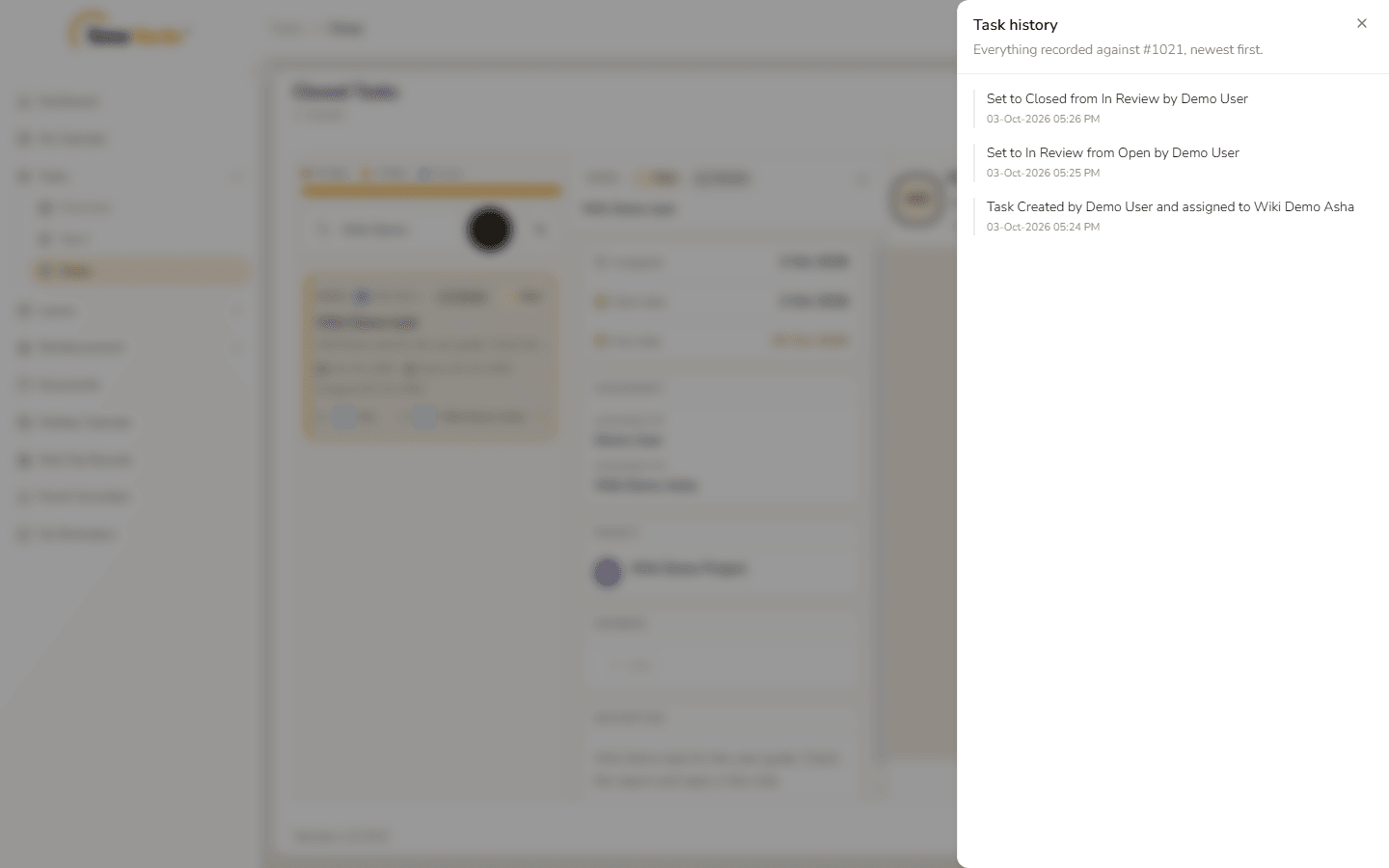
Task history opens a panel – "Everything recorded against #1021, newest first" – with every change: who created the task and for whom, and each status change with its date and time.
Task history - Search messages finds a word in the conversation.
Type in Type a message… and press Enter (or the round arrow) to send. The paper clip attaches a file and the microphone records a voice message.
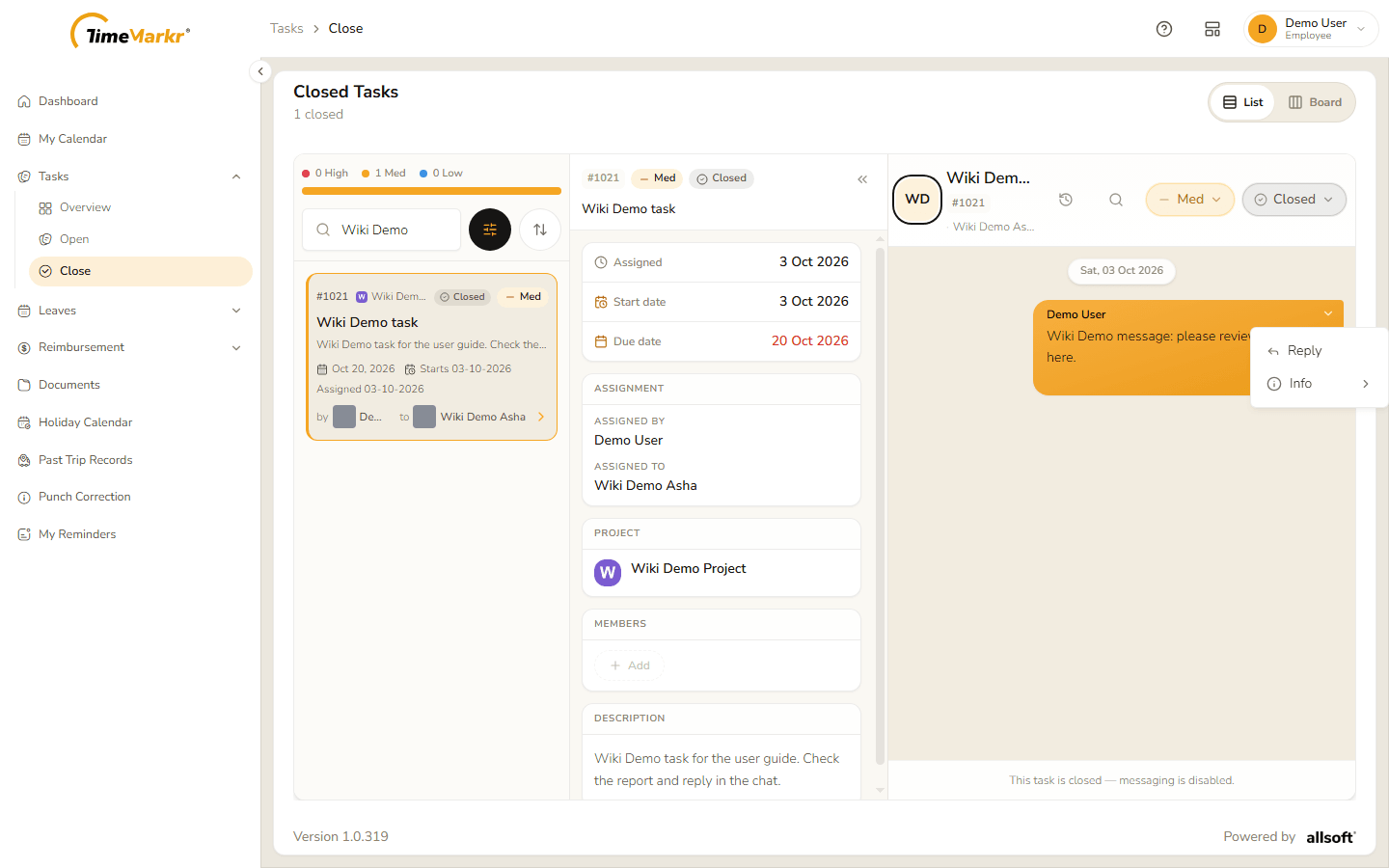
A message in the chat On your own messages, open the menu on the bubble (the small chevron) and choose Reply to quote a message, or Info to see who has read it, when it was sent, and who it was sent to.
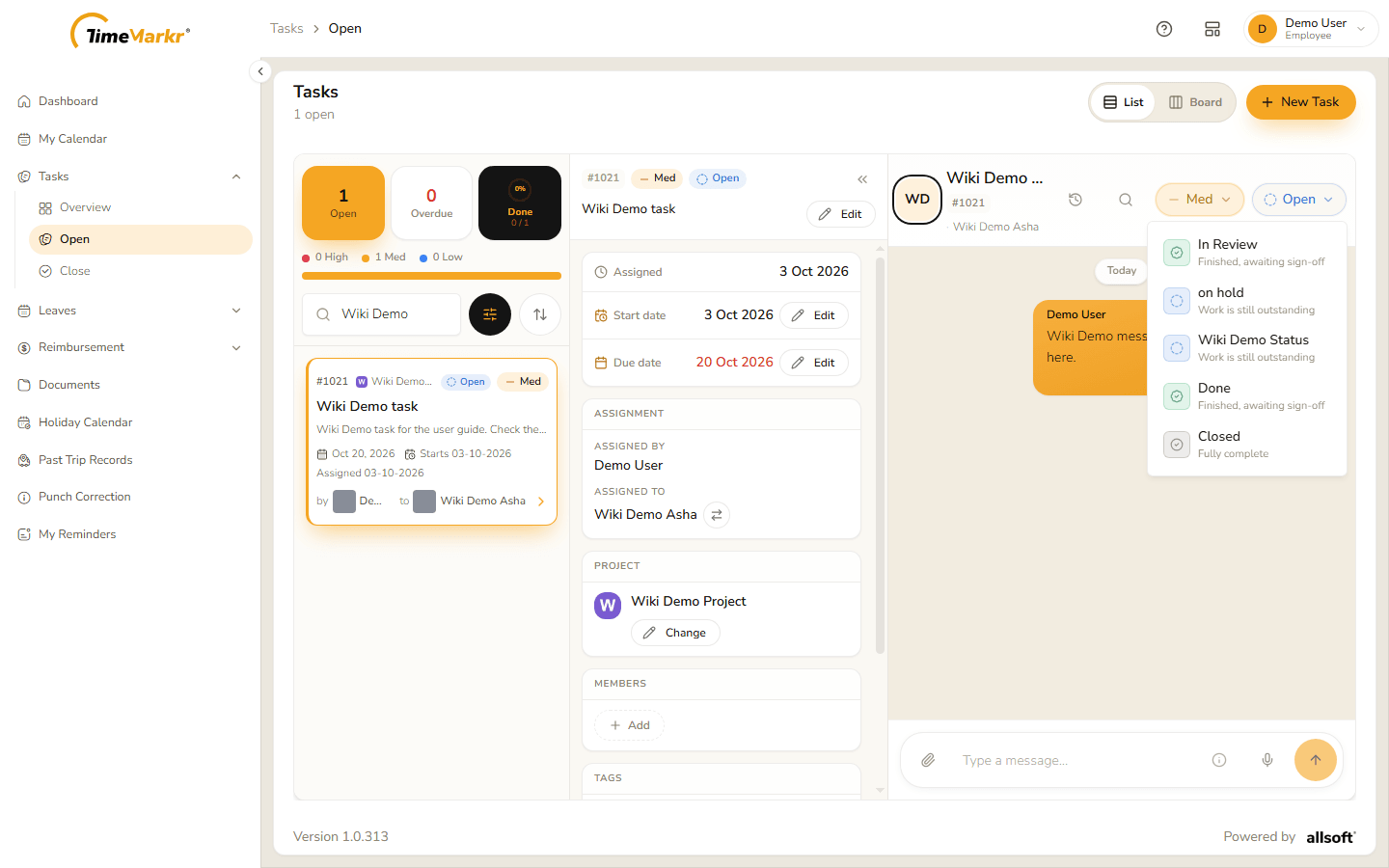
The message menu – Reply and Info The status list moves the task along. Each choice says what it means – In Review (finished, awaiting sign-off), on hold (work is still outstanding), Done (finished, awaiting sign-off), Closed (fully complete) – and the list holds all of your company's task statuses (see Task Status).
The status list Choosing one asks "Change task status? Are you sure you want to change the status to In Review? This will be saved immediately." – click Confirm.
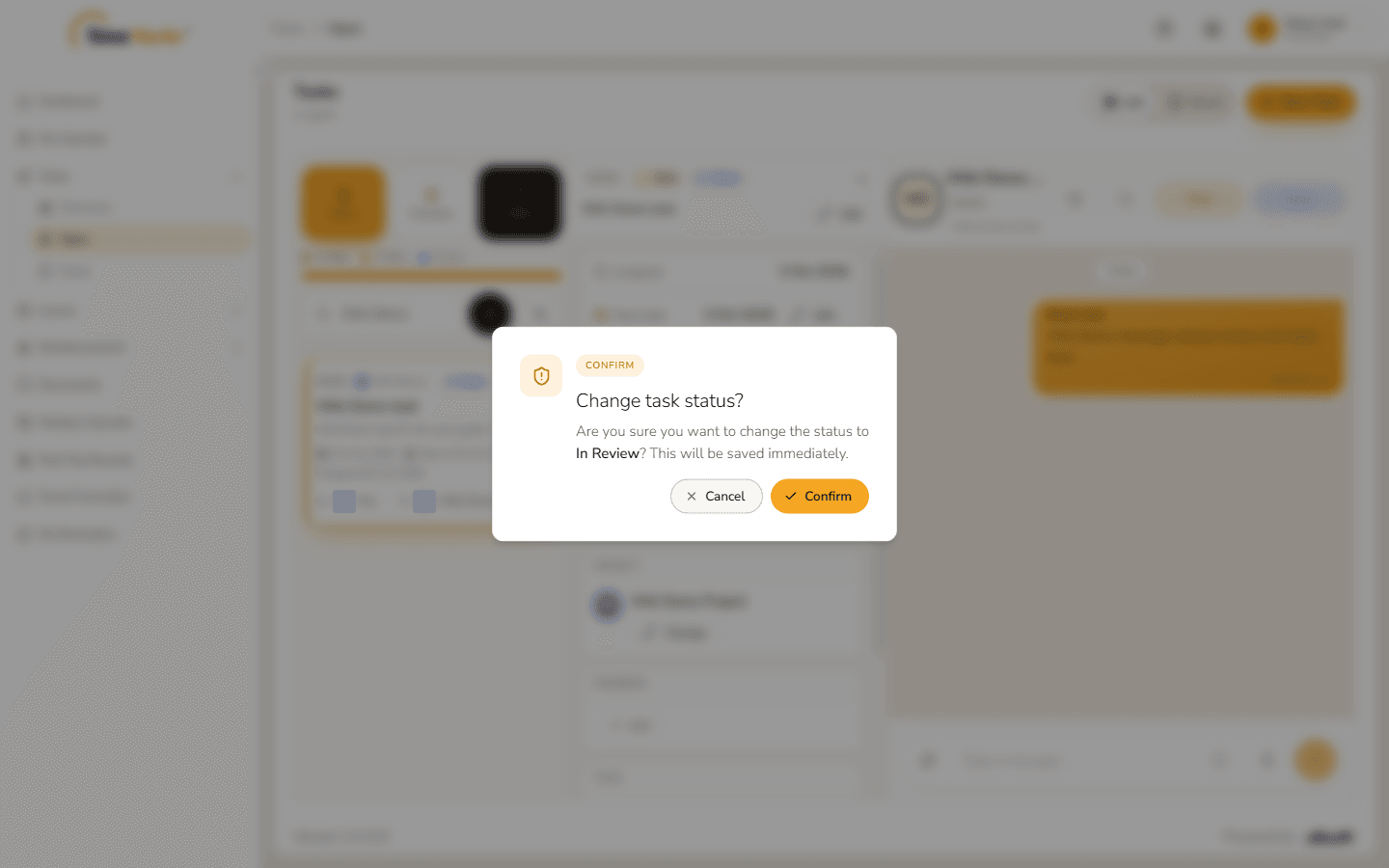
Confirm the new status - Status updated – Task #1021 is now "In Review" (it was "Open"). confirms it. A task whose status is Closed moves to the Close page, and its chat says "This task is closed — messaging is disabled."
5. The board
Board (top right of the Open page) lays the tasks out in columns – one for each status. Status and Priority at the top choose what the columns are.
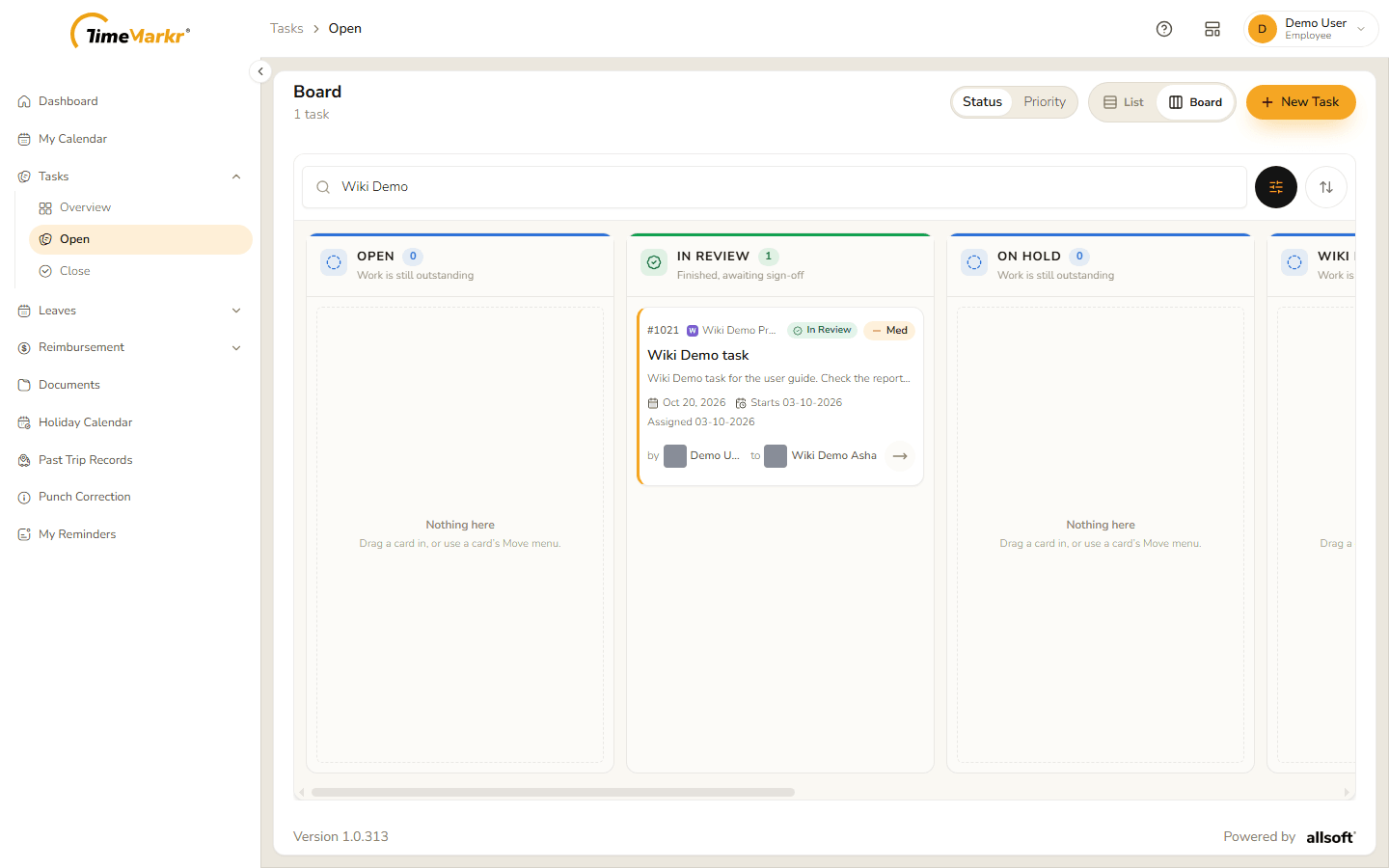
An empty column says "Nothing here – Drag a card in, or use a card's Move menu." Drag a card to another column, or use the arrow on the card, to change its status. Click a card to open its details and chat in a window.
Related: Task Project · Task Status · Dashboard