
Past Location (Trip Details)
Where: Admin portal → Reports → Past Location (Trip Details)
Route: /reports/past-location-trip-details
The trips your employees recorded with the TimeMarkr app on their phones: when each trip started and ended, how far it went, and the route on a map that you can play back. See Reports – the basics for Search and Show.
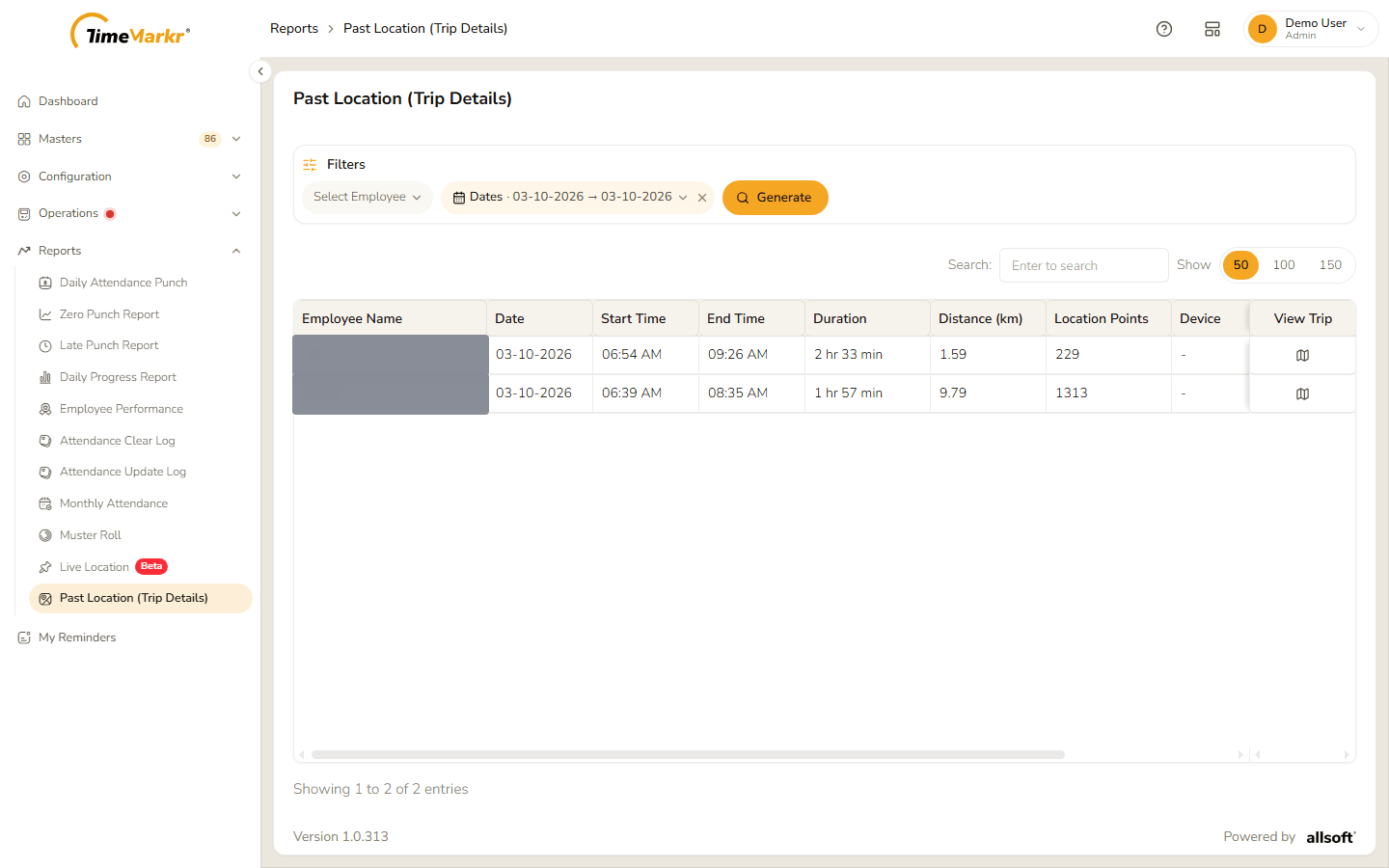
1. Find the trips
The page opens with the trips of today. To look elsewhere:
- Click the Dates pill, pick the first and the last day in the two boxes and click Done. Both days must be today or earlier, and the first cannot come after the last.
- Optionally click Select Employee, type at least three characters of the name and pick the person. Leave it empty to see the trips of every employee in the date range.
- Click Generate.
| Column | What it shows |
|---|---|
| Employee Name | Who made the trip. |
| Date | The day of the trip. |
| Start Time / End Time | When it started and ended. |
| Duration | How long it took, for example 2 hr 33 min. |
| Distance (km) | How far the employee travelled. |
| Location Points | How many GPS points were recorded on the way. |
| Device | The phone, when known. |
| App Version | The version of the TimeMarkr app that recorded the trip. |
| View Trip | The map icon, which opens the trip. |
2. Play back a trip
Click the map icon on the trip's row. Trip Details – <employee> (<date>) opens.
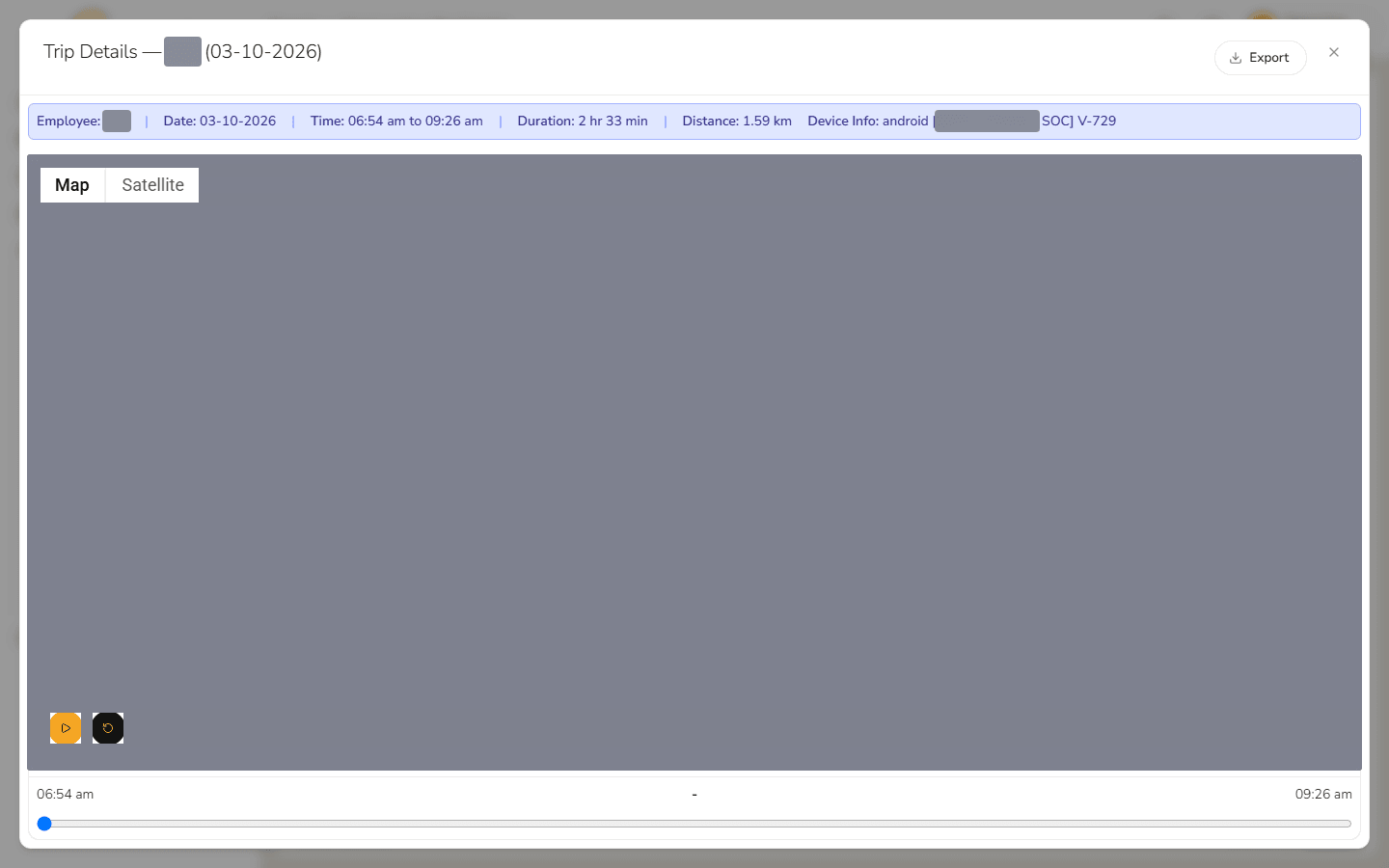
- The blue bar sums the trip up: the Employee, Date, Time, Duration, Distance and the Device Info.
- The map shows the route. Map and Satellite at the top left switch the background.
- Play at the bottom left traces the route from the first point to the last; Reset goes back to the start. The buttons 1x, 2x, 3x and 4x set the speed, and the slider underneath – from the trip's start time to its end time – shows where in the trip you are.
- Export downloads that trip as an Excel file.
Click × to close the window.
Related: Live Location · Daily Attendance Punch