
Attendance reasons
Three pages in Configuration keep the lists of reasons an employee can choose from when the app asks why: Late Punch-In Reasons, Early Punch-Out Reasons and Over Time Reasons. They work in exactly the same way, so the steps are described once, with screenshots from the Late Punch-In page, and each page's own details follow.
How the reason lists work
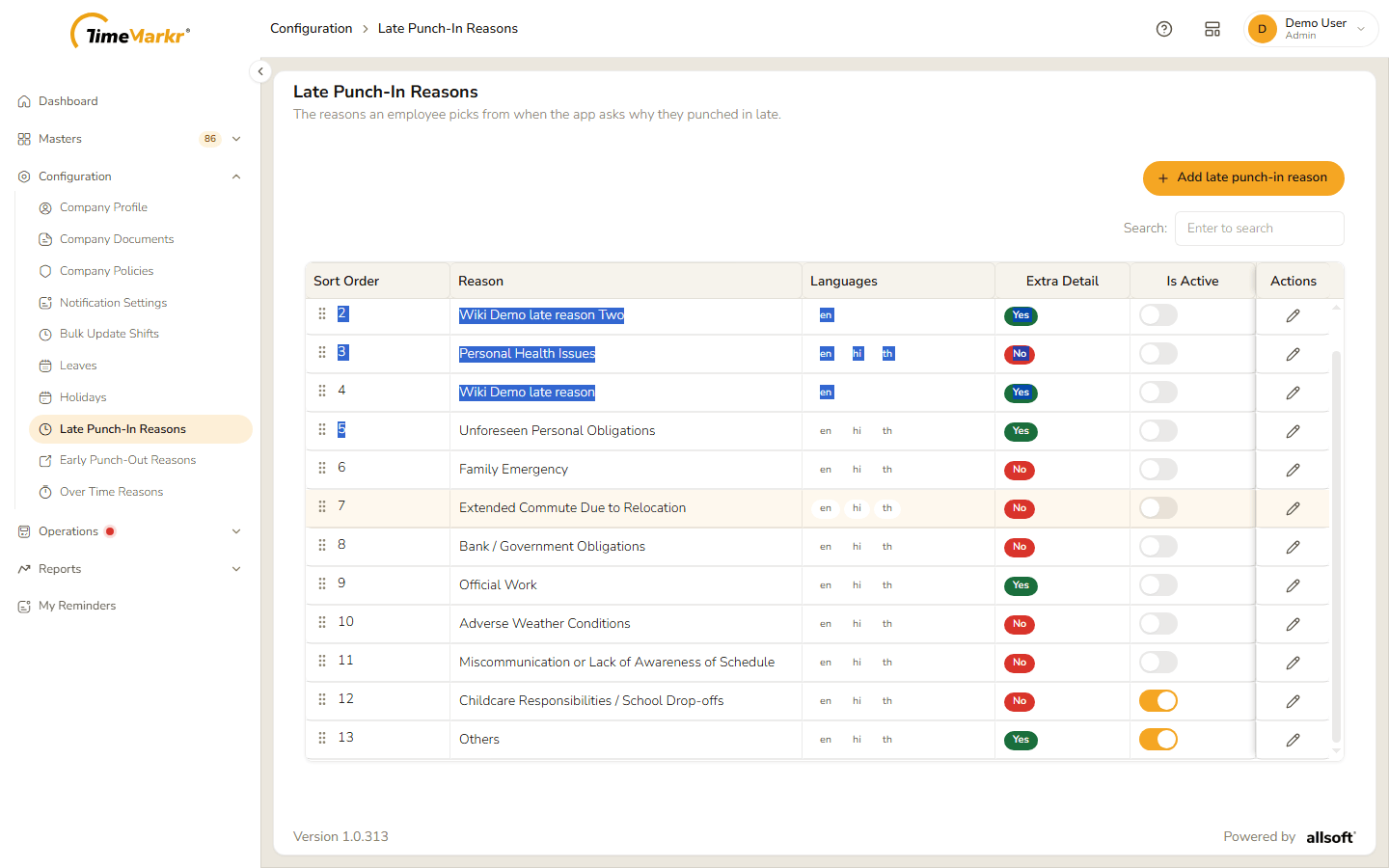
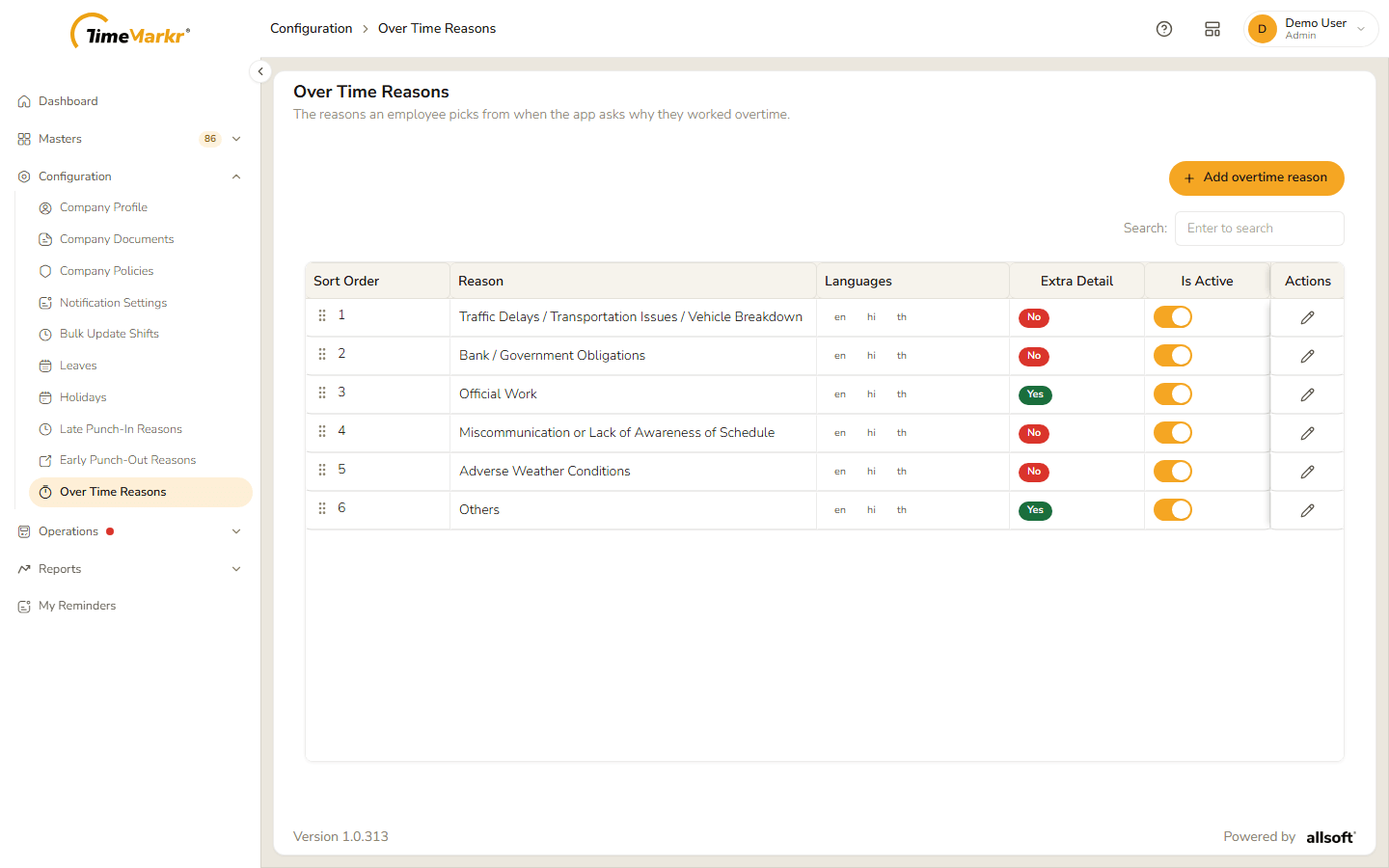
The page opens with a table of reasons.
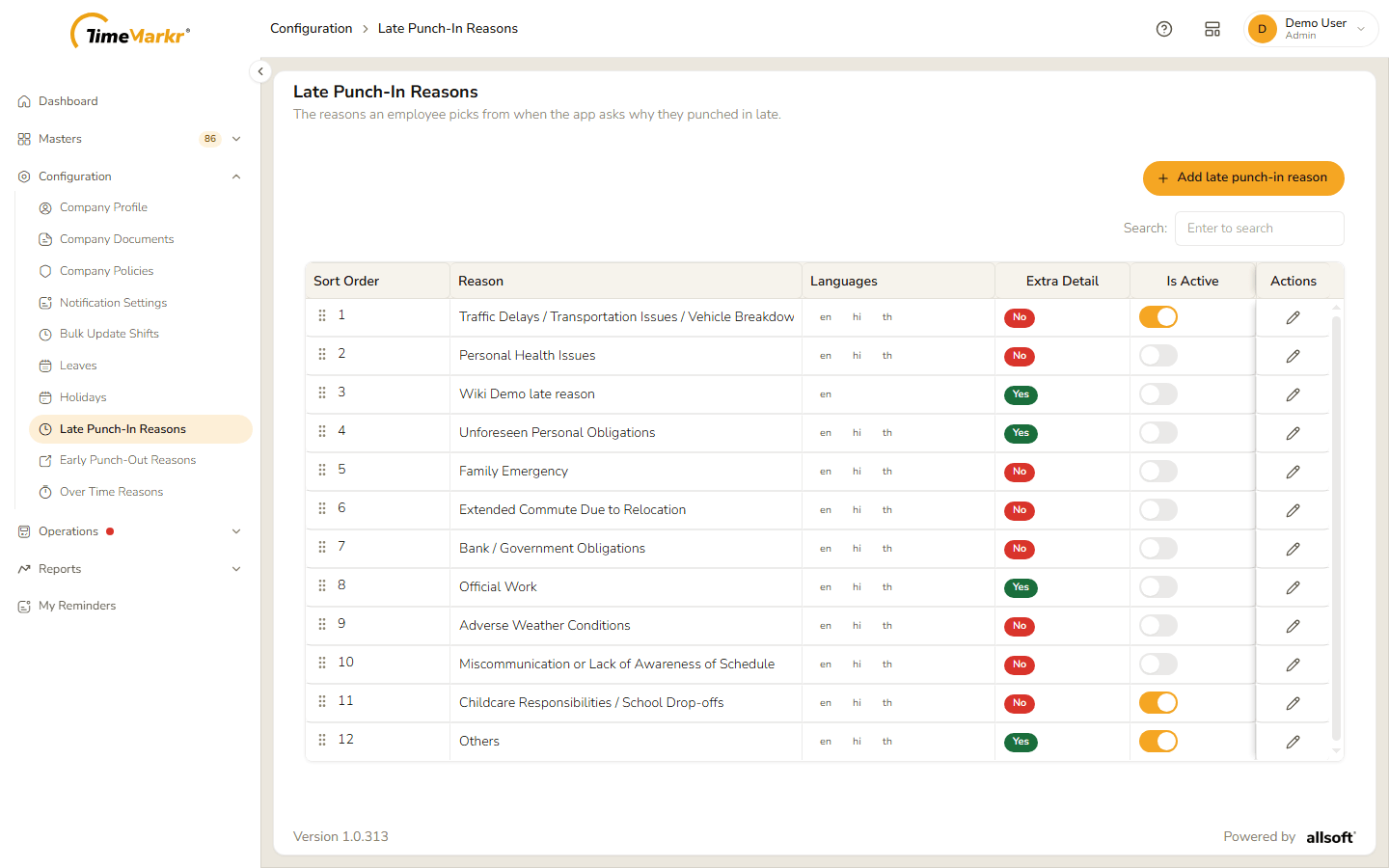
| Column | What it shows |
|---|---|
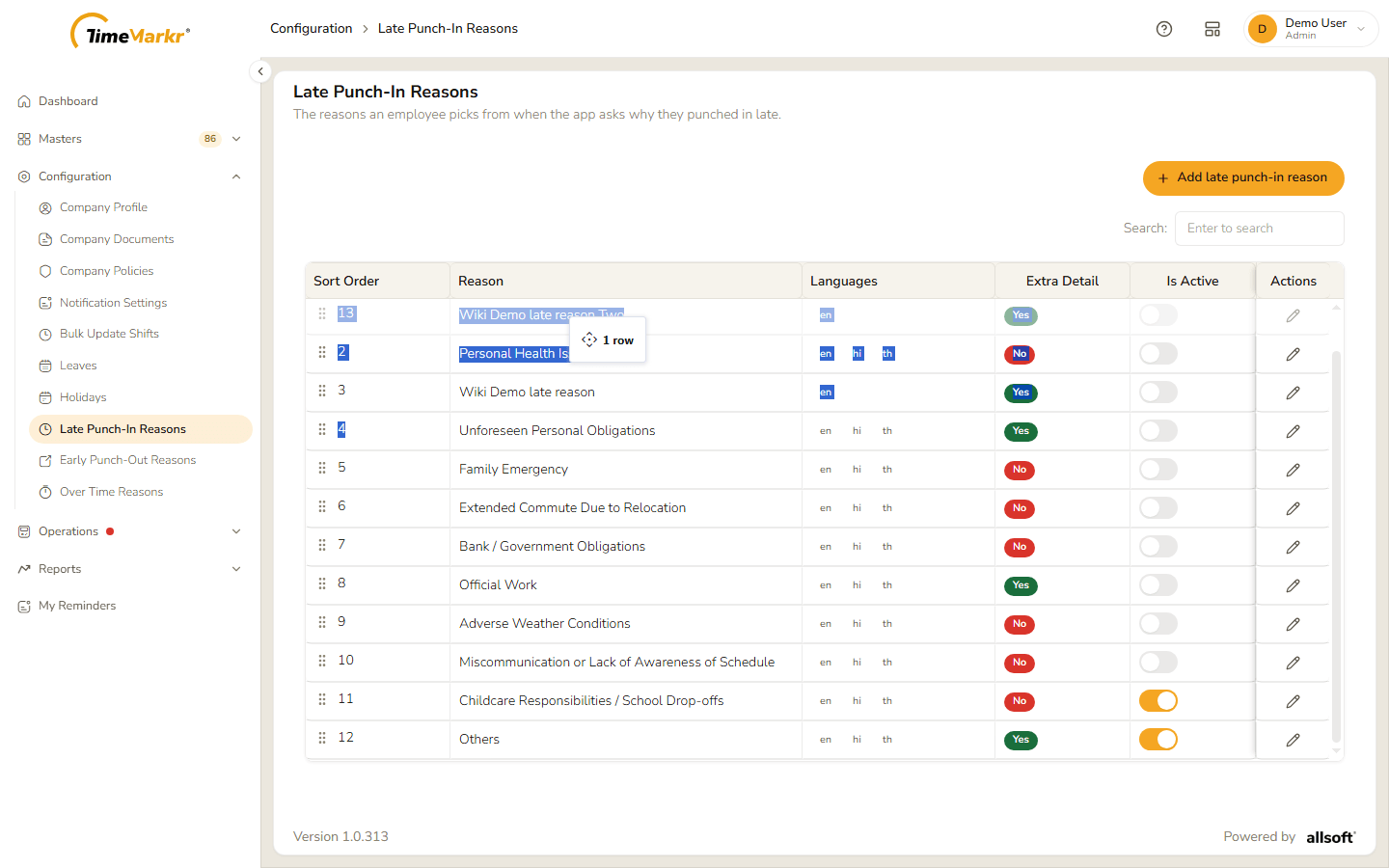
| Sort Order | The position of the reason in the list the employee sees. A grip of six dots beside the number shows that the row can be dragged. |
| Reason | The wording in English. |
| Languages | The language codes the reason has wording for, for example en, hi, th. |
| Extra Detail | Yes if the employee also has to type a note when picking this reason. |
| Is Active | A switch: on means employees see the reason. |
| Actions | A pencil to edit the reason. |
There is no delete – a reason is only switched on or off.
Add a reason
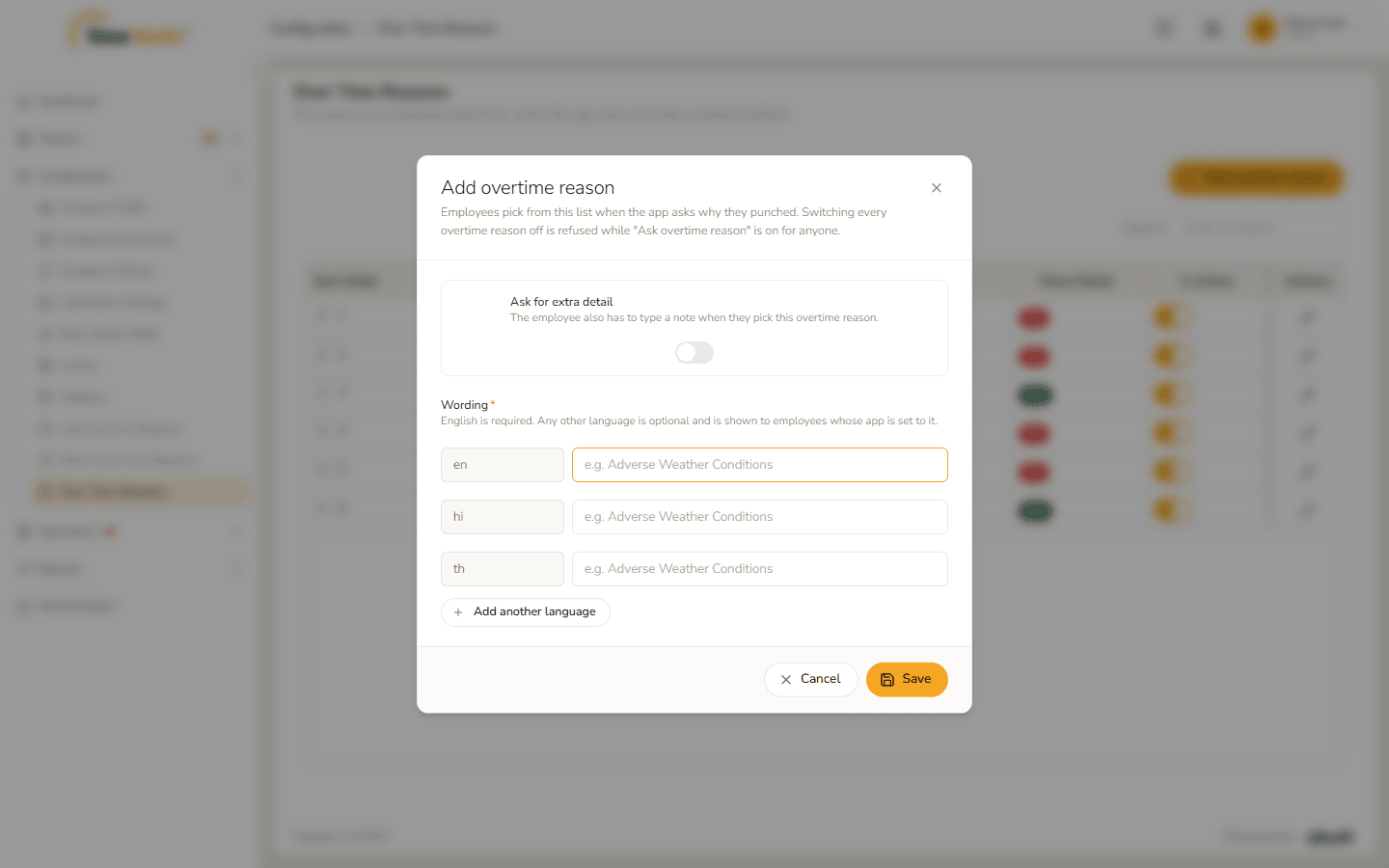
Click the Add … reason button at the top of the page.
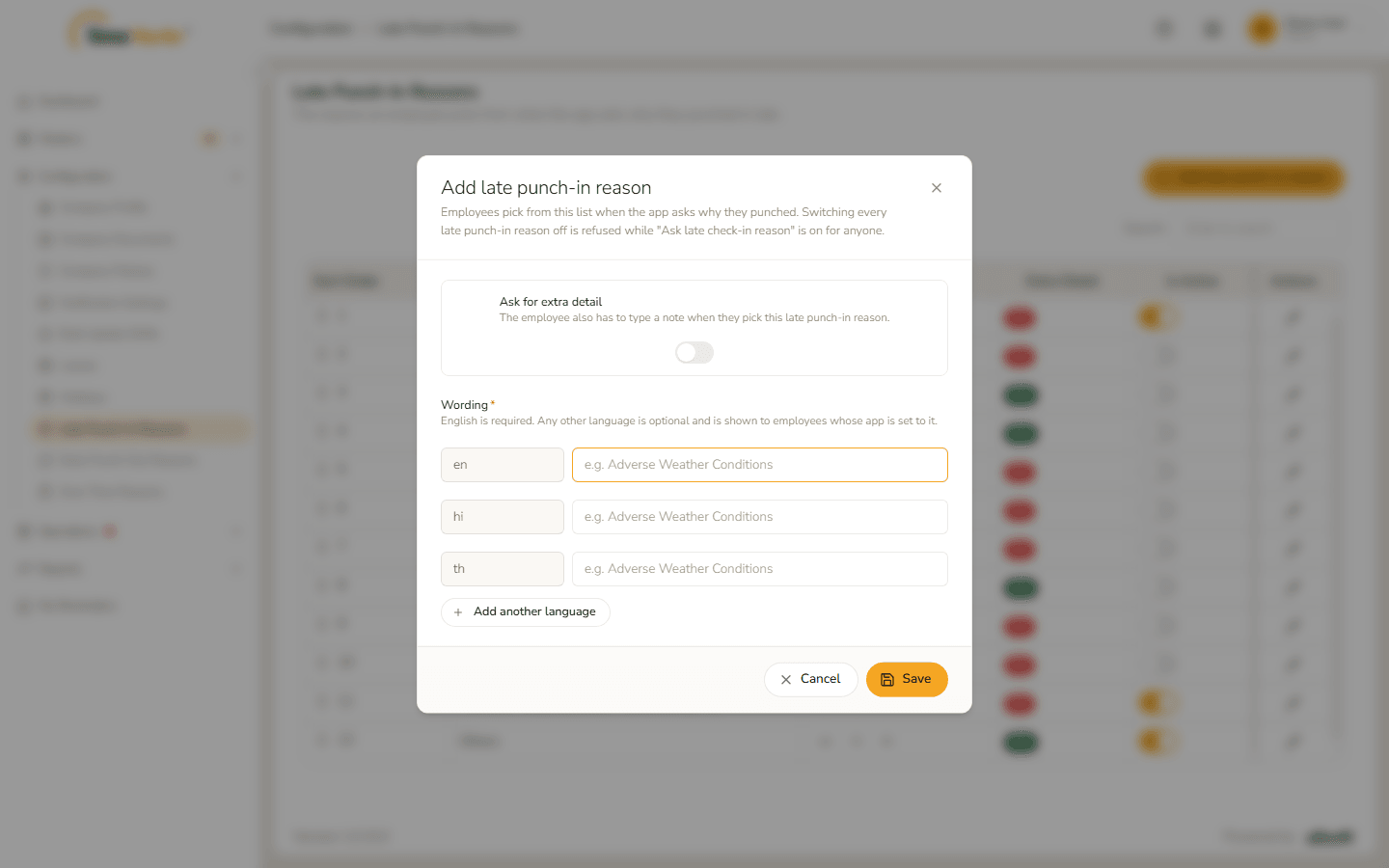
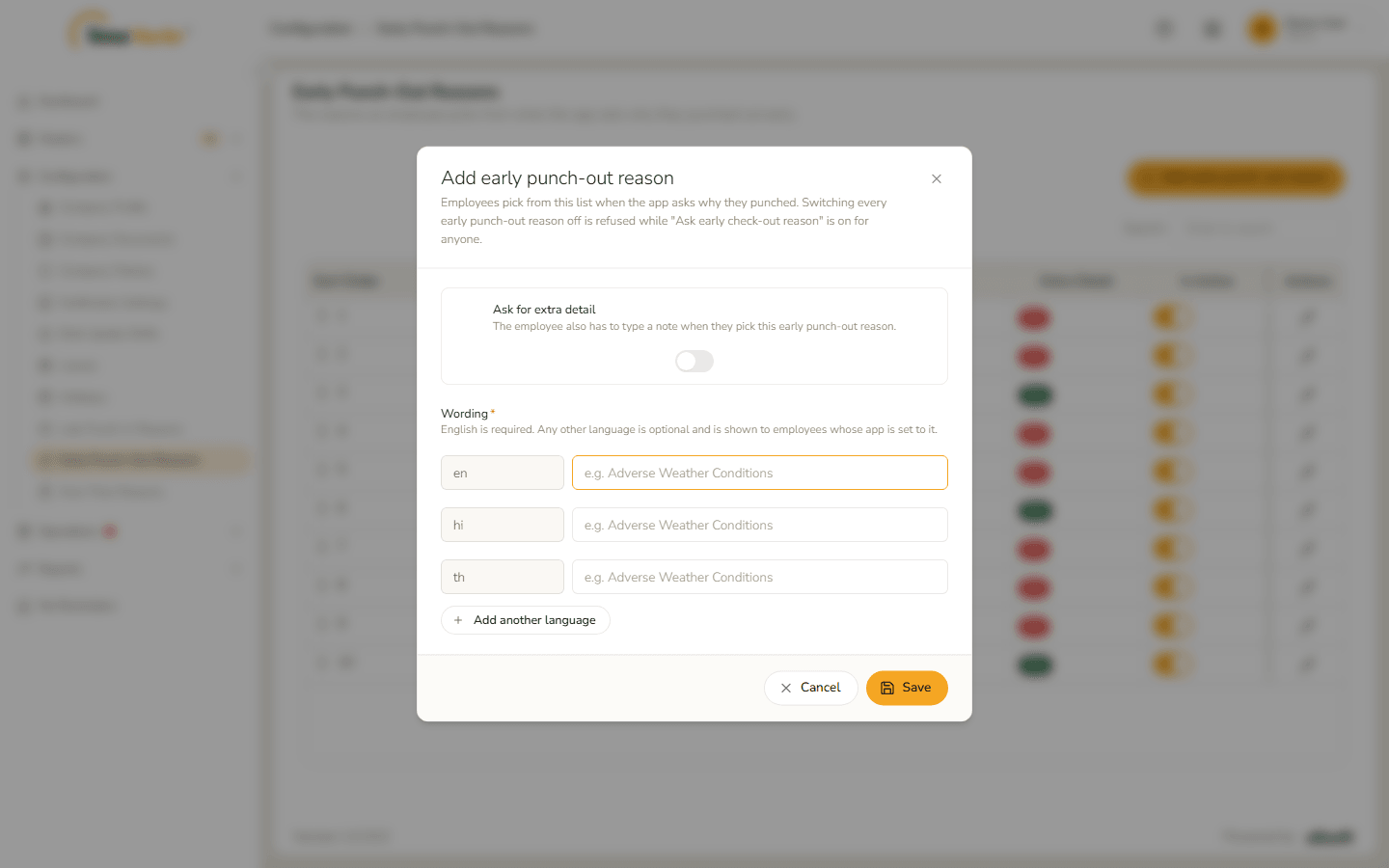
Add late punch-in reason form Fill in the form.
Field Notes Ask for extra detail A switch. When it is on, "The employee also has to type a note when they pick this … reason." Wording* "English is required. Any other language is optional and is shown to employees whose app is set to it." The form has one line for English ( en), one for Hindi (hi) and one for Thai (th); Add another language adds a line with a language code of your own.The form also says "Switching every … reason off is refused while "Ask … reason" is on for anyone." – at least one reason has to stay on while employees are asked for a reason.
Clicking Save without the English wording marks the field in red.
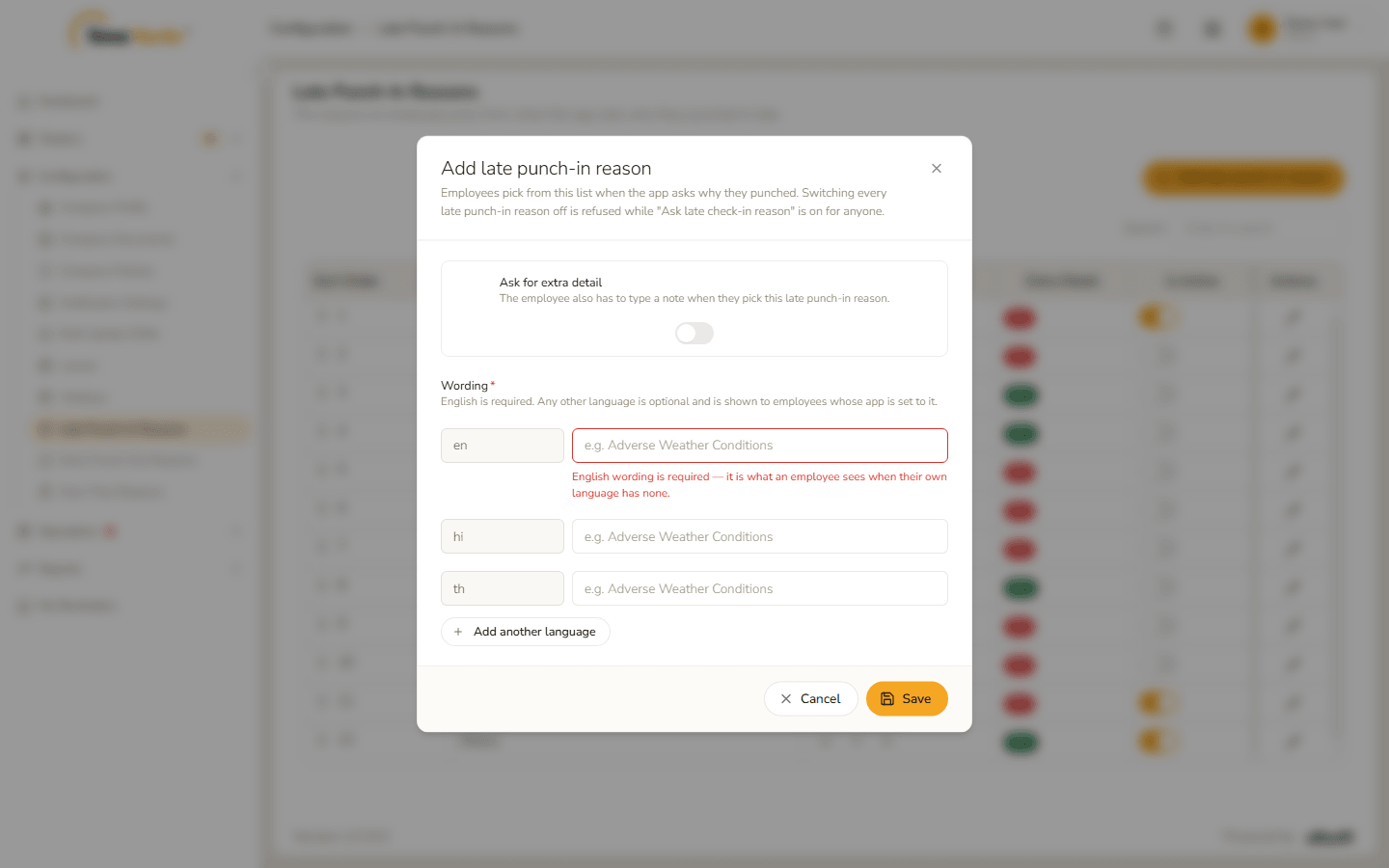
English wording is required 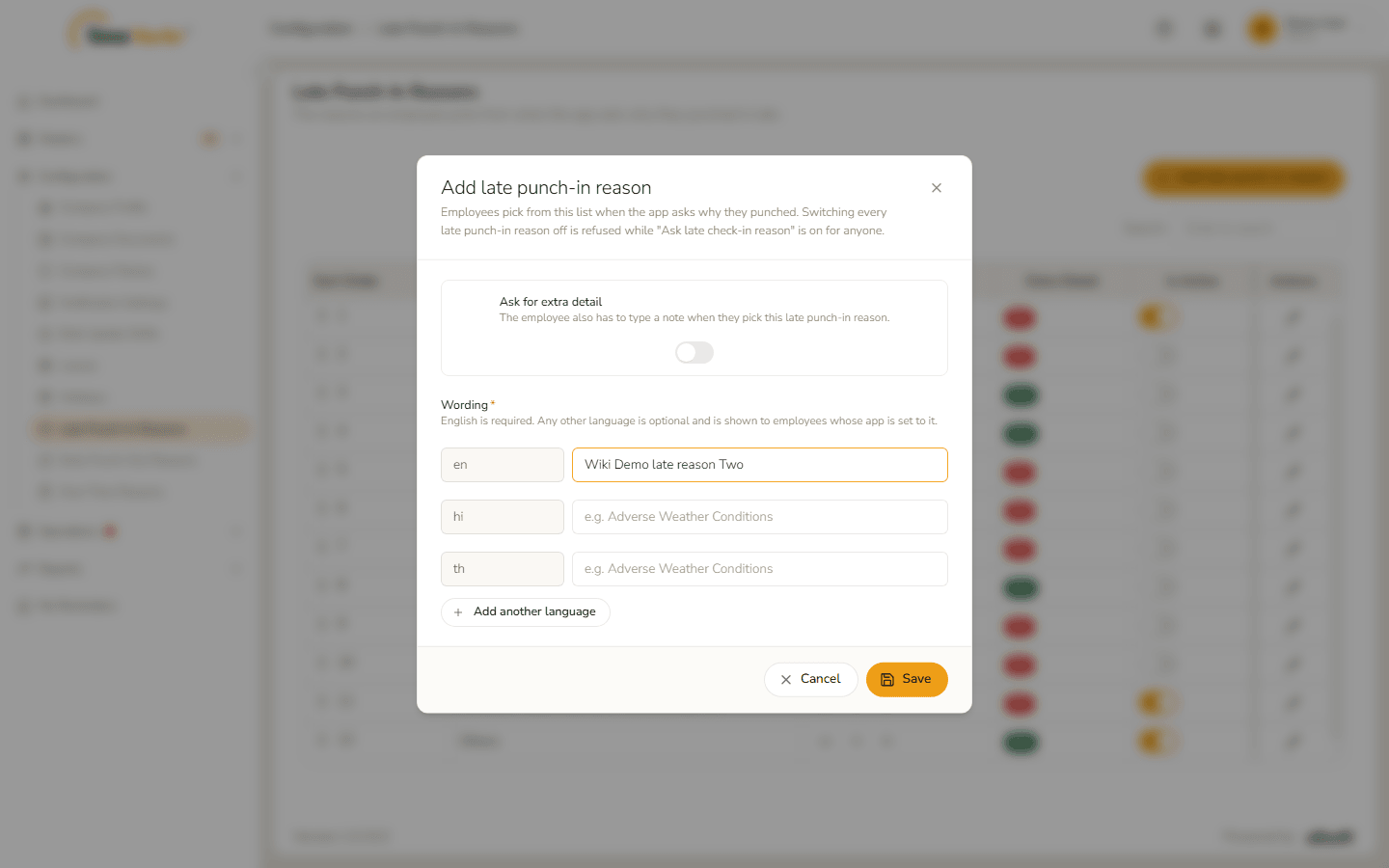
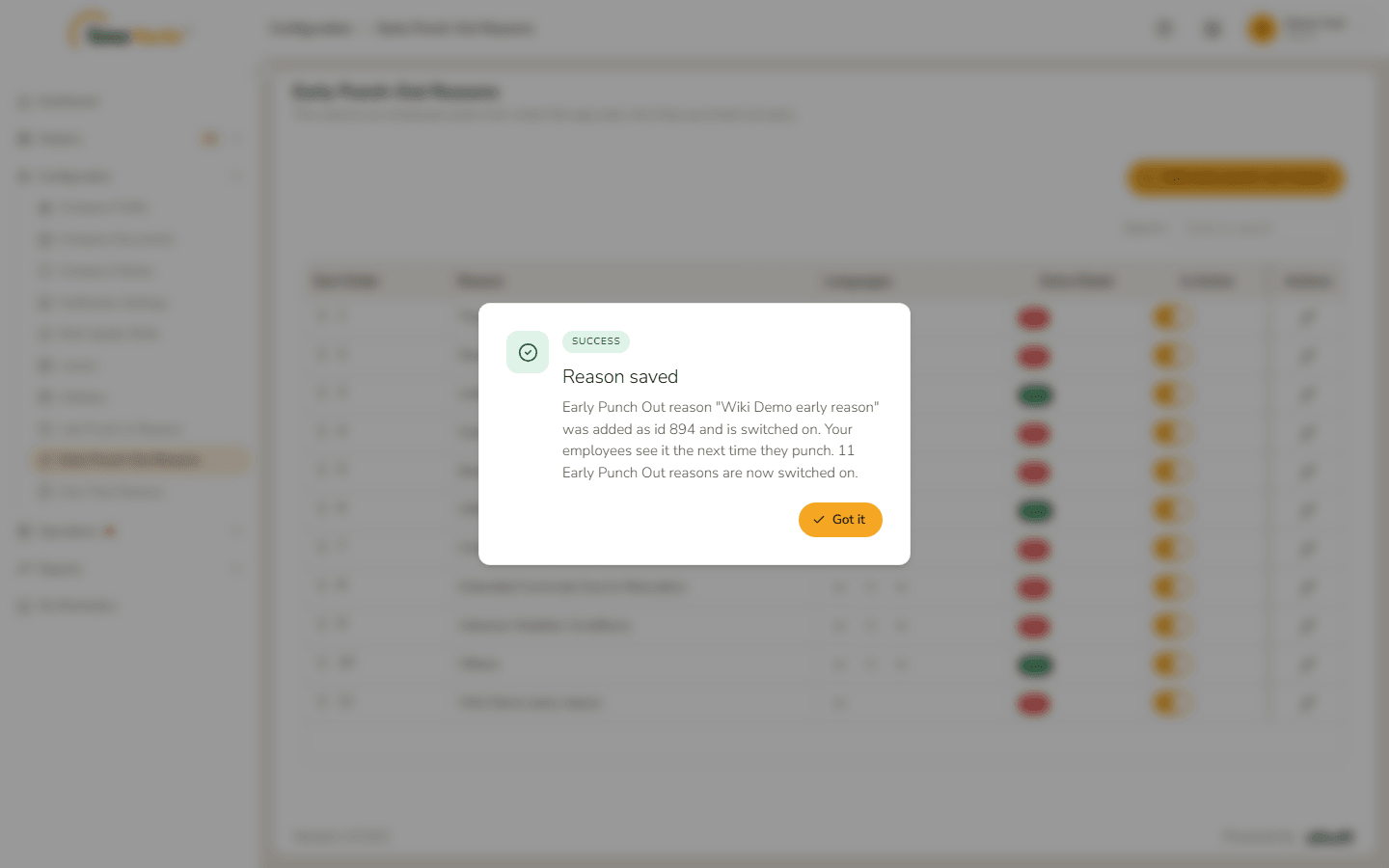
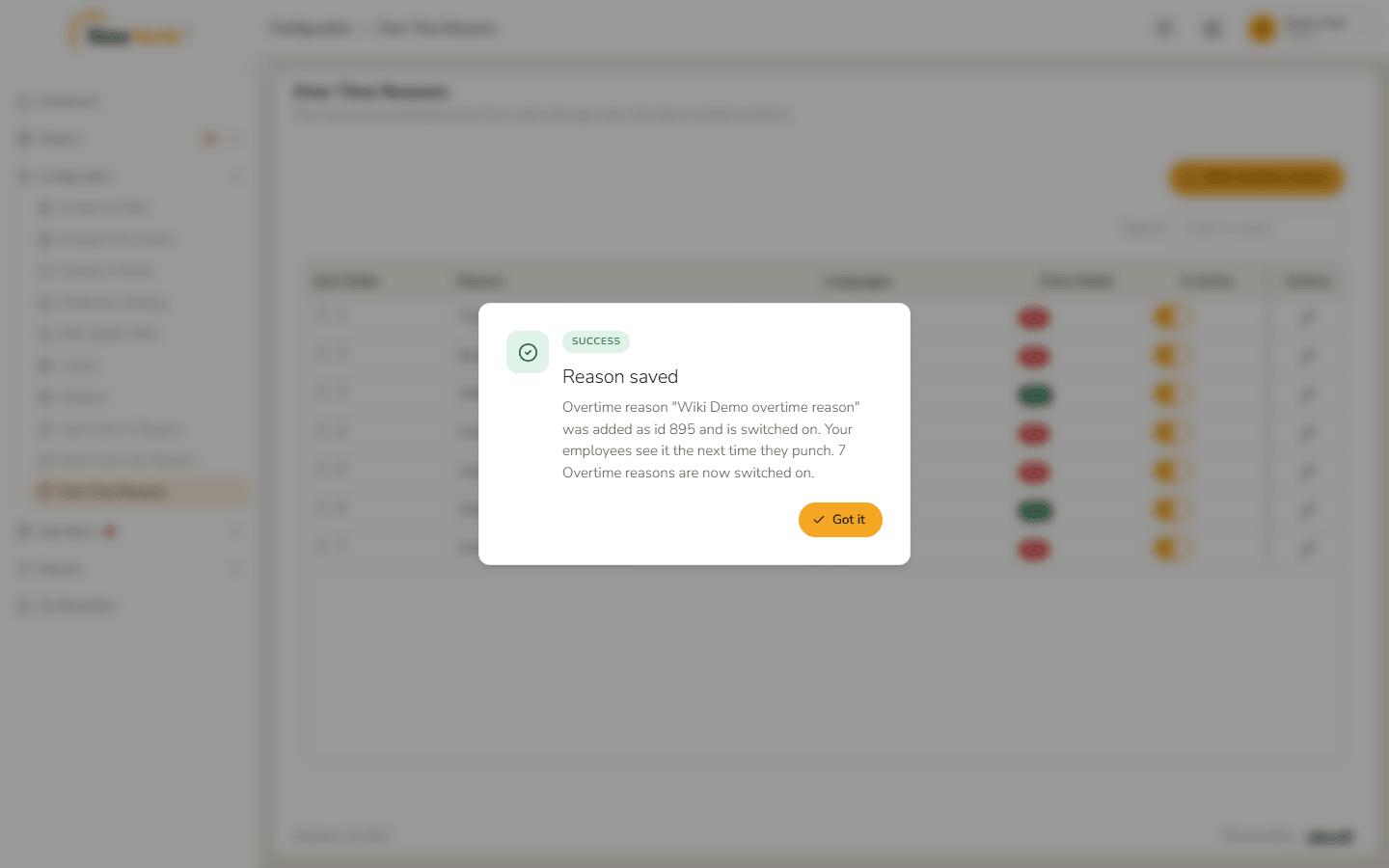
Form filled in Click Save. Reason saved tells you the reason was added, that it is switched on, when your employees see it, and how many reasons of this kind are now switched on. Click Got it.
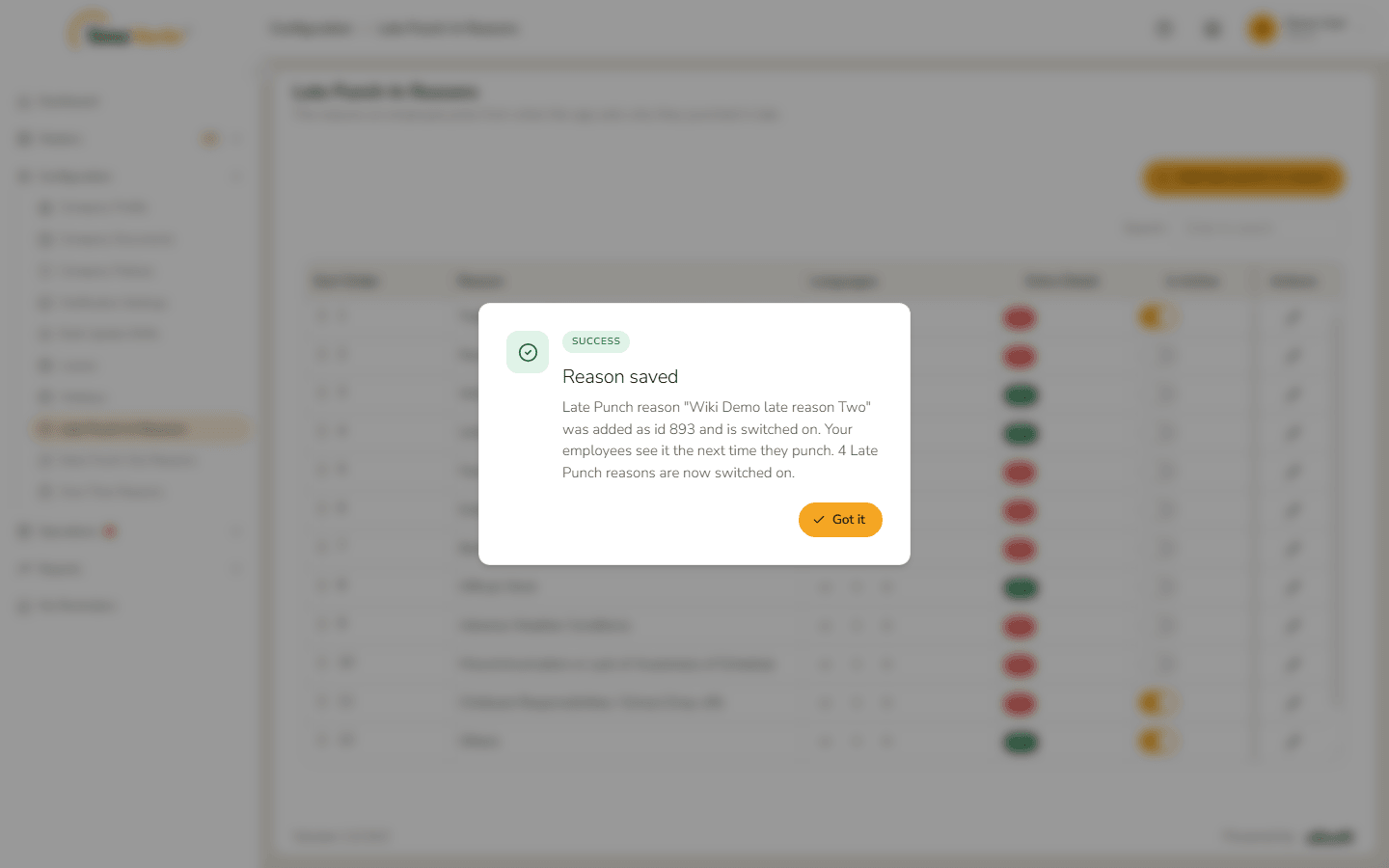
Reason saved The reason is at the end of the list.
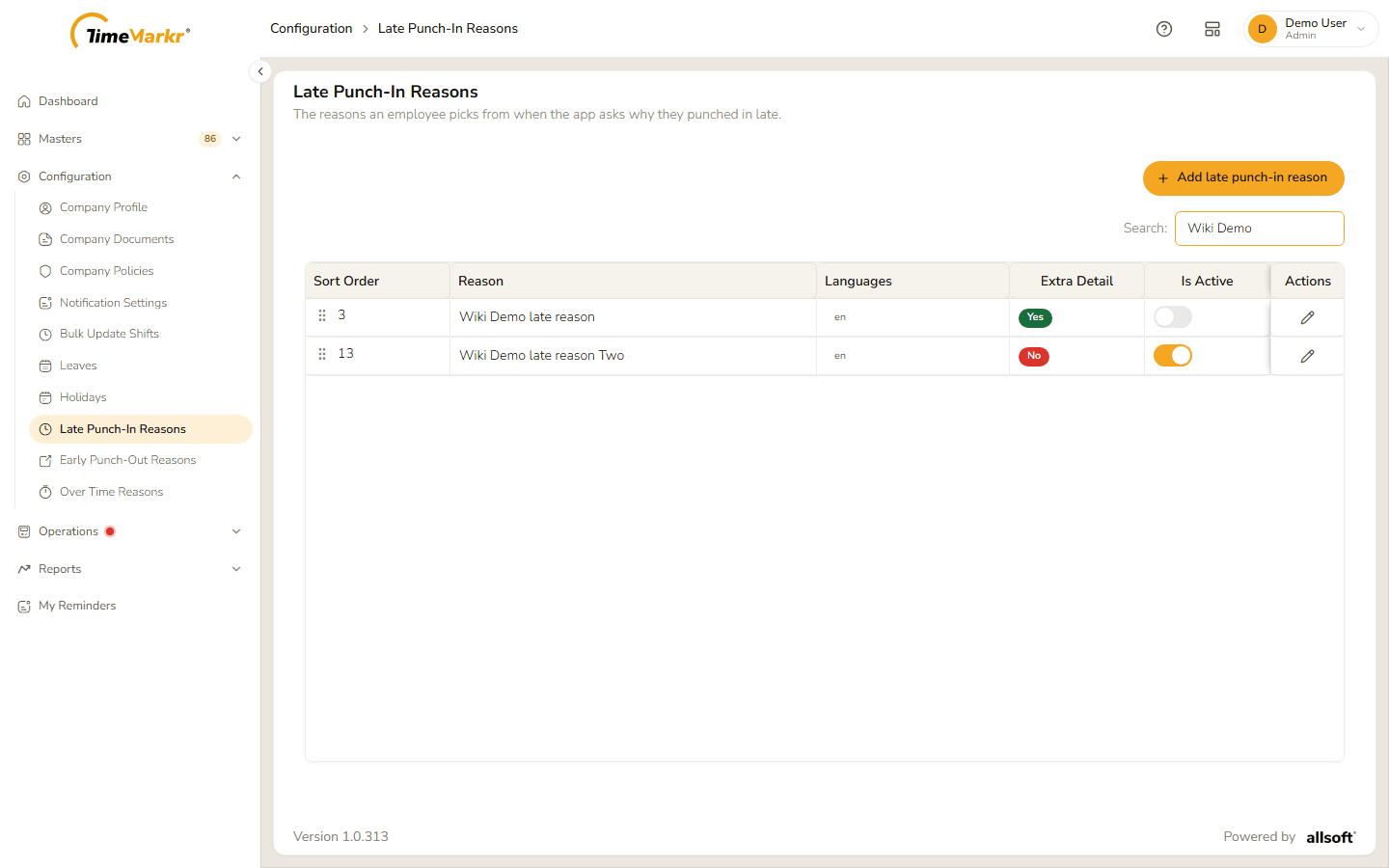
The new reason in the list
Edit a reason
Click the pencil on the reason's row. The form opens with the saved wording; its button is Update.
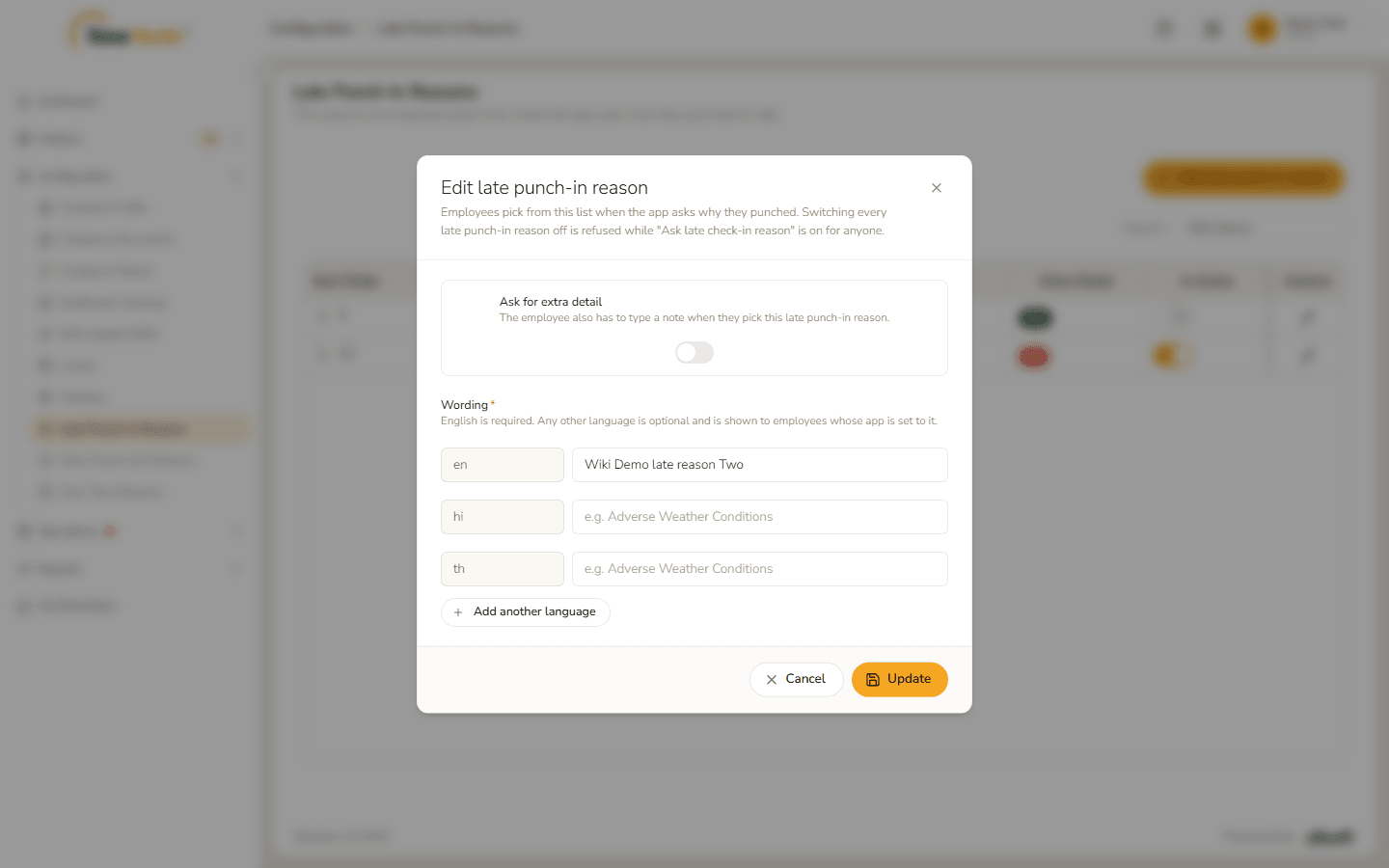
Edit form Change what you need – here Ask for extra detail is switched on.
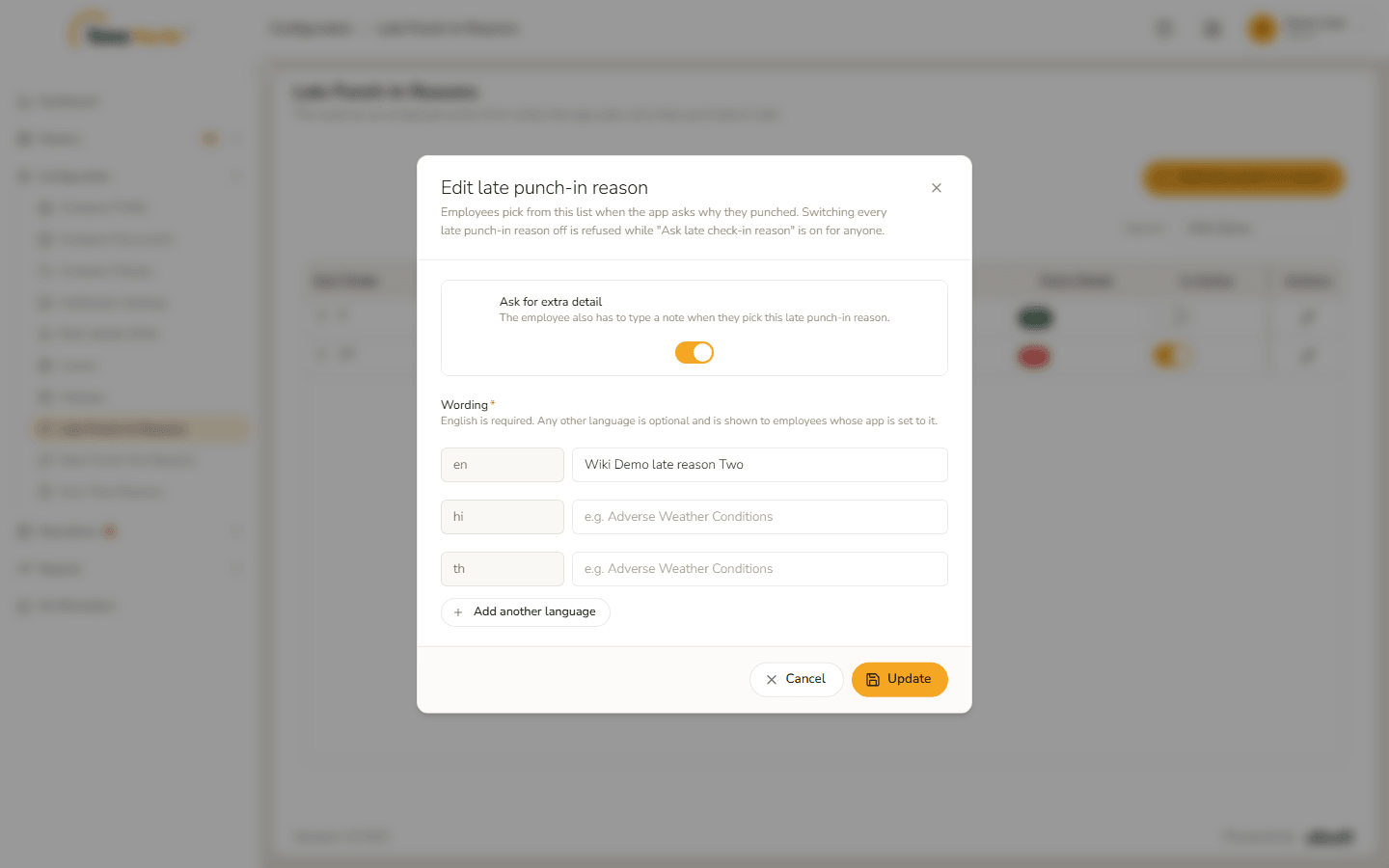
Extra detail switched on Click Update. Reason saved says the reason "was updated" and that employees see the change the next time they punch.
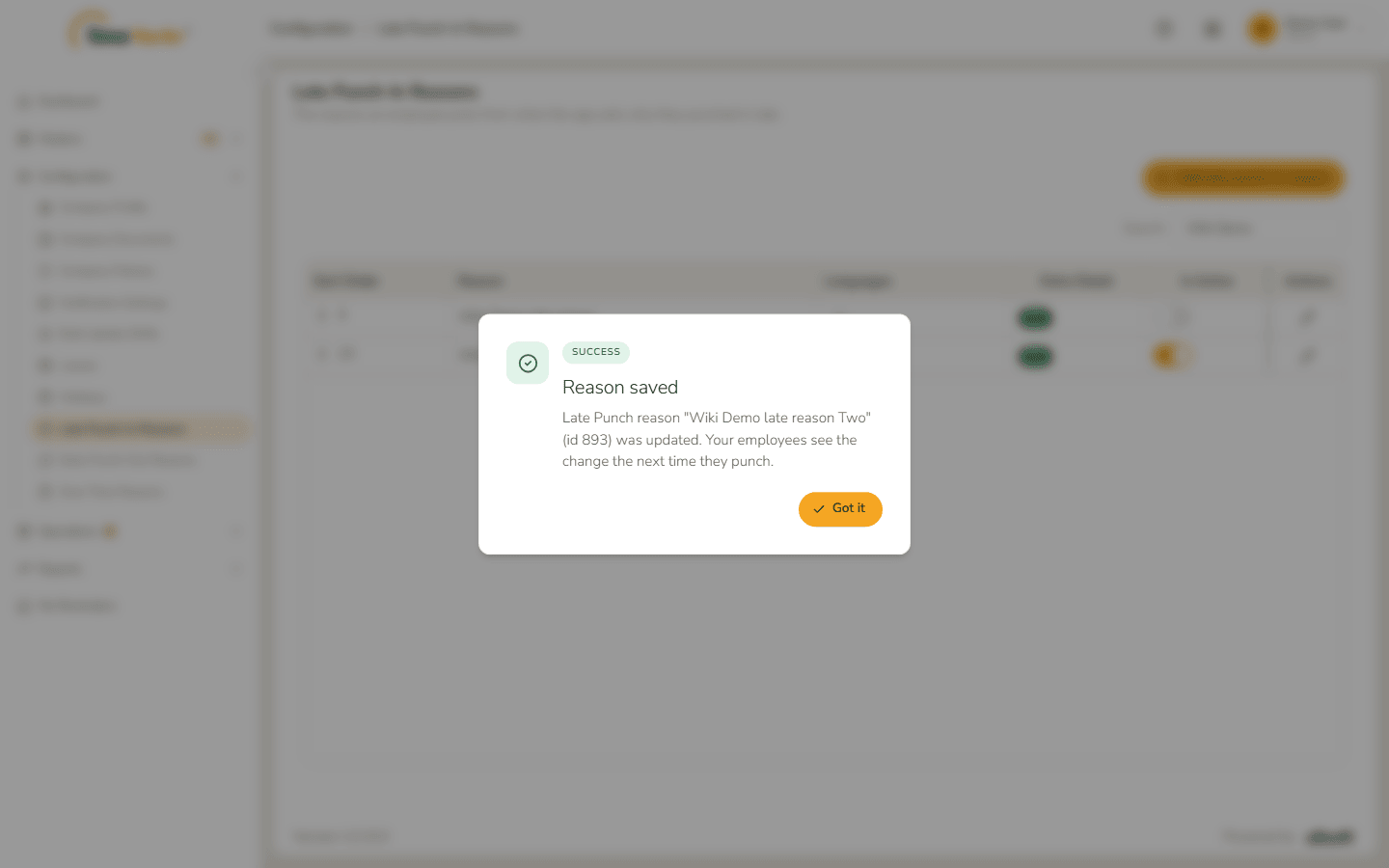
Reason updated
Switch a reason off or on
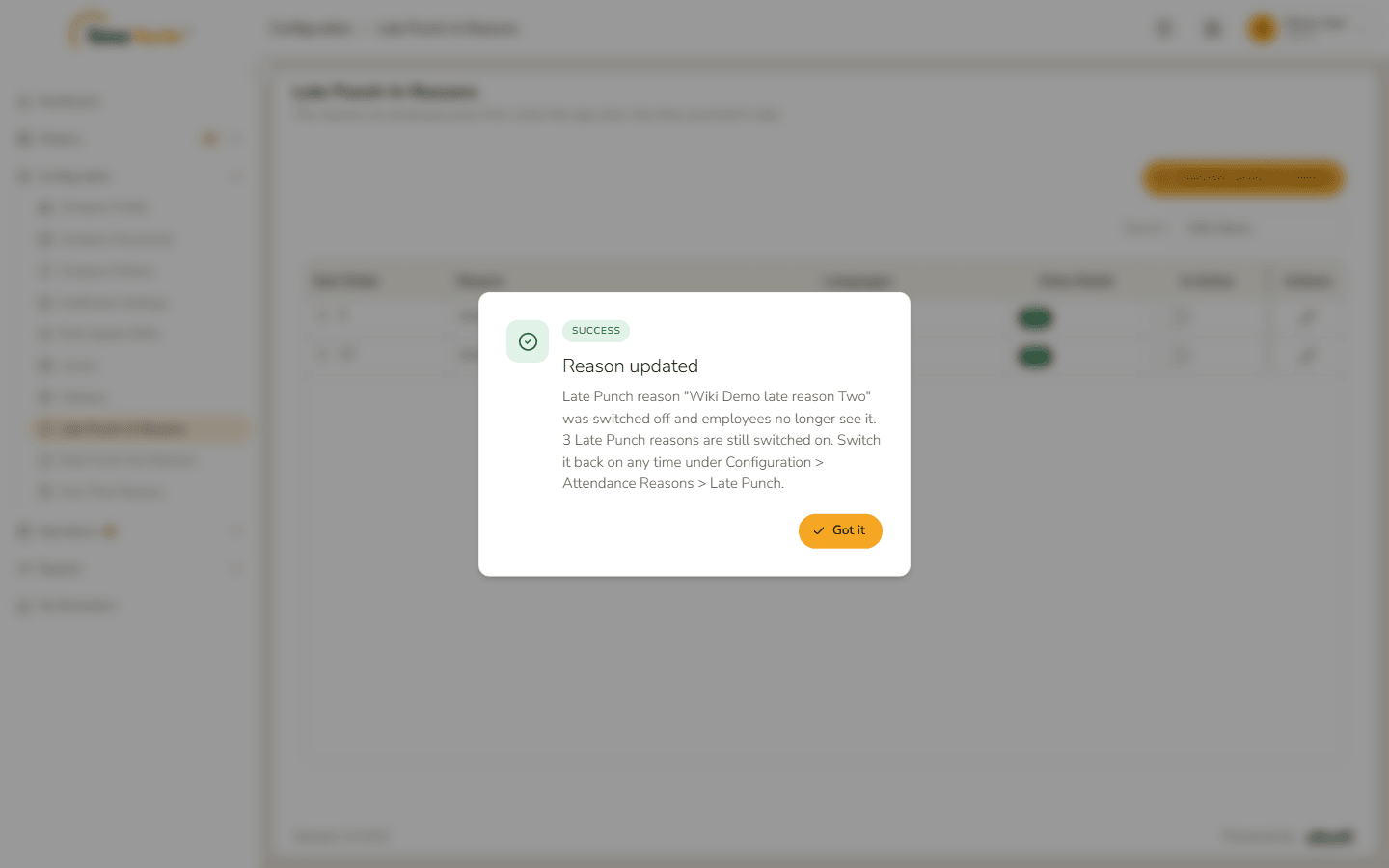
Click the switch in the Is Active column. Reason updated says that the reason "was switched off and employees no longer see it" and how many are still switched on. The same switch turns it back on.
Change the order
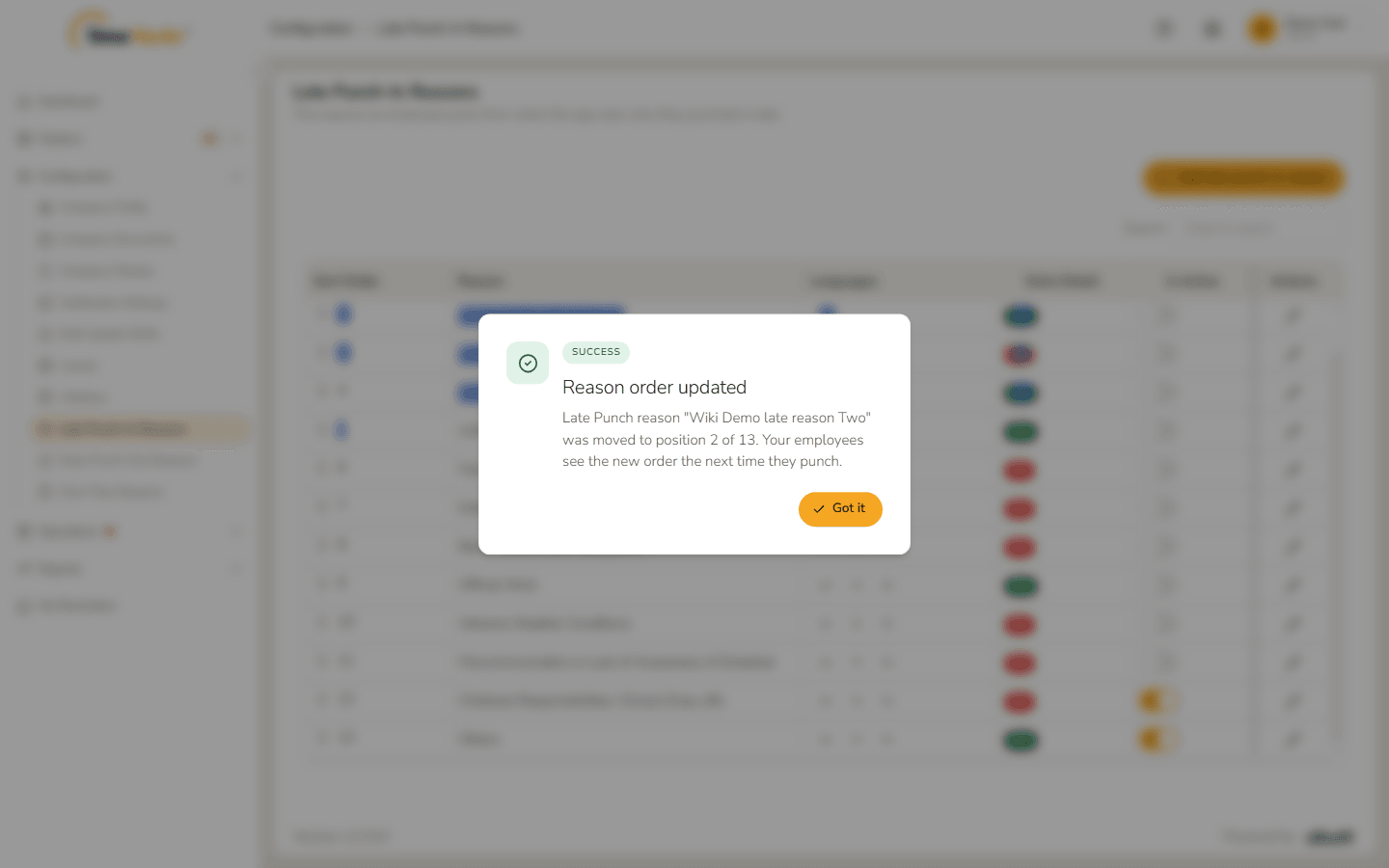
Drag a row by any part of it and drop it where you want it. The new order is saved at once: Reason order updated says which position the reason "was moved to" – for example "position 2 of 13" – and that employees see the new order the next time they punch.
Late Punch-In Reasons
Where: Admin portal → Configuration → Late Punch-In Reasons
Route: /configuration/late-punch-in-reasons
"The reasons an employee picks from when the app asks why they punched in late." The steps above are shown on this page. Whether employees are asked at all is set per working location with Ask for Late Punch Reason?.
Early Punch-Out Reasons
Where: Admin portal → Configuration → Early Punch-Out Reasons
Route: /configuration/early-punch-out-reasons
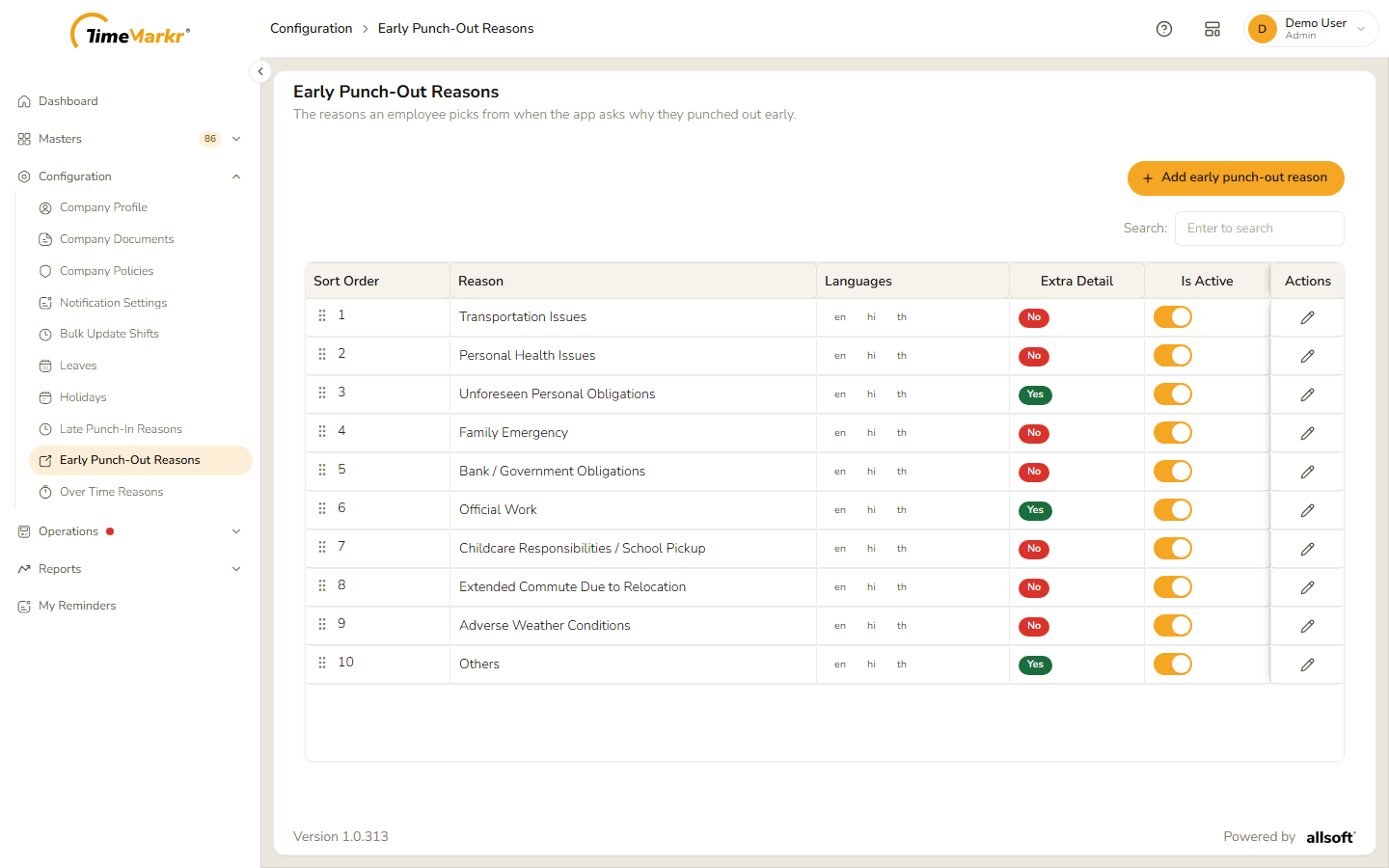
"The reasons an employee picks from when the app asks why they punched out early." The button at the top is Add early punch-out reason, and the form's note refers to "Ask early check-out reason". Whether employees are asked at all is set per working location with Ask for Early Punch Out Reason?.
Over Time Reasons
Where: Admin portal → Configuration → Over Time Reasons
Route: /configuration/overtime-reasons
"The reasons an employee picks from when the app asks why they worked overtime." The button at the top is Add overtime reason, and the form's note refers to "Ask overtime reason". Whether employees are asked at all is set per working location with Ask for Over Time Reason?.
Related: Work Location · Employee profile – Configuration tab · Daily Attendance Punch