
Monthly Attendance
Where: Admin portal → Reports → Monthly Attendance
Route: /reports/monthly-attendance
One line for each employee for one month: how many working days there were, how many the employee was absent, the final attendance and the late days – with a calendar of the month for each person. See Reports – the basics for Search, Show and Export.
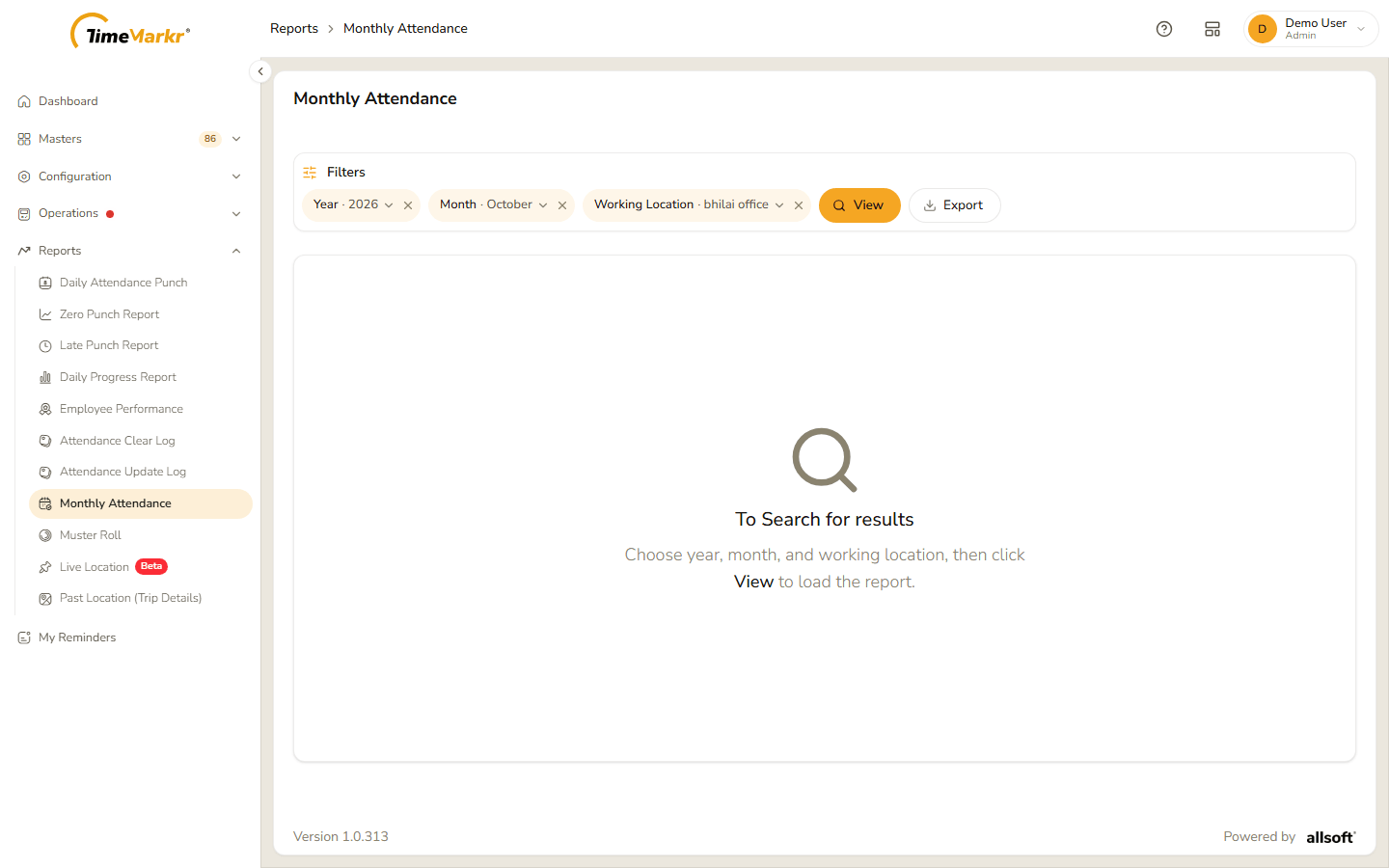
The page opens empty: "To Search for results – Choose year, month, and working location, then click View to load the report."
1. Run the report
- Click the Year pill and choose the year.
- Click the Month pill and choose the month. For the current year only the months up to the current one are offered.
- Click the Working Location pill and choose the location.
- Click View. Clear all filters starts again.
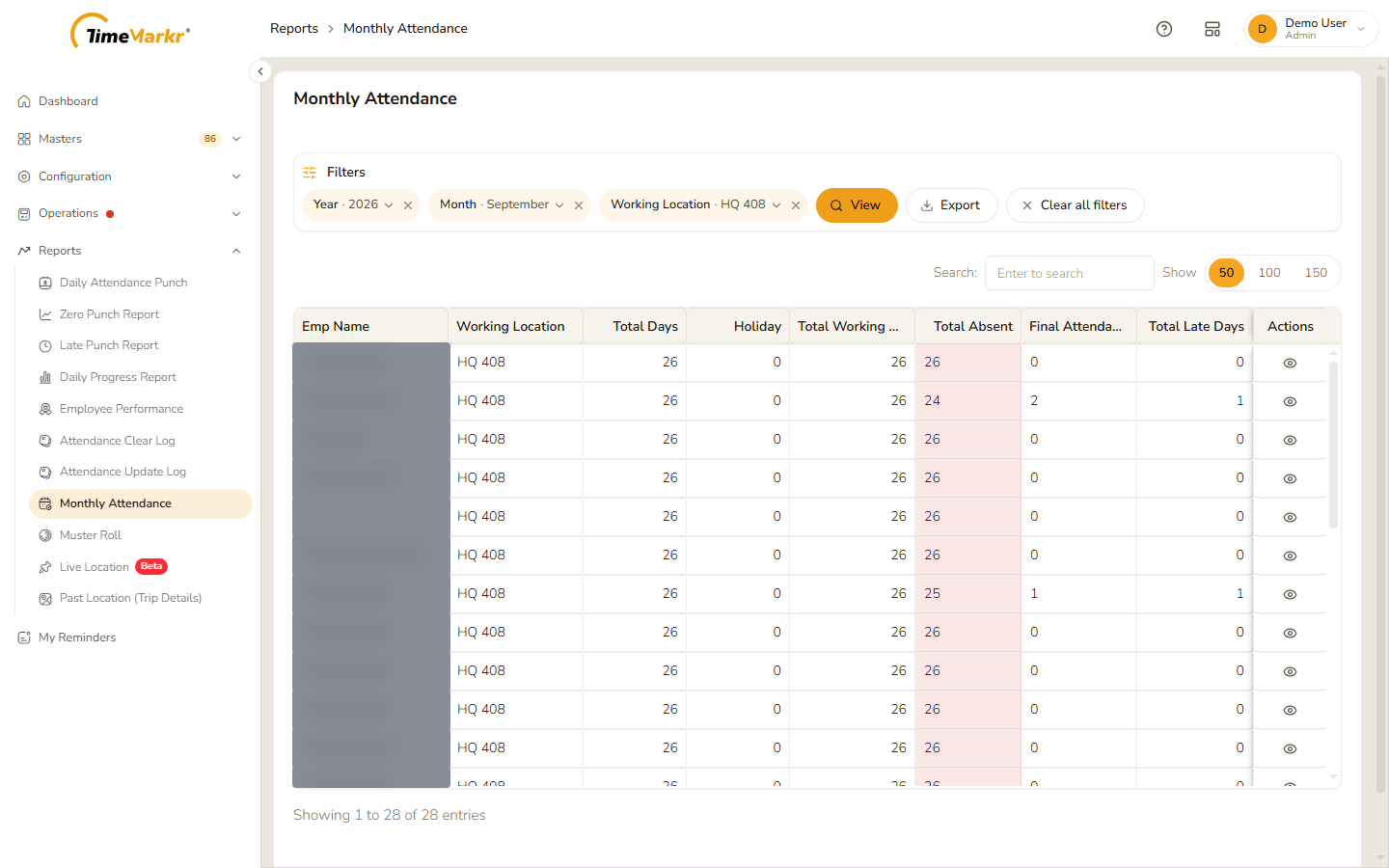
| Column | What it shows |
|---|---|
| Emp Name | The employee. |
| Working Location | The employee's working location. |
| Total Days | The days of the month that count, weekly offs not included. |
| Holiday | How many of them are holidays. |
| Total Working Days | The working days left after the holidays. |
| Total Absent | The days the employee was absent. Anything above 0 is shown on a red background. |
| Final Attendance | The working days minus the absences. |
| Total Late Days | The days the employee punched in late. |
| Actions | The eye icon, View monthly attendance calendar. |
Export downloads the totals as an Excel file.
2. See the month day by day
Click the eye icon on the employee's row. Monthly Attendance – Employee Name : <name>, <month>, <year> opens with a calendar. Each day carries its state: Absent on a red background, Holiday (with the holiday's name) on a hatched one, Weekly Off, and so on.
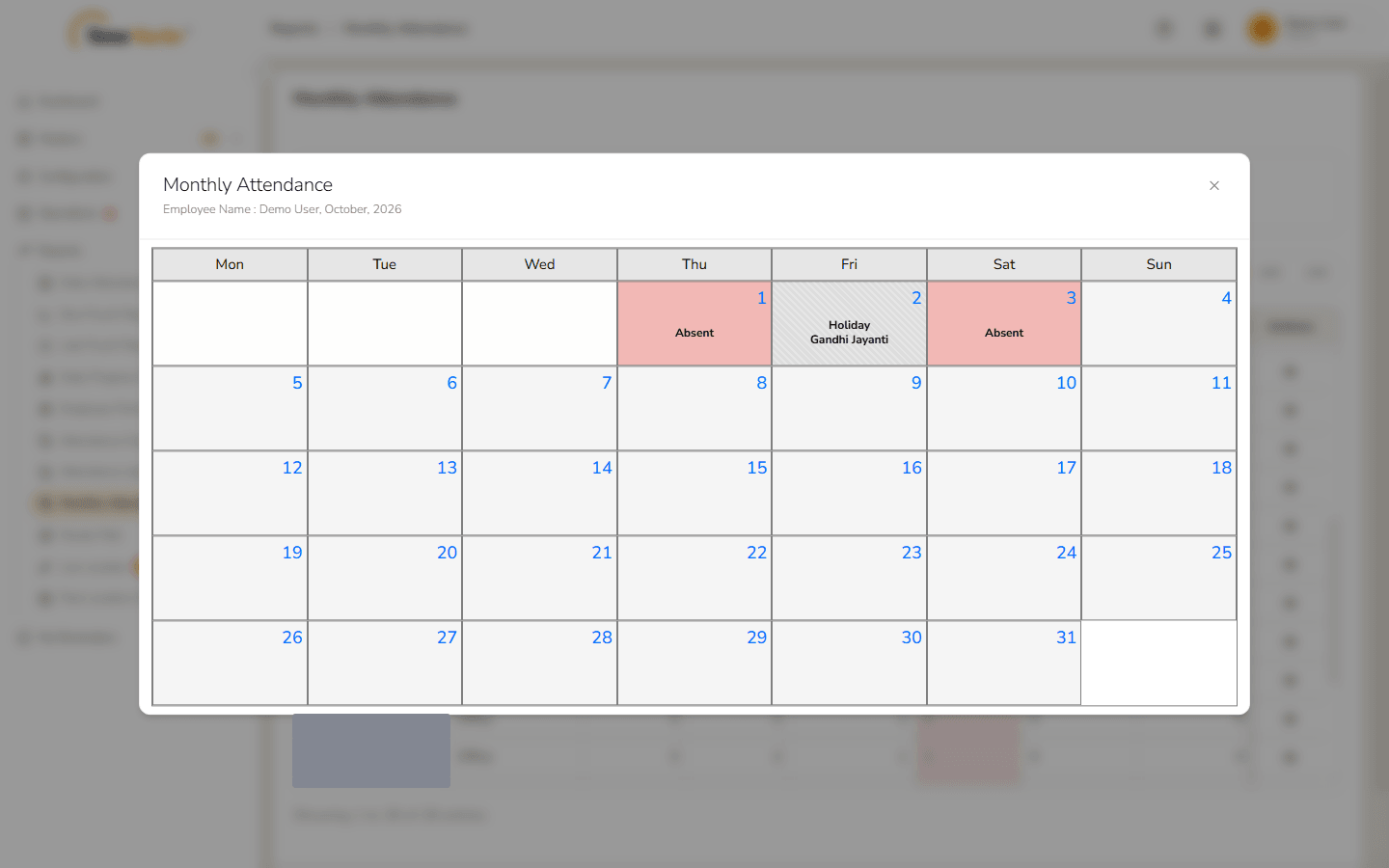
Click × to close it. For the same month as one grid for everyone, with the in and out times, see Muster Roll.
Related: Muster Roll · Holidays · Late Punch Report