
Past Trip Records
Where: Employee portal → Past Trip Records
Route: /employee/trip-records
The trips your phone recorded with the TimeMarkr app – when each started and ended, how far it went, and the route on a map that you can play back. It is the same report that HR sees in Past Location (Trip Details), but only for you.
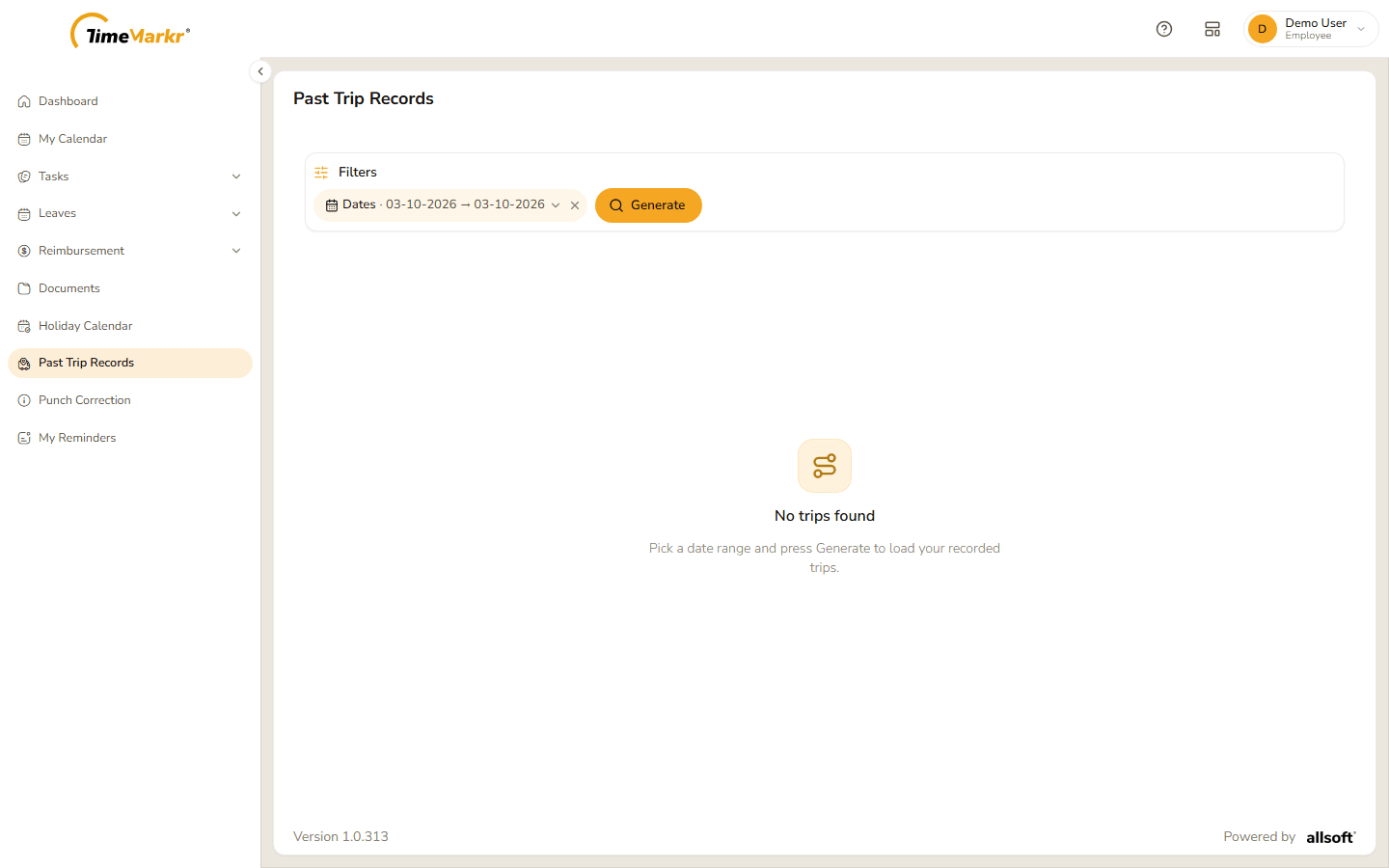
1. Find your trips
The page opens on today. With no trips it says "No trips found – Pick a date range and press Generate to load your recorded trips."
- Click the Dates pill. "The days to include. Press Generate to load the trips." Click the first box and pick the first day, click the second and pick the last day (use the two lists at the top of the calendar for the month and the year), then click Done.
- Click Generate. Clear all filters starts again.
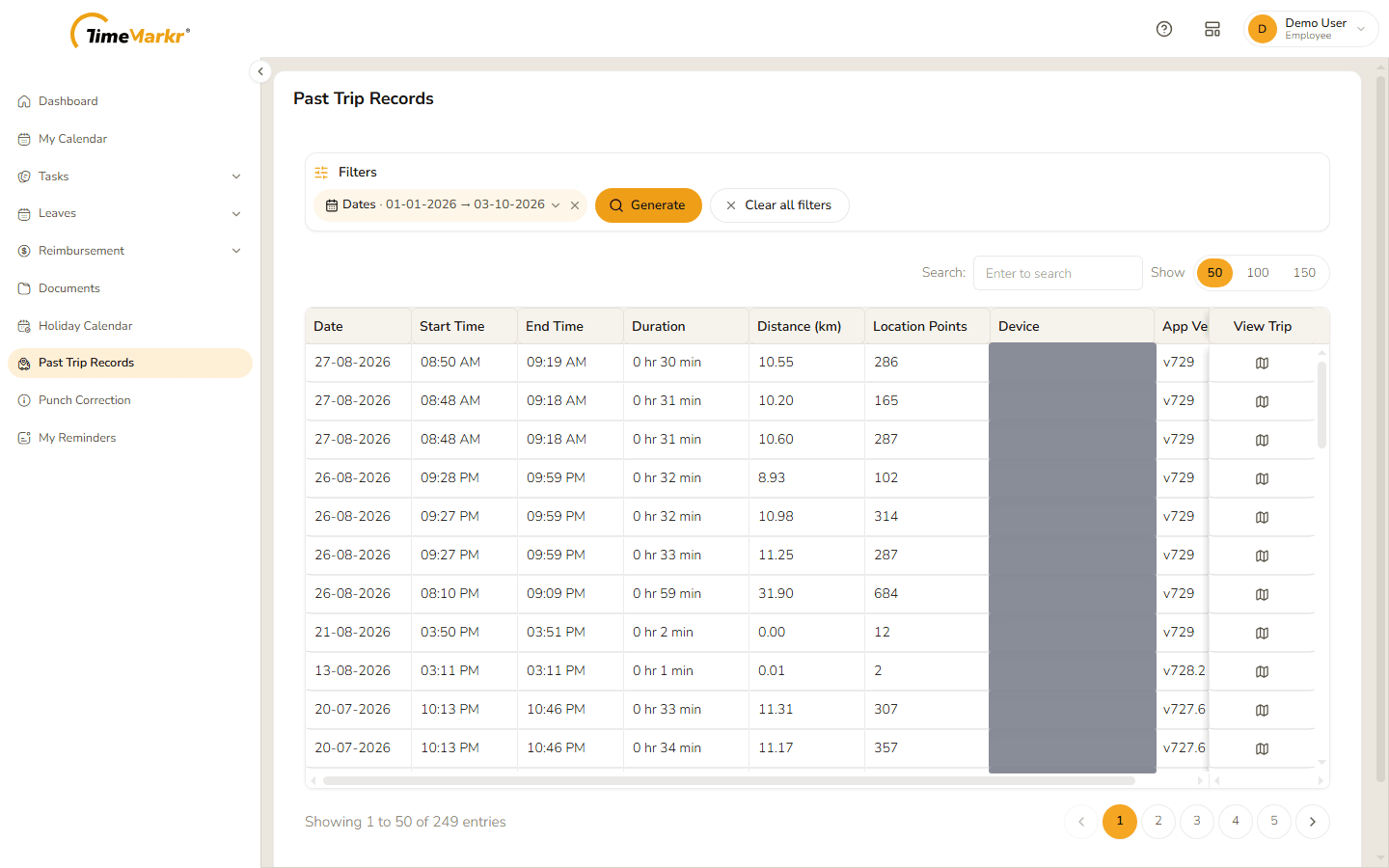
| Column | What it shows |
|---|---|
| Date | The day of the trip. |
| Start Time / End Time | When it started and ended. |
| Duration | How long it took, for example 0 hr 30 min. |
| Distance (km) | How far you travelled. |
| Location Points | How many GPS points were recorded on the way. |
| Device | The phone that recorded it, when known. |
| App Version | The version of the TimeMarkr app that recorded it. |
| View Trip | The map icon, which opens the trip. |
Search finds a trip; Show 50 / 100 / 150 and the page numbers at the bottom move through a long list.
2. Play back a trip
Click the map icon on the trip's row. Trip Details – <your name> (<date>) opens.
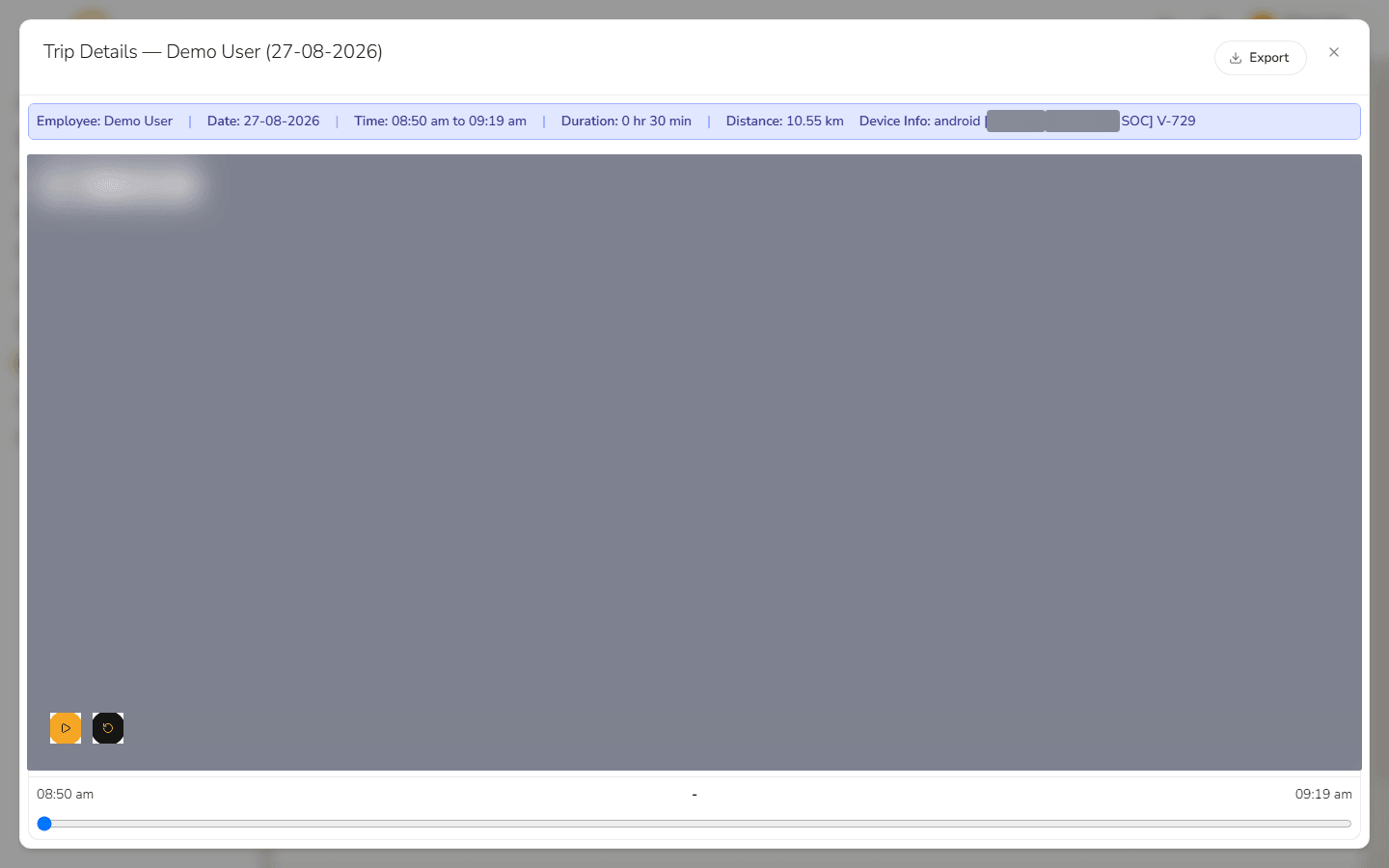
- The blue bar sums the trip up: Employee, Date, Time, Duration, Distance and Device Info.
- The map shows the route. Map and Satellite at the top left switch the background.
- Play at the bottom left traces the route; Reset goes back to the start. The buttons 1x, 2x, 3x and 4x set the speed, and the slider under the map – from the start time to the end time – shows where in the trip you are.
- Export downloads the trip as an Excel file.
Click × to close the window.
Related: Past Location (Trip Details) – admin · My Calendar