
Update Attendance
Where: Admin portal → Operations → Update Attendance
Route: /operations/update-attendance
Change the punch-in or punch-out time of one employee on one day – for example when HR knows the real time and the employee has not asked for a correction. Every change needs a reason, and it is recorded in the Attendance Update Log.
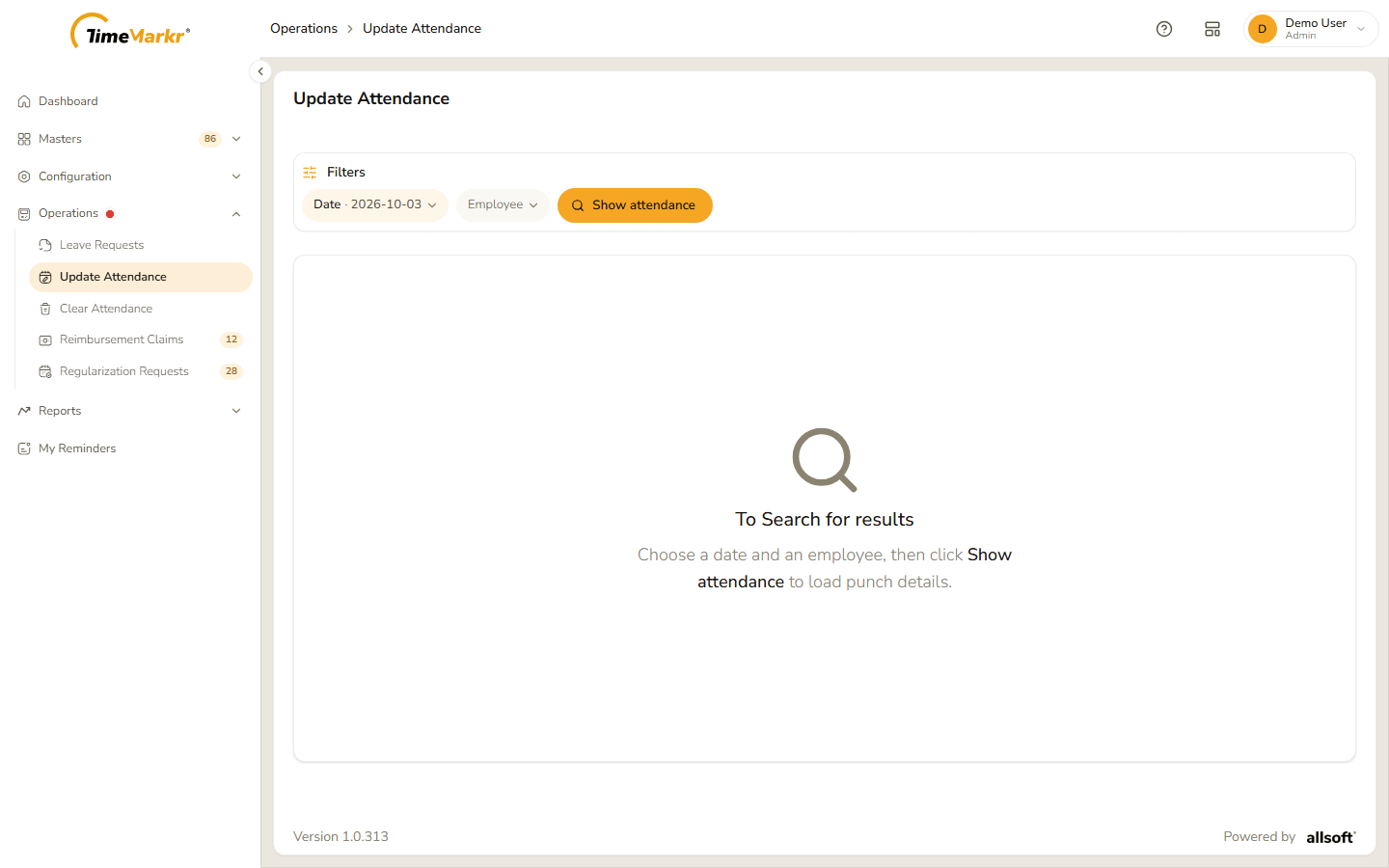
1. Find the day
The page opens empty: "To Search for results – Choose a date and an employee, then click Show attendance to load punch details."
- Click the Date pill and then the date in it (it starts on today). A calendar opens – use the two lists at the top for the month and the year and click the day.
- Click the Employee pill, type at least three characters of the name and pick the person.
- Click Show attendance. Clear all filters starts again.
The employee's day appears as a card.
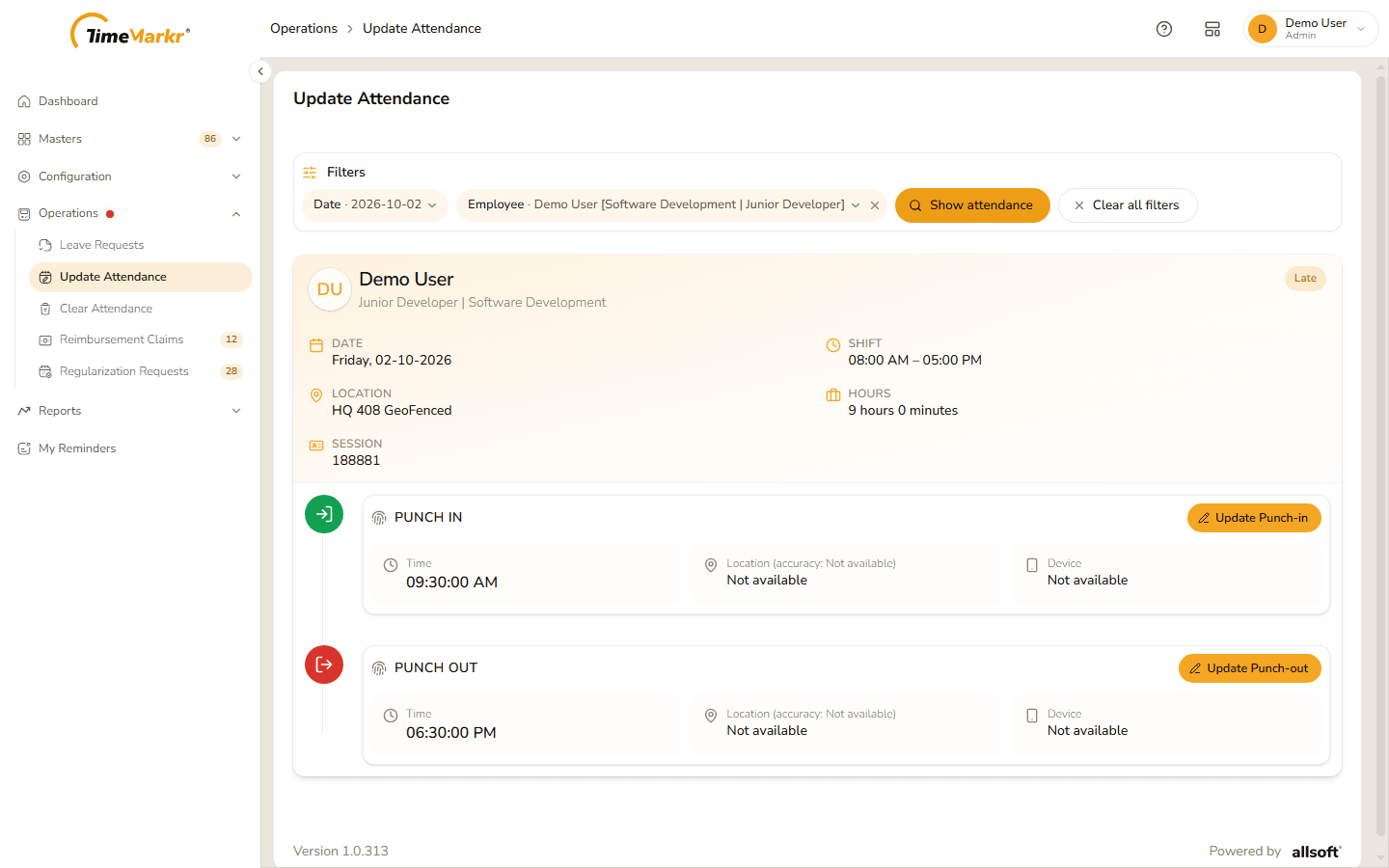
| On the card | What it shows |
|---|---|
| Name, designation and department | Who the day belongs to. A tag at the top right – for example Late – gives the day's status. |
| Date | The day. |
| Shift | The shift the employee works, for example 08:00 AM – 05:00 PM. |
| Location | The working location. |
| Hours | The hours worked, for example 9 hours 0 minutes. |
| Session | The number of the attendance session. |
| Punch in / Punch out | The Time, the Location (with its accuracy) and the Device of each punch. Not available when none was recorded – as on this day, whose punches came from an approved correction. |
2. Change a punch
Click Update Punch-in (or Update Punch-out). Update Punch-in opens with the saved time.
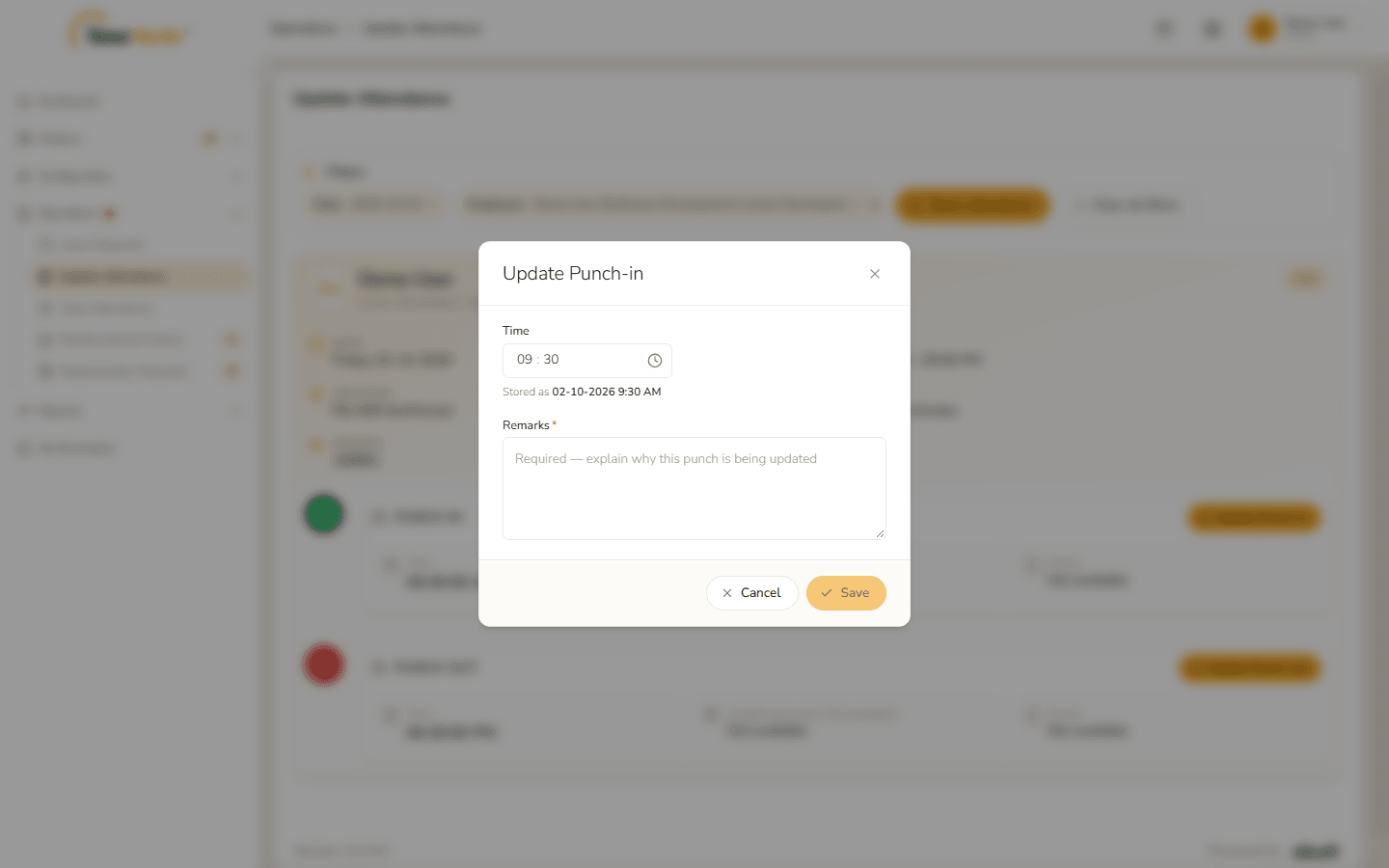
Update Punch-in - Change the Time. It is a 24-hour clock with an hours part and a minutes part – click a part and type, or use the up and down arrow keys. The line under it, Stored as 02-10-2026 9:15 AM, shows exactly what will be saved.
Write the Remarks*: "Required — explain why this punch is being updated".
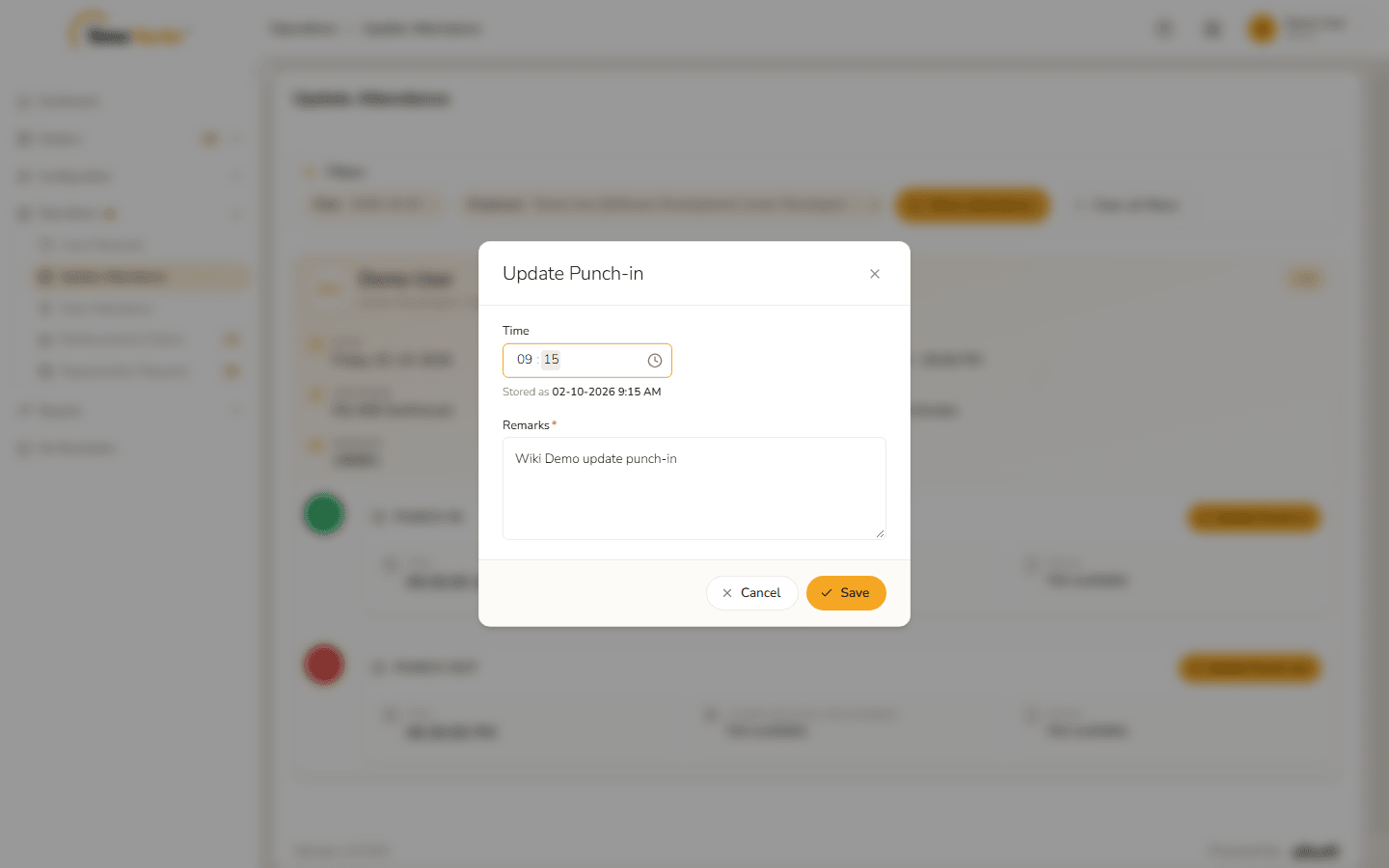
Time and remarks filled in Click Save. Update attendance – Saved. confirms it. Click Got it.
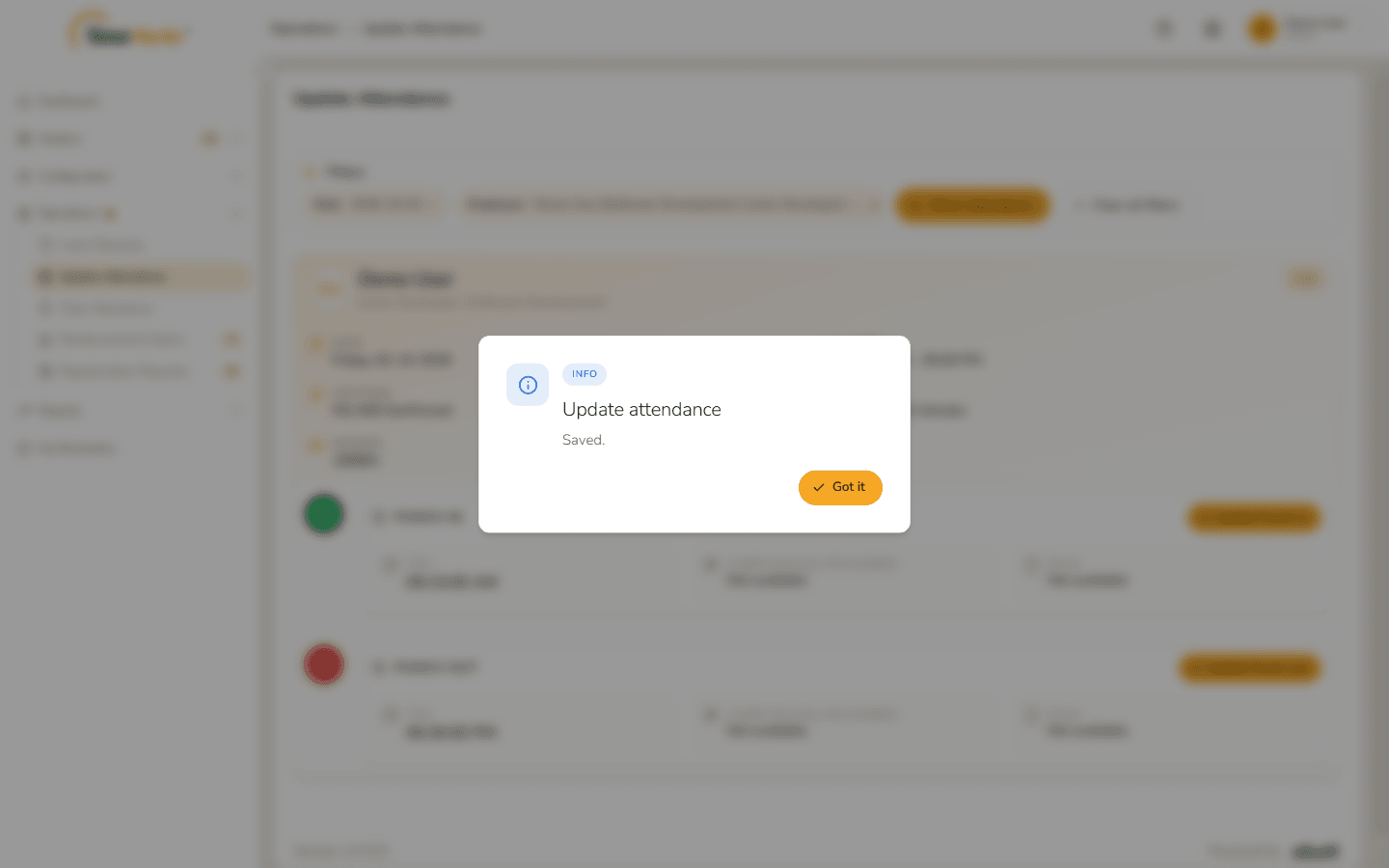
Saved The card shows the new time and the Hours are worked out again – here 9 hours 15 minutes.
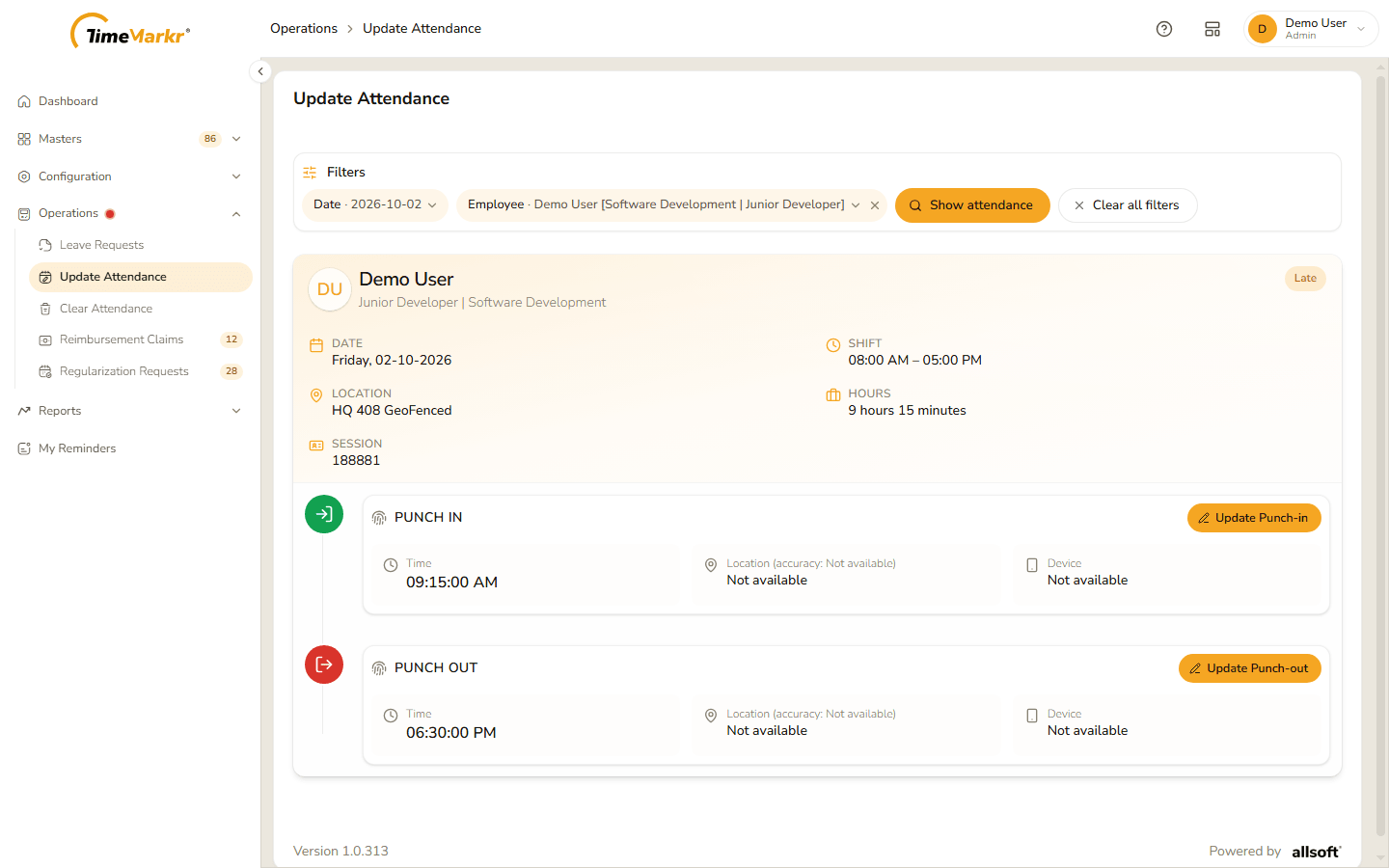
The card after saving
Cancel closes the window without changing anything.
Related: Regularization Requests · Clear Attendance · Attendance Update Log