
Clear Attendance
Where: Admin portal → Operations → Clear Attendance
Route: /operations/clear-attendance
Remove a punch that should not be there – a test punch, a punch made by mistake, a punch on the wrong day. A day with both punches offers the punch-out first and then the punch-in. Every clearing needs a reason and is recorded in the Attendance Clear Log.
Careful: clearing removes the punch from the employee's attendance. To change a time rather than remove it, use Update Attendance.
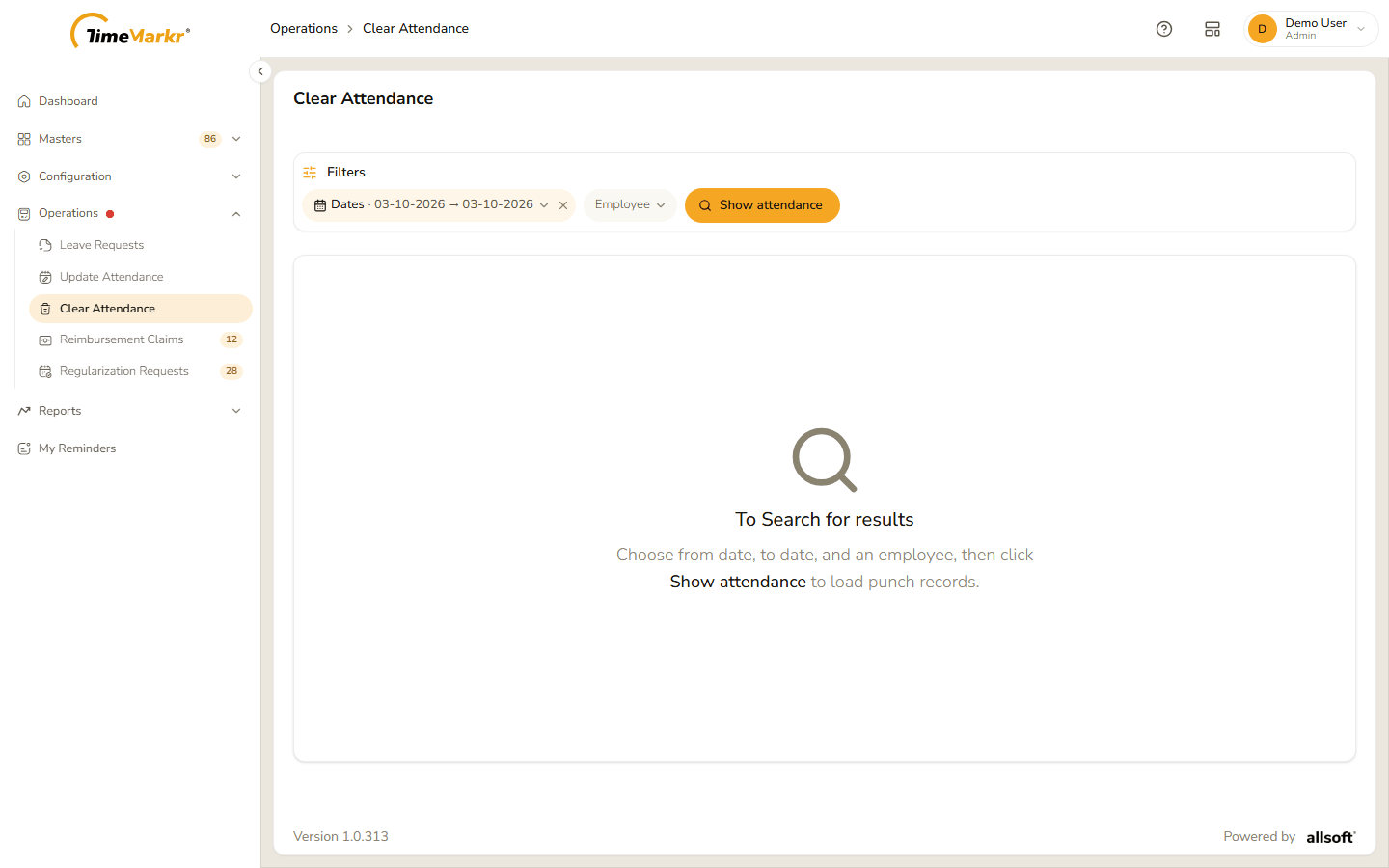
1. Find the days
The page opens empty: "To Search for results – Choose from date, to date, and an employee, then click Show attendance to load punch records."
- Click the Dates pill. "Leave a box empty for no limit. Both boxes filled means between those two days." Click the first box and pick the first day, click the second and pick the last day (use the two lists at the top of the calendar for the month and the year), then Done. Both start on today.
- Click the Employee pill, type at least three characters of the name and pick the person.
- Click Show attendance. Clear all filters starts again.
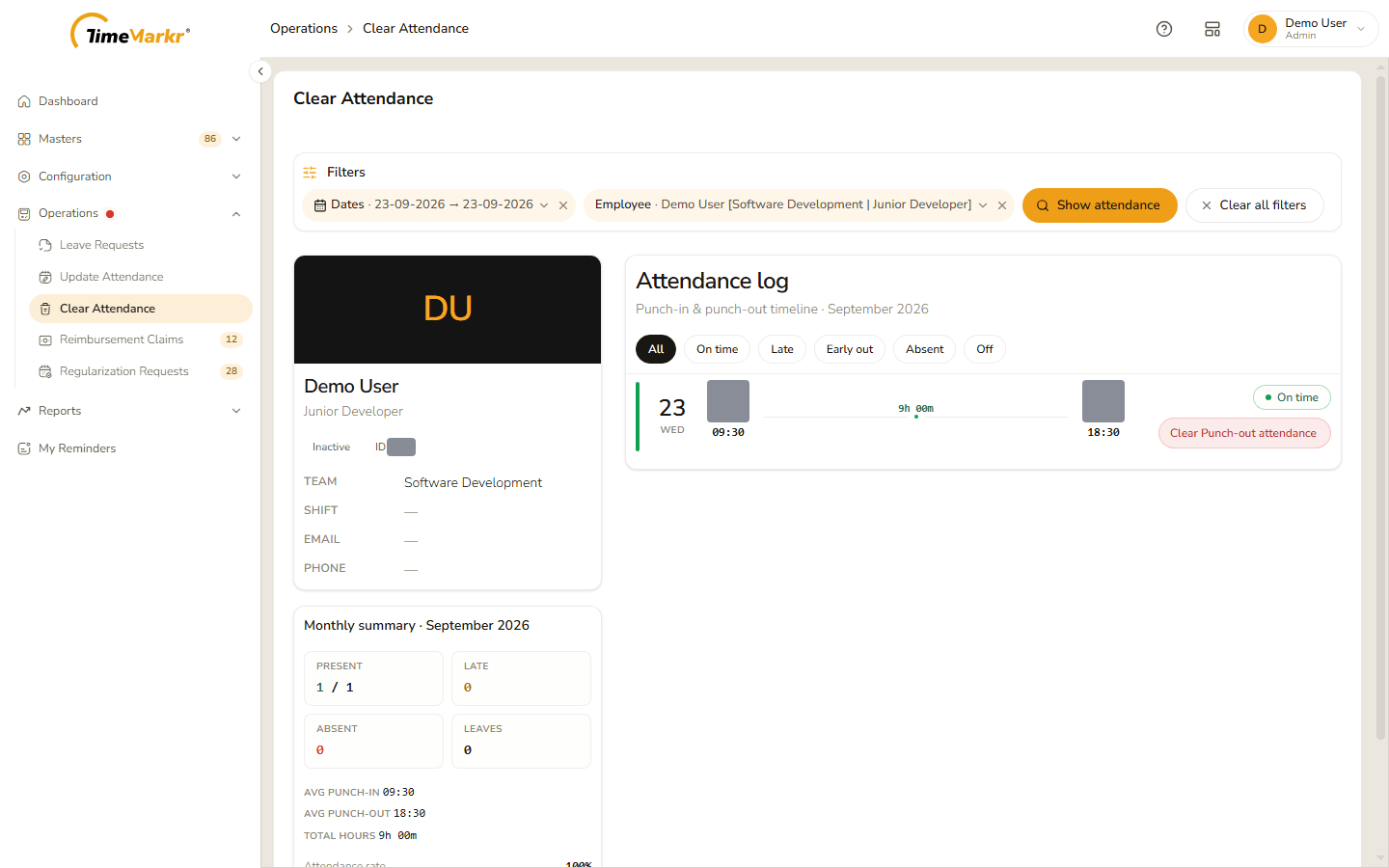
The page shows three things:
- The employee – name, designation, and under it the status tag, the Team, Shift, Email and Phone.
- Monthly summary – for the month of the dates you chose: Present (days present / days counted), Late, Absent, Leaves, the average punch-in and punch-out, the Total hours and the Attendance rate.
- Attendance log – one row for each day in the range, with the punch-in time, the hours worked, the punch-out time and a tag such as On time, Late, Early out, Absent, Off or Open (punched in, not yet out). The buttons above the list – All, On time, Late, Early out, Absent, Off – show only the days of that kind.
2. Clear a punch
On the day's row click Clear Punch-out attendance. A day with only a punch-in offers Clear Punch-in attendance instead. Enter Clear Attendance reason for Punch-out opens.
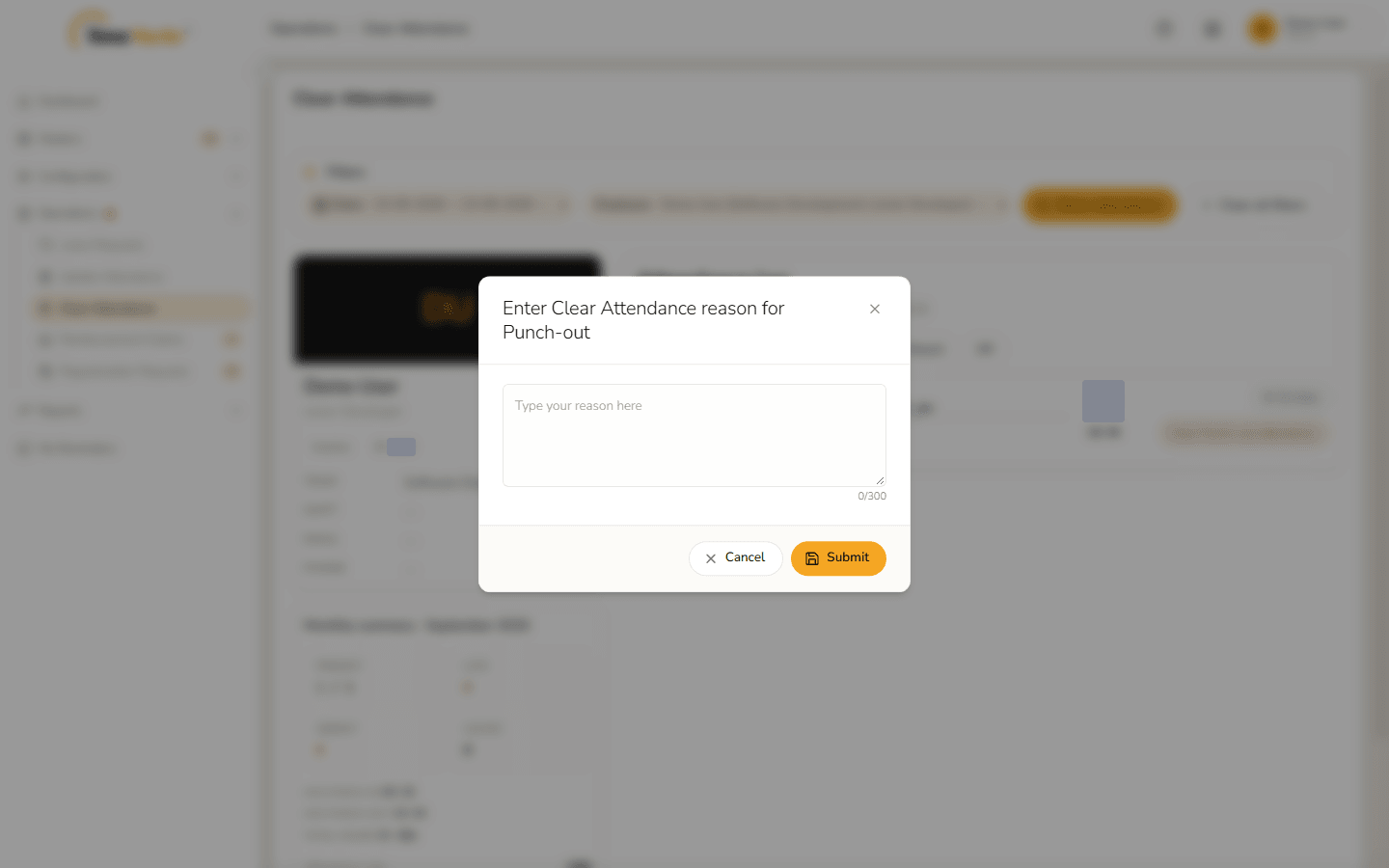
Reason window Write the reason (up to 300 characters – a counter shows how many you have used). Submit with the box empty is refused: Clear attendance – Enter a reason before submitting.
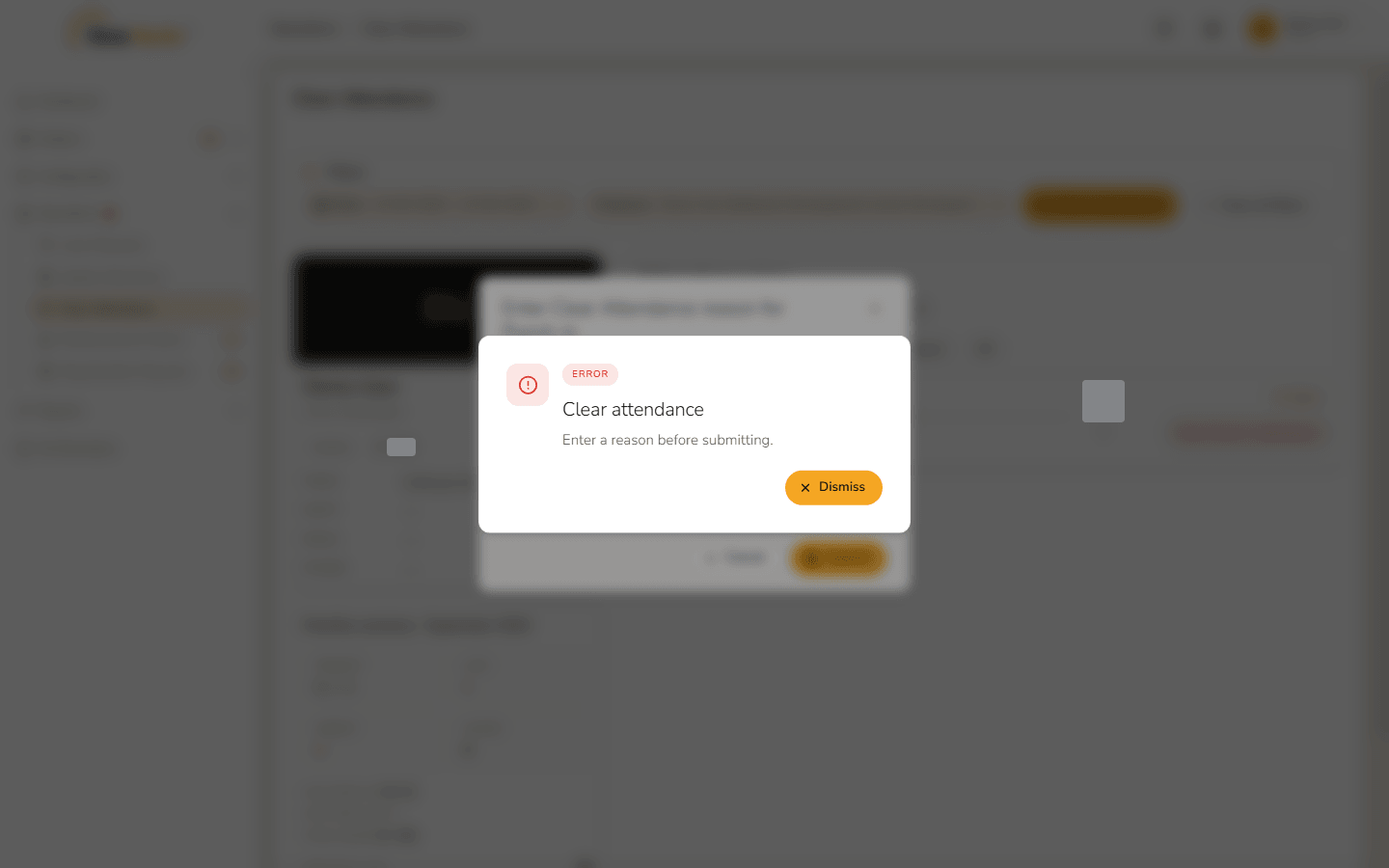
A reason is required 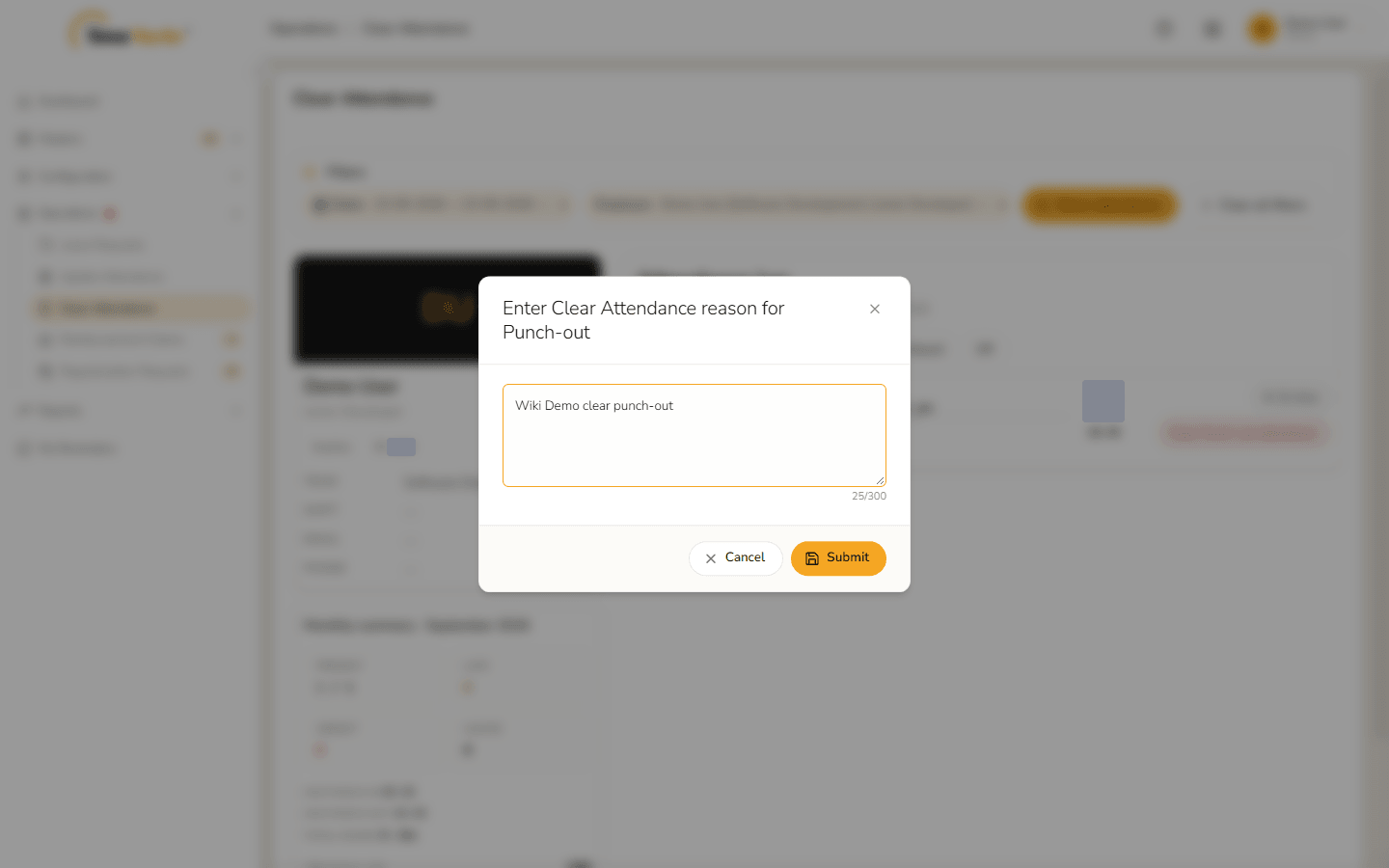
Reason written Click Submit. Clear attendance – Attendance cleared. confirms it. Click Got it.
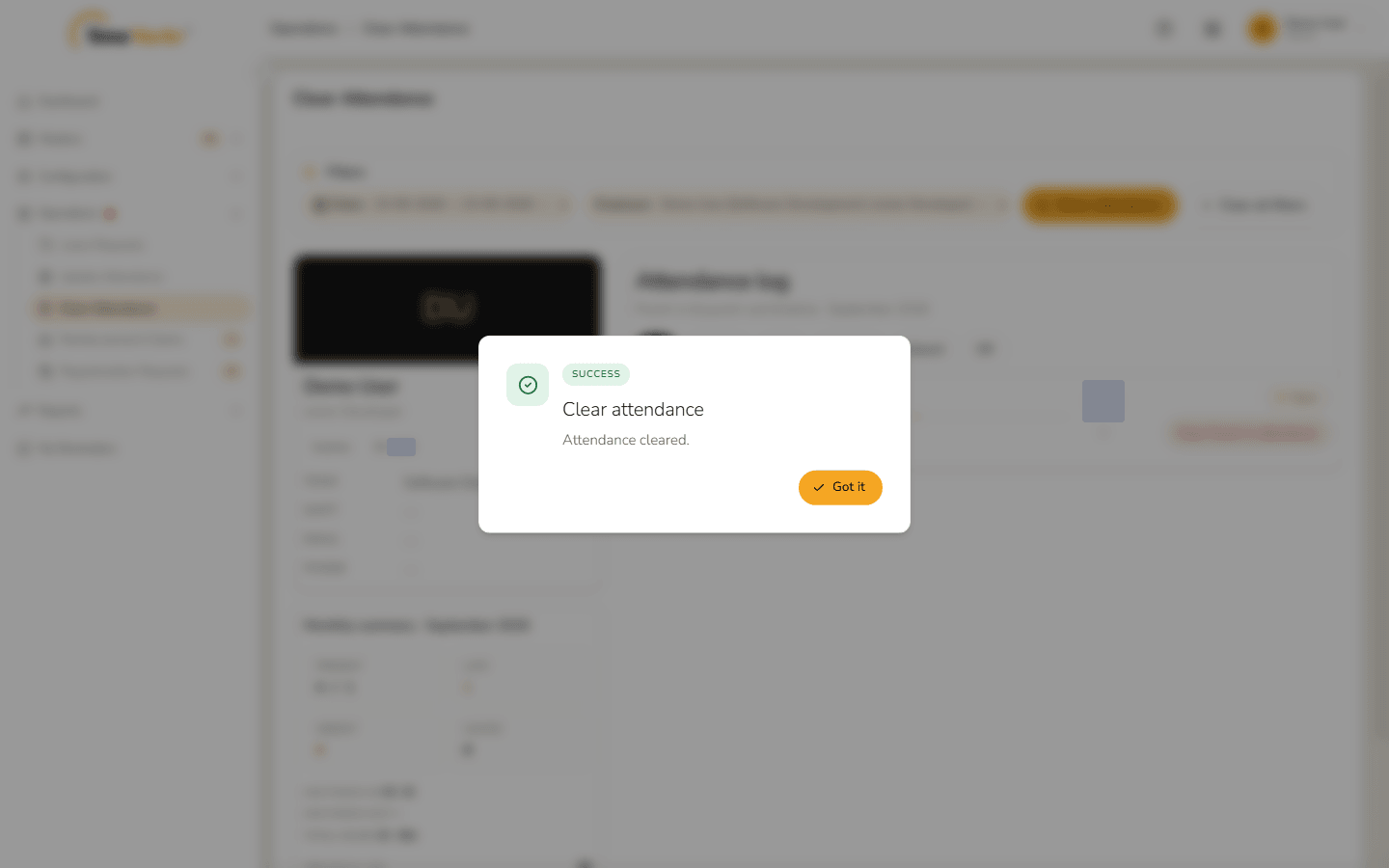
Attendance cleared The row now shows only the punch-in, with the tag Open, and the summary is worked out again. Clear the punch-in the same way if the whole day should go.
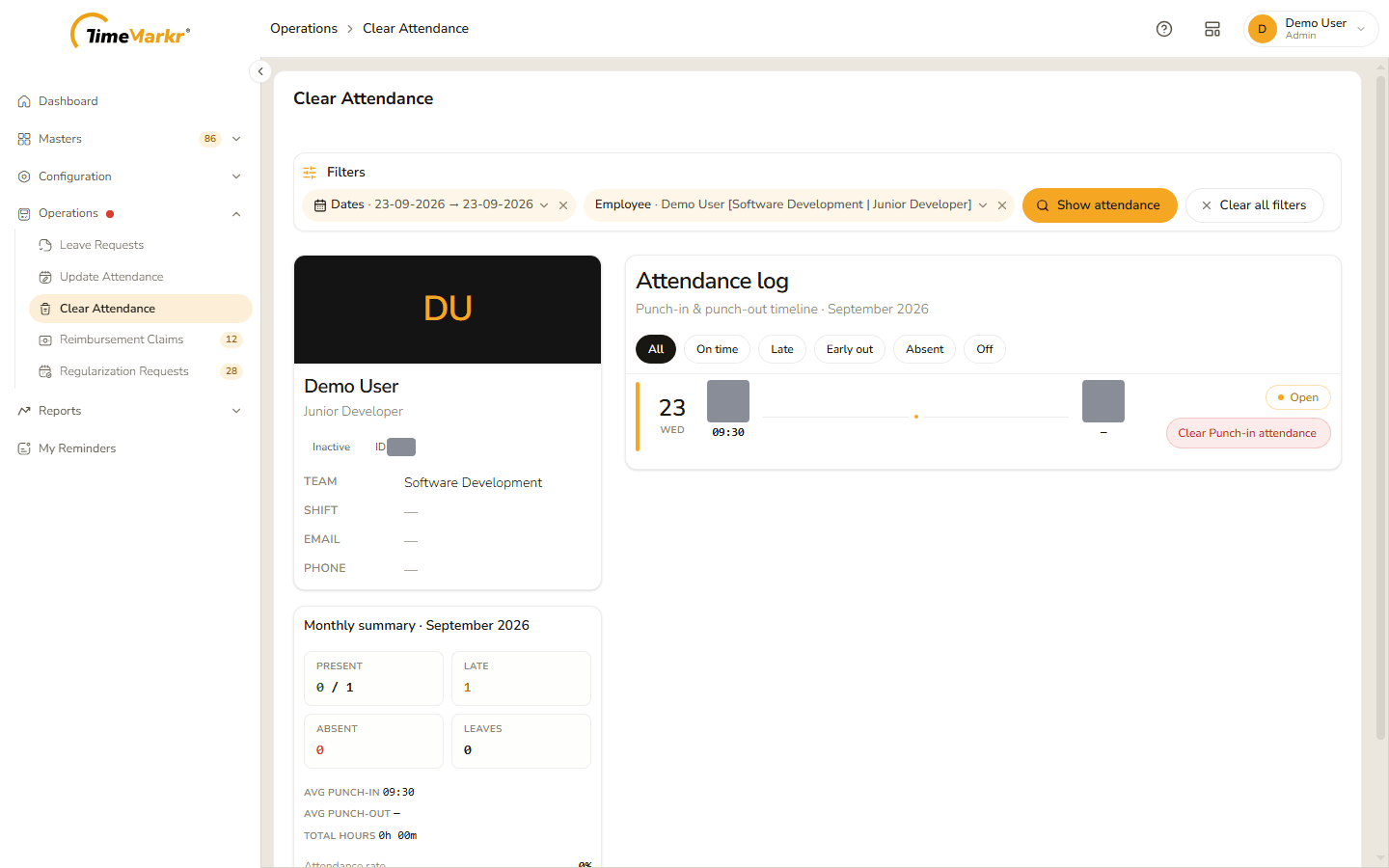
After clearing the punch-out When both punches are gone the page says No punch records – No attendance punches were returned for this employee and date range.
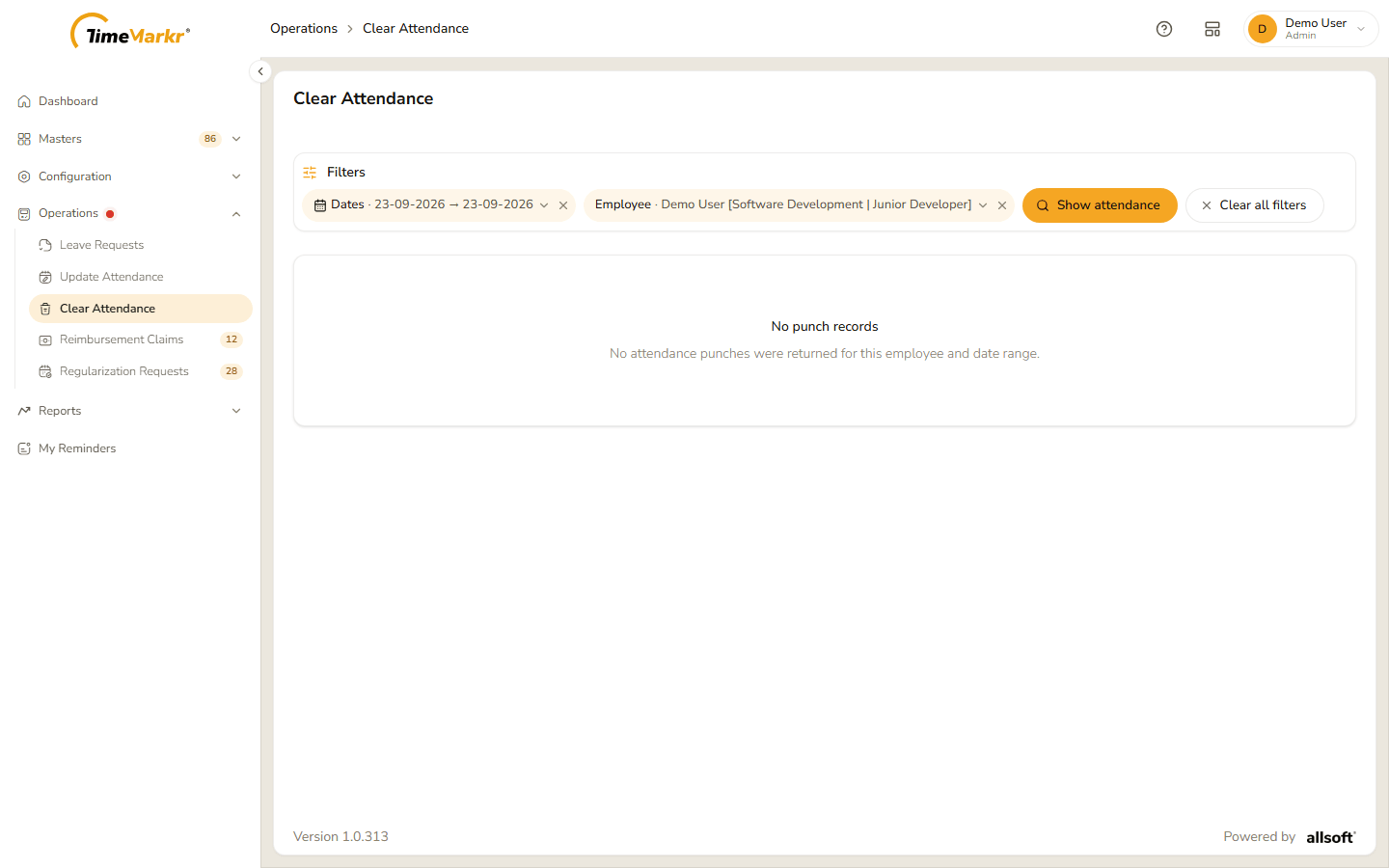
No punch records
Cancel closes the window without clearing anything.
Related: Update Attendance · Regularization Requests · Attendance Clear Log