
Leave Requests
Where: Admin portal → Operations → Leave Requests
Route: /operations/leave-requests
Approve or reject the leave your employees have asked for. The page lists the requests that are still pending. When you decide, the employee sees the outcome under Request Status.
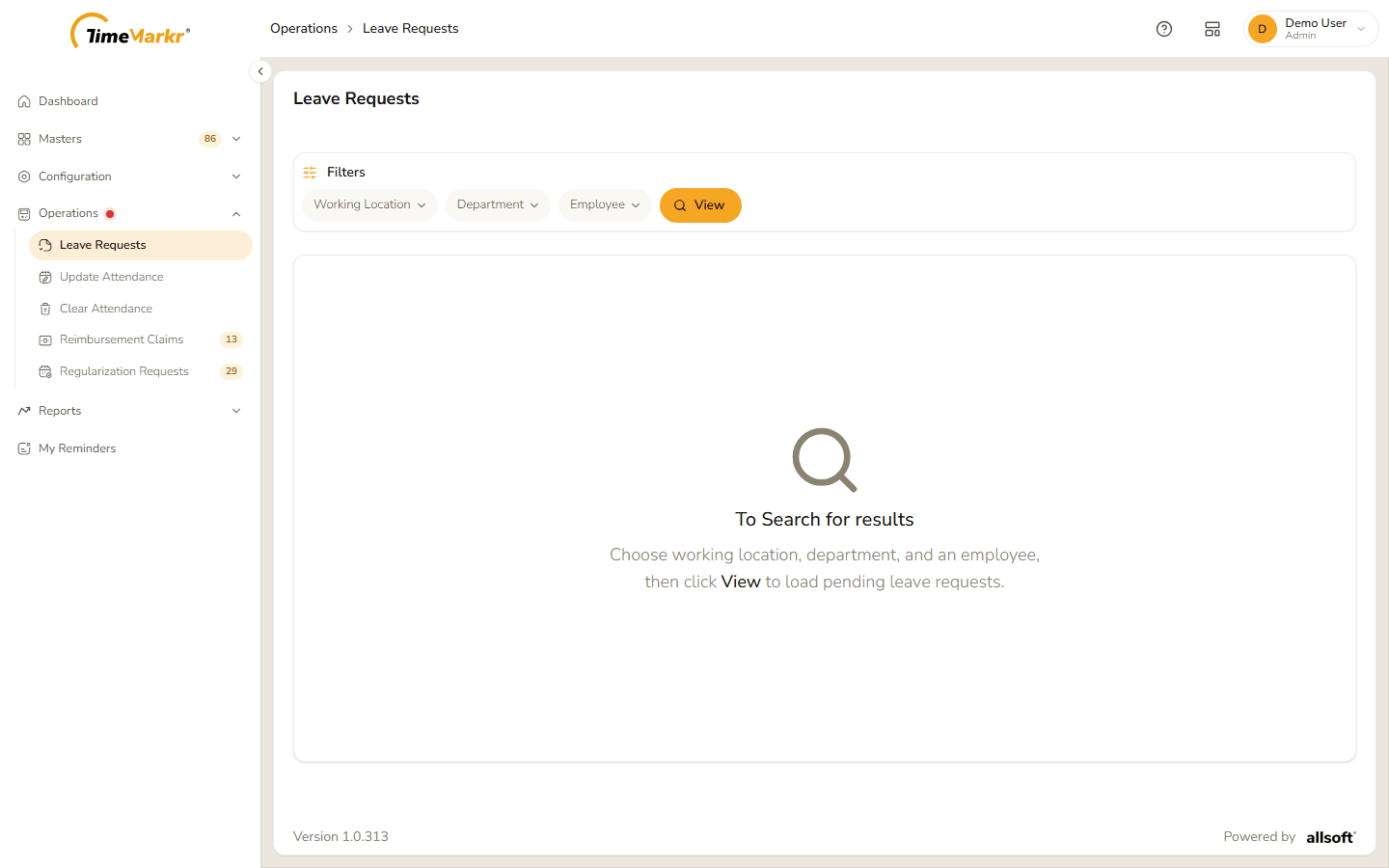
1. Find the pending requests
The page opens empty: "To Search for results – Choose working location, department, and an employee, then click View to load pending leave requests."
Open the Employee pill and type at least three characters of the employee's name. "Type 3 characters to search employees" – the list shows each match with their department and designation. Click the person you want. The pill now reads Employee · <name>.
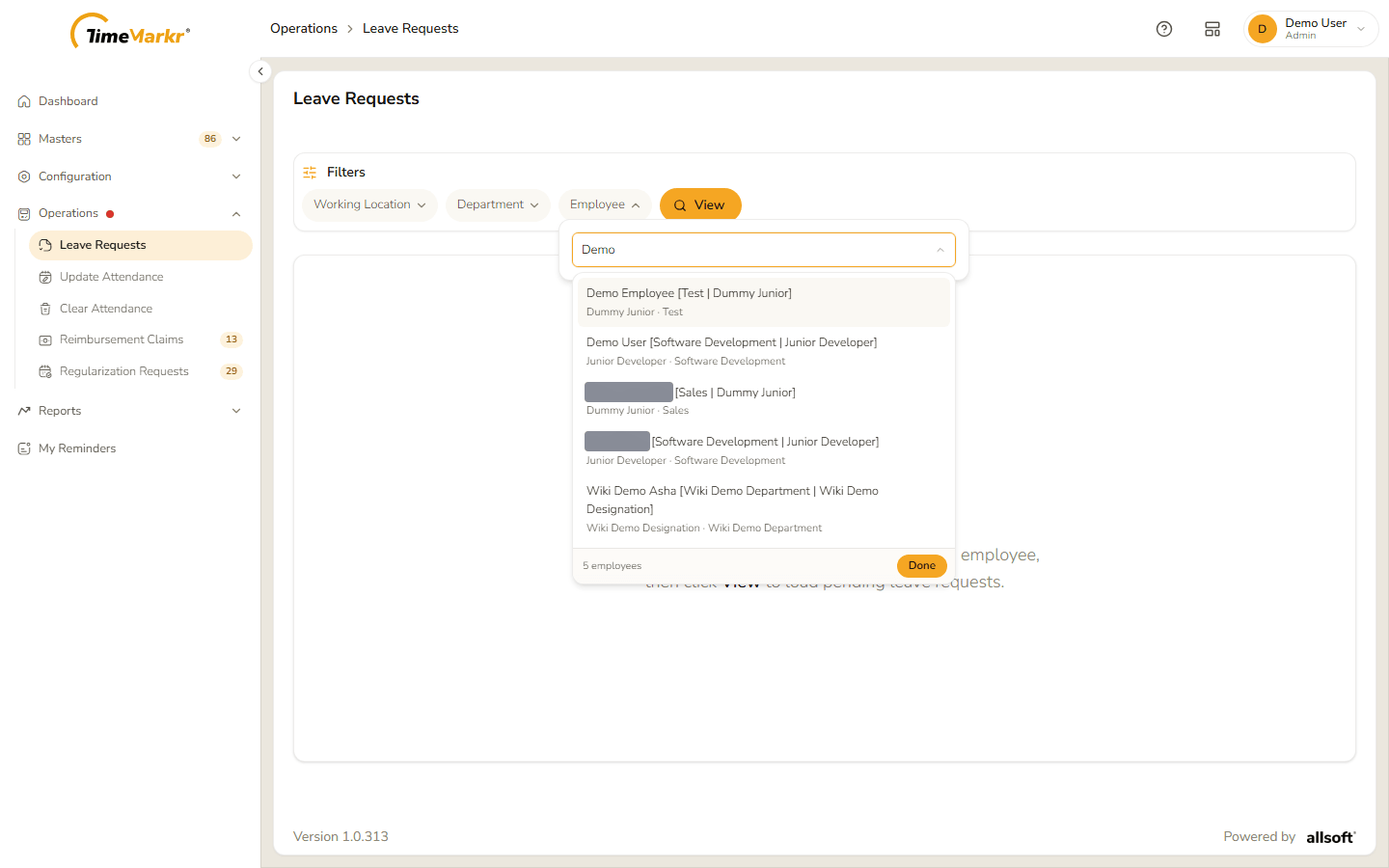
Searching for an employee Optionally narrow the list with Working Location or Department – both start at All. The request list then only holds employees from that location or department; an employee from elsewhere shows No data found for this query.
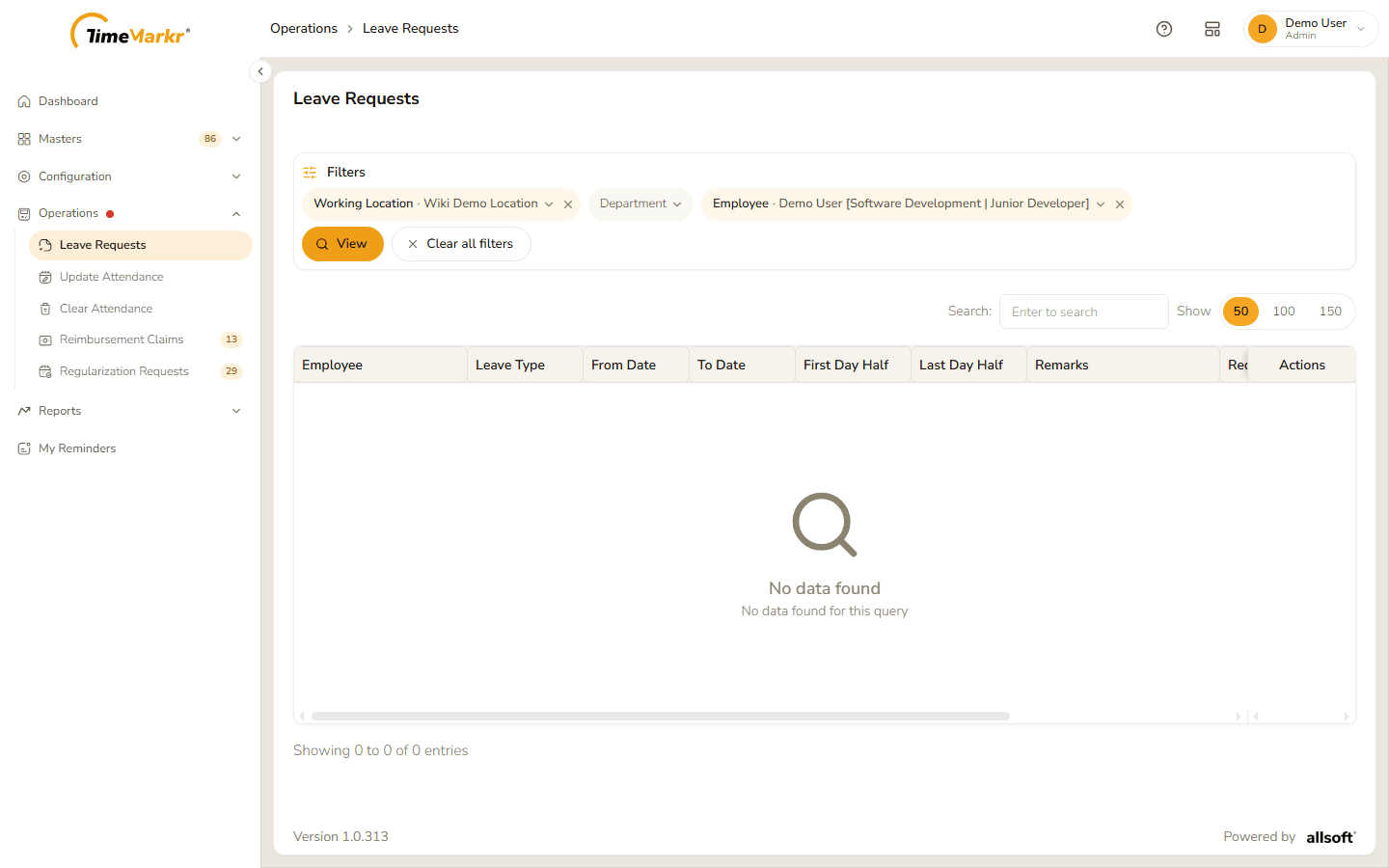
No data found Click View. Without an employee the page answers Leave requests – Pick an employee from search suggestions.
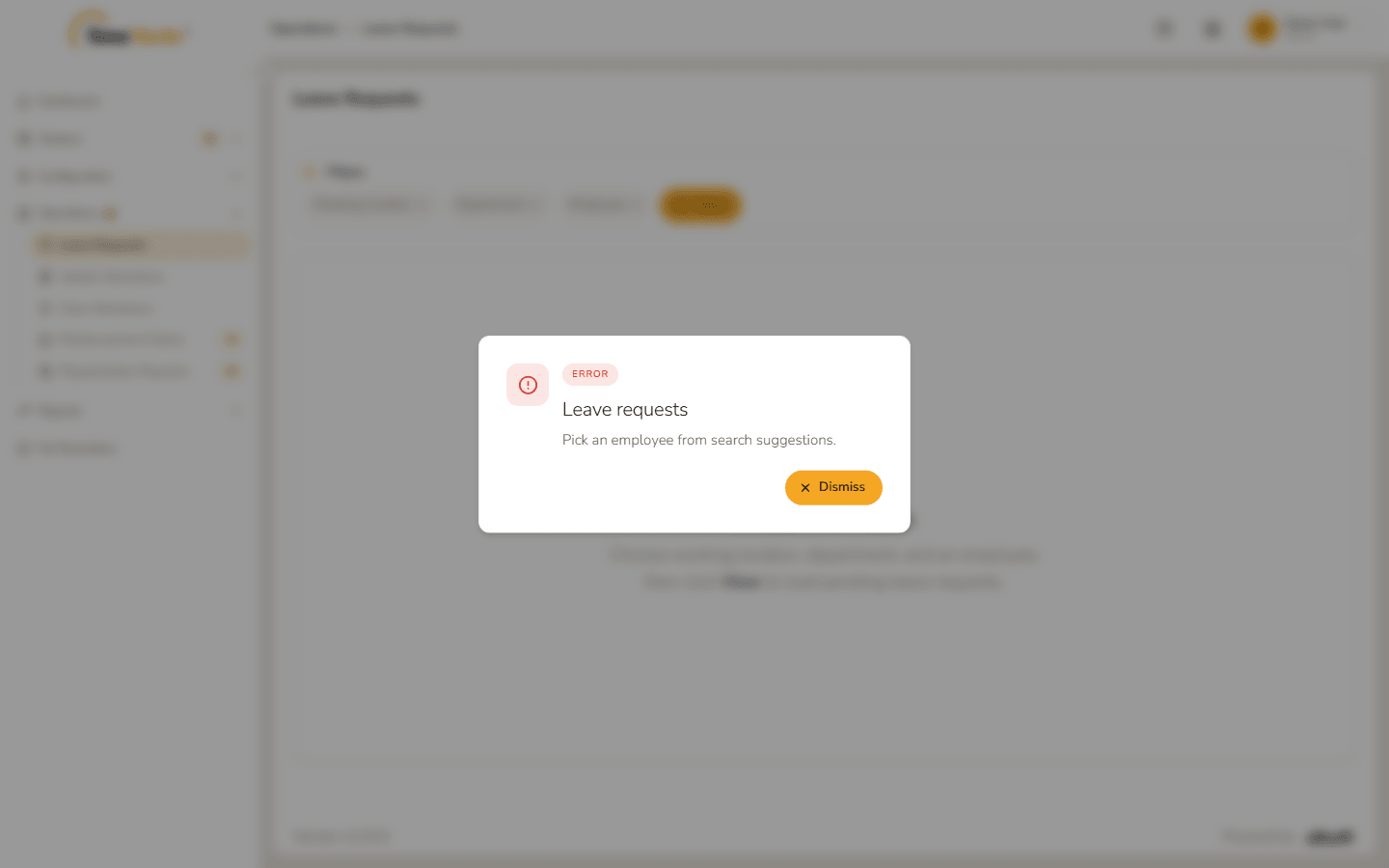
Pick an employee The pending requests of that employee appear. Clear all filters starts again.
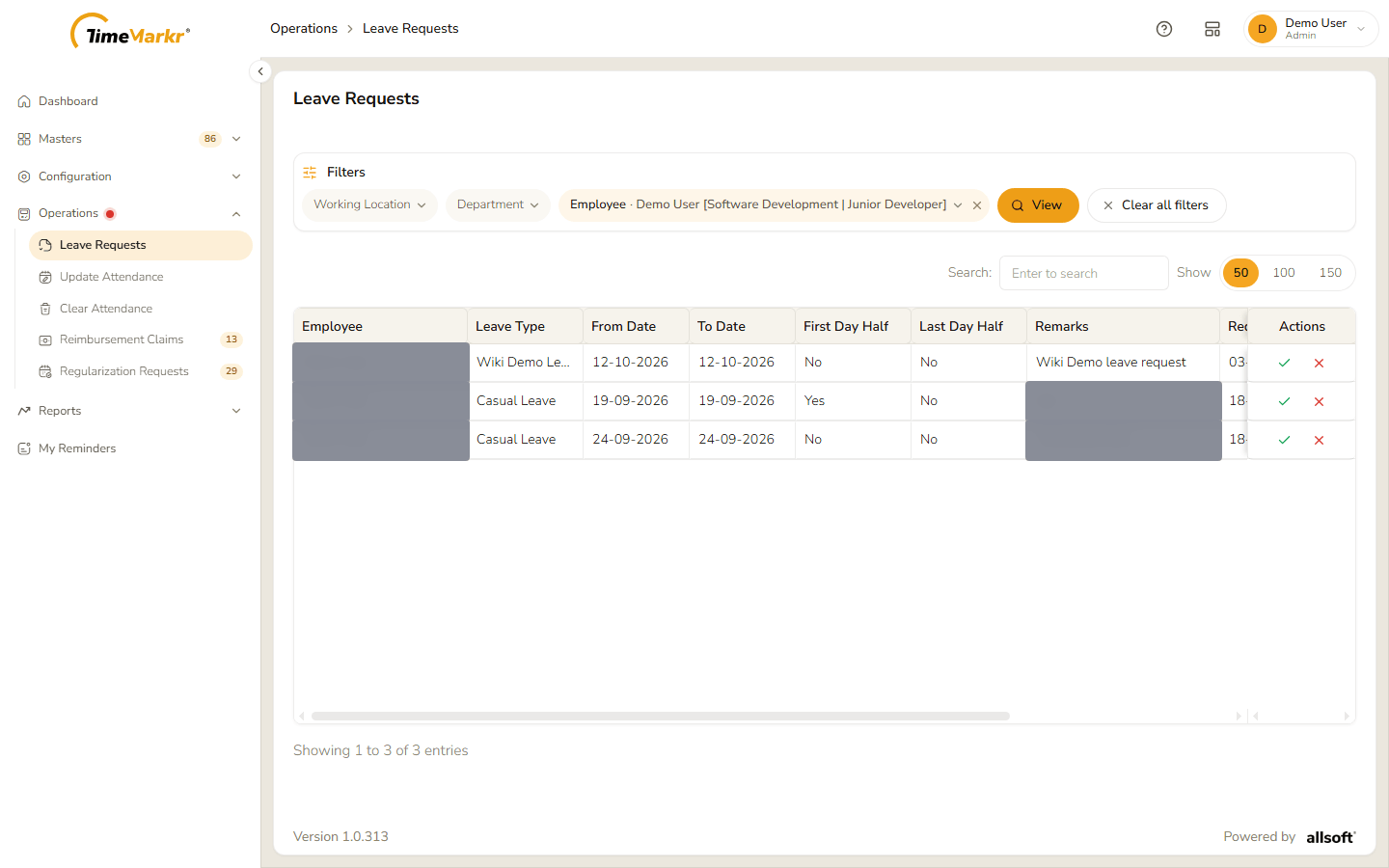
Pending requests
| Column | What it shows |
|---|---|
| Employee | Who asked for the leave. |
| Leave Type | The kind of leave. |
| From Date / To Date | The first and last day. |
| First Day Half / Last Day Half | Yes if that day is a half day. |
| Remarks | The reason the employee gave. |
| Request Time | When it was sent. |
| Applied | The number of days asked for – 0.5 for a half day. |
| Actions | A green tick to Approve and a red cross to Reject. |
Search filters the rows on screen and Show 50 / 100 / 150 chooses how many to see.
2. Approve a request
Click the green tick on the request. Approve leave request – Approve leave request for <employee> (12-10-2026 – 12-10-2026)? opens.
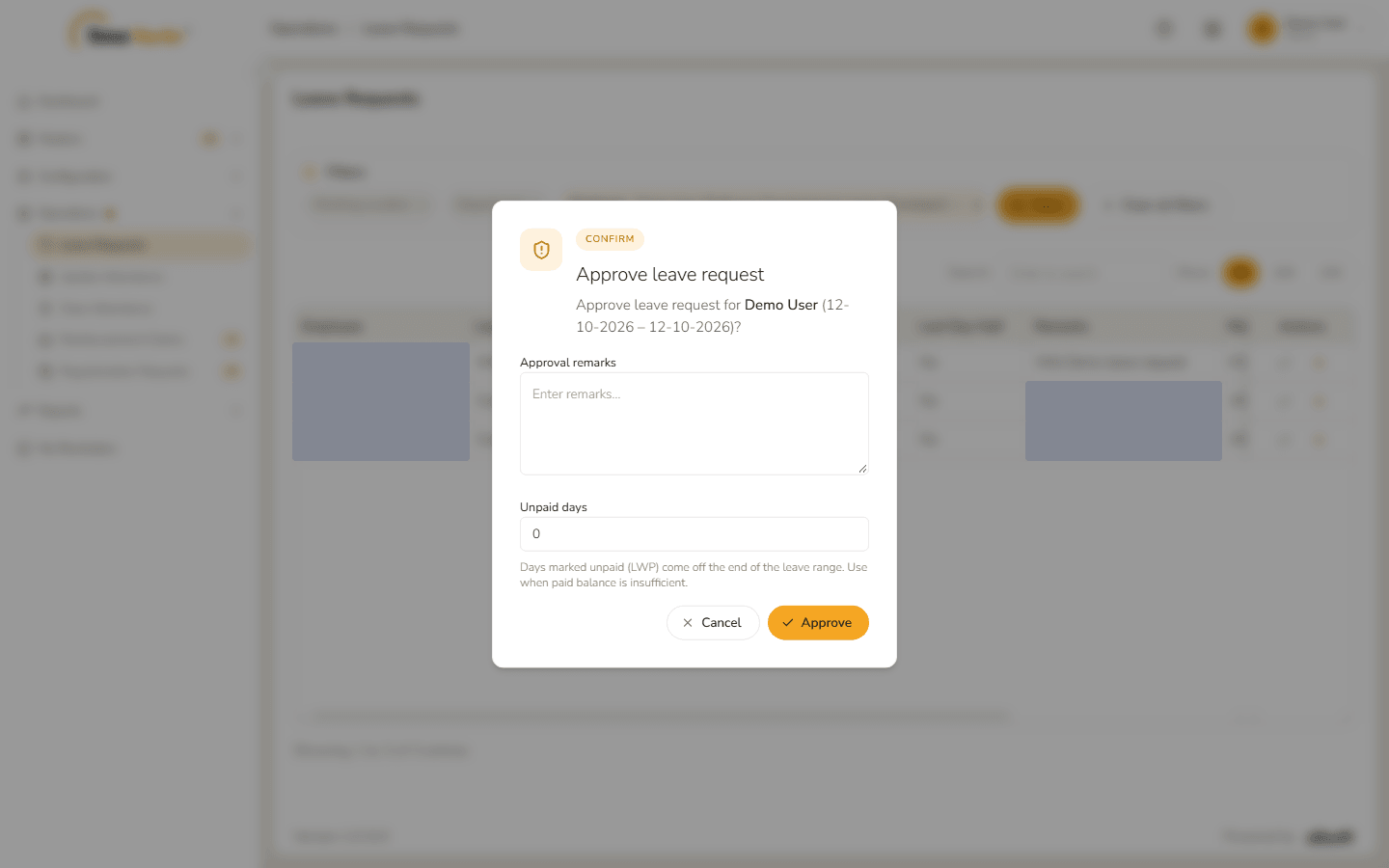
Approve leave request Fill in the optional fields.
Field Notes Approval remarks A note for the employee. Unpaid days How many of the days are unpaid. "Days marked unpaid (LWP) come off the end of the leave range. Use when paid balance is insufficient." The default is 0. 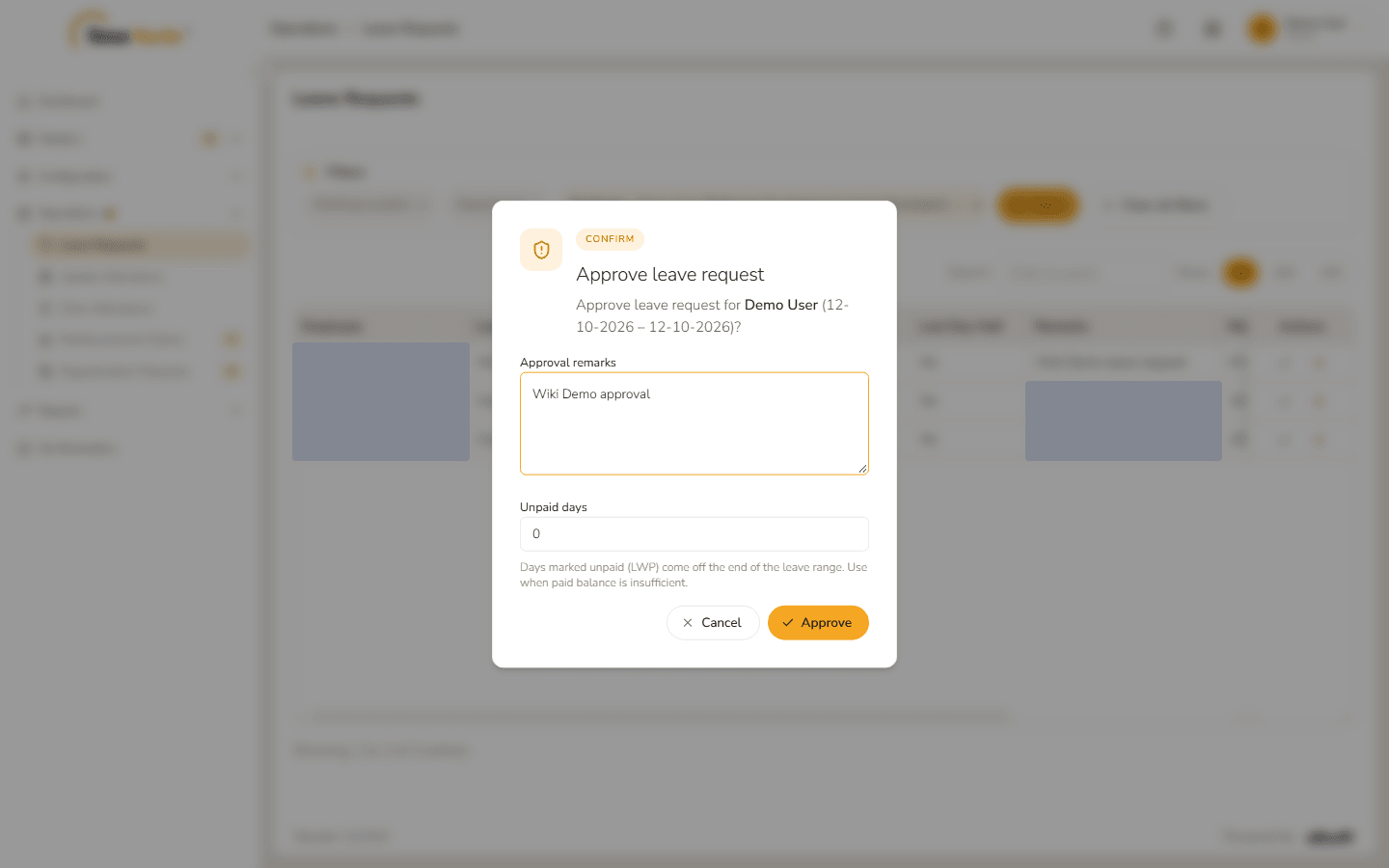
Remarks written Click Approve. Leave request updated – Leave request approved successfully. confirms it. Click Got it.
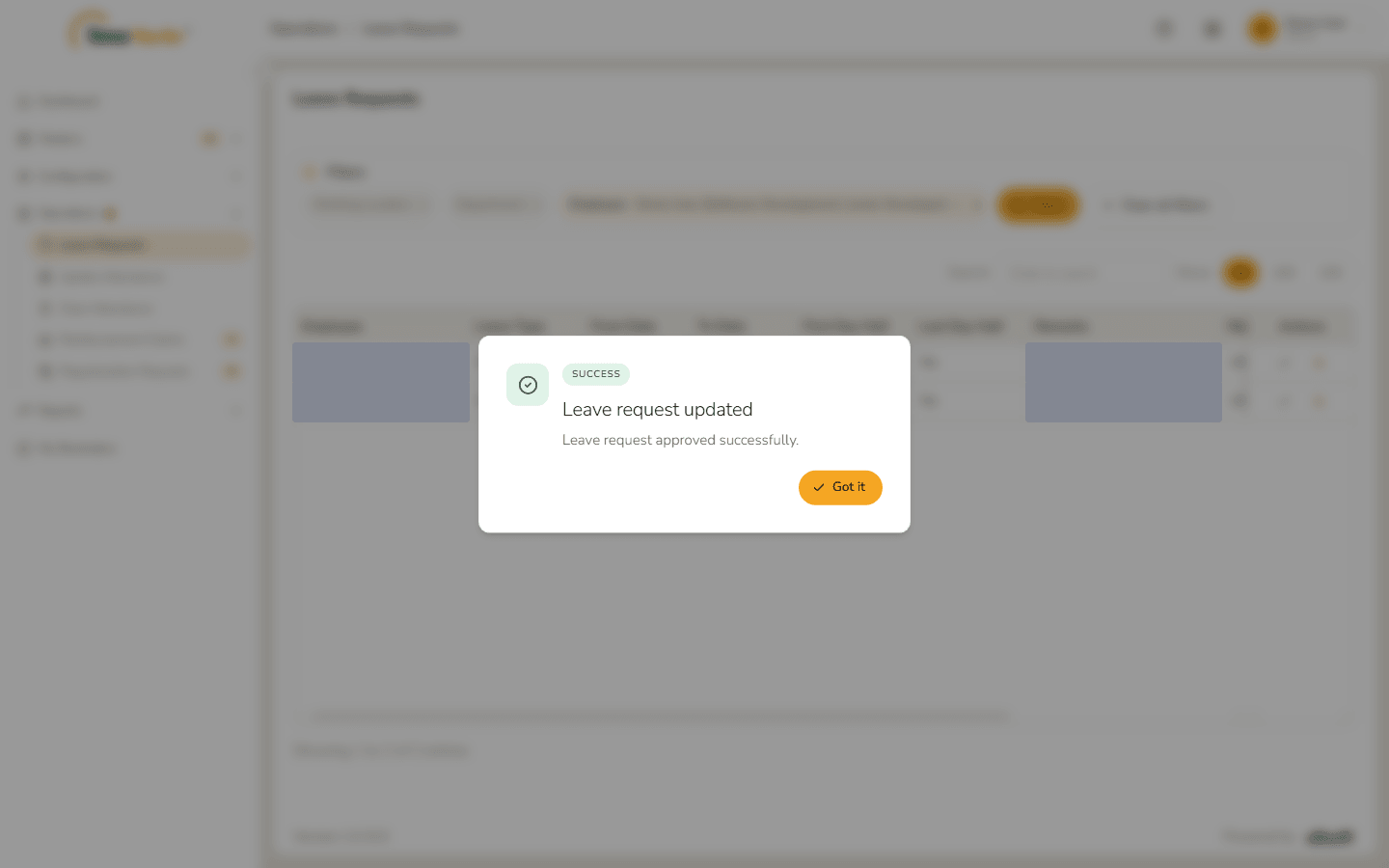
Leave request approved The request leaves the list.
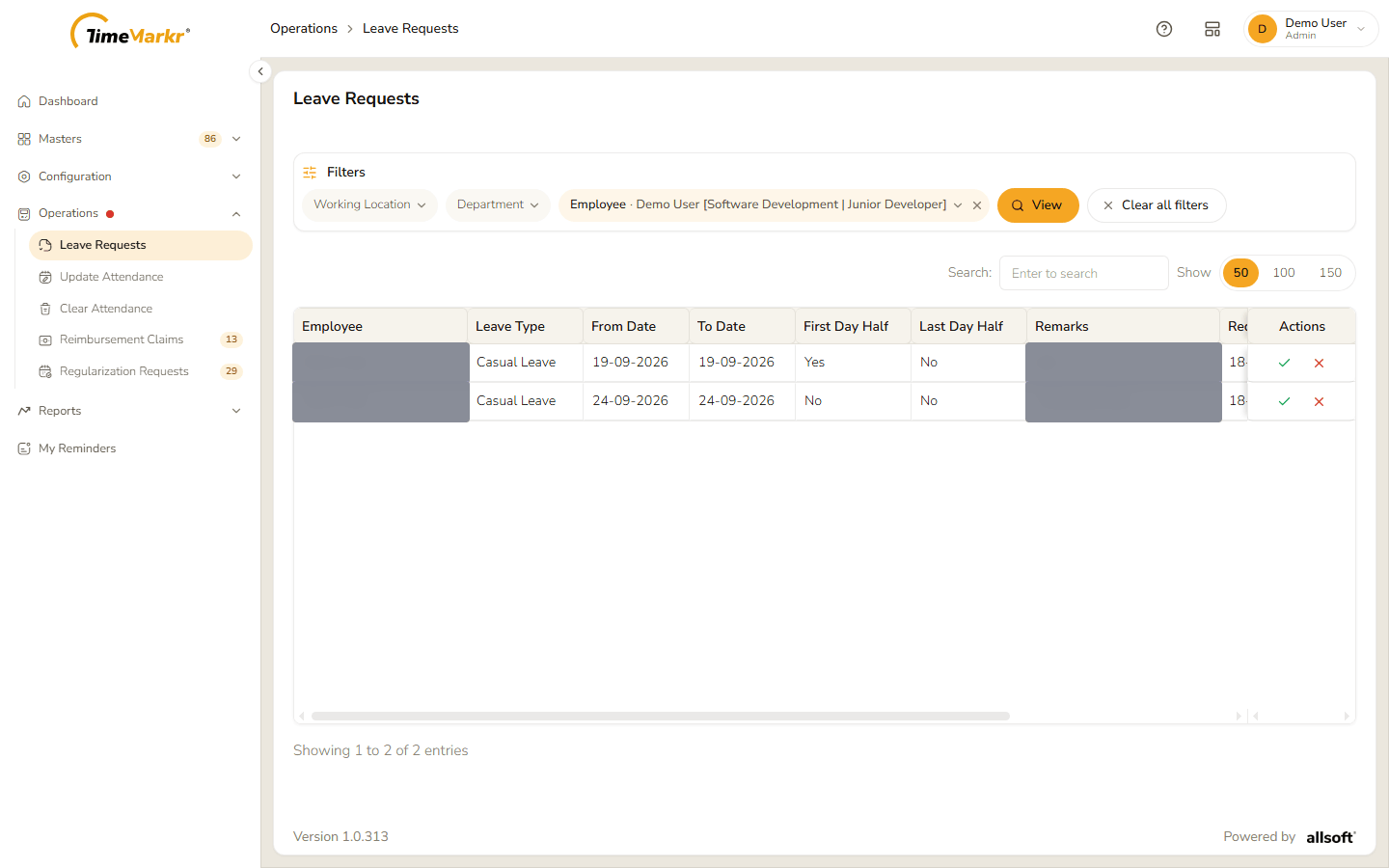
The list after approving
3. Reject a request
- Click the red cross on the request. Reject leave request – Reject leave request for <employee> (14-10-2026 – 14-10-2026)? opens.
Write the Approval remarks. Reject stays pale until you have written something – a rejection always needs a reason.
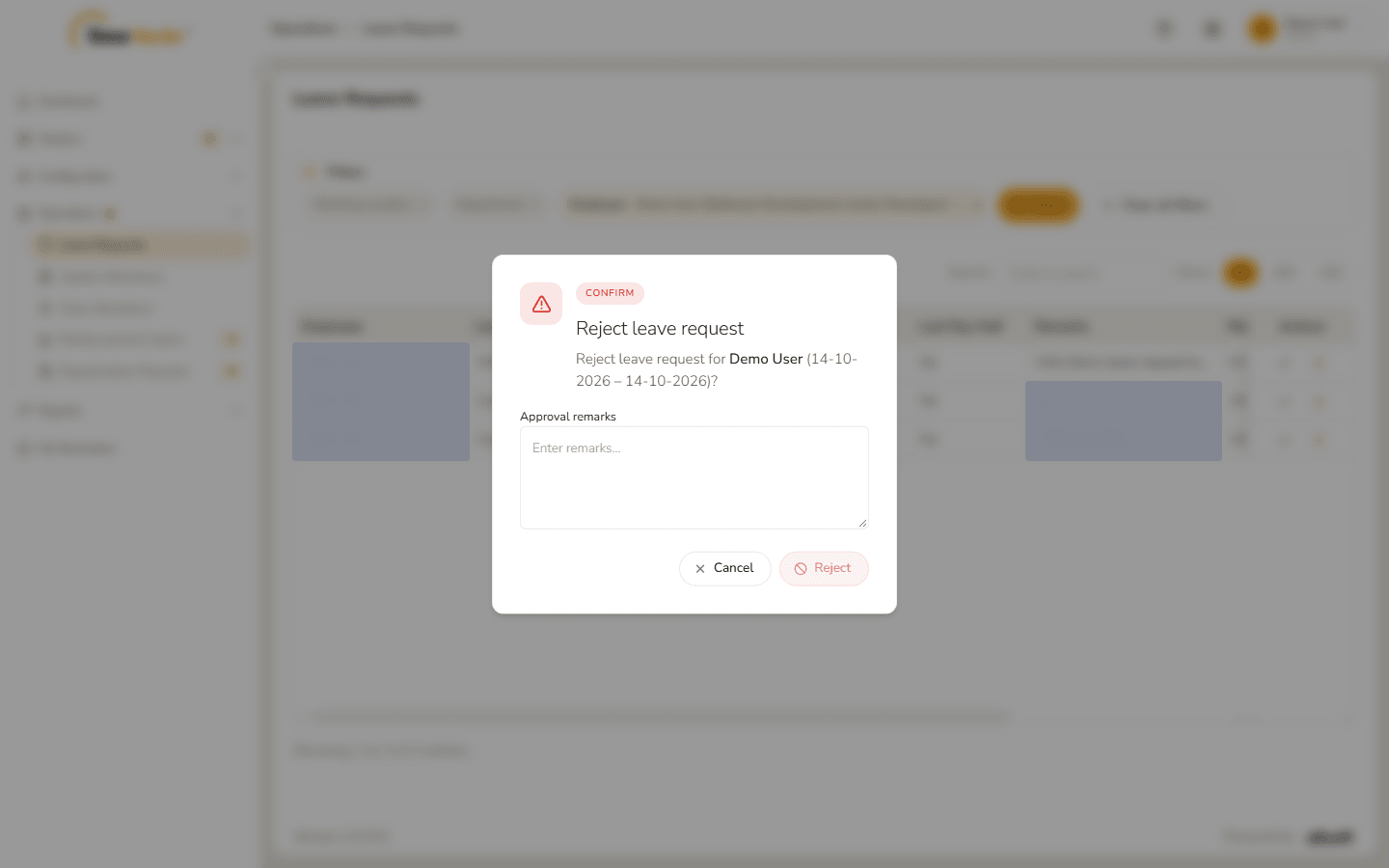
Reject leave request Click Reject. Leave request updated – Leave request rejected. confirms it. Click Got it.
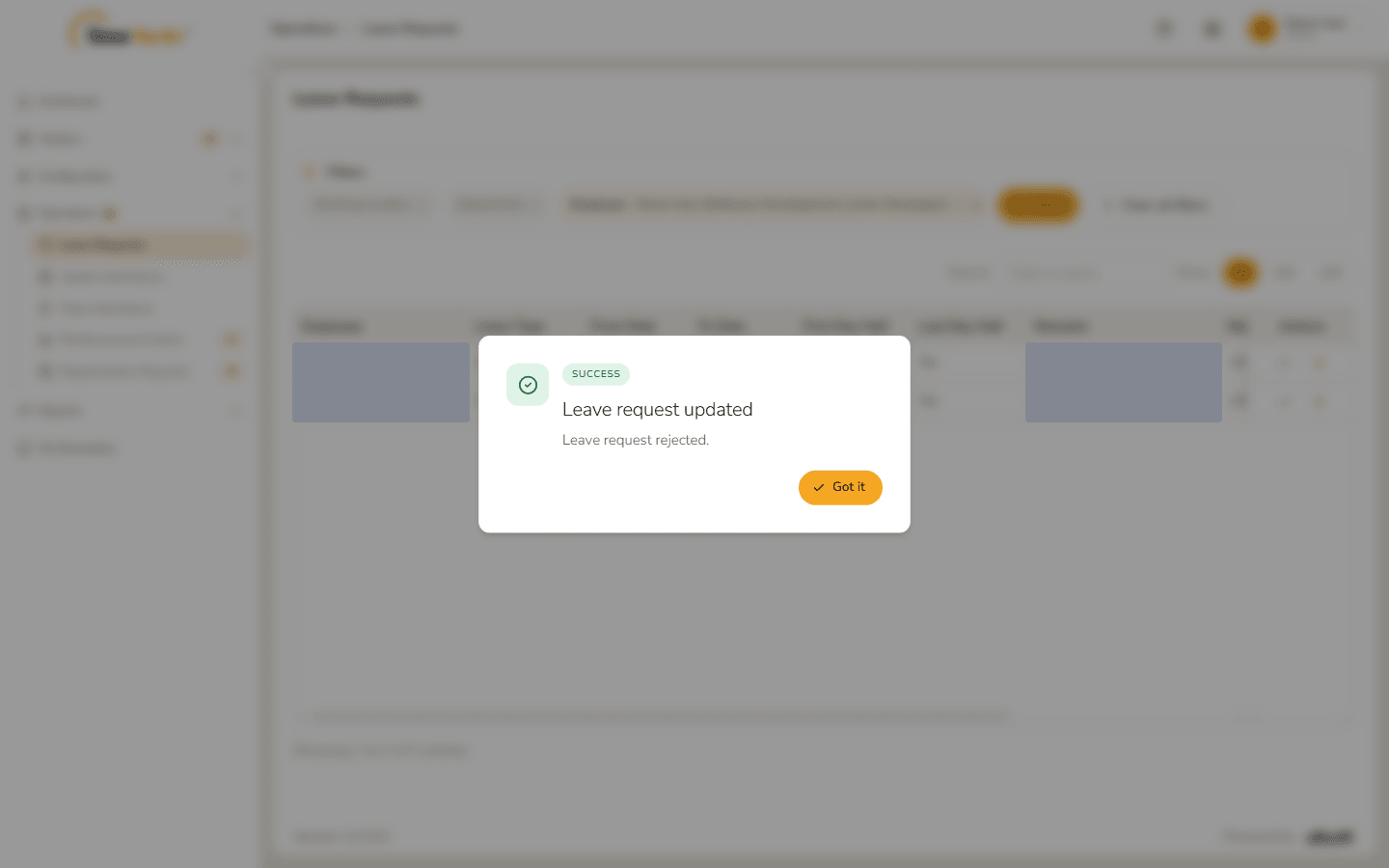
Leave request rejected
Cancel in either window closes it and leaves the request pending.
Related: Leaves (employee portal) · Leaves (configuration) · Holidays