
Signing in
TimeMarkr has two sign-in pages, one for each portal. Which one you use depends on who you are:
| You are | Sign in with | Page |
|---|---|---|
| HR / Admin | A user ID and a password | Admin sign-in |
| An employee | Your mobile number and a six-digit code sent to it, or a QR code scanned with the TimeMarkr app | Employee sign-in |
Each page has a button to go to the other one – Employee Login on the admin page and Admin / HR Login on the employee page.
You always open the application in a browser. The moon button at the top right of both pages switches between the light and the dark look.
1. Admin / HR sign-in
Route: /auth/signin
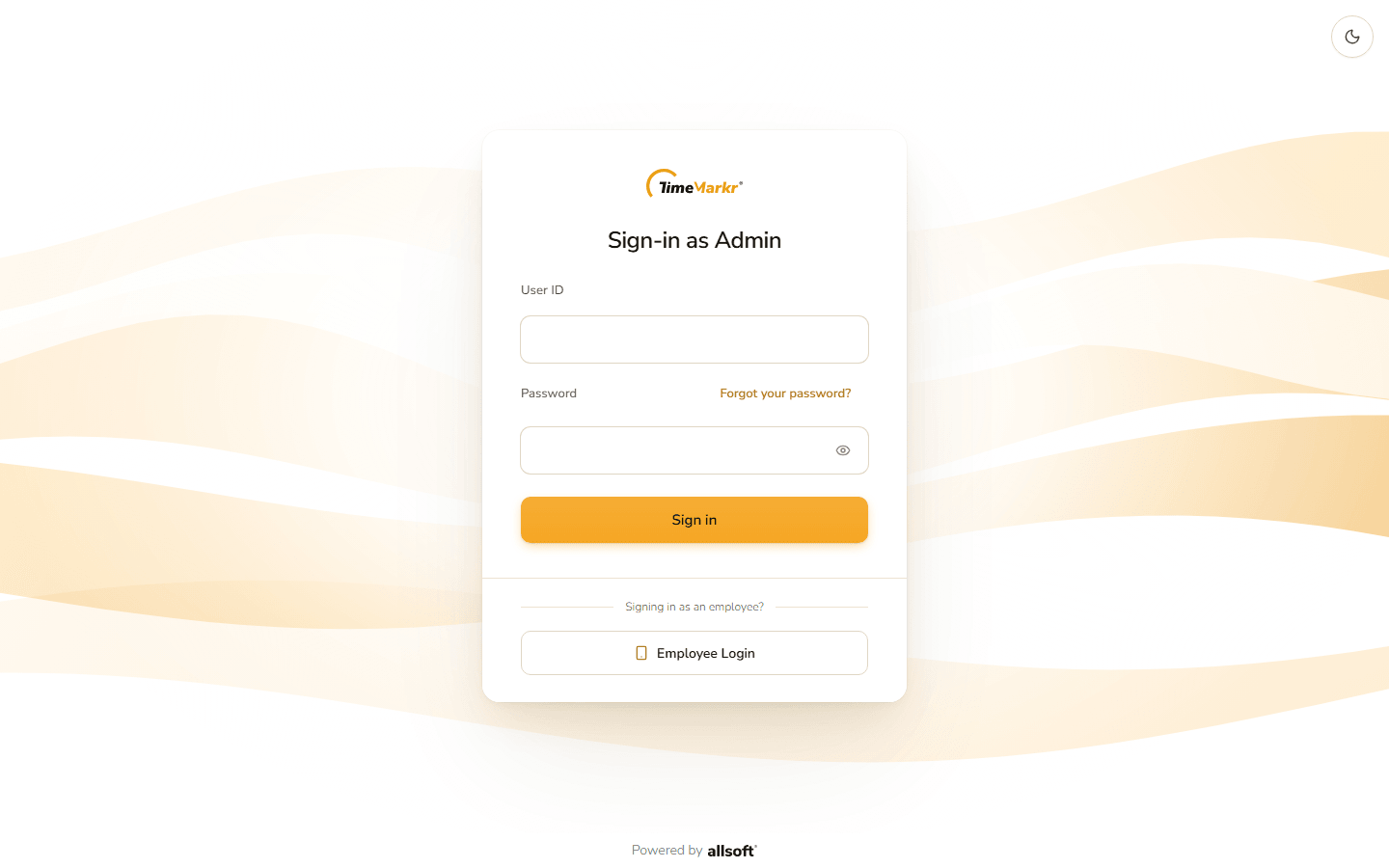
- Type your User ID.
- Type your Password. The eye icon at the end of the field (Show password) shows what you typed.
- Click Sign in. You land on the Dashboard.
If something is wrong:
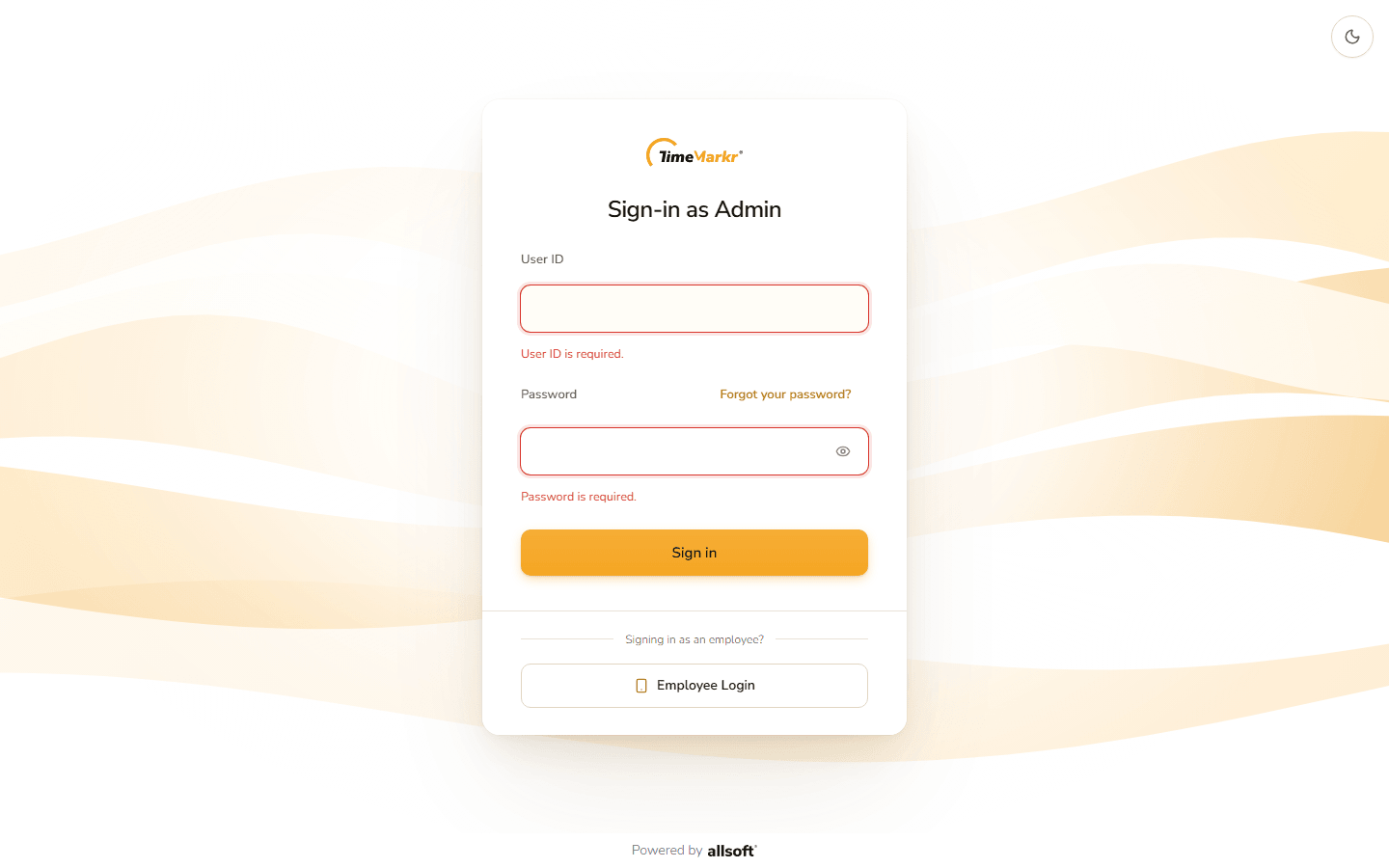
With a field empty, the field turns red and says "User ID is required." or "Password is required."
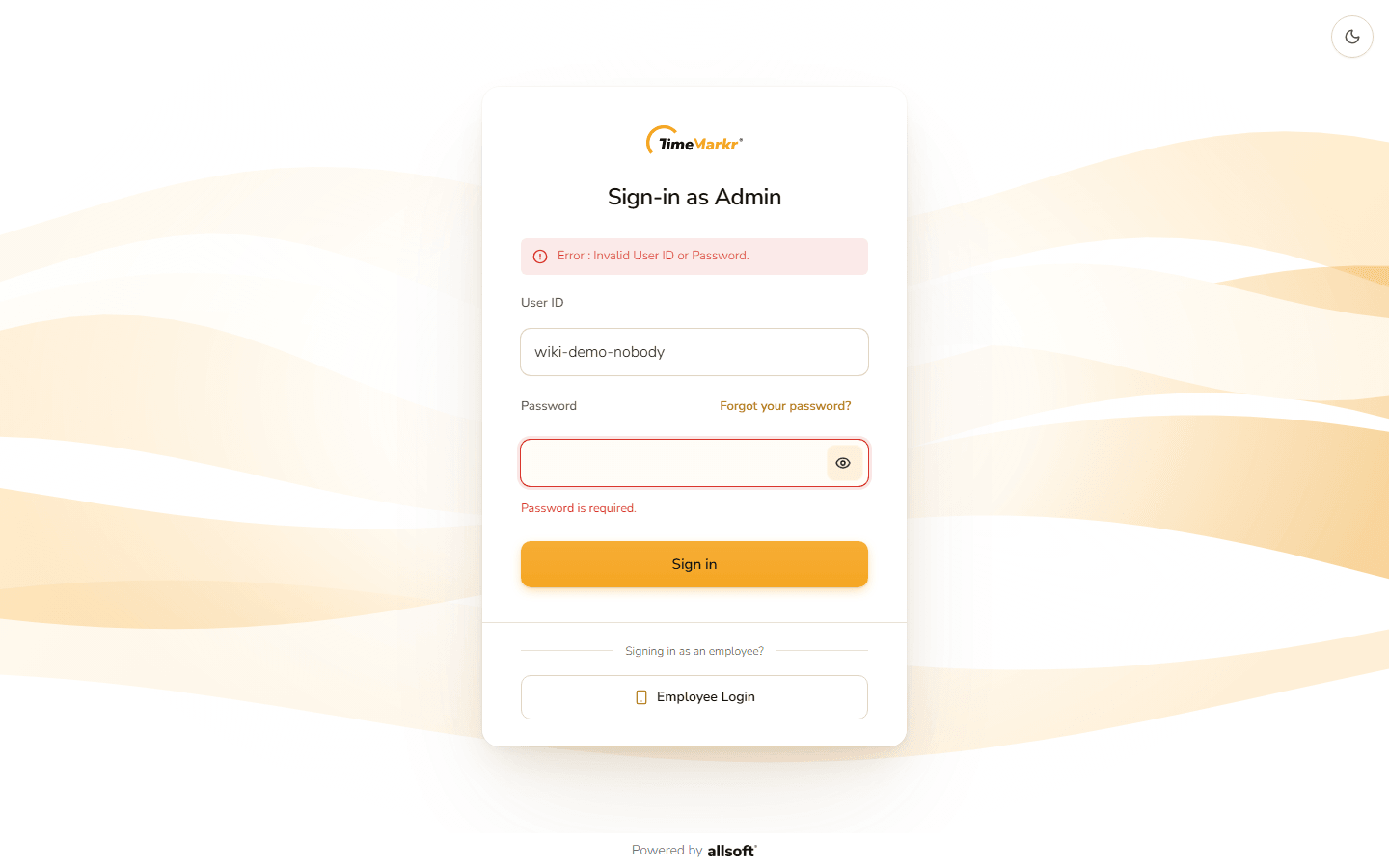
Required fields With a wrong user ID or password, a window says Login Failed – Error : Invalid User ID or Password. Click Dismiss; a red line stays above the form until you try again.
Login failed
Forgot your password?
Click Forgot your password? beside the password field. Forgot password – Reset your password using email verification and a one-time code. opens. It has three steps – Email, Verify and New password.
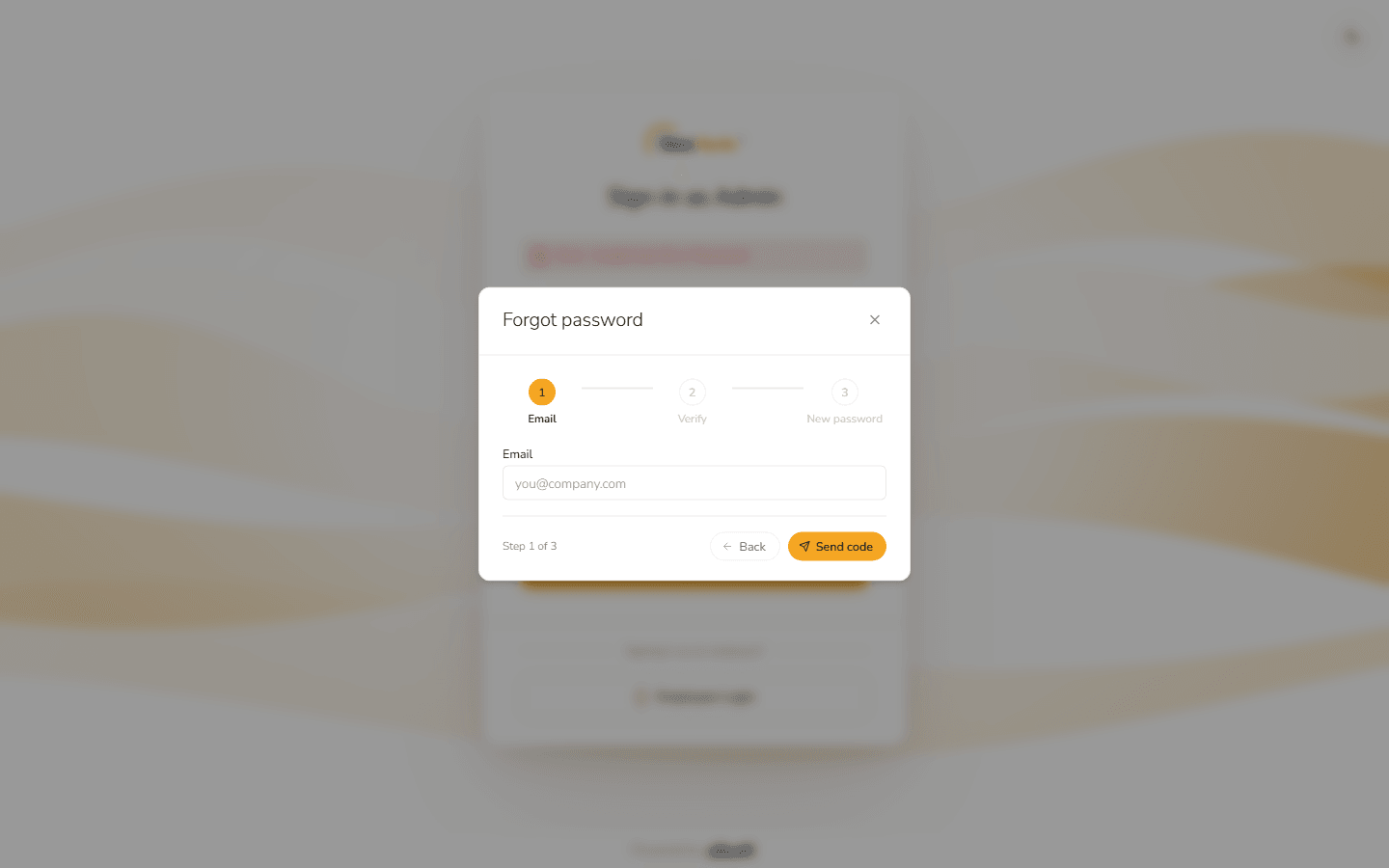
Forgot password Step 1 – type your e-mail address and click Send code. "Email is required." and "Enter a valid email address." appear if the field is empty or is not an address.
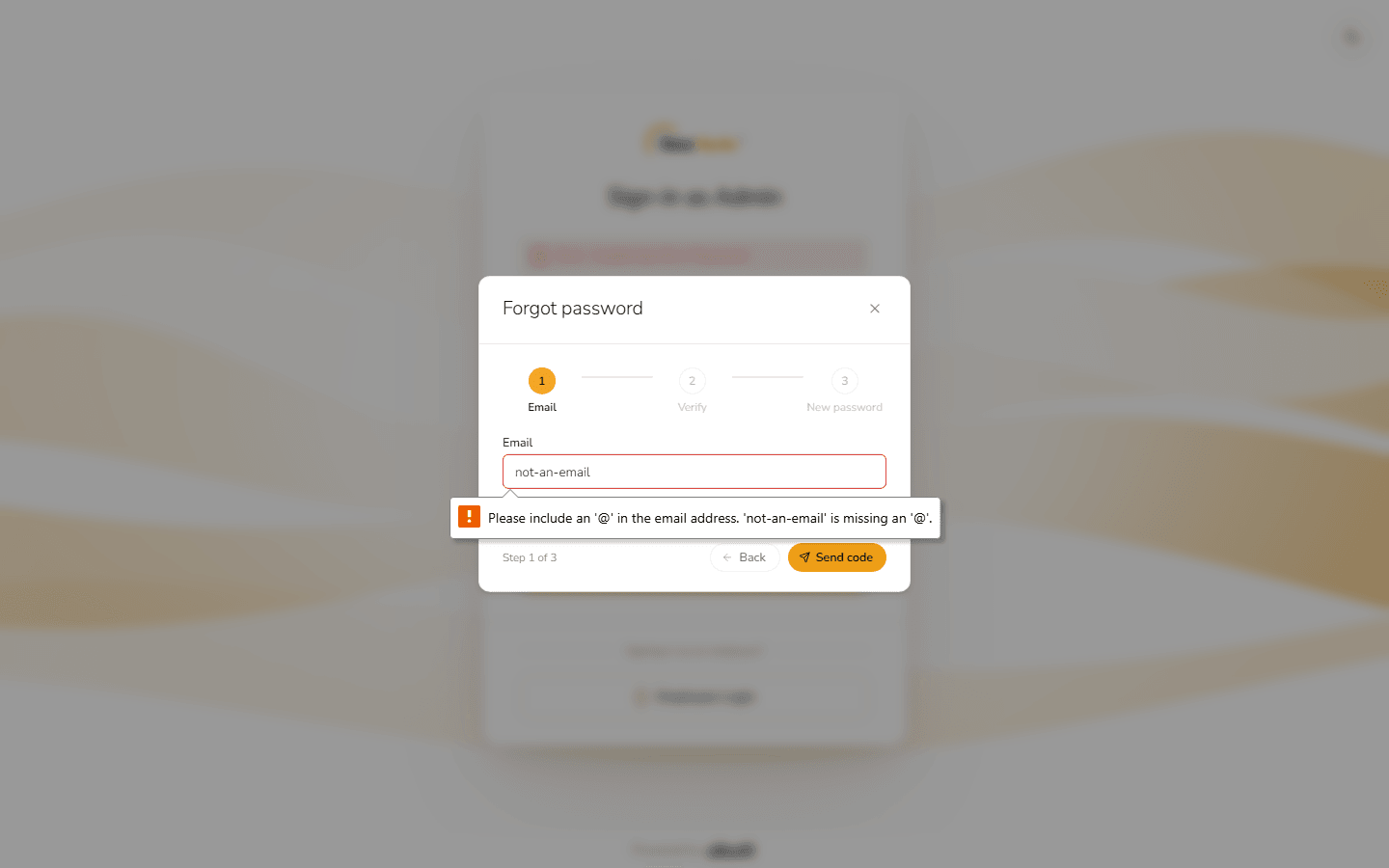
A wrong e-mail address - Step 2 – type the one-time code you receive by e-mail.
- Step 3 – choose a new password.
Back returns to the previous step and × closes the window.
2. Employee sign-in
Route: /auth/employee
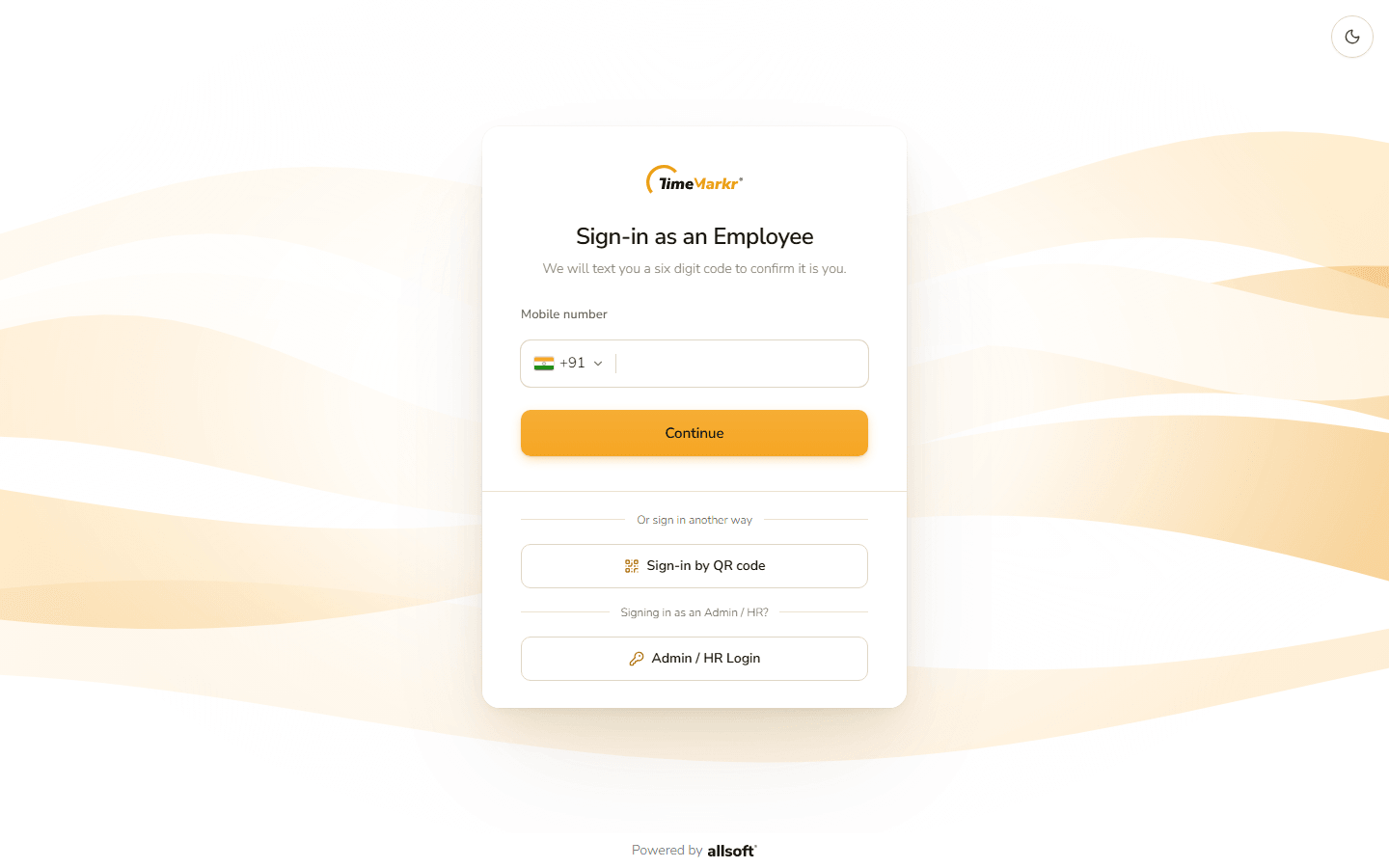
With a code sent to your phone
Type your Mobile number. The country code starts as +91 (India); click it to choose another – Thailand (+66) and Myanmar (+95) are on the list.
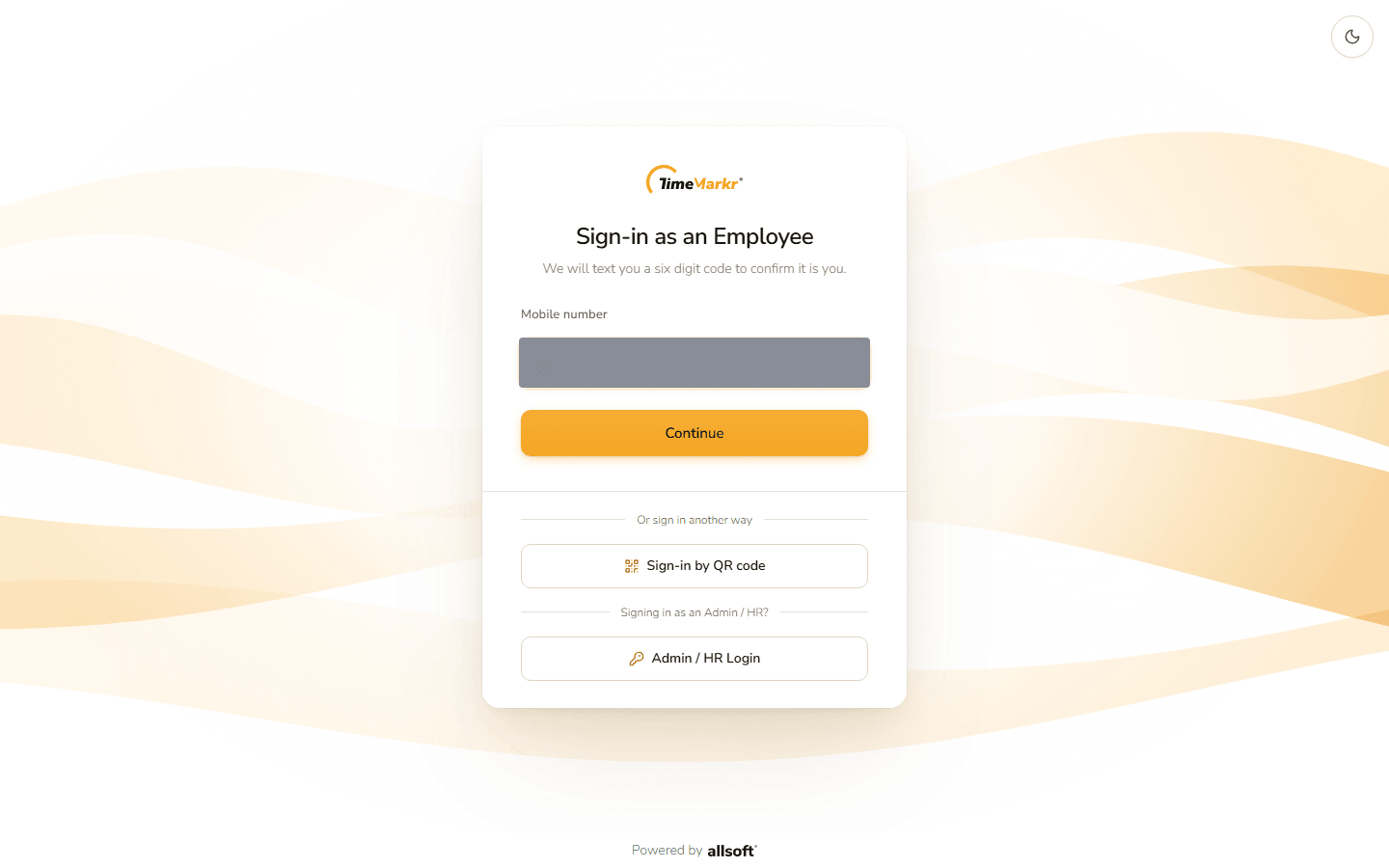
Number typed Click Continue. Verify your number – Enter the 6-digit code sent to <your number>. opens, with six boxes.
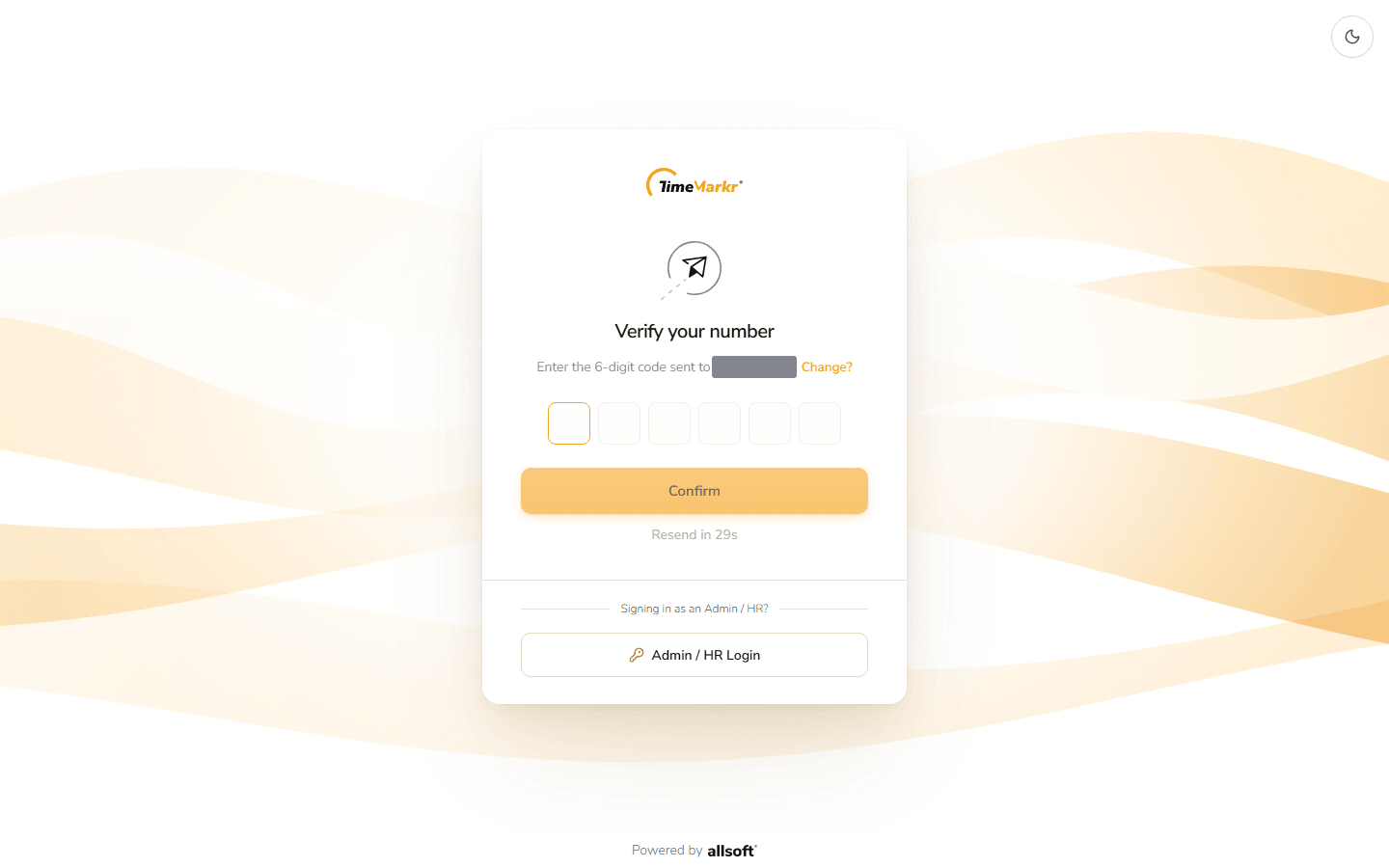
Verify your number - Type the six digits. The code is checked as soon as you have typed the last one; Confirm does the same. Under the boxes, Resend in 29s counts down, after which Resend code sends a new one. Change? beside your number goes back to step 1.
- You land on the Dashboard.
If something is wrong:
With the number empty, the field turns red: "Mobile number is required."
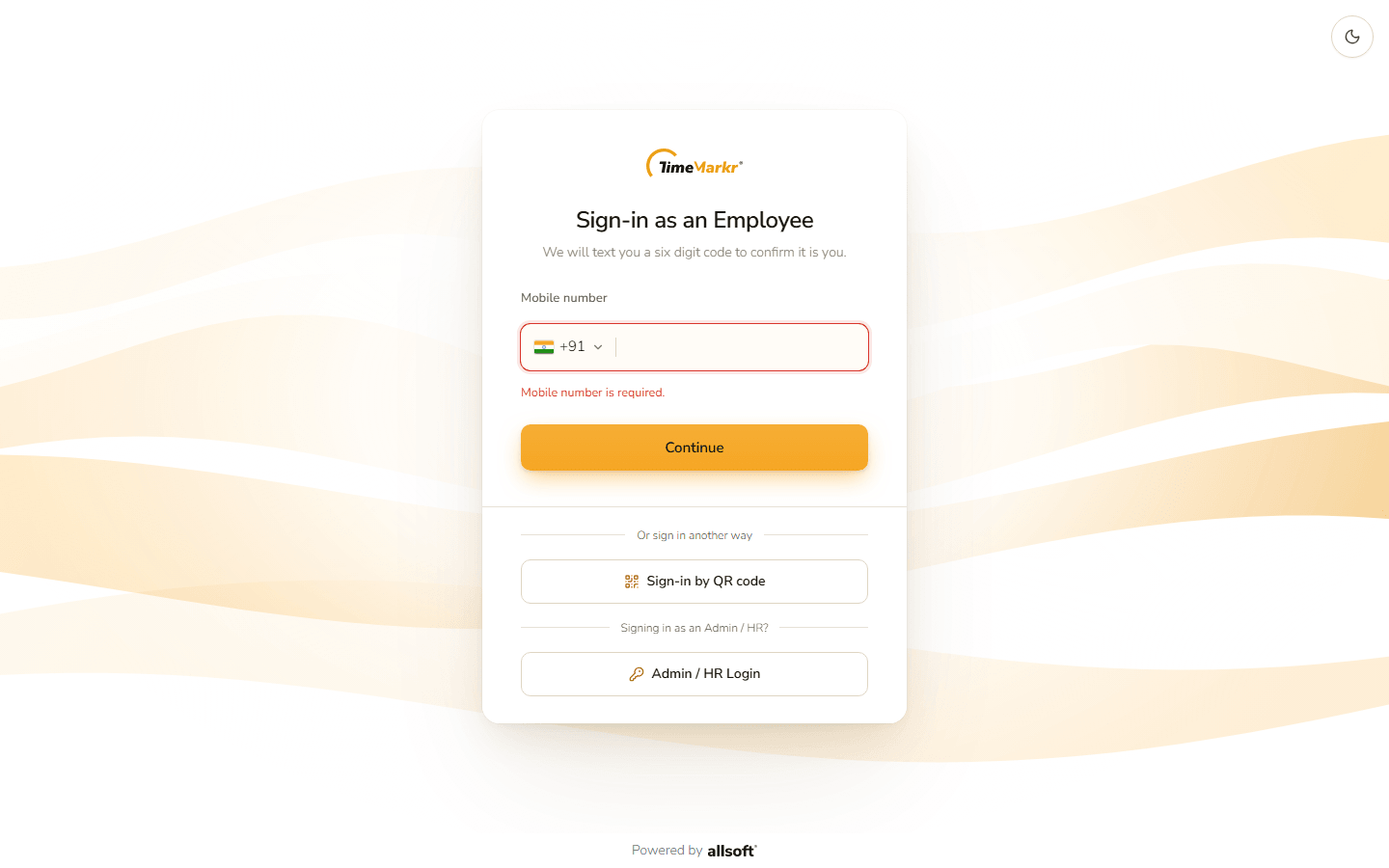
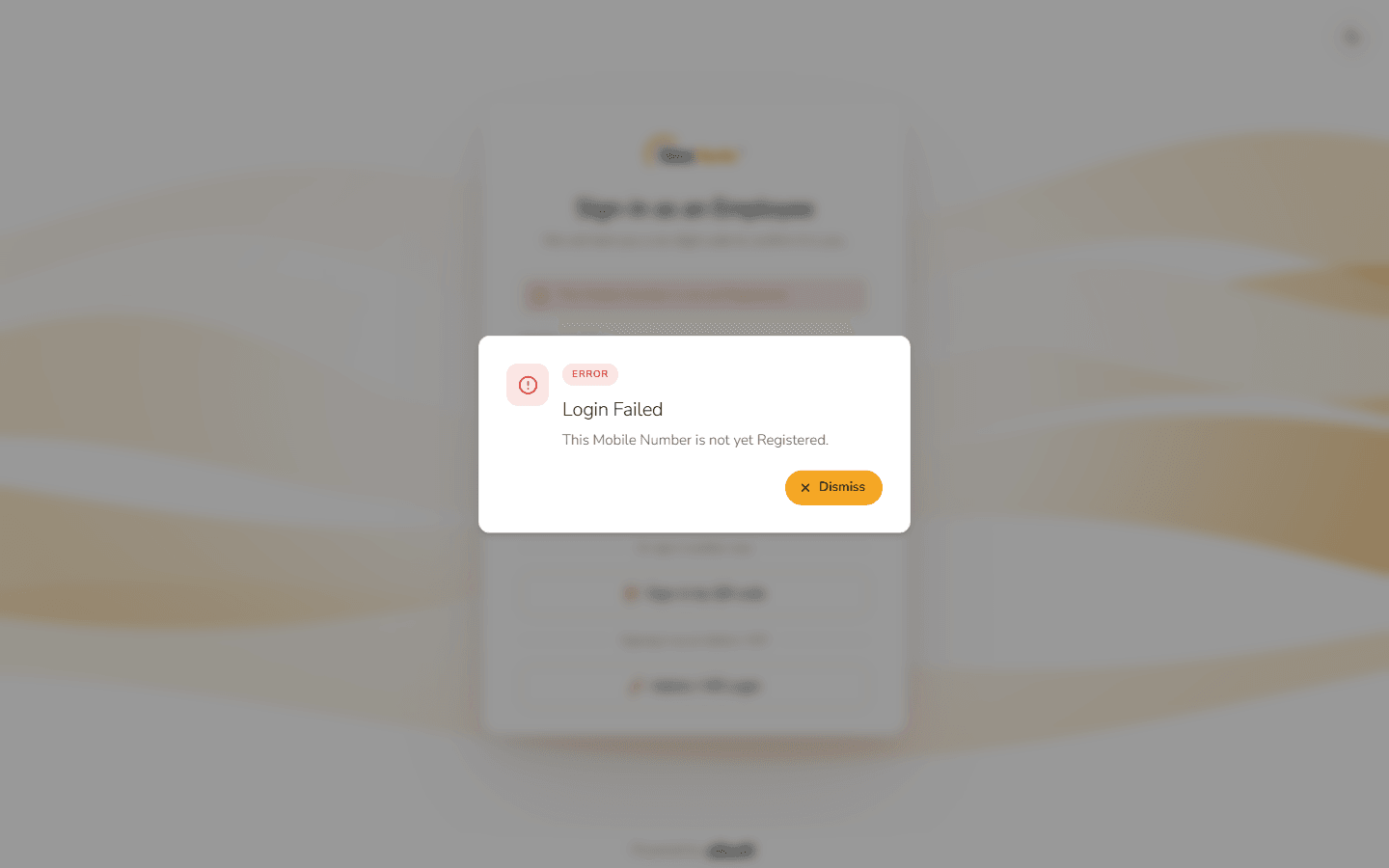
Number required With a number that is not registered, Login Failed – This Mobile Number is not yet Registered. Check the number, or ask HR to add you under Employee.
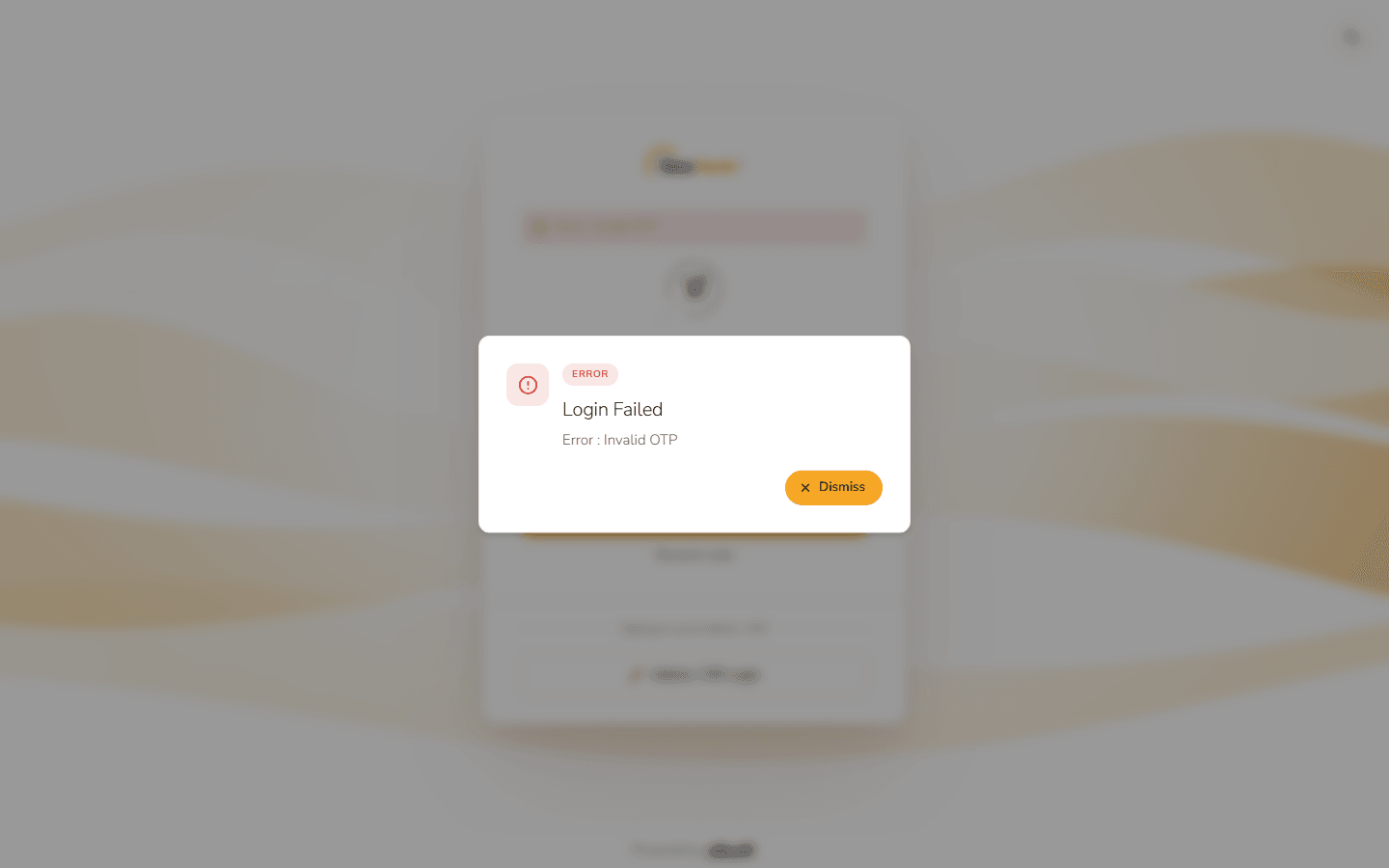
Not registered With a wrong code, Login Failed – Error : Invalid OTP. Type the code again or ask for a new one with Resend code.
Invalid code
With a QR code
Route: /auth/employee/qr
On the employee sign-in page click Sign-in by QR code. Sign in with QR code shows a QR code and Code expires in 1:56 – a countdown of the time you have left.
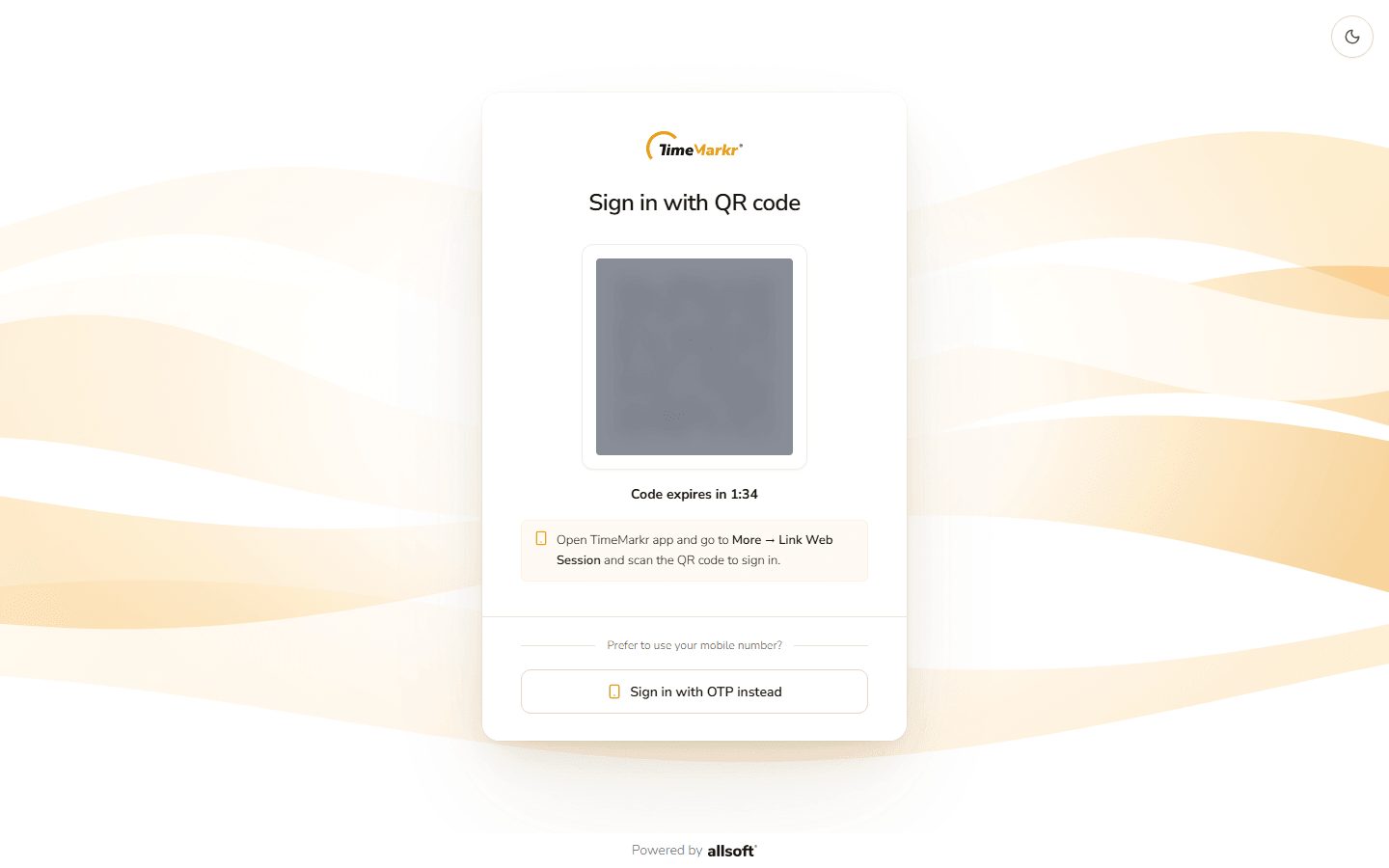
Sign in with QR code - On your phone open the TimeMarkr app, go to More → Link Web Session and scan the code, then tap Approve.
- The browser signs you in.
When the time runs out the page says "This QR code has expired." – click Generate new code. Sign in with OTP instead goes back to the phone-number page. Every request – approved or denied – is recorded under QR Sign-ins.
Signing out
Open the menu with your name at the top right and choose Logout – see Your account menu.
Related: Your account menu · Finding your way around · Troubleshooting