
Finding your way around
The parts of the screen and the controls that repeat on almost every page.
The menu
TimeMarkr has one menu, and what it holds depends on who you are – see the Admin guide and the Employee guide for the pages. A group such as Masters, Configuration, Operations or Reports opens to show its pages. Some entries carry a number or a dot:
- Masters shows how many records its pages hold in all; each page under it shows its own count.
- Reimbursement Claims and Regularization Requests show how many requests are waiting for you. A red dot beside Operations says one of its pages has something waiting.
- Live Location is marked Beta.
- An employee's My Reminders shows how many reminders are waiting.
The arrow at the edge of the menu (Collapse the sidebar) folds the menu down to icons to give the page more room.
Two layouts
The button beside the question mark at the top (Switch layout) offers Top header and Sidebar.
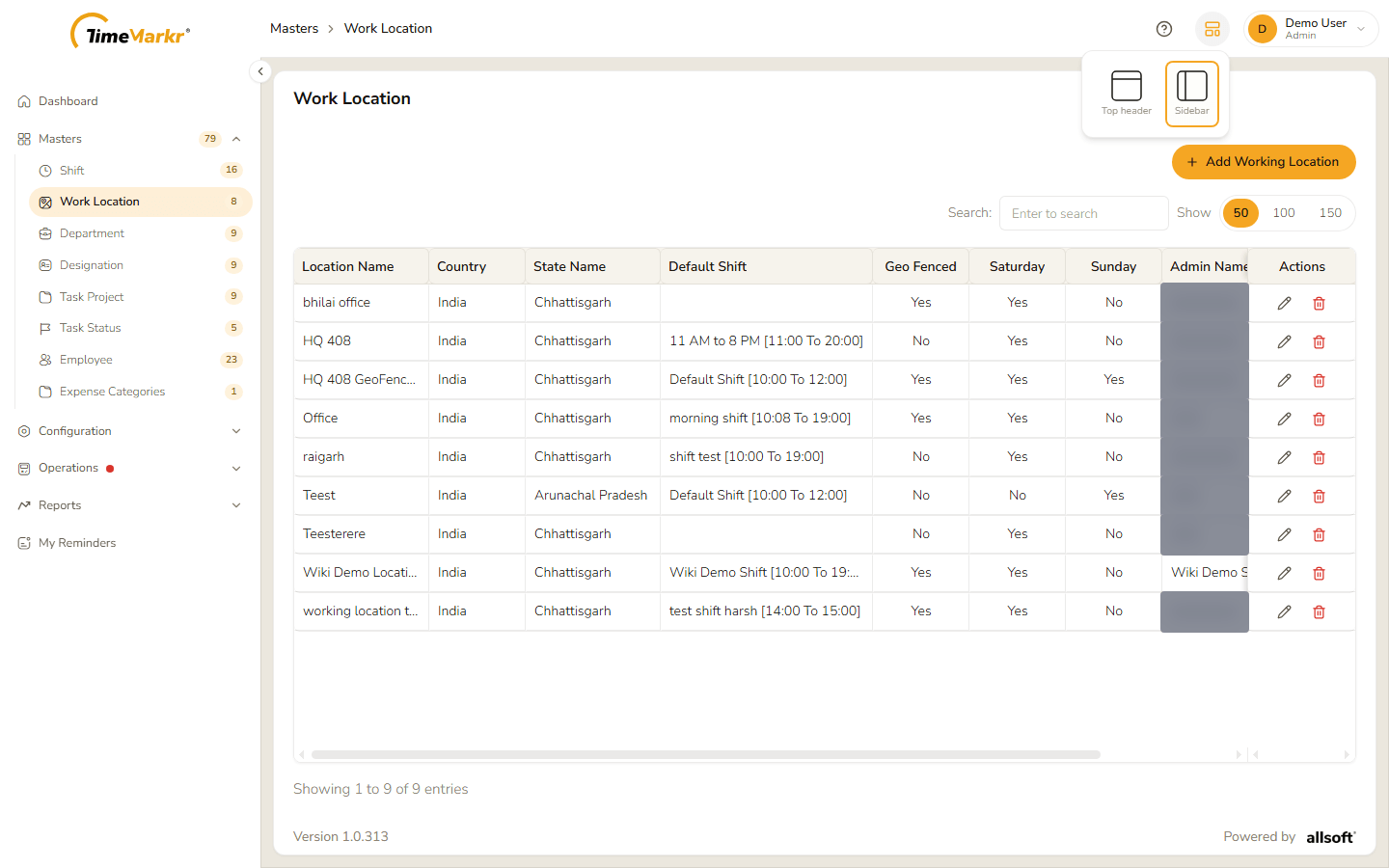
- Sidebar – the menu runs down the left of the page.
- Top header – the menu runs along the top, groups open as drop-downs, and the page title has a trail of links (Operations › Regularization Requests) under it.
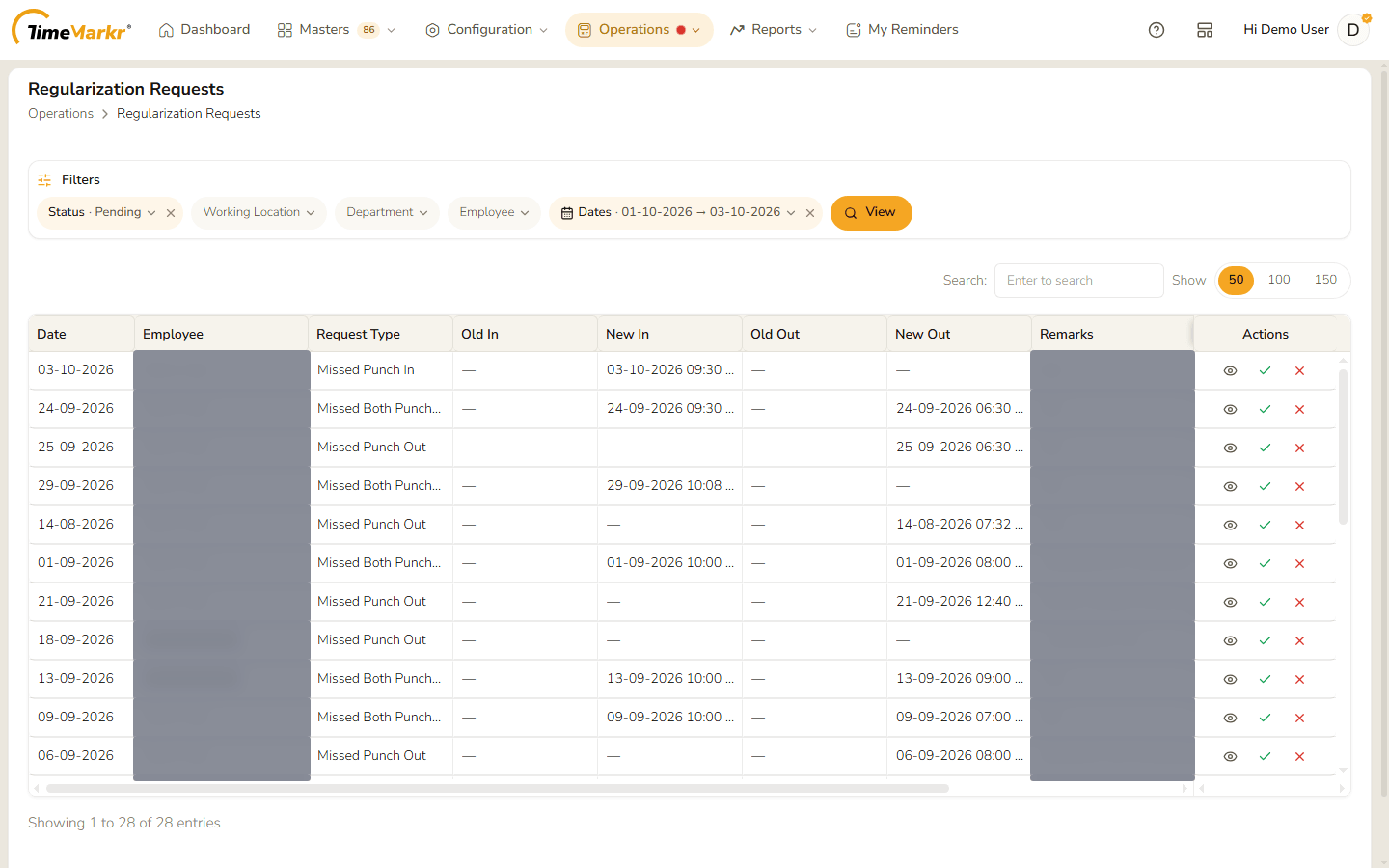
The choice is remembered.
Page help
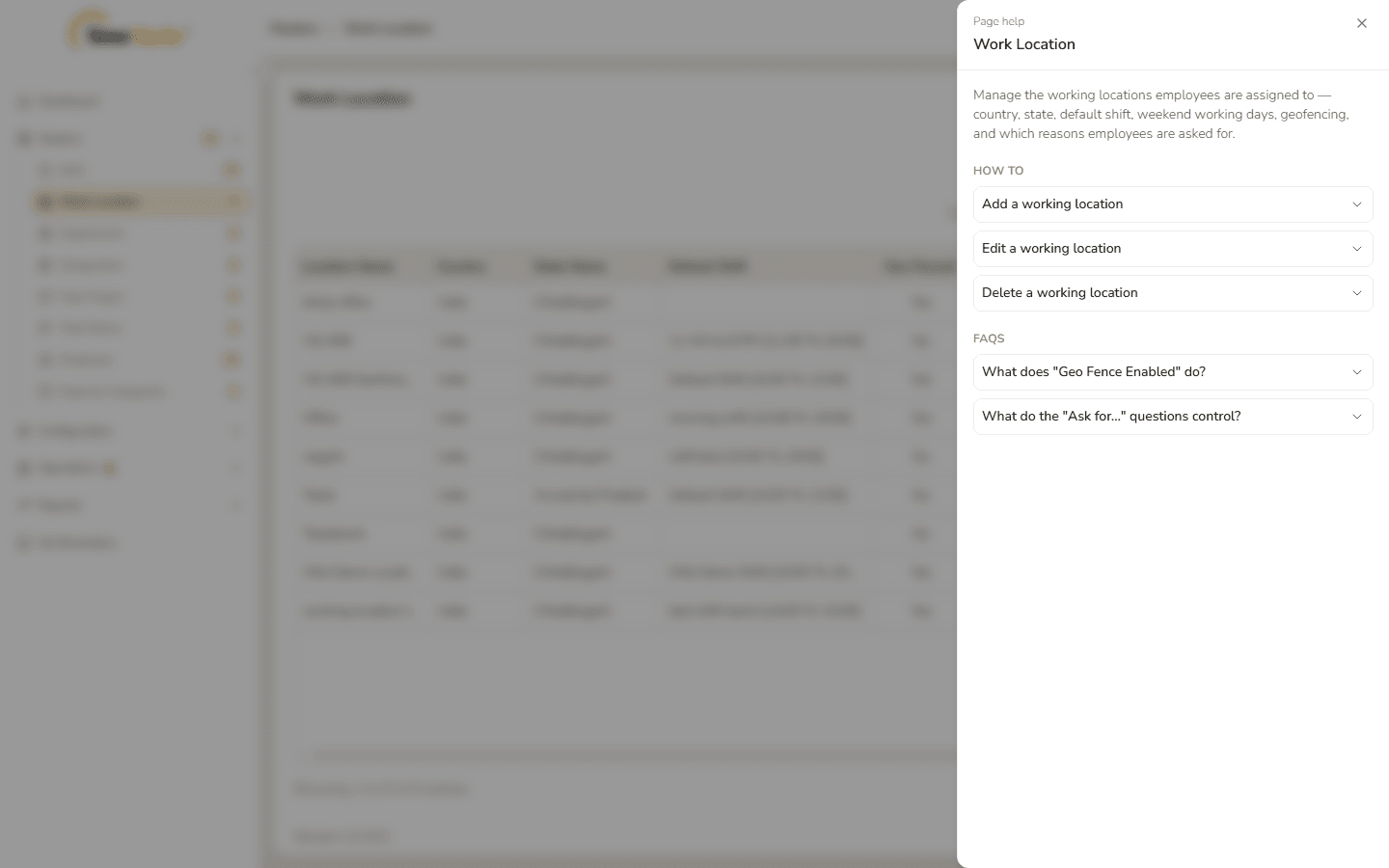
The ? button at the top (Help for this page) opens a panel with help for the page you are on: a short description of what the page is for, How to steps for the common jobs and FAQs. Click a title to open it.
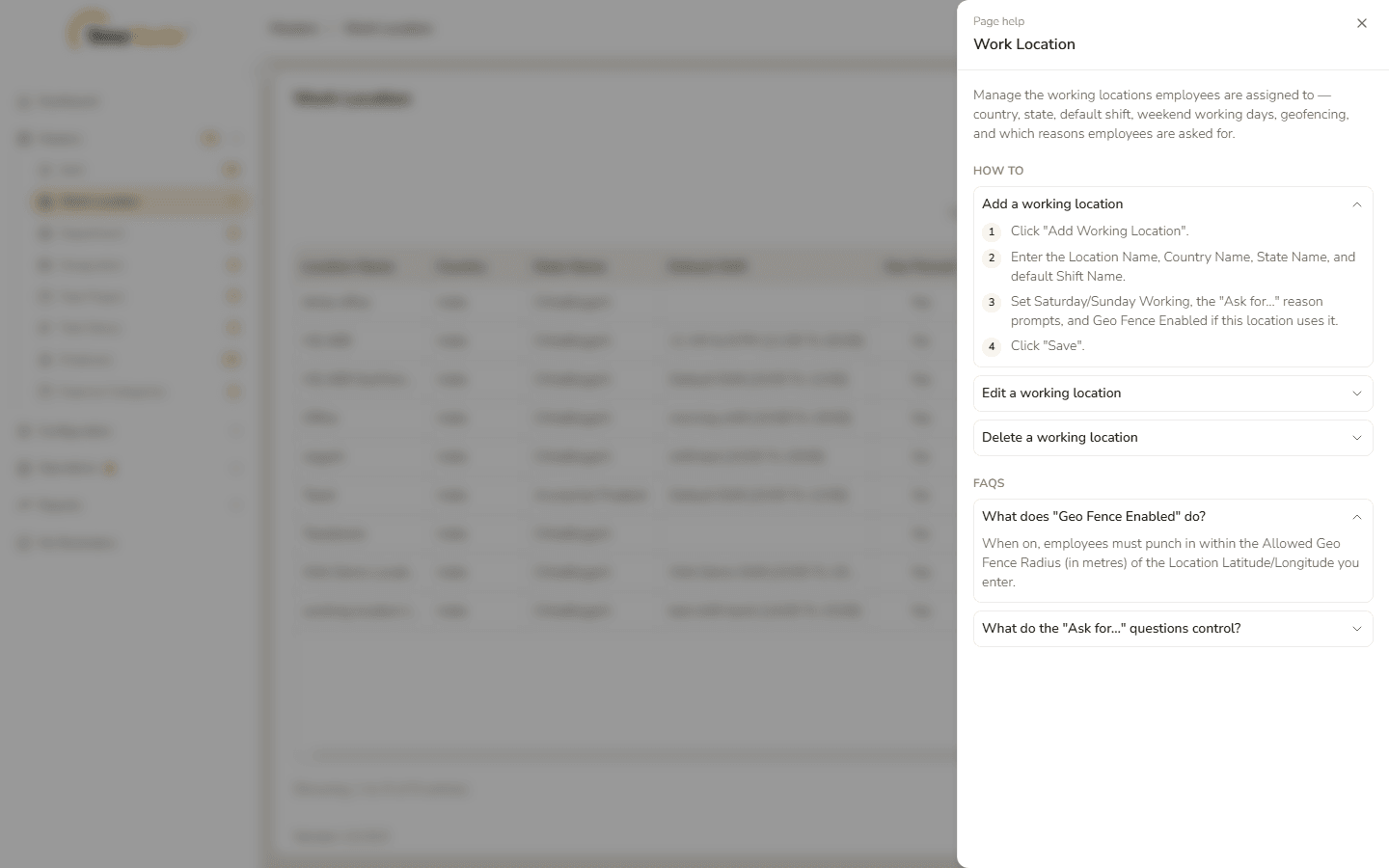
Click × to close the panel.
Things you will meet on many pages
Filters
Pages that list records have a Filters card. Each filter is a pill that states its own name and, once chosen, its value – Status · Pending, Date · 02-10-2026. Click a pill to open its control; the × on a pill clears that filter, and Clear all filters clears them all. Most pages show nothing until you click View (or Generate, Show attendance). A filter that picks a person works as a search: type at least three characters and pick the name from the suggestions.
Dates
A date field opens a small calendar. The two lists at the top choose the month and the year; click the day. A period filter has two boxes – a start and an end – and a Done button. Days that are not allowed are struck through.
Tables
- Search filters the rows you can already see, as you type.
- Show 50 / 100 / 150 chooses how many rows fit on a page; the page numbers under a long table move through it.
- A table wider than the window scrolls sideways. Buttons in an Actions column stay in view on the right.
- Export (or Export Excel) downloads what you see as an Excel file; where there is an arrow beside it, the arrow offers Export PDF too.
Messages
Every action ends with a message in a window: a green Success one (Saved, Created, Updated) with Got it, a red Error one with Dismiss, and a Confirm window before anything that cannot be undone, with the choice to go ahead or to cancel. Read it – it usually says what was done, or what to fix.
Forms
A field marked with a red star (*) is required. Leave one empty and the field turns red and says what is missing, for example "Holiday name is required." Nothing is saved until you click Save (or Submit).
Related: Signing in · Your account menu · Troubleshooting