
Live Location
Where: Admin portal → Reports → Live Location *(Beta)*
Route: /reports/live-location
A map of where your employees are right now. The page is marked Beta – it is still being refined. It only shows employees who are sharing their location from the TimeMarkr app on their phone.
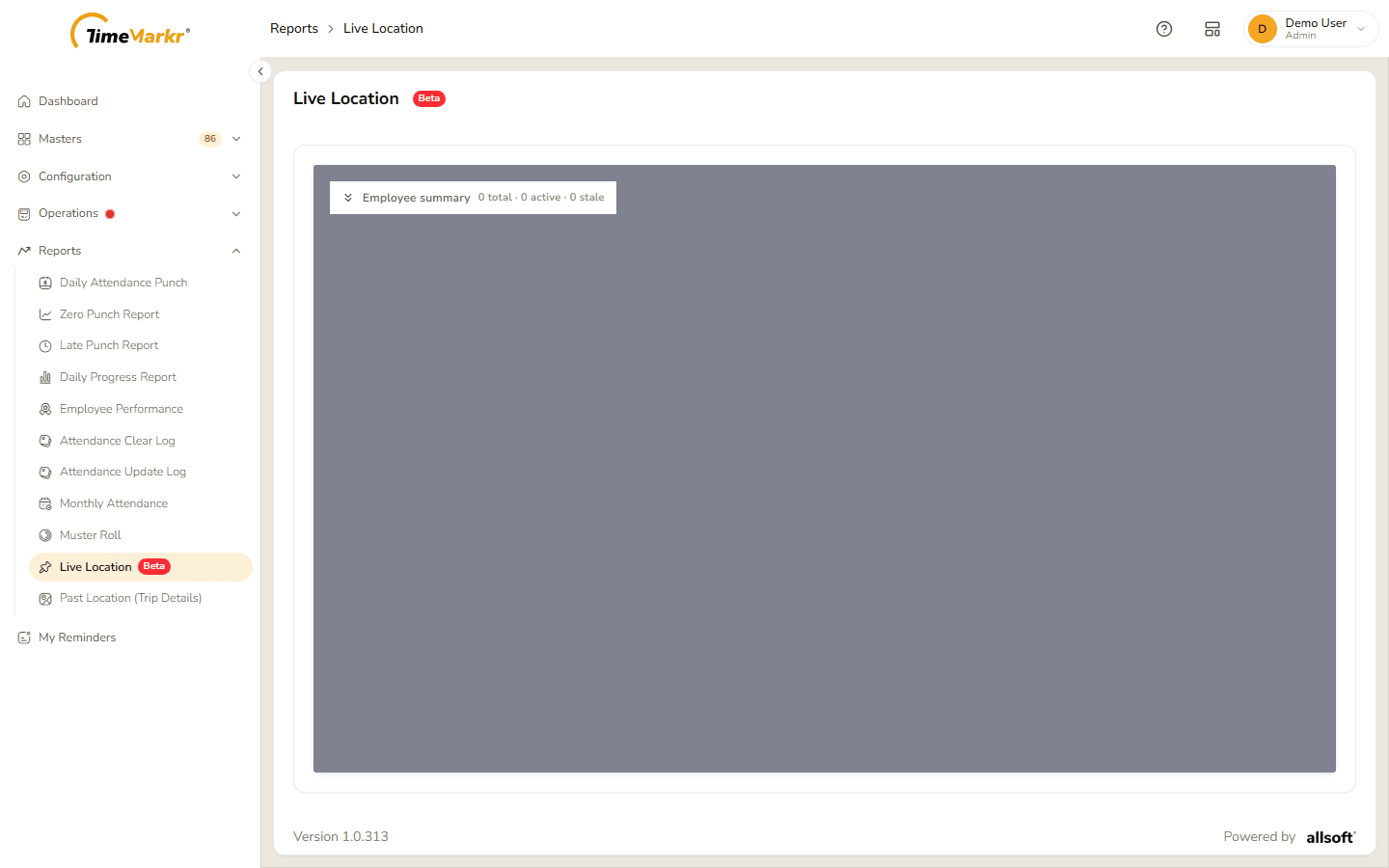
The employee summary
At the top left of the map is the Employee summary bar with the counts in one line – for example 0 total · 0 active · 0 stale. Click it to open the panel.
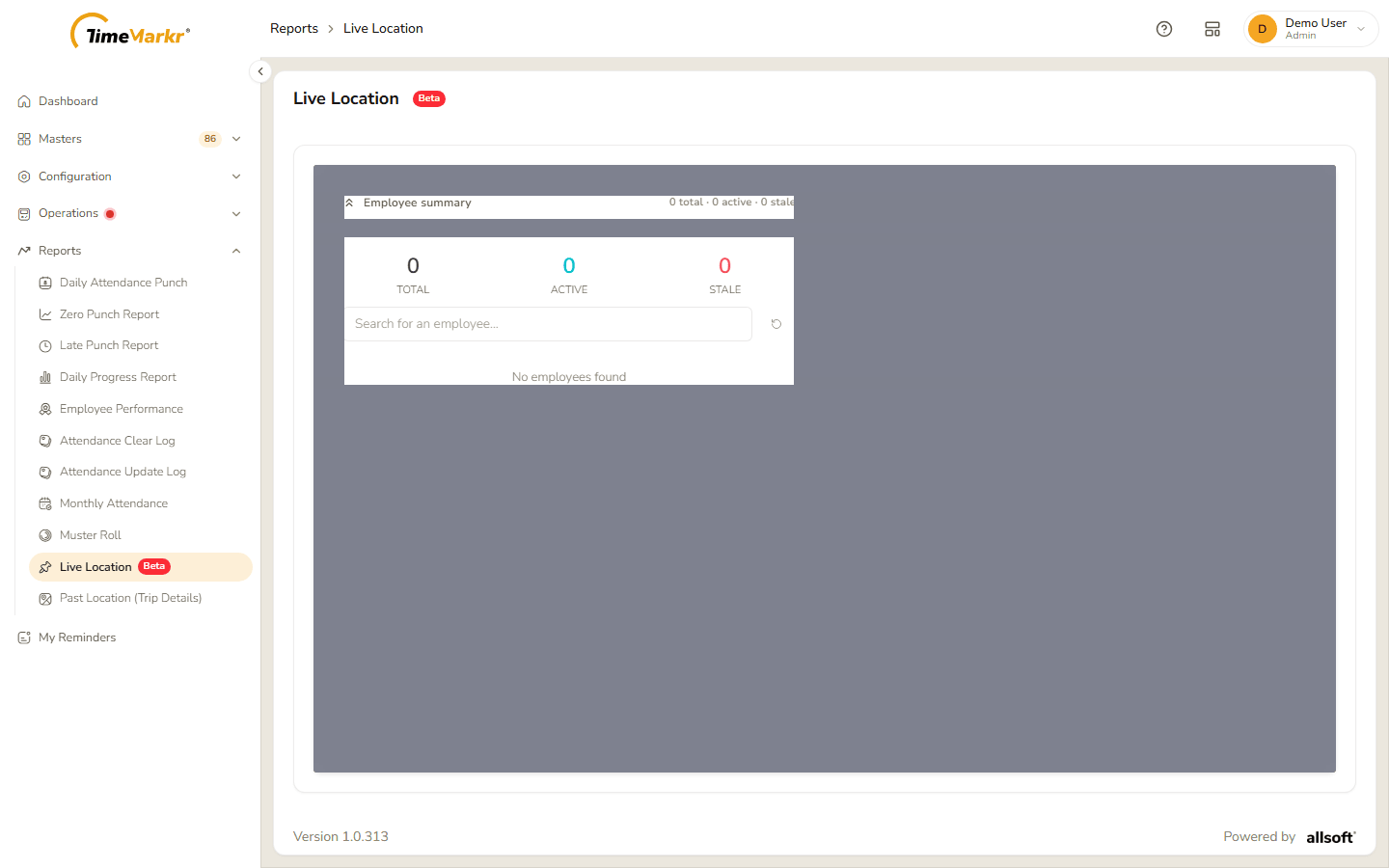
| Count | What it means |
|---|---|
| Total | Everyone who is reporting a location. |
| Active | Those whose last location update is recent. |
| Stale | Those whose last update is old. |
Under the counts a box – Search for an employee… – finds a person in the list, and the circular arrow beside it resets the map. With nobody reporting the list says No employees found.
Using the map
When employees are reporting, each one appears in the list with a dot – green when the update is recent, orange when it has not updated in a while – and as a marker on the map.
- Click an employee in the list, or search for the name, and the map moves to that person and opens their details.
- With an employee selected, the locate button keeps the map centred on them as they move.
- The reset button deselects the employee and zooms out to show everyone.
The map itself works like any online map: drag to move, scroll or use the zoom buttons to zoom, and the buttons at the right turn and tilt the view or show it full-screen.
No employee was sharing a live location in the demo account this guide was written against, so the markers and the employee details are not shown here.
Related: Past Location (Trip Details) · Work Location