
Holidays
Where: Admin portal → Configuration → Holidays
Route: /configuration/holidays
Your company's holiday calendar: one row for each date and the occasion it marks. Employees see the same list in the employee portal under Holiday Calendar.
1. The Holidays list
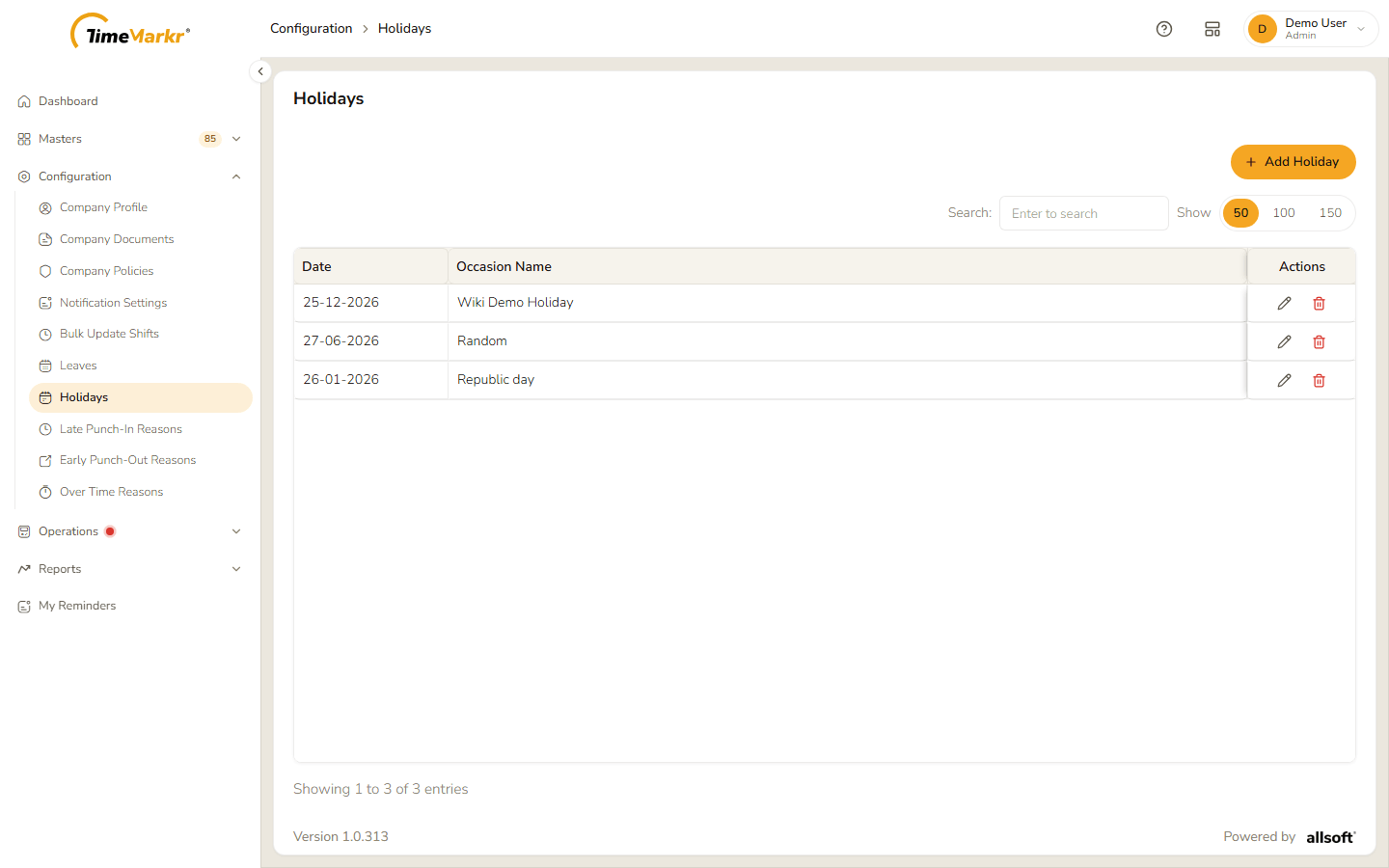
| Column | What it shows |
|---|---|
| Date | The holiday's date, as dd-mm-yyyy. |
| Occasion Name | What the holiday is. |
| Actions | Update and Delete. |
Use Search to narrow the list and Show 50 / 100 / 150 to choose how many rows to see.
2. Add a holiday
Click Add Holiday.
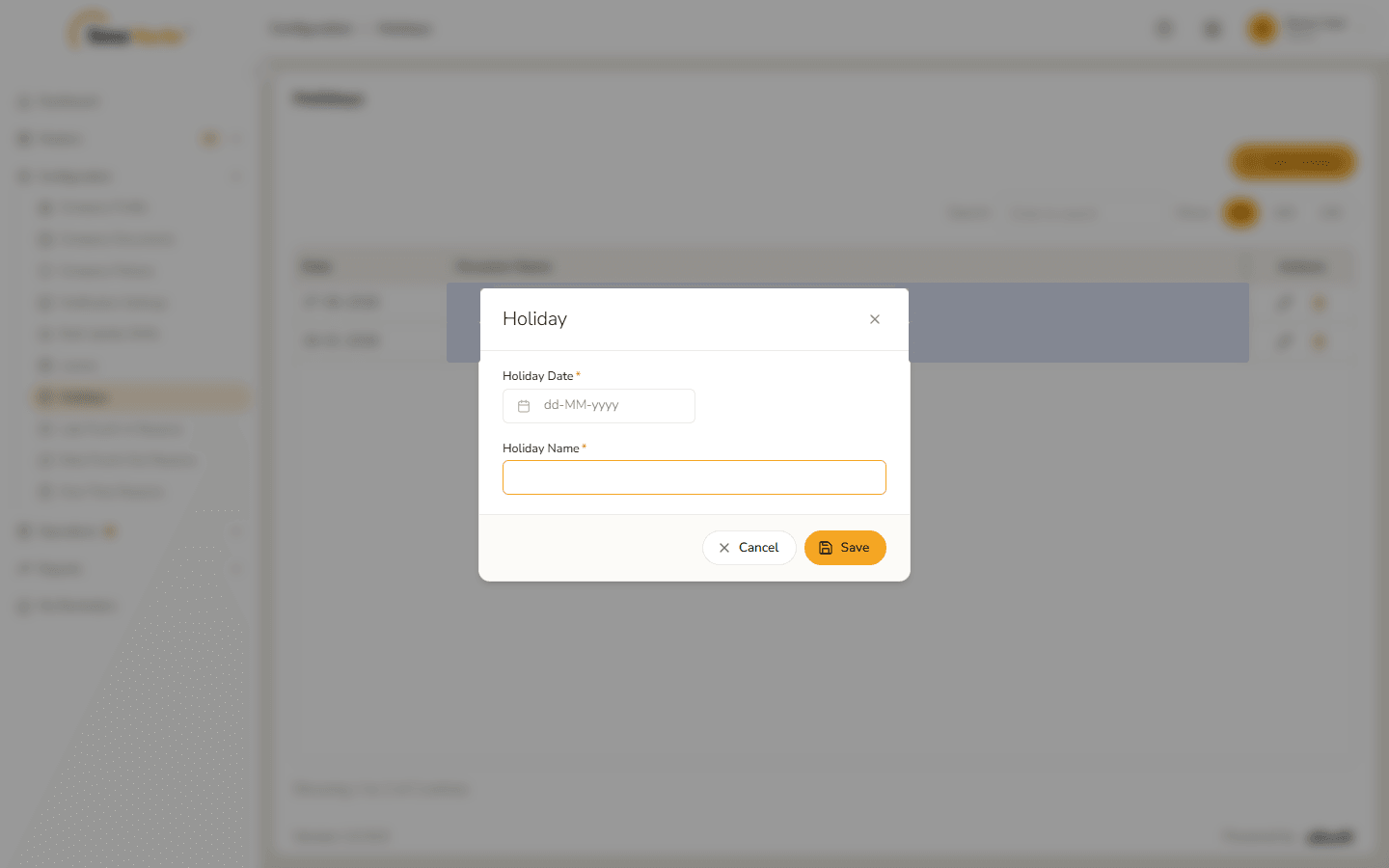
Holiday form Fill it in.
Field Notes Holiday Date* Click the field to open a calendar. Choose the month and the year from the two lists at the top, then click the day. Holiday Name* The occasion. Clicking Save with both empty shows "Holiday date is required." and "Holiday name is required."
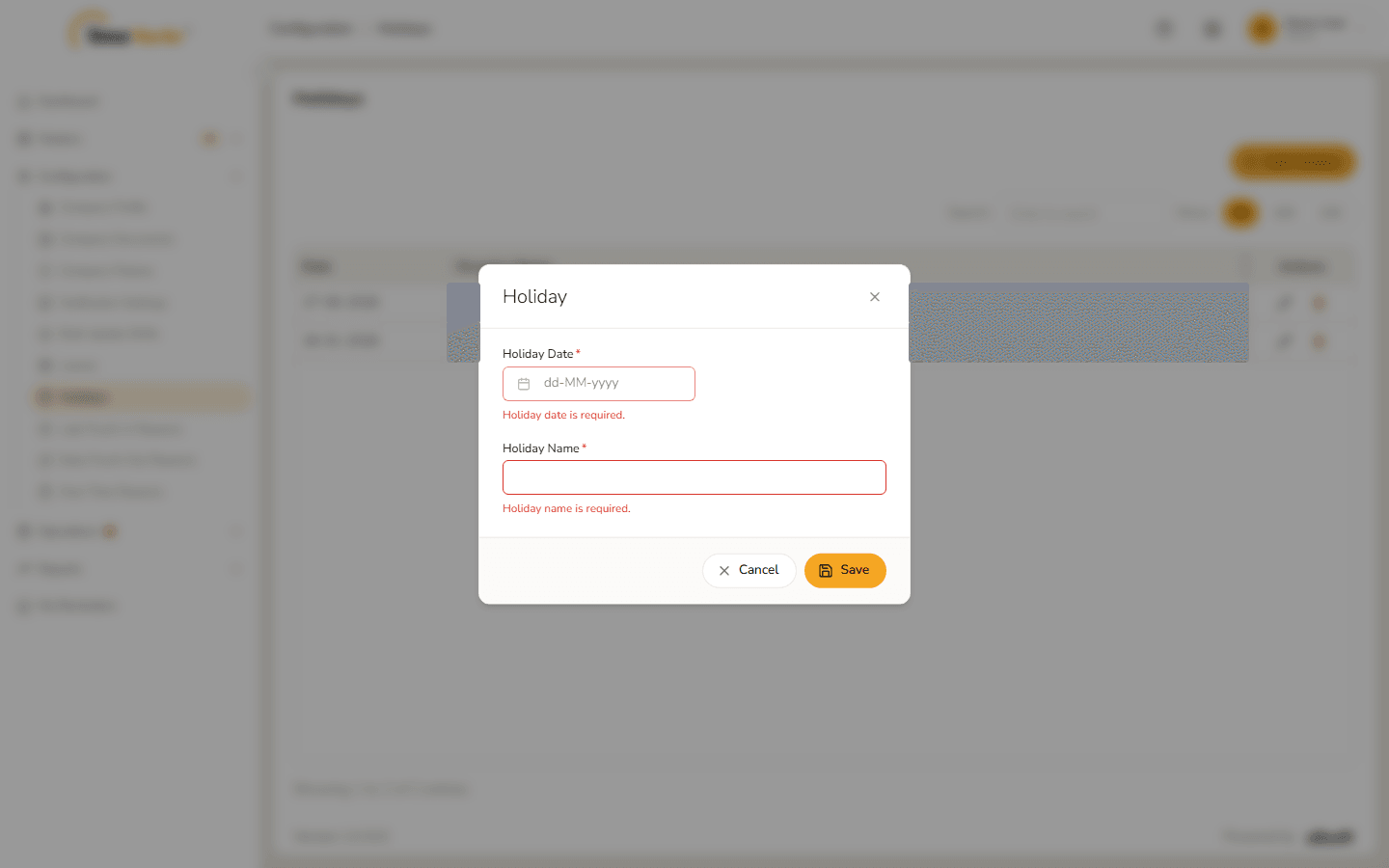
Required-field messages 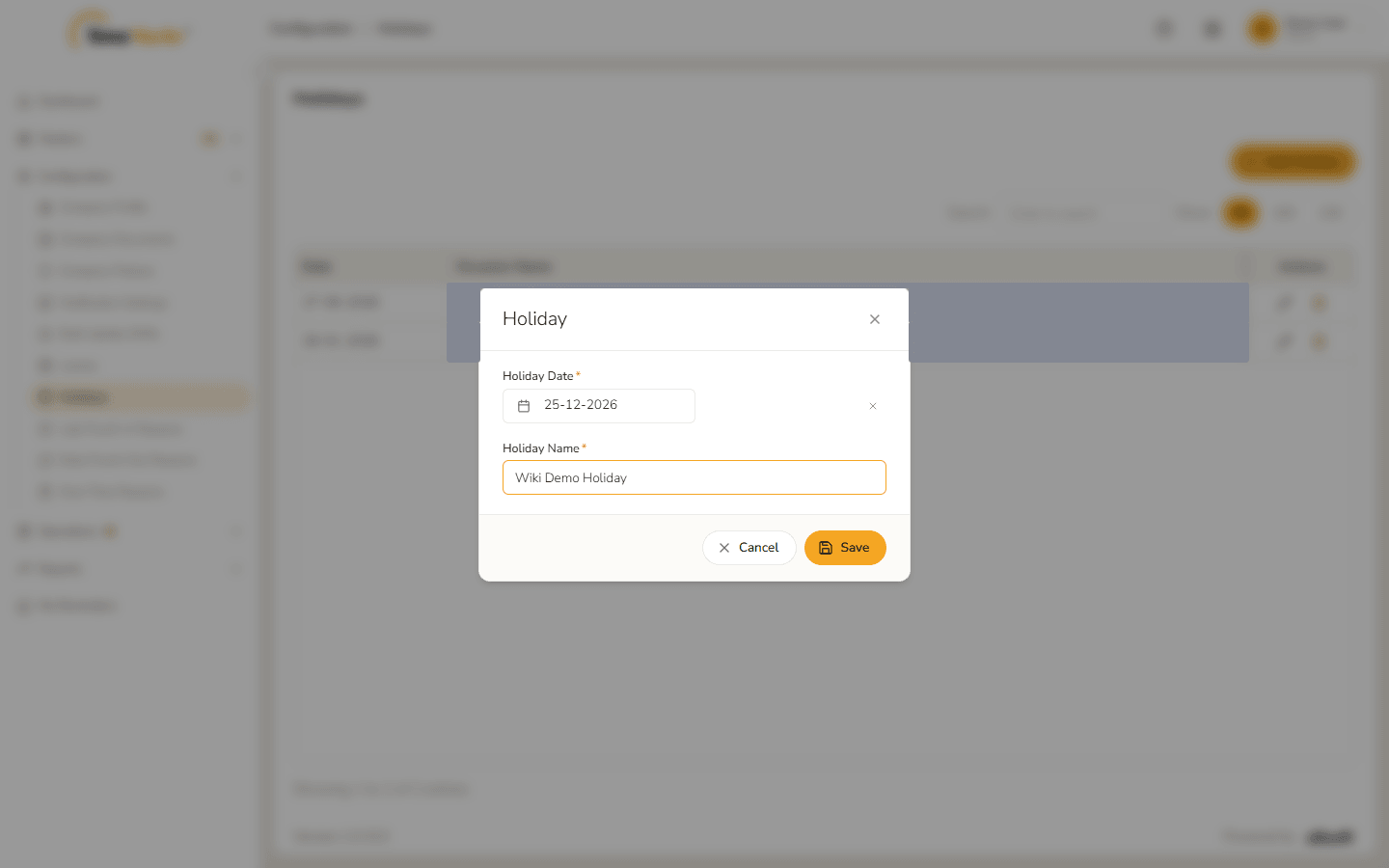
Form filled in Click Save. Holiday saved – Holiday added successfully. confirms it. Click Got it.
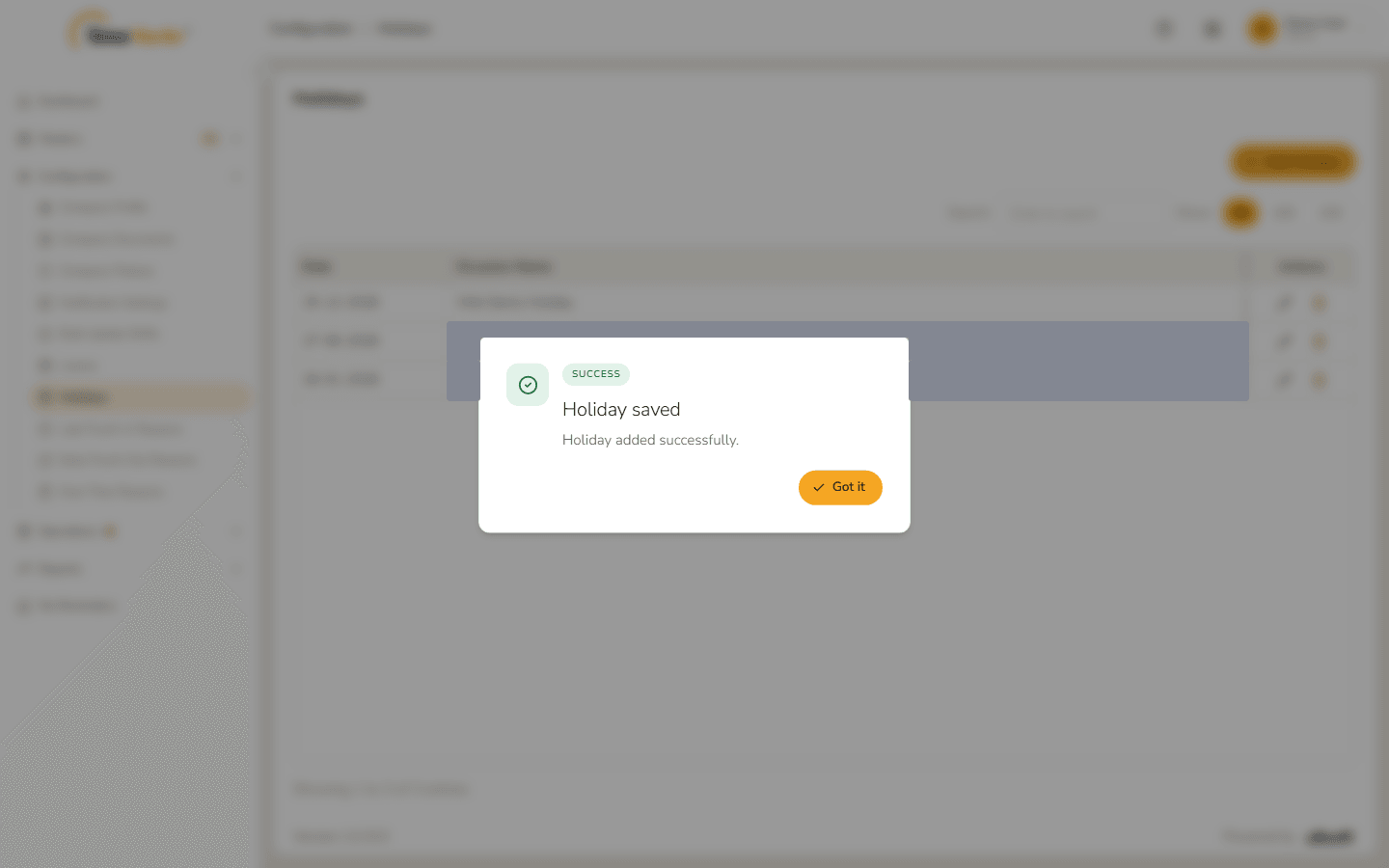
Holiday saved The holiday is in the list.
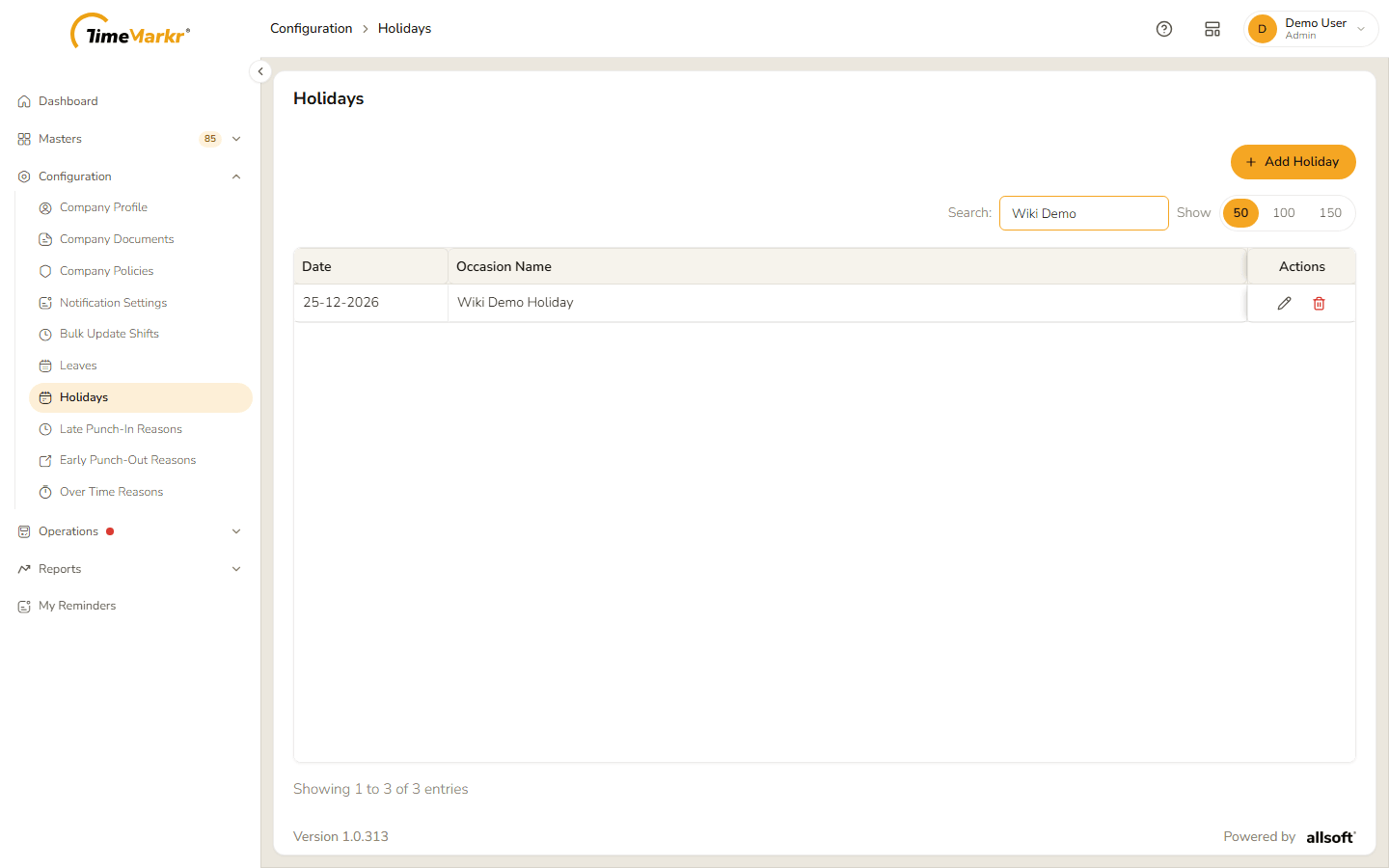
New holiday in the list
3. Update a holiday
Click Update on the row.
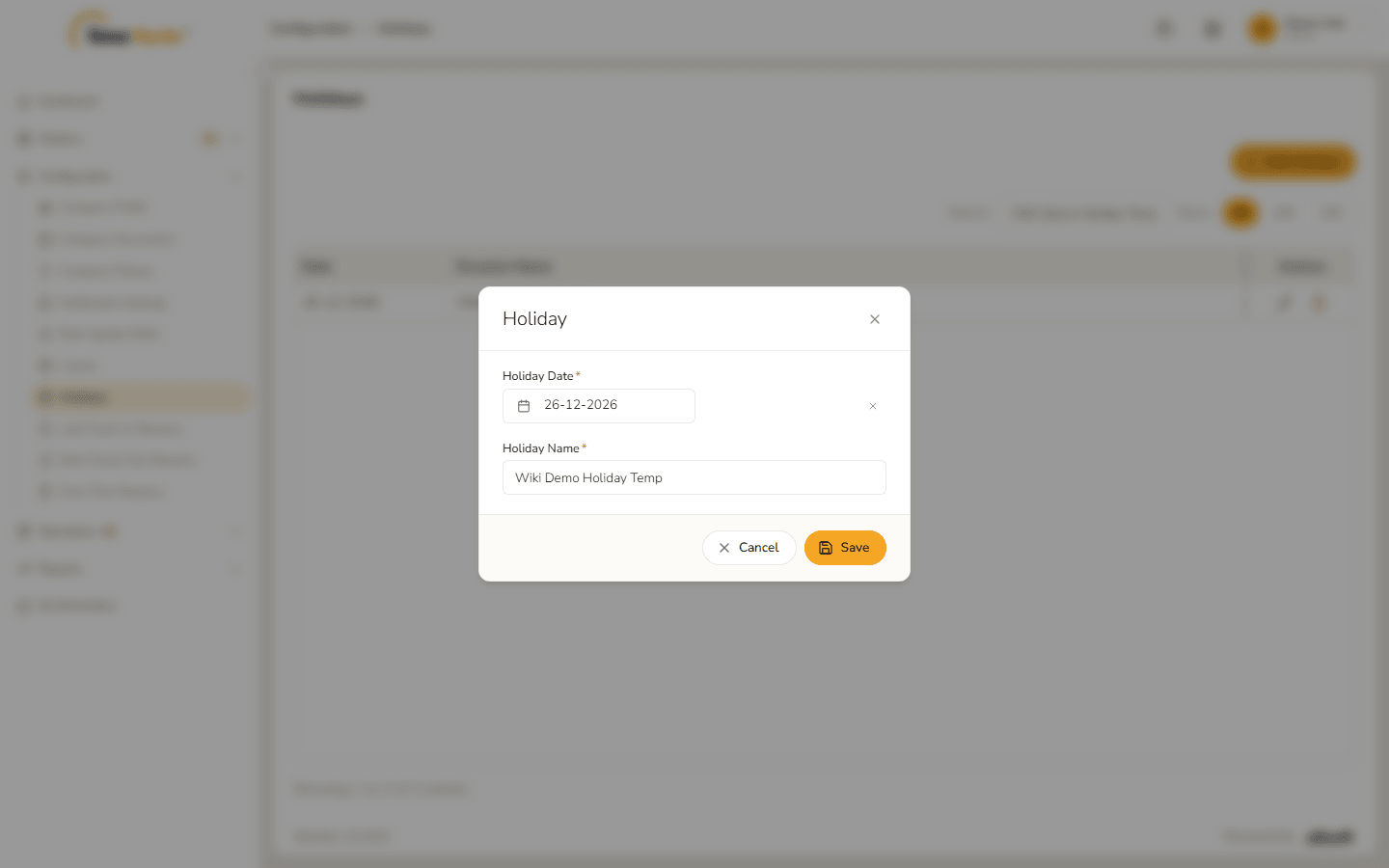
Edit form Change the date or the name.
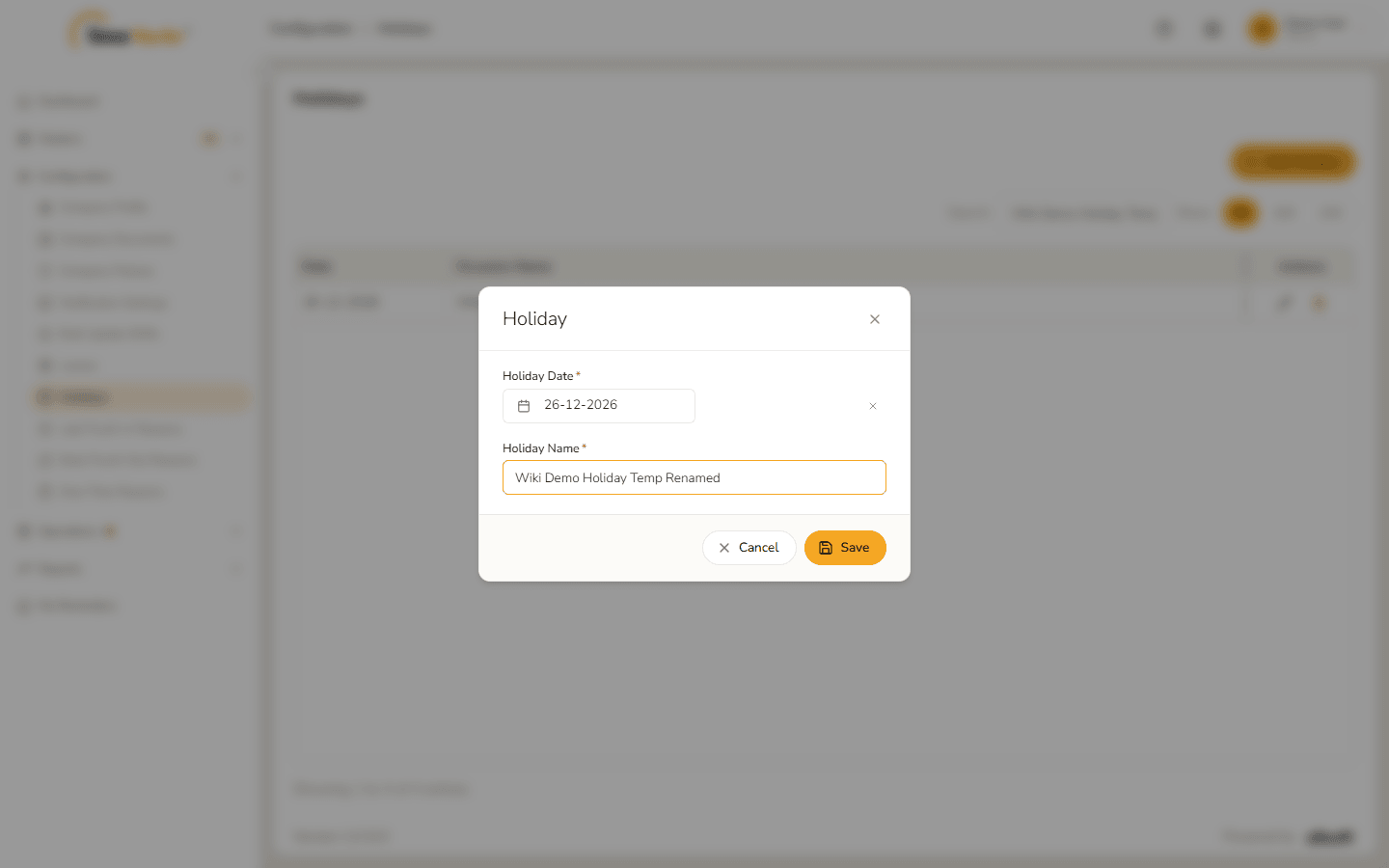
Name changed Click Save. Holiday saved – Holiday updated successfully. confirms it.
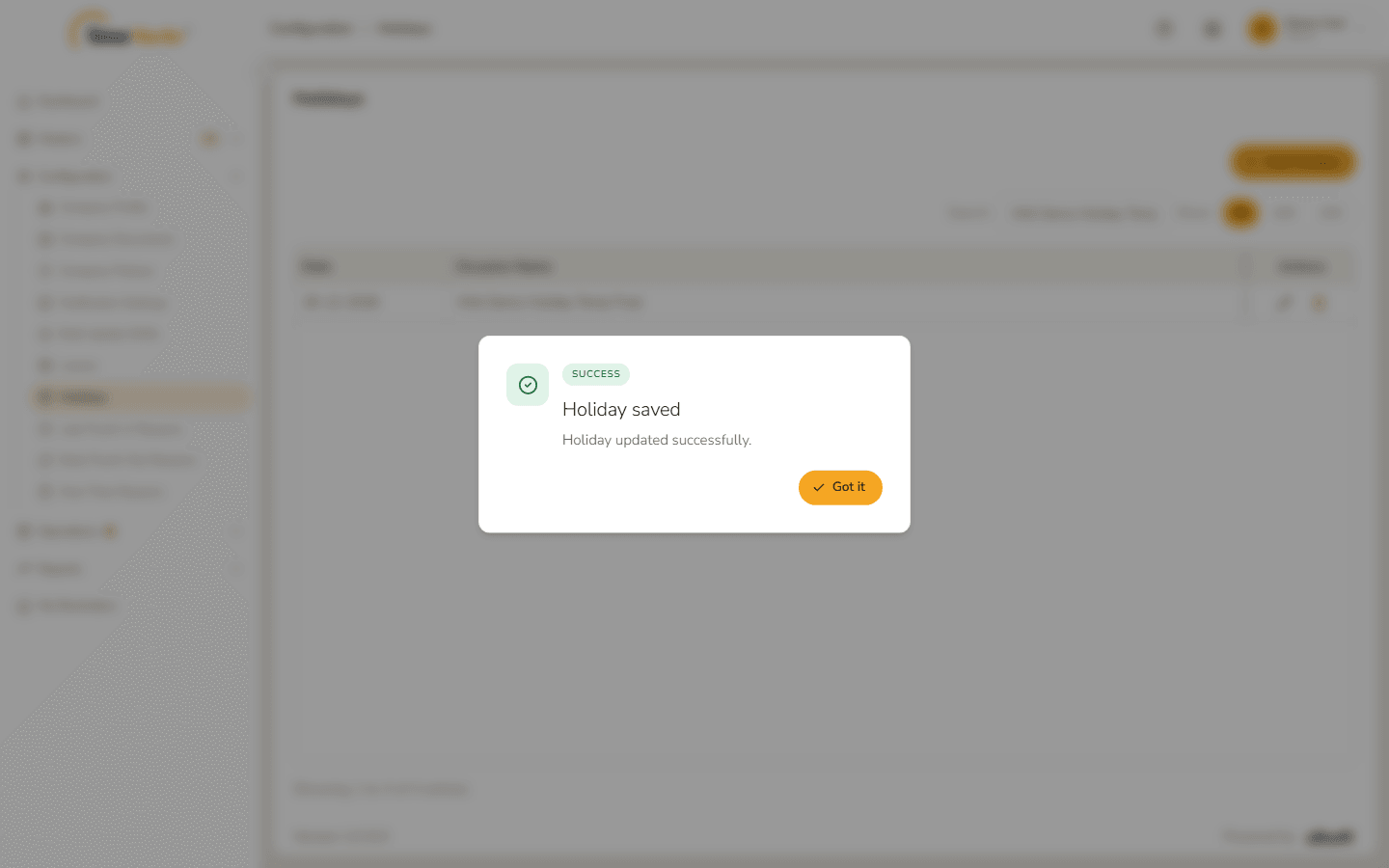
Holiday updated
4. Delete a holiday
Click Delete on the row. The confirmation names the holiday and warns "This cannot be undone."
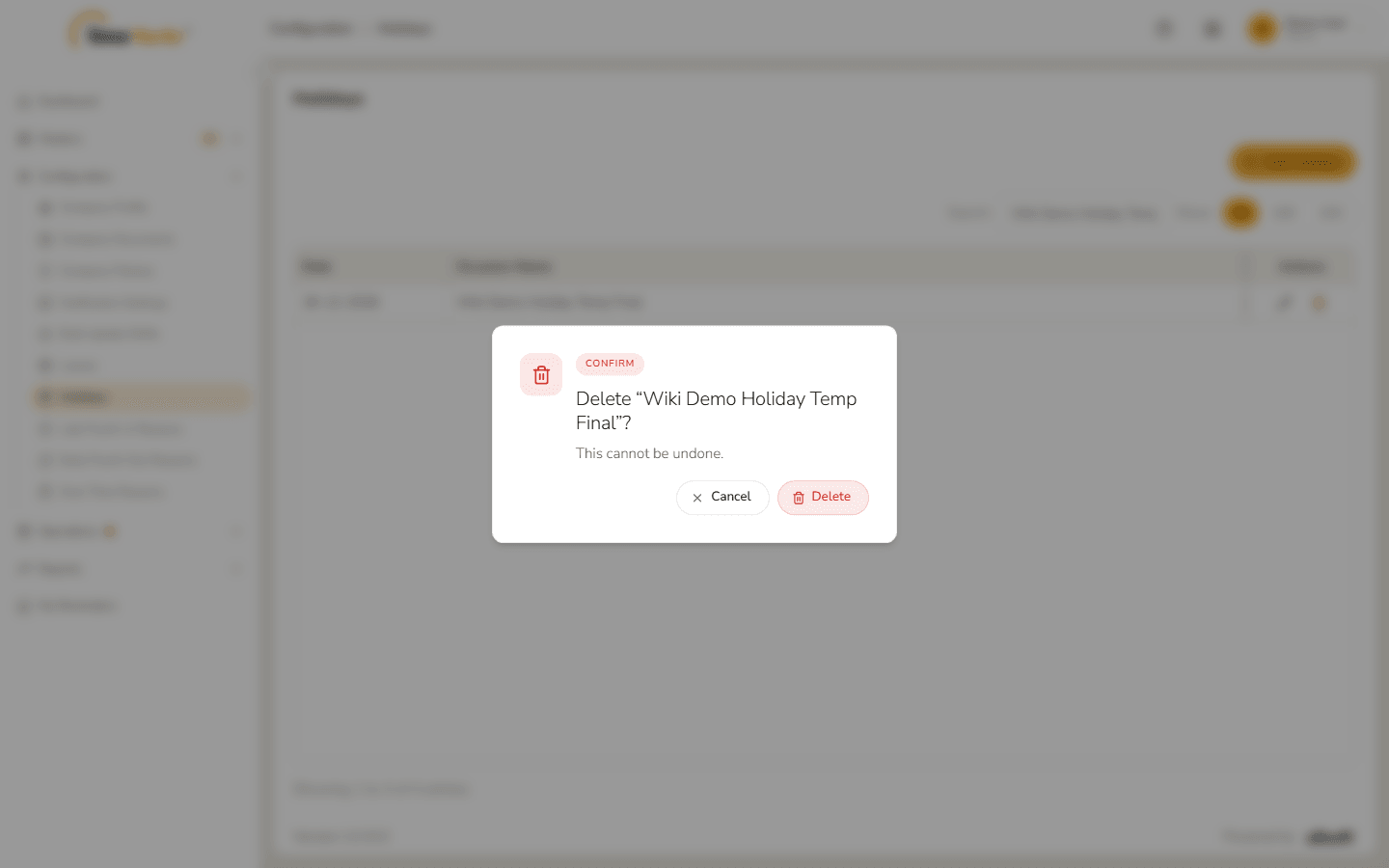
Delete confirmation Click Delete. Holiday deleted – Holiday deleted successfully. confirms it. Click Got it.
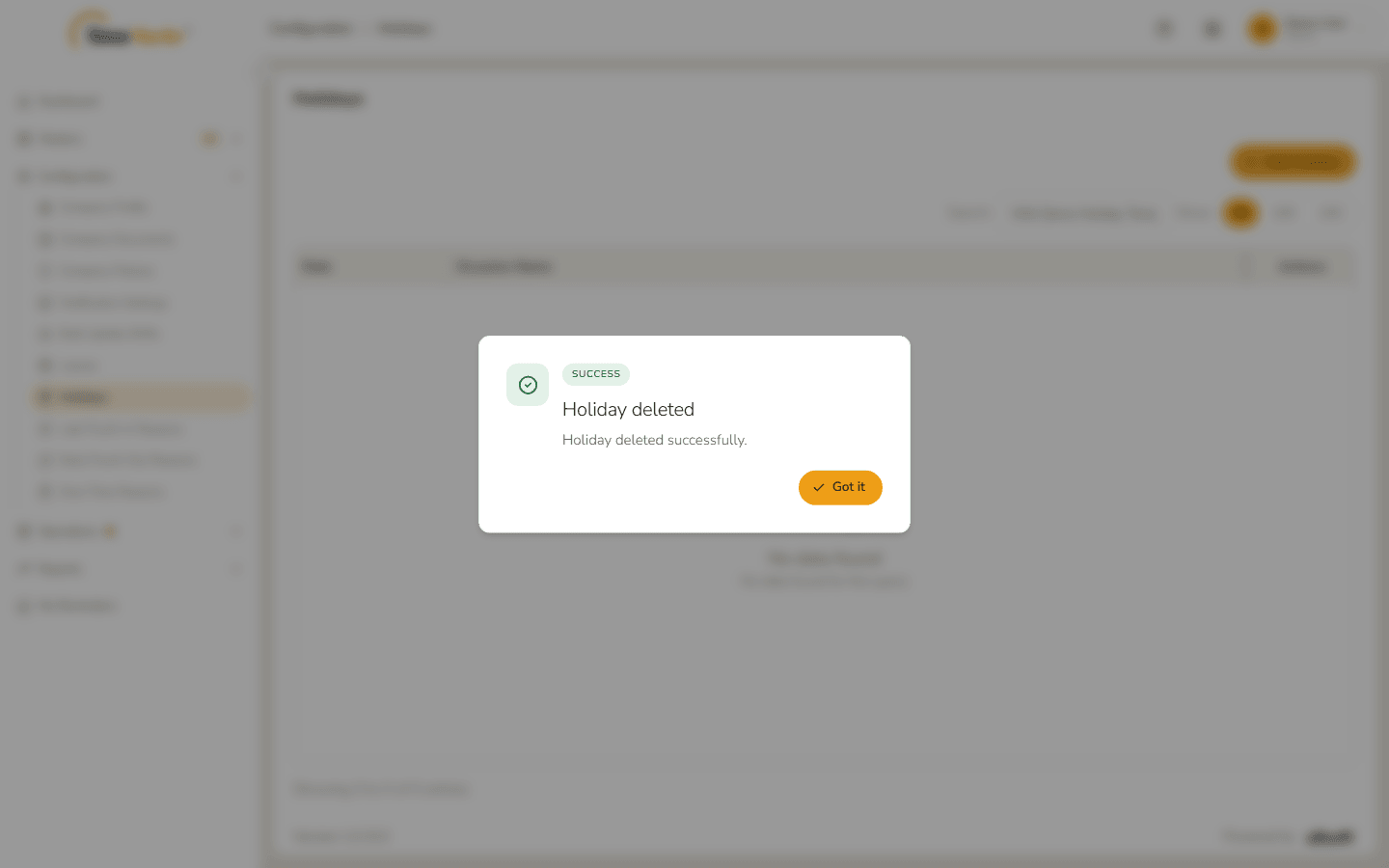
Holiday deleted 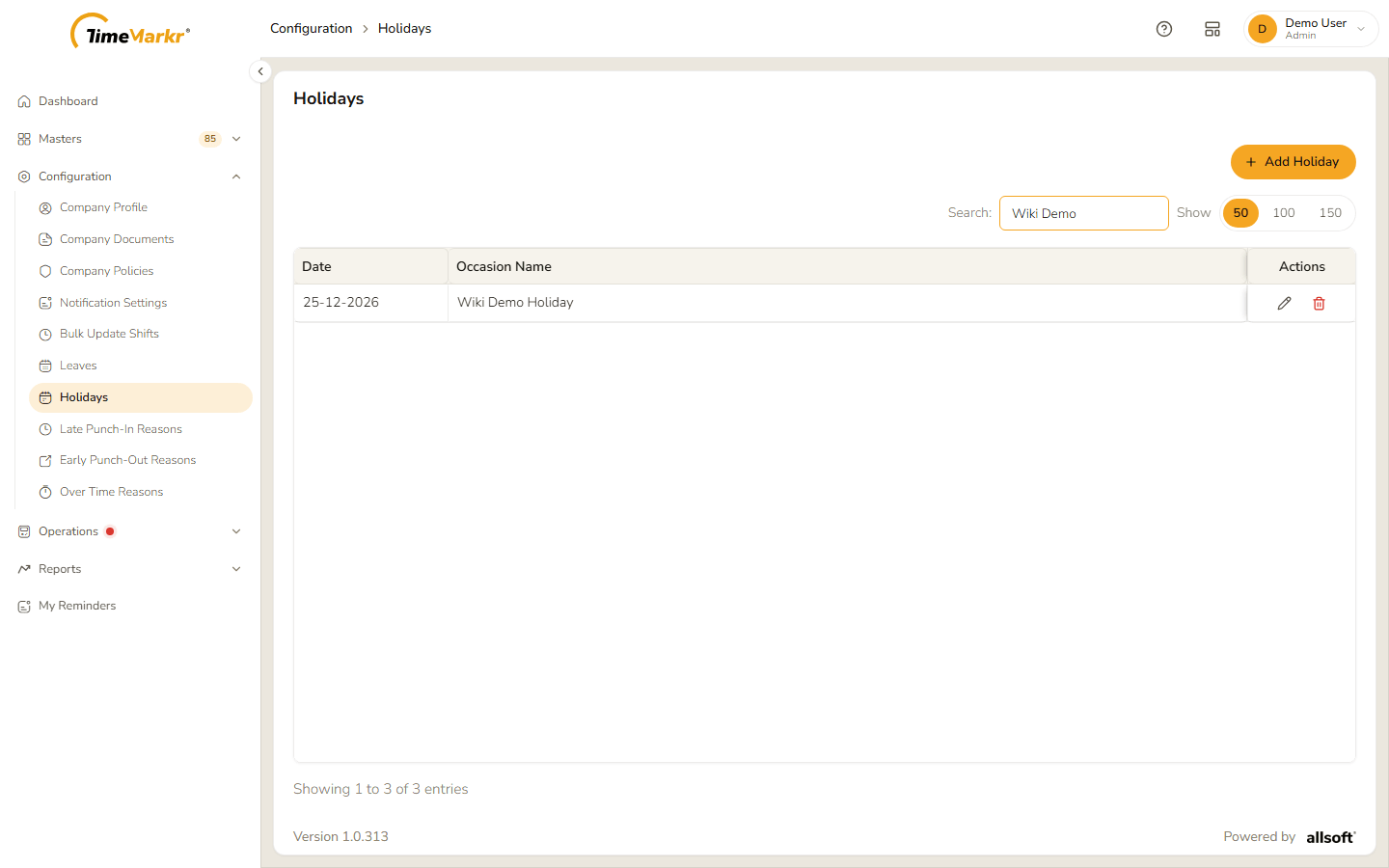
List after the delete
Related: Leaves · Holiday Calendar (employee portal)