
Leaves
Two pages under Leaves in the employee portal: Request Leave – where you ask for time off and see what is still waiting – and Request Status – the full history of your requests.
1. Request Leave
Where: Employee portal → Leaves → Request Leave
Route: /employee/leaves
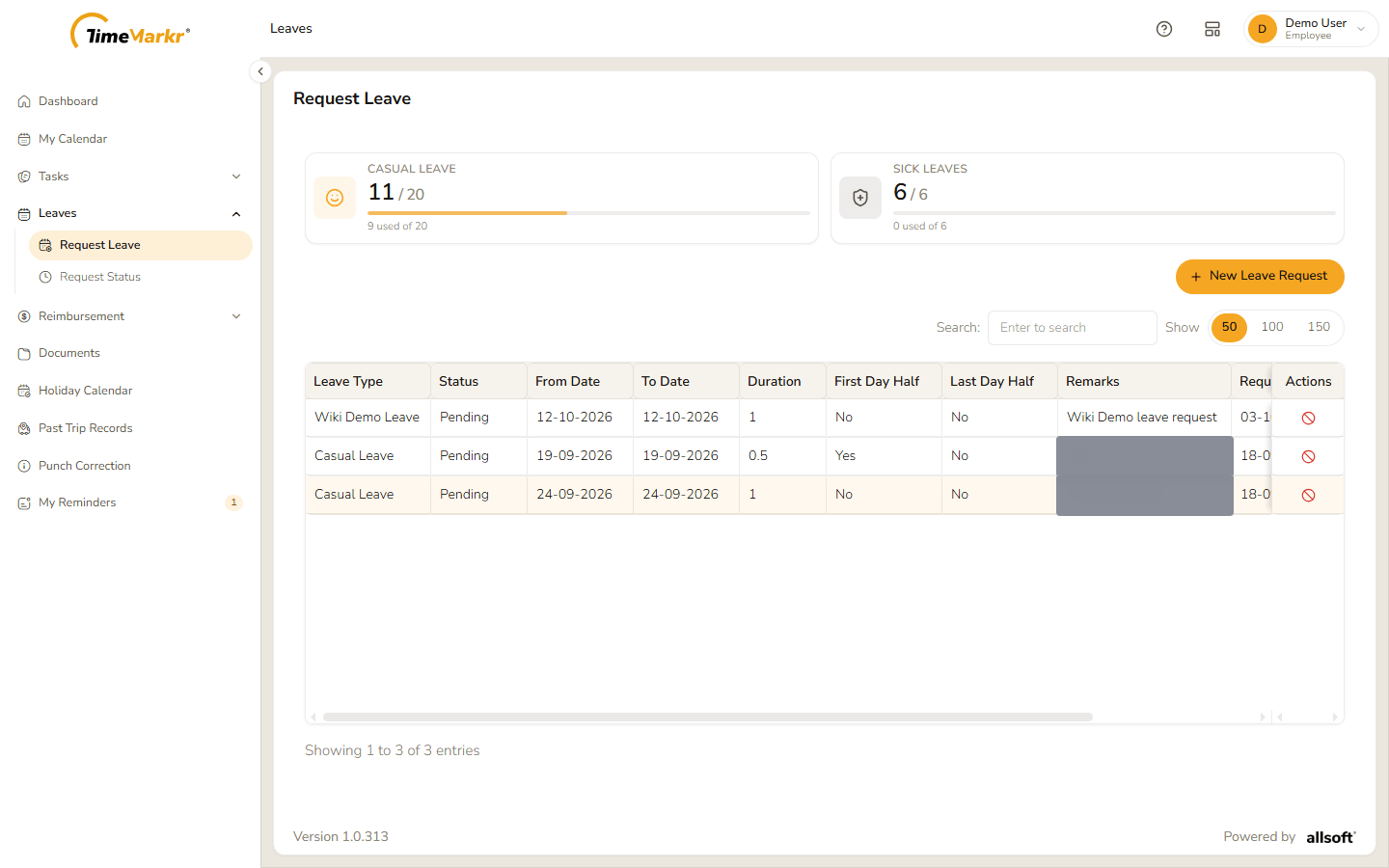
- The cards at the top show your balance for each leave type – for example Casual Leave 11 / 20 with "9 used of 20" and a bar that shows how much is left.
- New Leave Request opens the request form.
- The table lists the requests that are still waiting for a decision.
| Column | What it shows |
|---|---|
| Leave Type | The kind of leave you asked for. |
| Status | Pending while it waits for HR. |
| From Date / To Date | The first and last day, as dd-mm-yyyy. |
| Duration | The number of days – 0.5 for a half day. |
| First Day Half / Last Day Half | Yes if that day is a half day. |
| Remarks | What you wrote in the request. |
| Requested On | When you sent it. |
| Attachment | The proof you attached, if any. |
| Actions | The Cancel leave request button (a circle with a line through it). |
Use Search to find a request and Show 50 / 100 / 150 to choose how many rows to see. The table scrolls sideways when the window is narrow.
Ask for leave
Click New Leave Request.
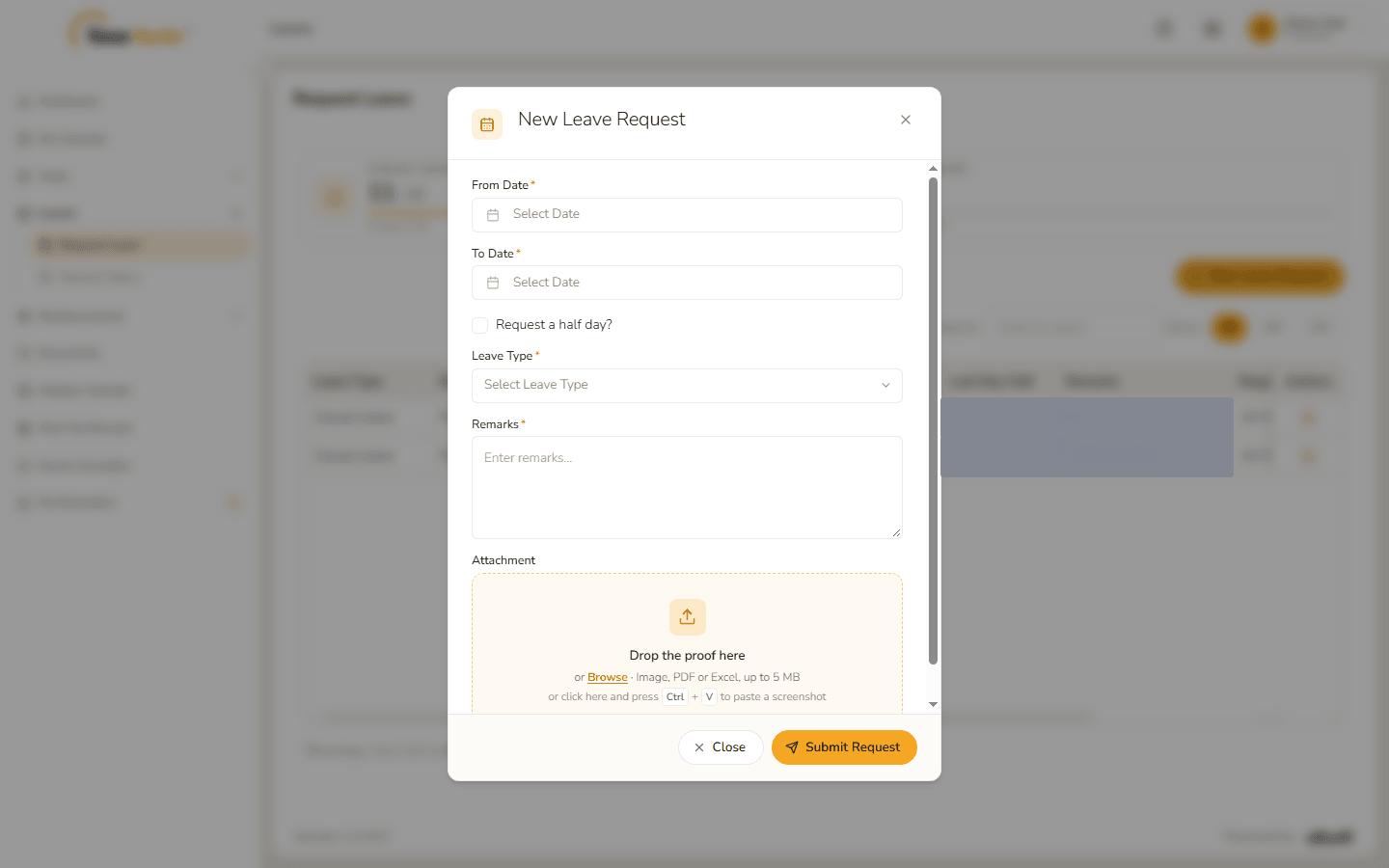
New Leave Request form Fill it in.
Field Notes From Date* Click the field and pick the first day on the calendar. To Date* The last day. For one day, pick the same date. Request a half day? Tick it to take half a day. Two choices appear – First day half and Last day half – to say which end of the leave is the half day. Leave Type* A list of your leave types, each with how many days you have left – for example Casual Leave (11 available). Remarks* Why you need the leave. Attachment Optional proof. "Drop the proof here or Browse · Image, PDF or Excel, up to 5 MB", or click the box and press Ctrl + V to paste a screenshot. 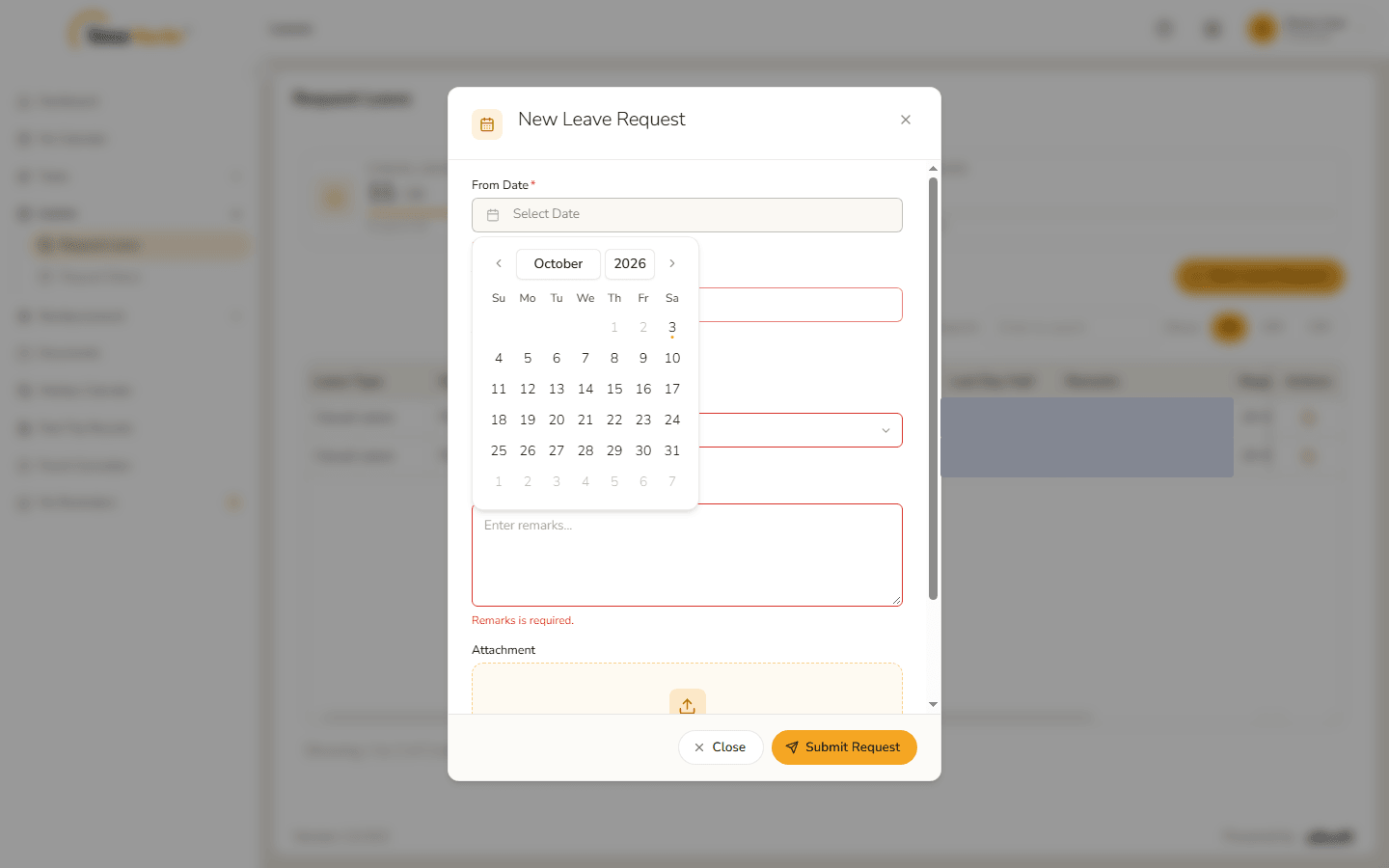
The date picker 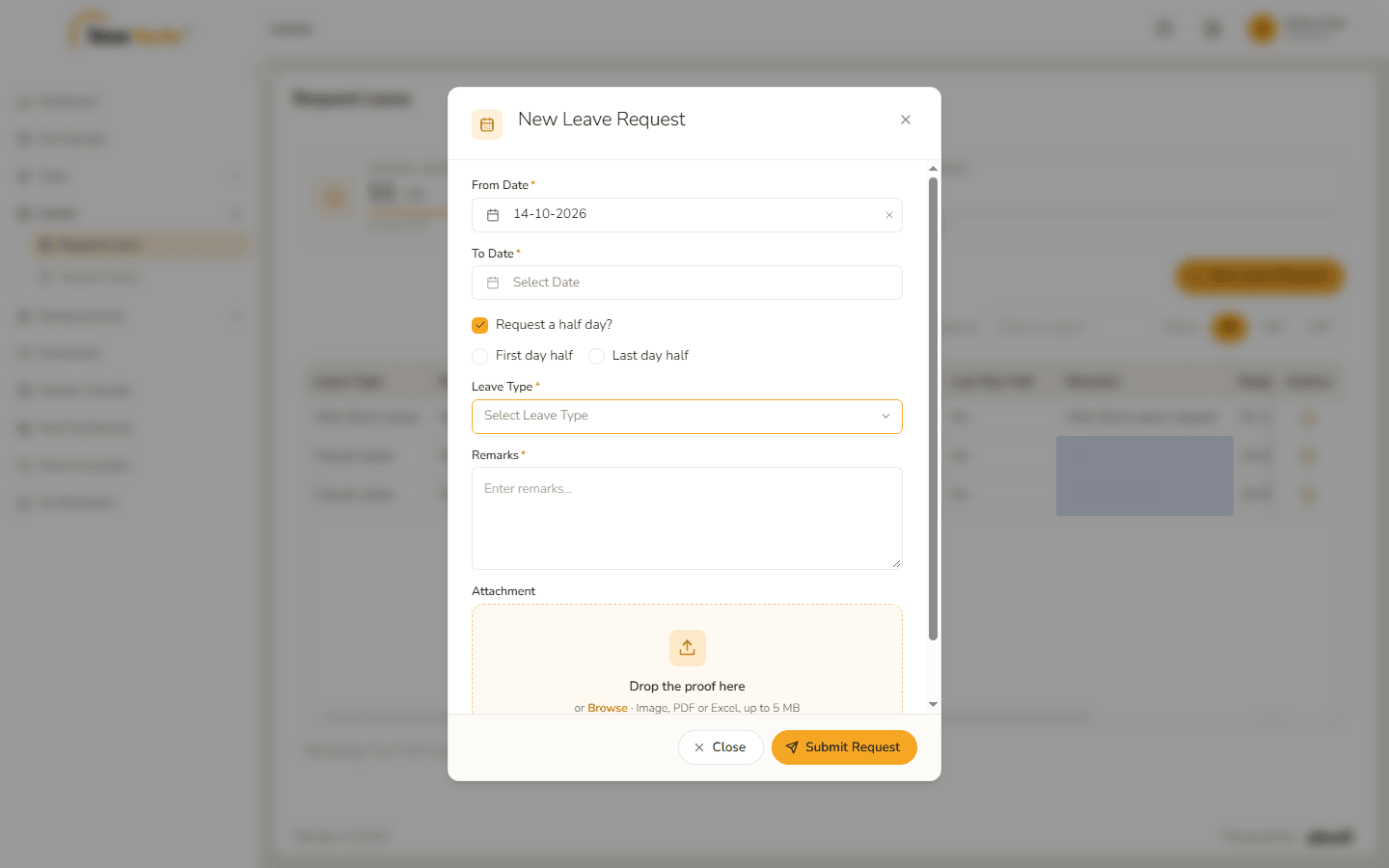
Half-day options Clicking Submit Request with the required fields empty marks them in red: "From date is required.", "To date is required.", "Leave type is required." and "Remarks is required."
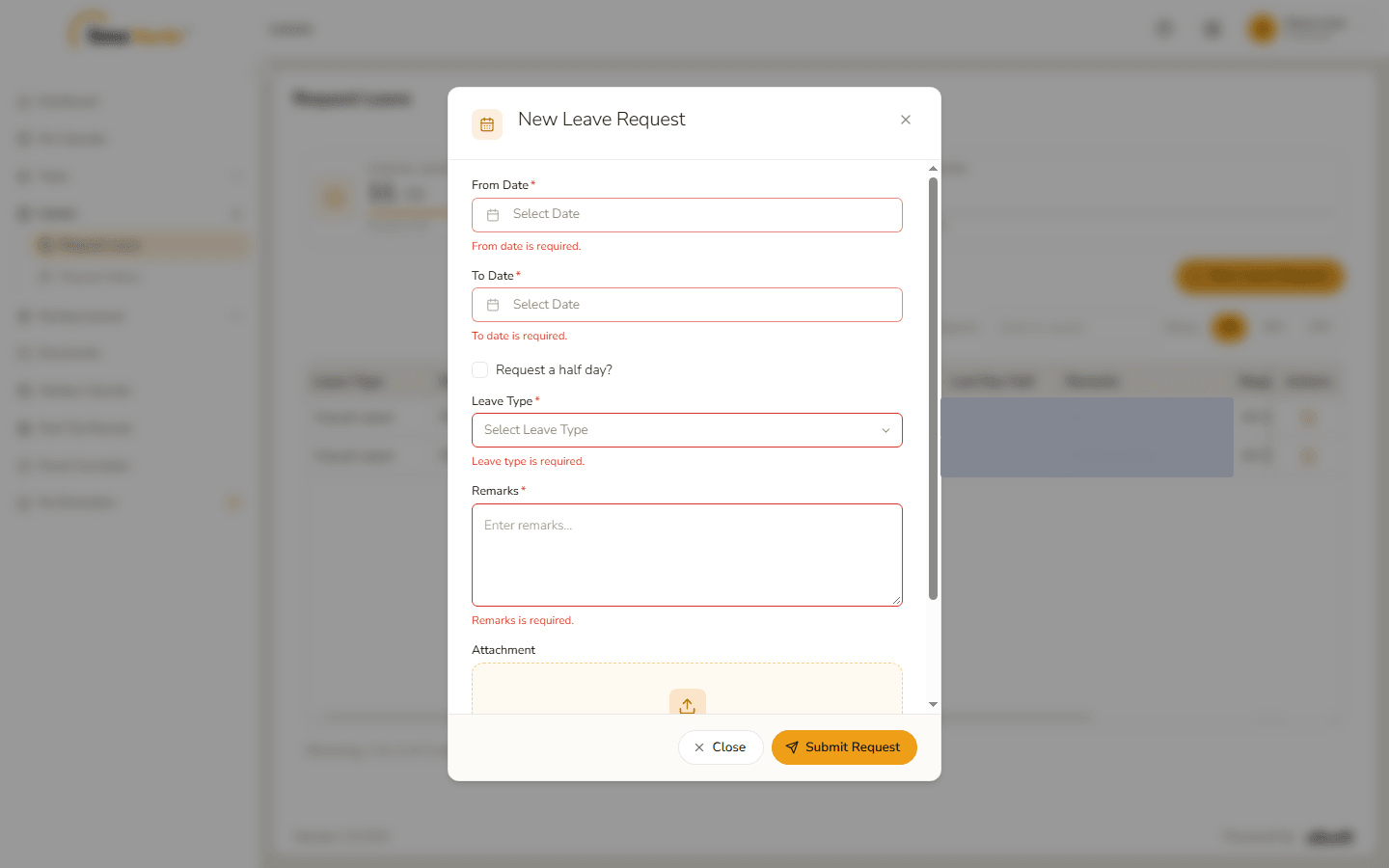
Required-field messages 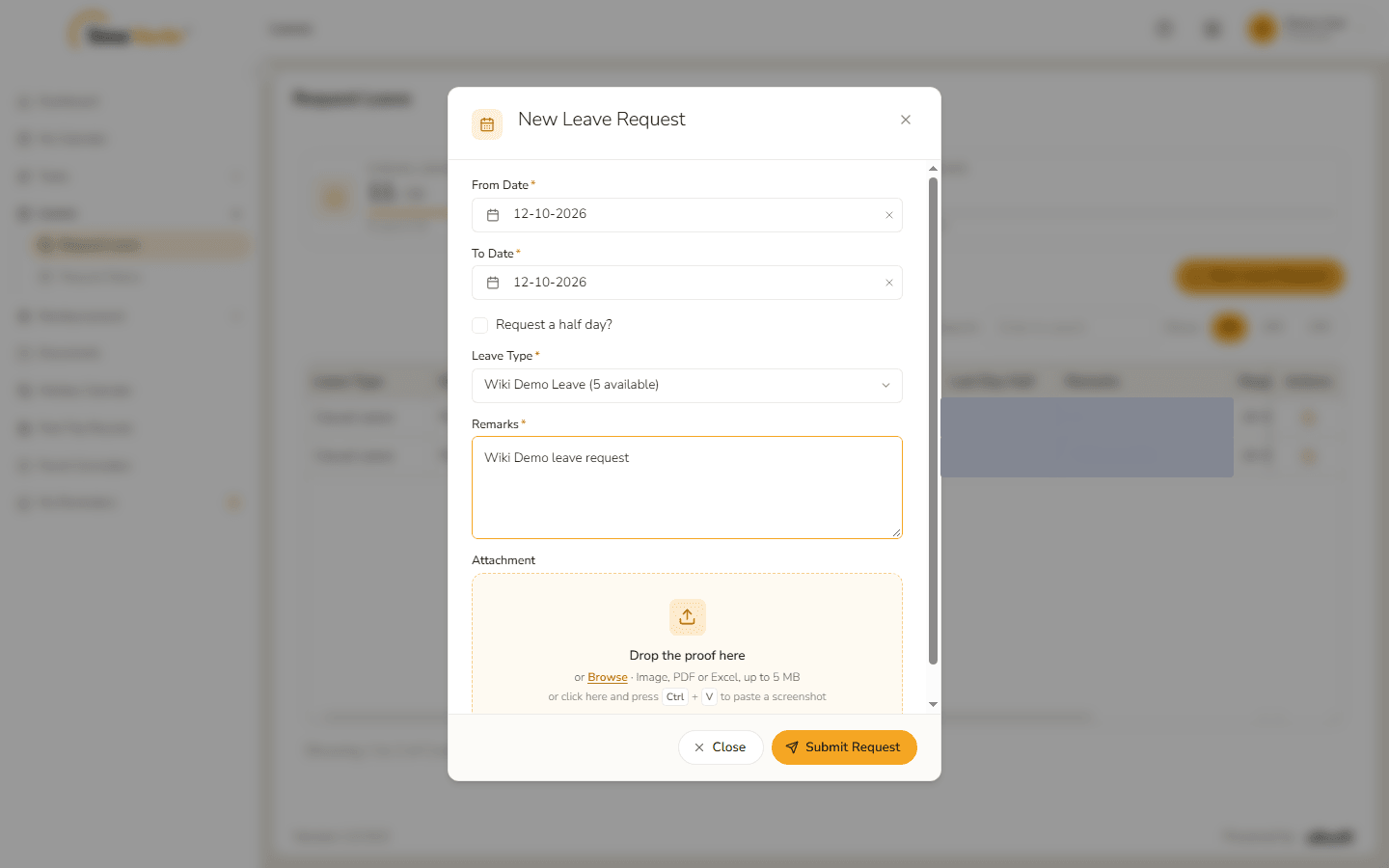
Form filled in Click Submit Request. Leave request submitted – Success. Leave Request Received. confirms it. Click Got it.
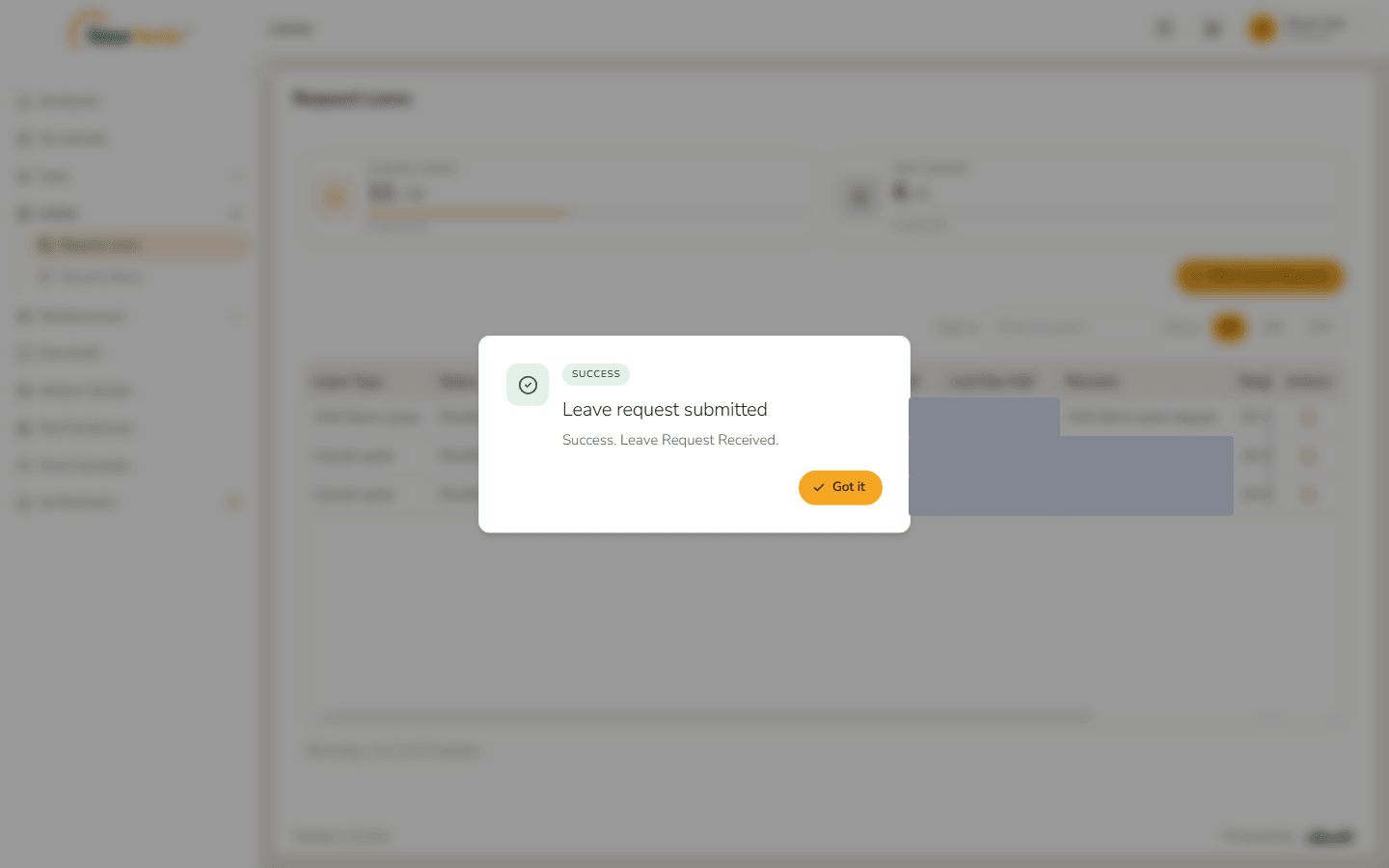
Leave request submitted - The request is in the table with the status Pending. HR approves or rejects it – see Leave Requests.
Cancel a request
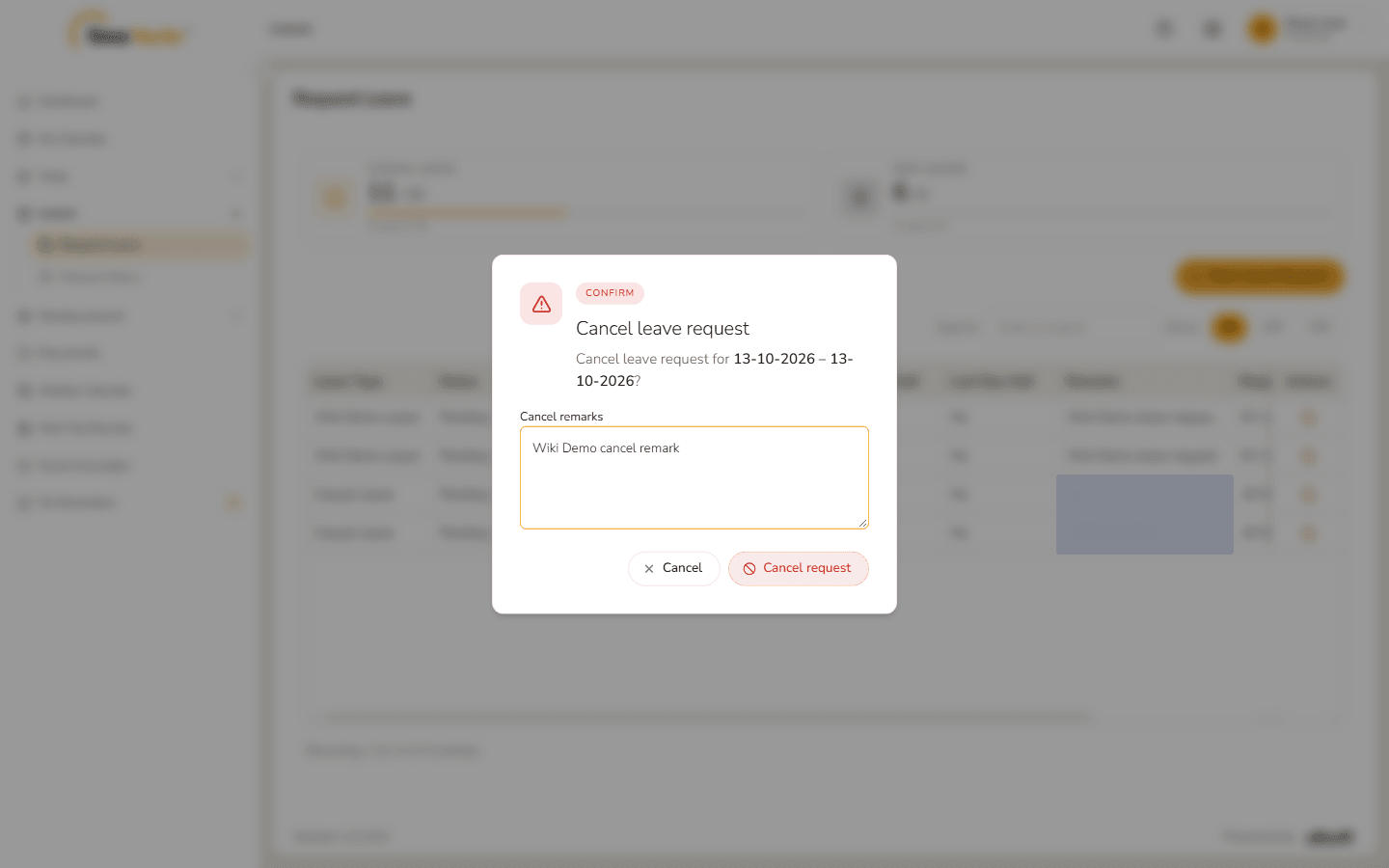
Click the Cancel leave request button in the Actions column of the request. A window asks "Cancel leave request for 13-10-2026 – 13-10-2026?" and has a Cancel remarks box ("Reason for cancelling…"). Cancel request stays pale until you have written a reason.
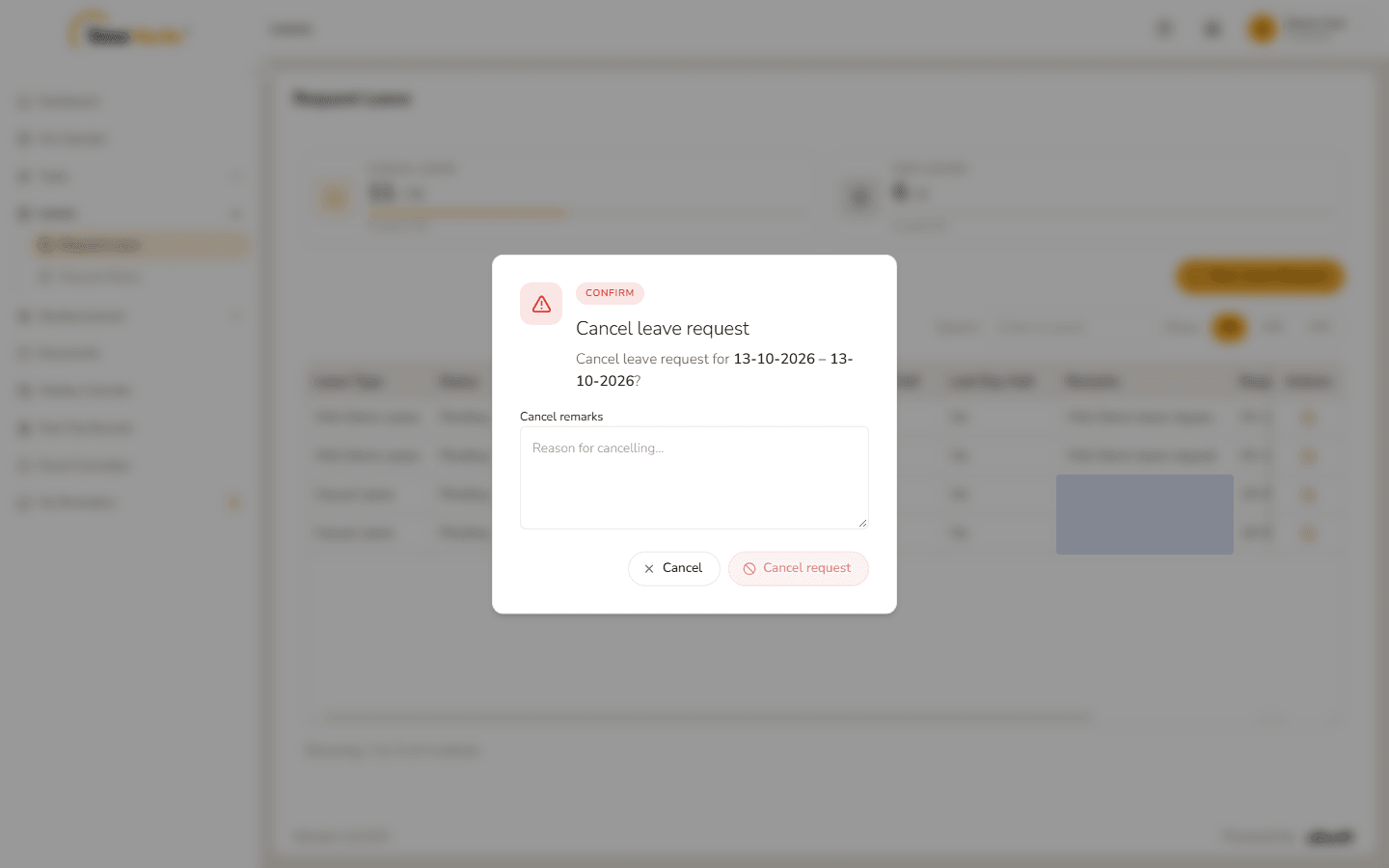
Cancel leave request Type the reason and click Cancel request. (Cancel closes the window and keeps the request.)
Reason written Leave request cancelled – Leave request cancelled successfully. confirms it. Click Got it. The request leaves the table; it stays in Request Status with the status Cancelled.
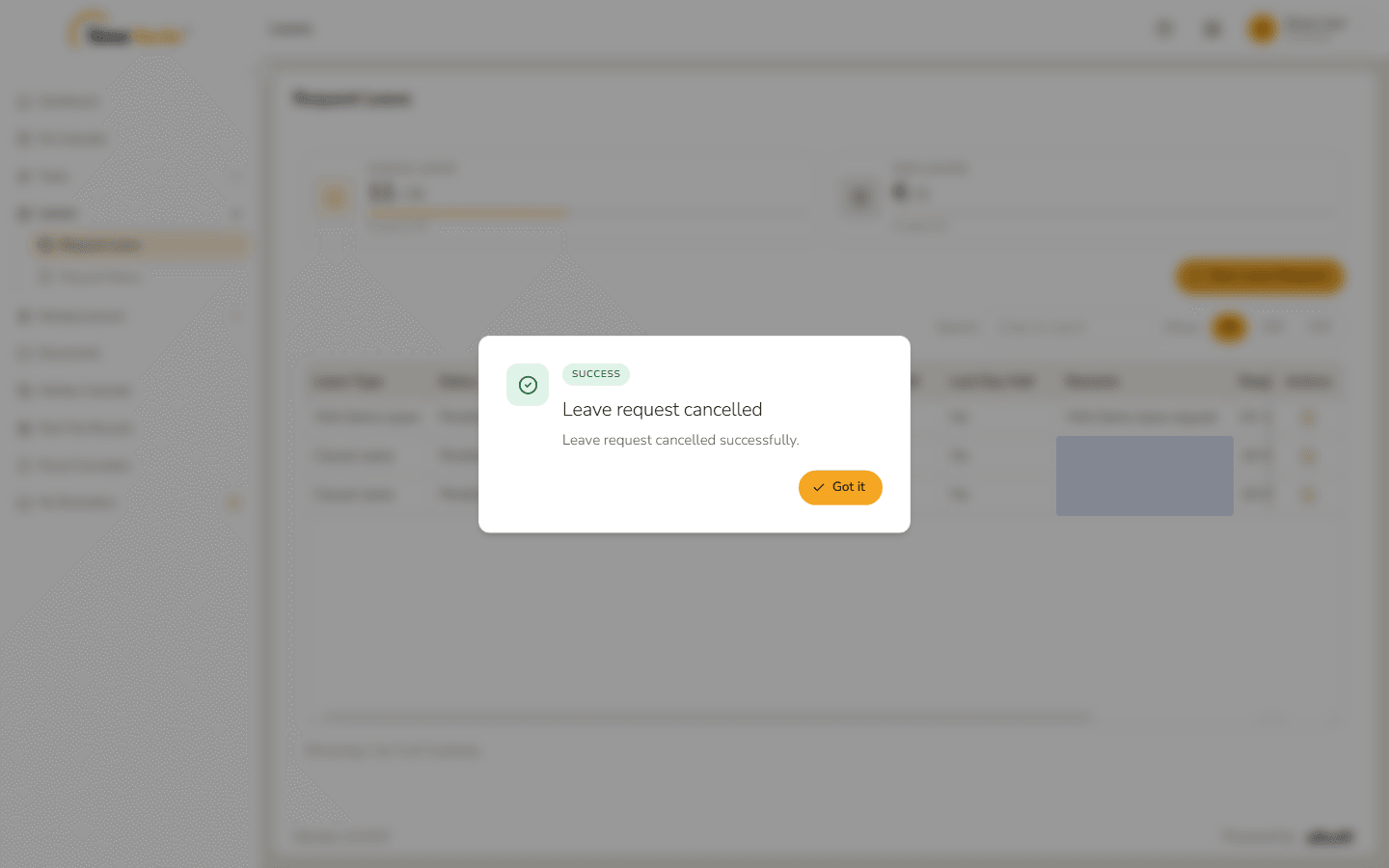
Leave request cancelled
2. Request Status
Where: Employee portal → Leaves → Request Status
Route: /employee/leaves/status
Every leave request you have made, whatever its outcome.
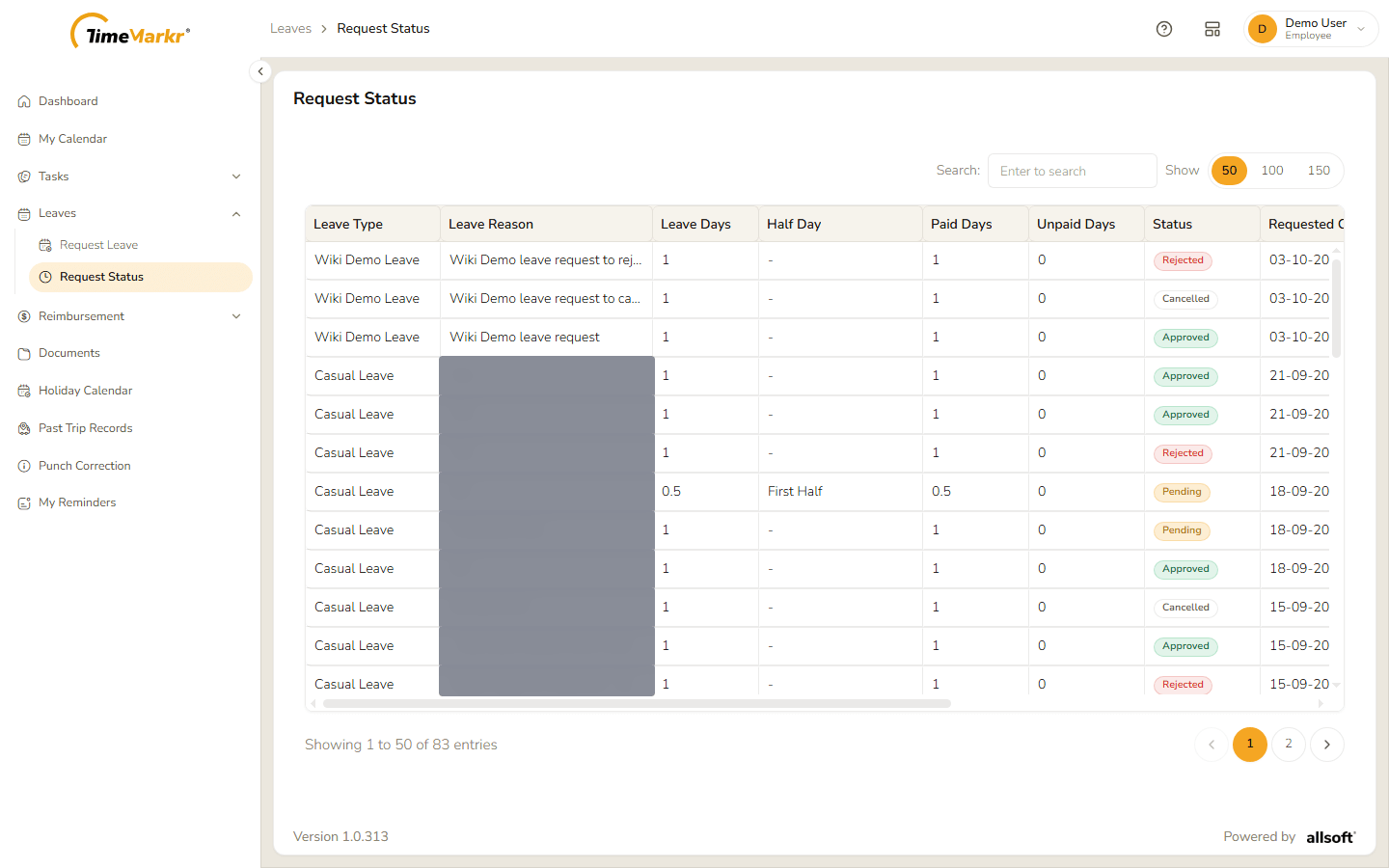
| Column | What it shows |
|---|---|
| Leave Type | The kind of leave. |
| Leave Reason | What you wrote in the request. |
| Leave Days | How many days were asked for. |
| Half Day | Which half, for example First Half, when the request includes a half day – otherwise a dash. |
| Paid Days / Unpaid Days | How many of the days are paid and how many are not. |
| Status | Pending, Approved, Rejected or Cancelled. |
| Requested On | When you sent the request. |
| Approved / Rejected On | When HR decided – a dash until then, and for a request you cancelled. |
Search finds a request; Show 50 / 100 / 150 and the page numbers at the bottom move through a long list.
Related: Leave Requests (admin) · Leaves (admin configuration) · Holiday Calendar