
Company Policies
Where: Admin portal → Configuration → Company Policies
Route: /configuration/company-policies
A catalogue of policy documents. The page lists a ready-made set of statutory and organisational policies – each row is a heading with an Upload button where you attach your own PDF – and you can add policies of your own to the end of the list.
1. The policy list
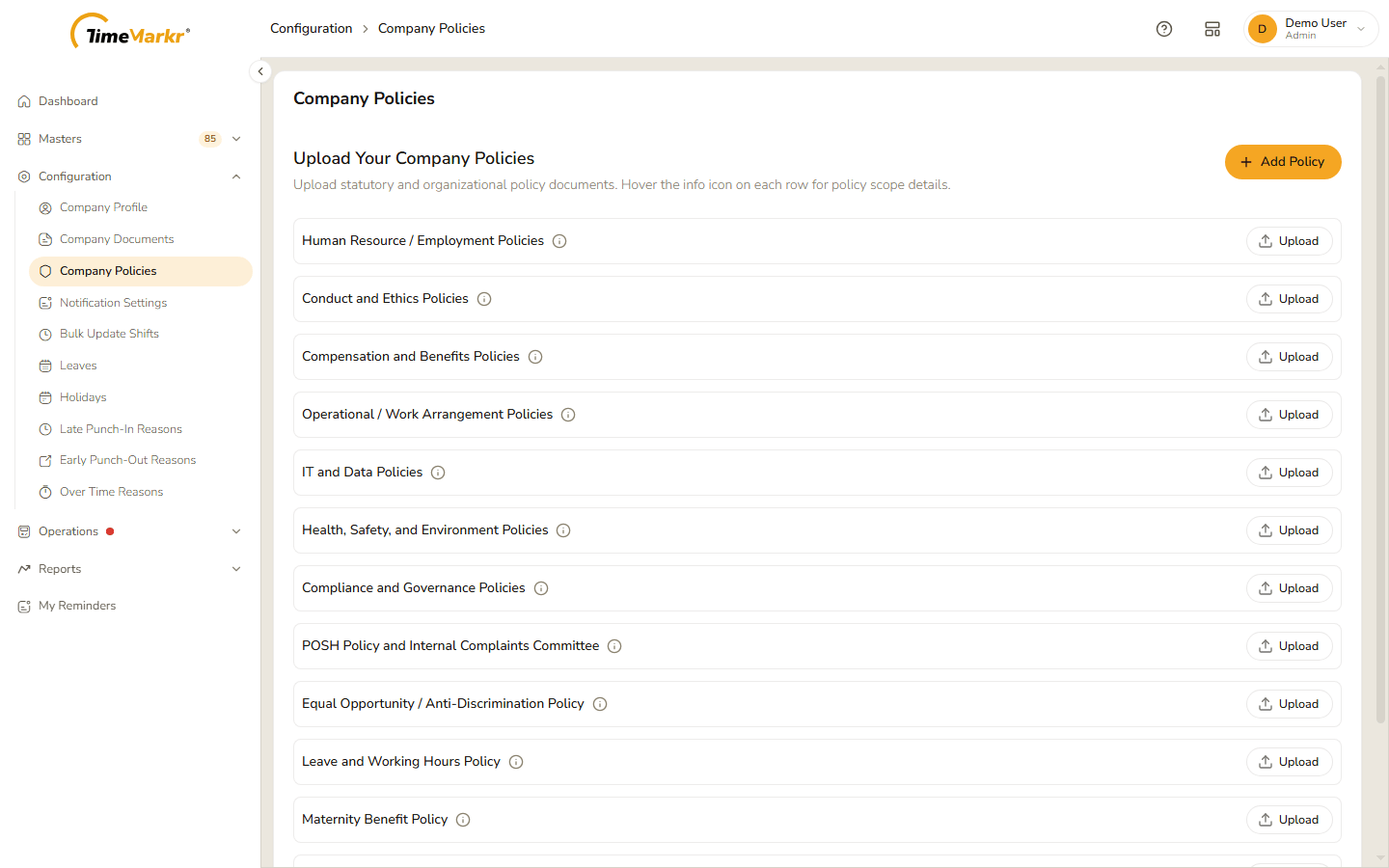
The page says "Upload statutory and organizational policy documents. Hover the info icon on each row for policy scope details." The built-in rows are:
- Human Resource / Employment Policies
- Conduct and Ethics Policies
- Compensation and Benefits Policies
- Operational / Work Arrangement Policies
- IT and Data Policies
- Health, Safety, and Environment Policies
- Compliance and Governance Policies
- POSH Policy and Internal Complaints Committee
- Equal Opportunity / Anti-Discrimination Policy
- Leave and Working Hours Policy
- Maternity Benefit Policy
- Payment of Wages and Salary Structure Policy
- Health and Safety Policy (Statutory)
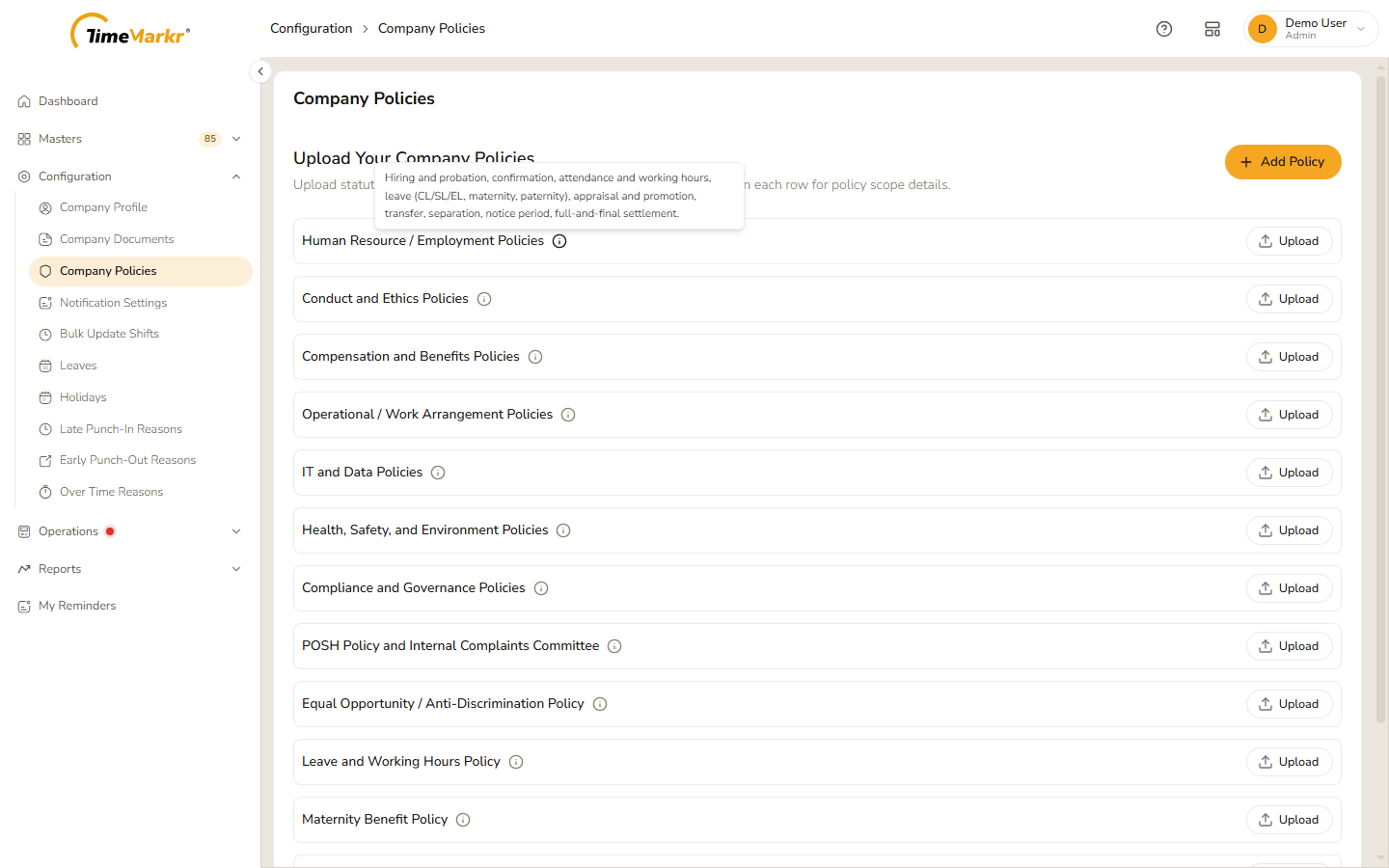
Hover over the i icon beside a title to read what the policy covers.
2. Add your own policy
Click Add Policy.
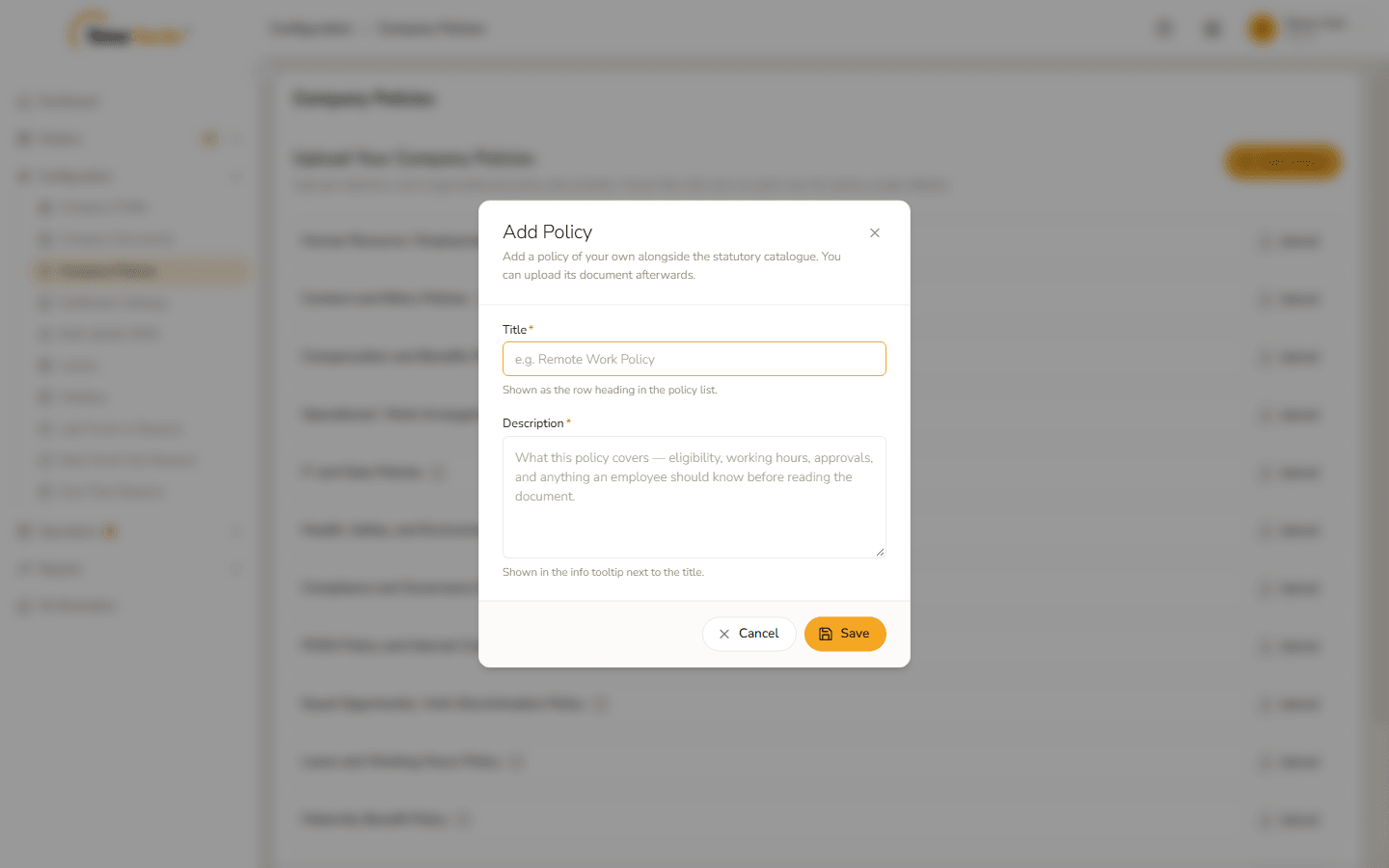
Add Policy form The form says "Add a policy of your own alongside the statutory catalogue. You can upload its document afterwards."
Field Notes Title* Shown as the row heading in the policy list. Description* Shown in the info tooltip next to the title. Clicking Save with both empty shows "Title is required." and "Description is required."
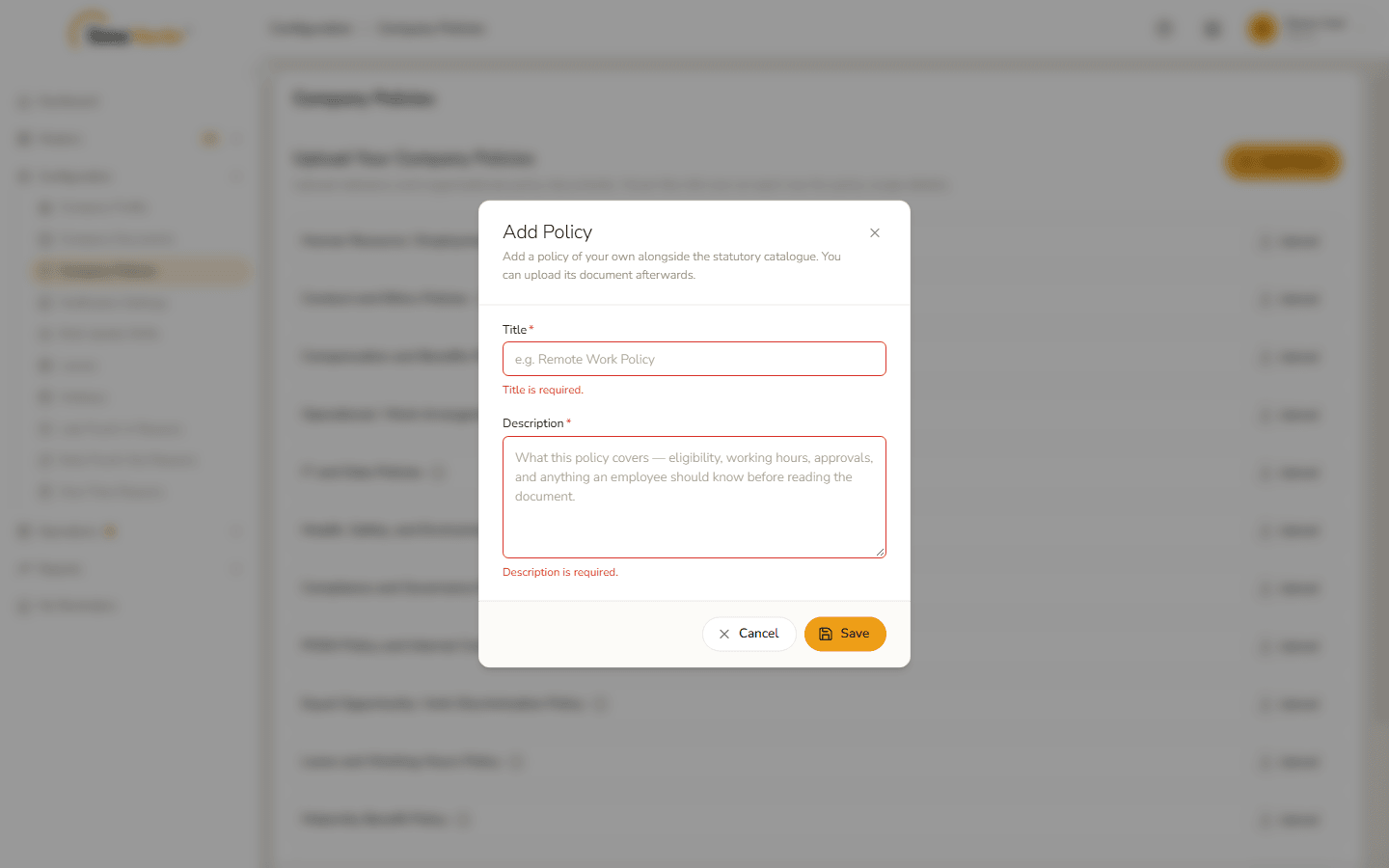
Required-field messages 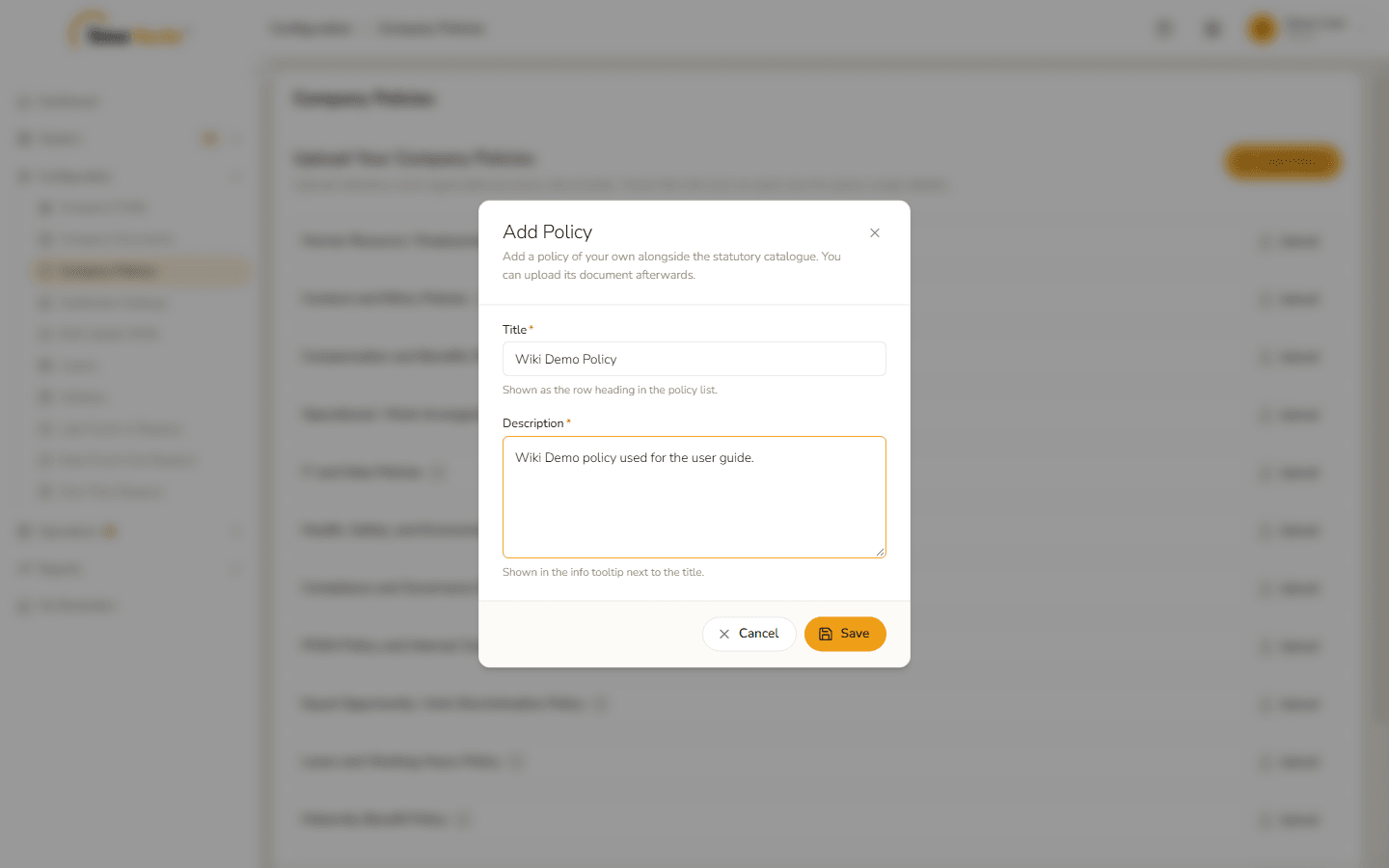
Form filled in Click Save. Policy added – Policy "<title>" added successfully. confirms it. Click Got it.
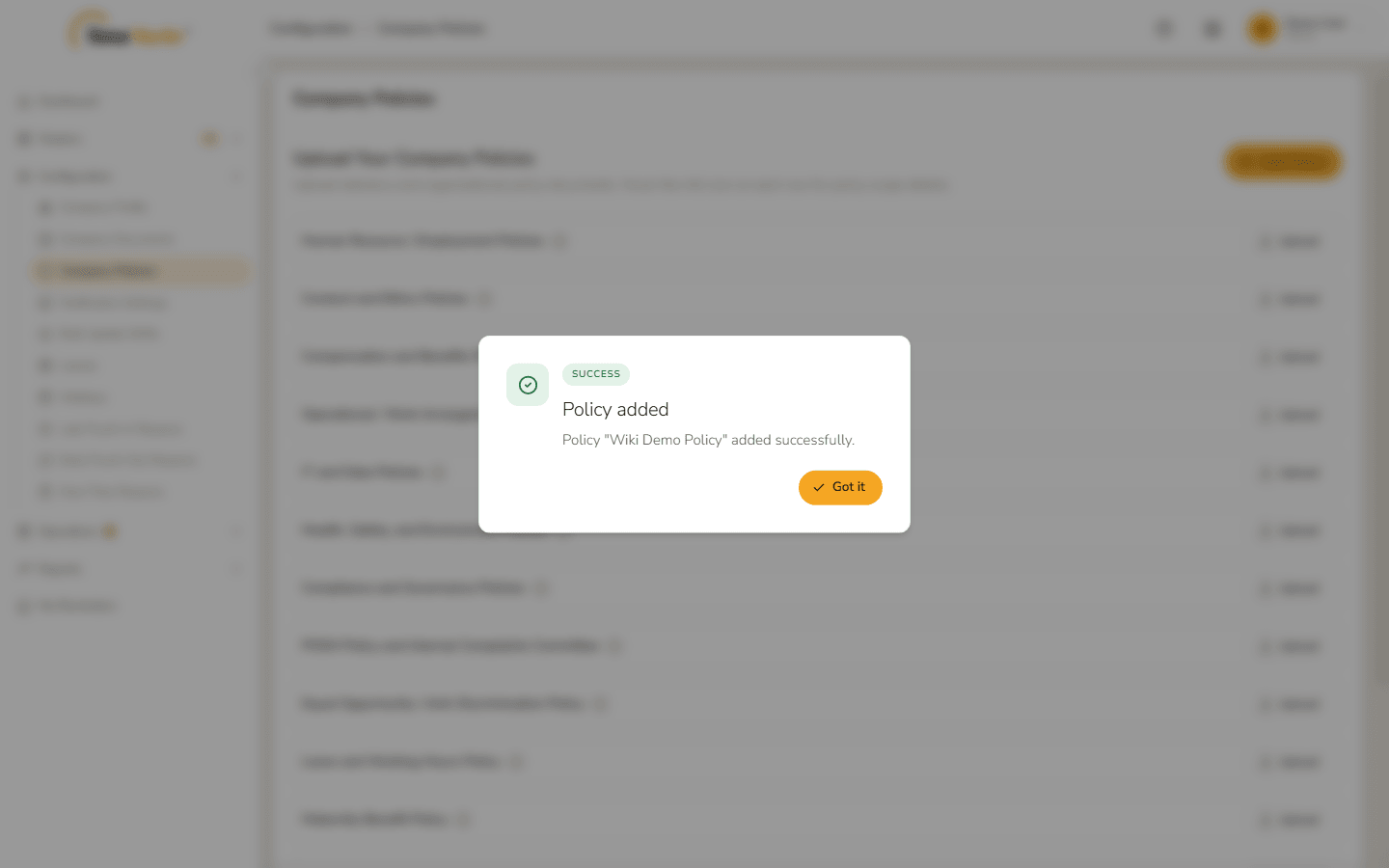
Policy added The new policy is added at the end of the list.
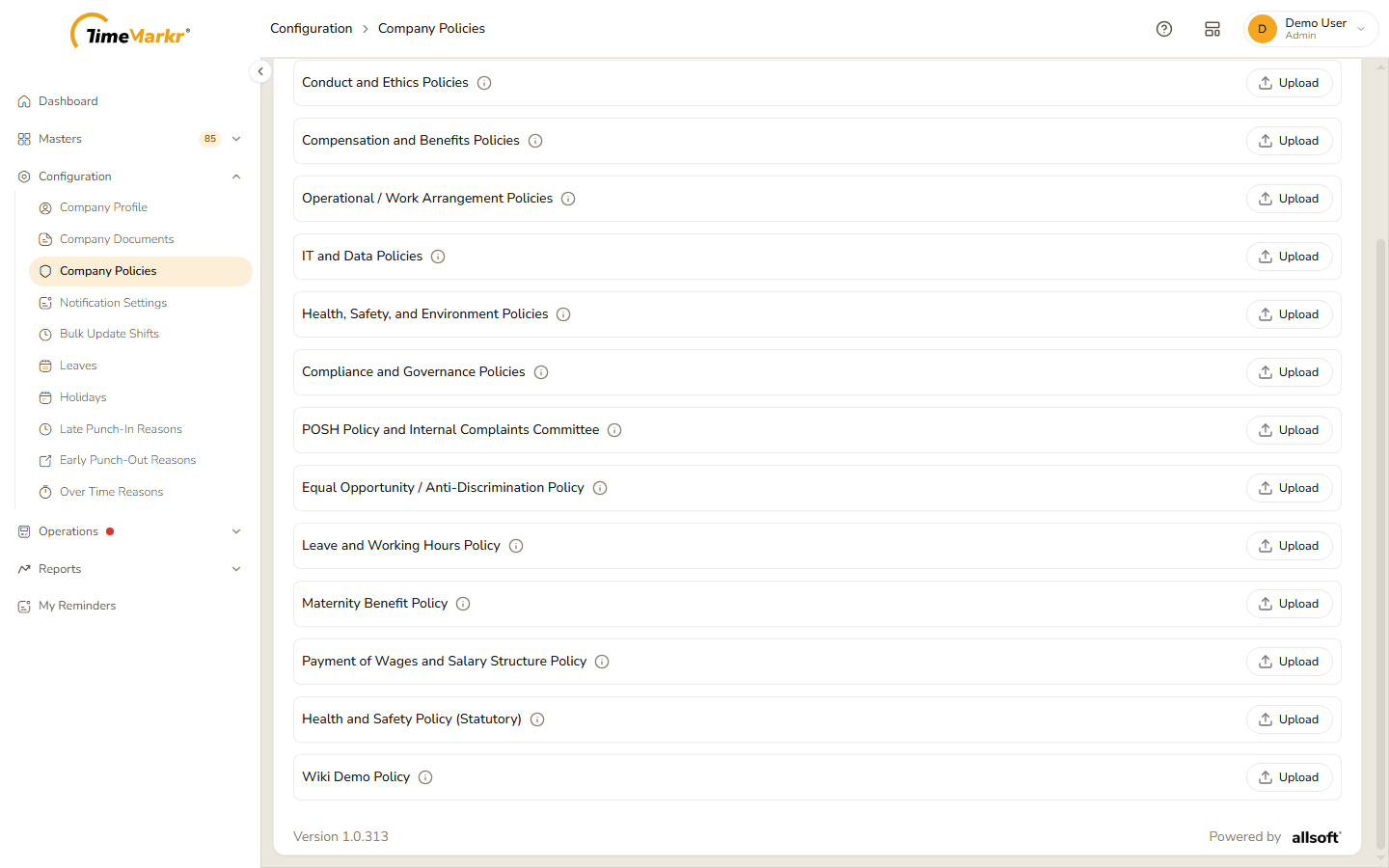
The new policy row
3. Upload a policy document
- Click Upload on the policy's row and choose a file. The page accepts PDF files only.
When the upload is finished a message says Policy document uploaded. Click Got it.
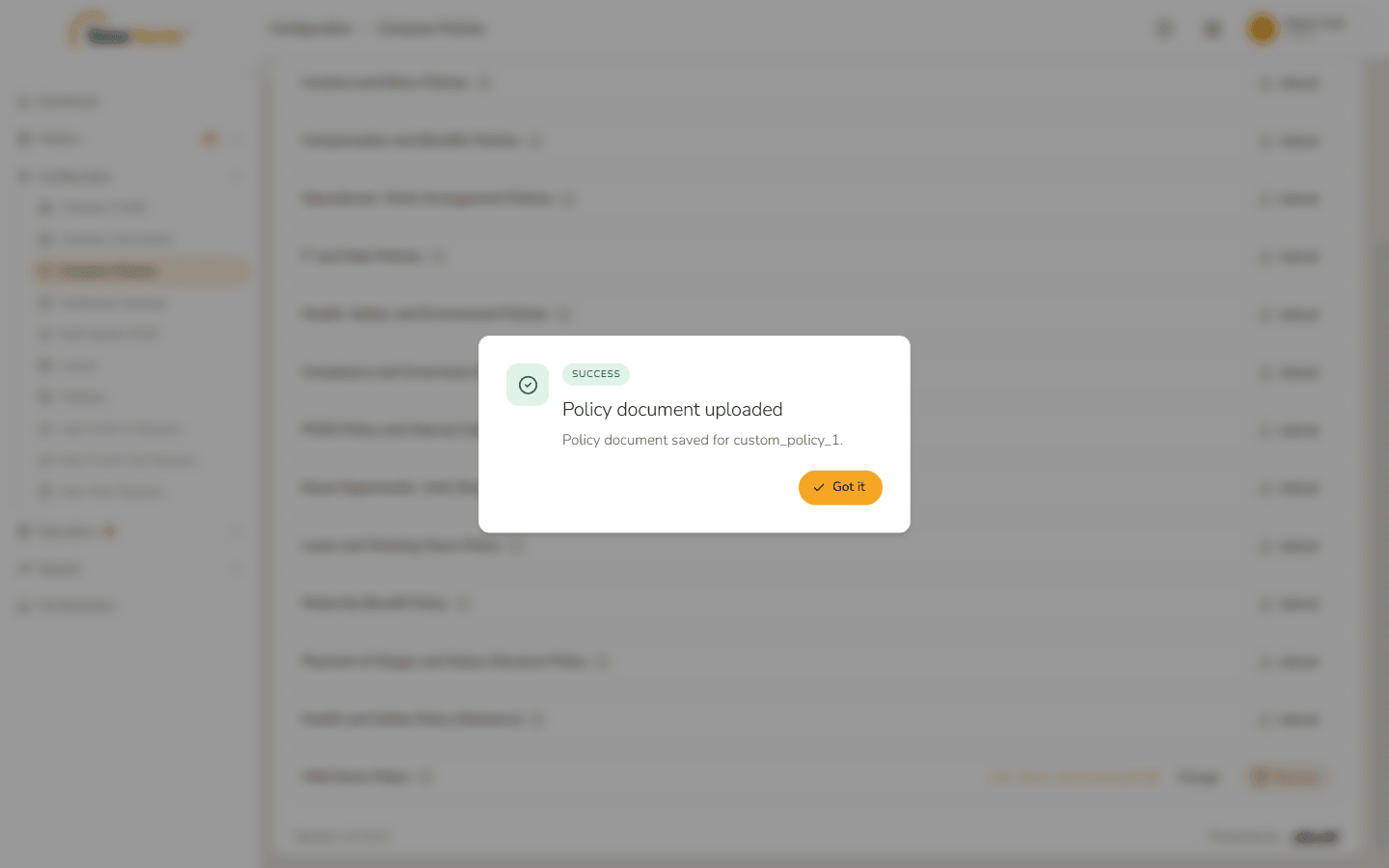
Policy document uploaded The row now shows the file name as a link to the document, with two buttons: Change and Remove.
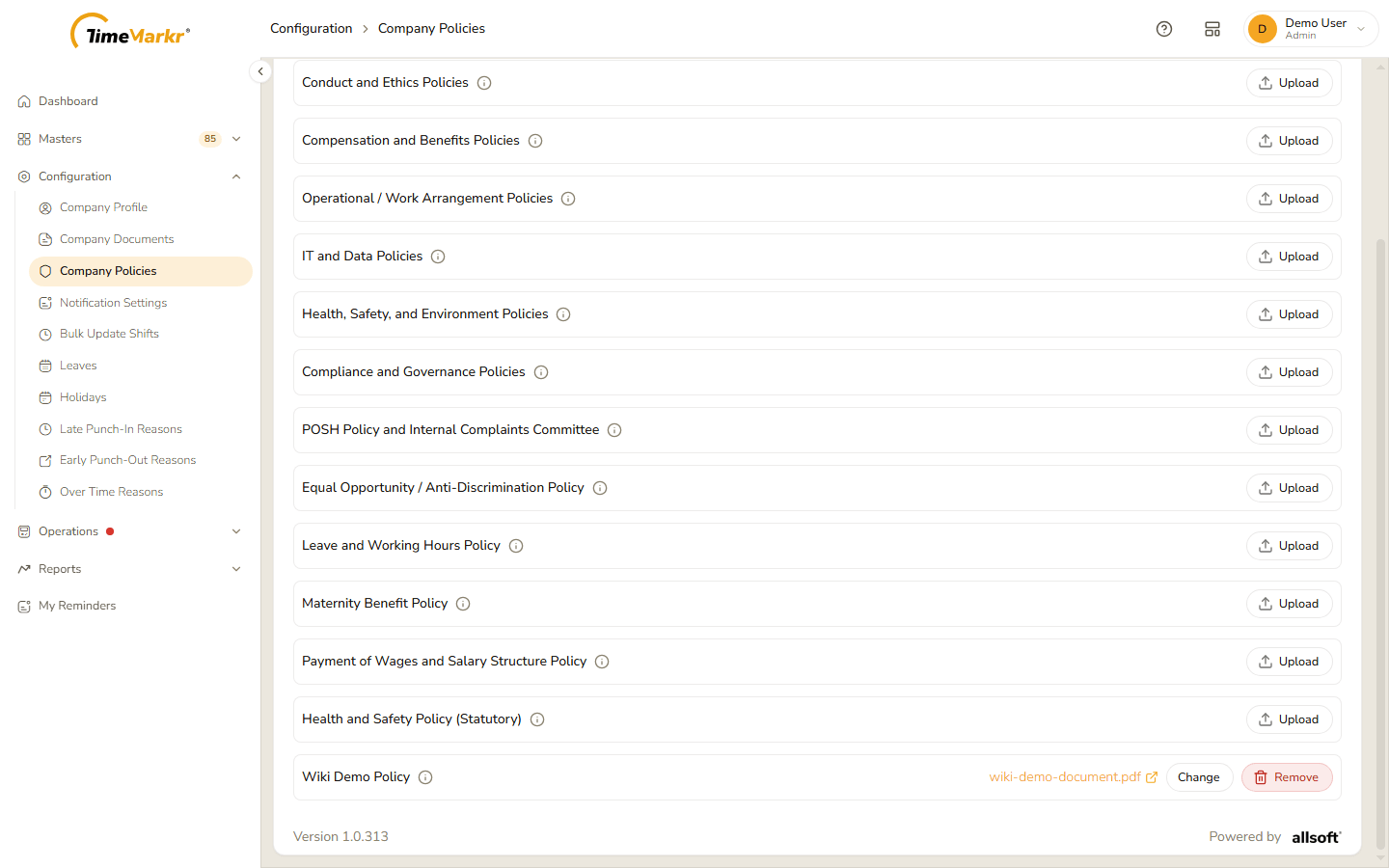
A row with its document Click Change to replace the file with another one.
4. Remove a policy document
Click Remove on the row. The confirmation reads "Are you sure you want to remove <file name>? You can upload a new file for this policy afterwards."
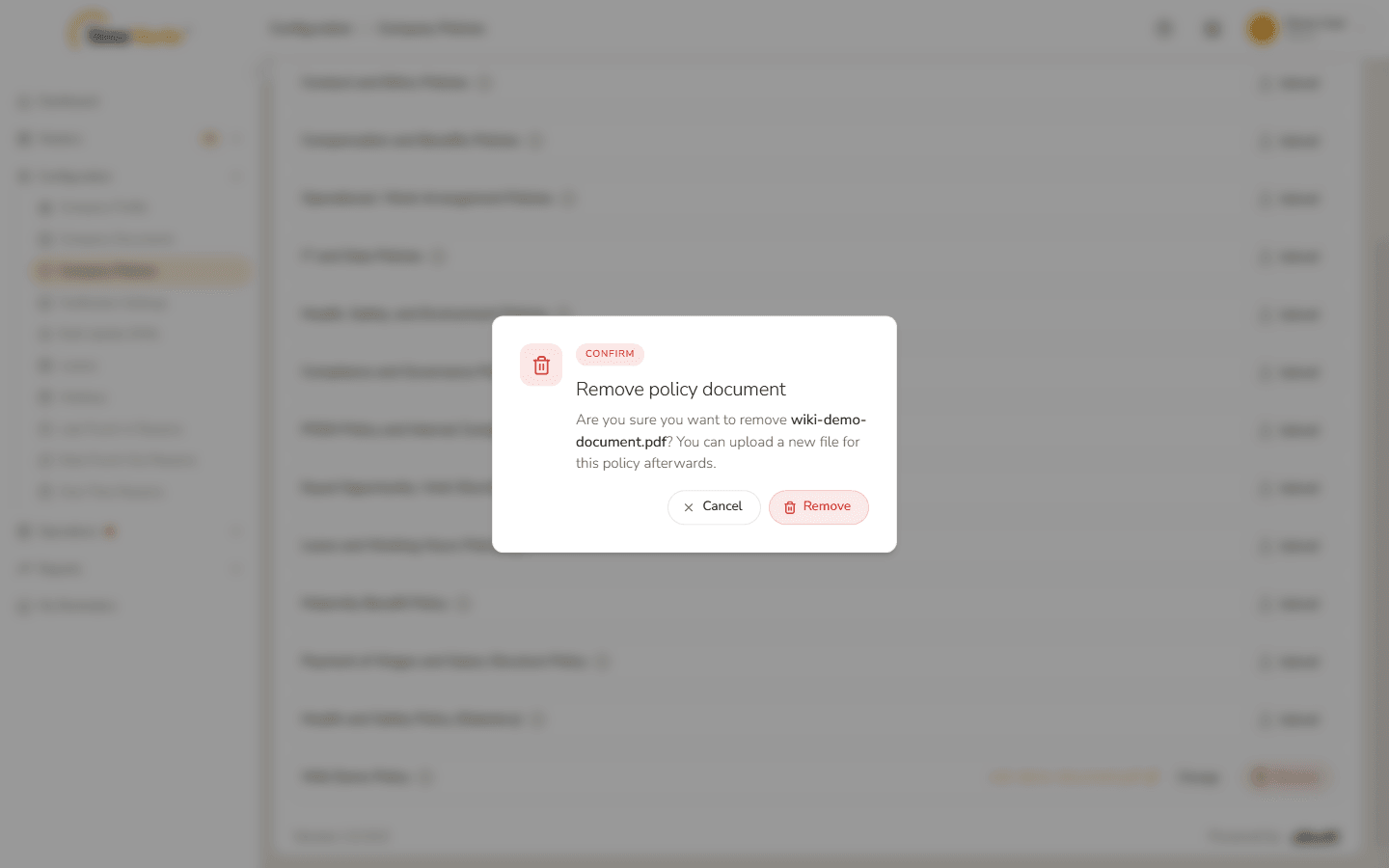
Remove confirmation Click Remove. Policy document removed confirms it. Click Got it; the row goes back to showing Upload.
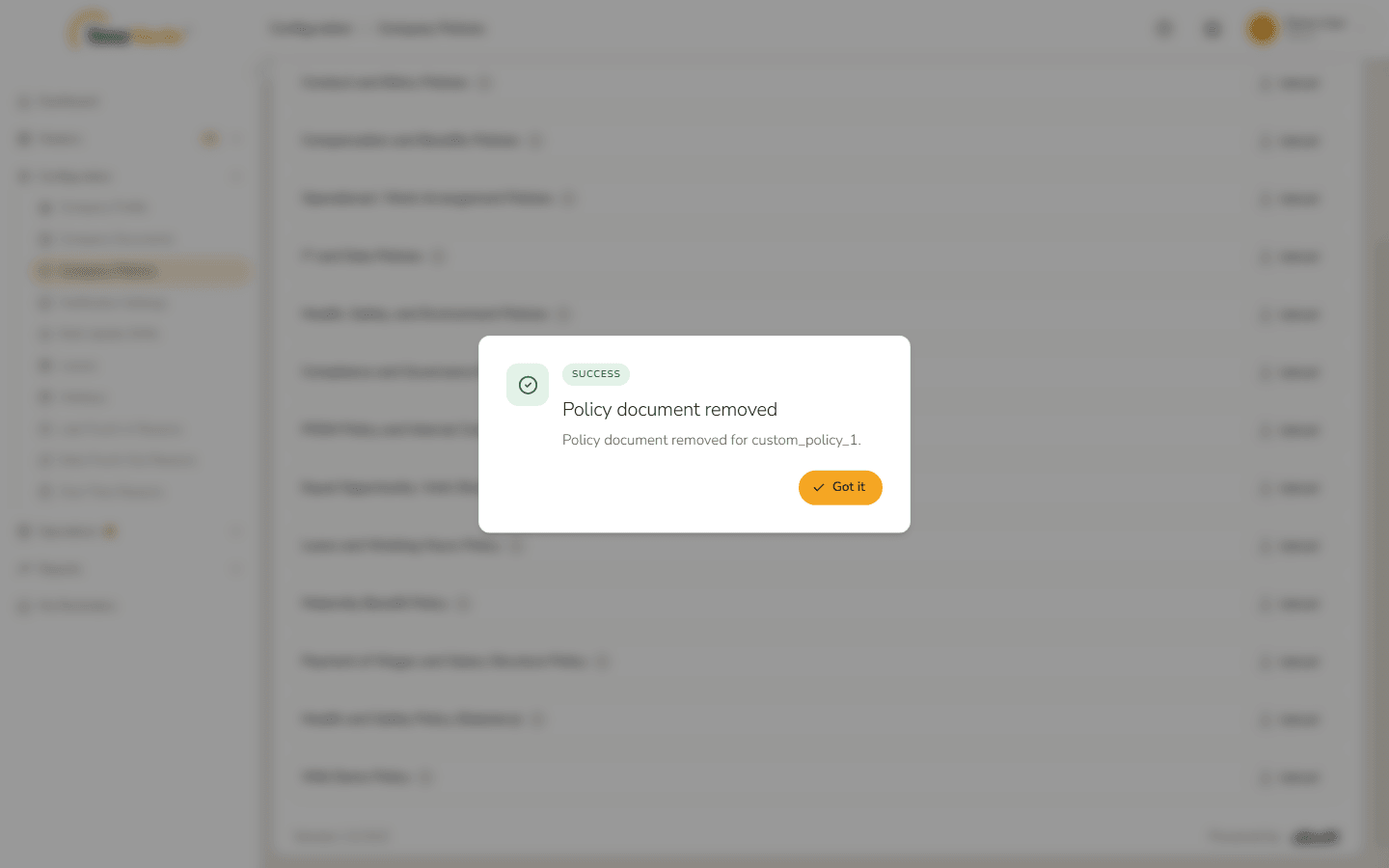
Policy document removed
A policy you added yourself stays in the list after its document is removed – the page has no way to edit or delete the policy itself.
Related: Company Documents · Company Profile