
QR Sign-ins
Where: Employee portal → QR Sign-ins
Route: /employee/qr-sign-ins
A record of every time a computer asked to sign in to your account with a QR code and what you answered on your phone. Use it to check that nobody signed in as you without your knowledge. How the QR sign-in itself works is described in Signing in.
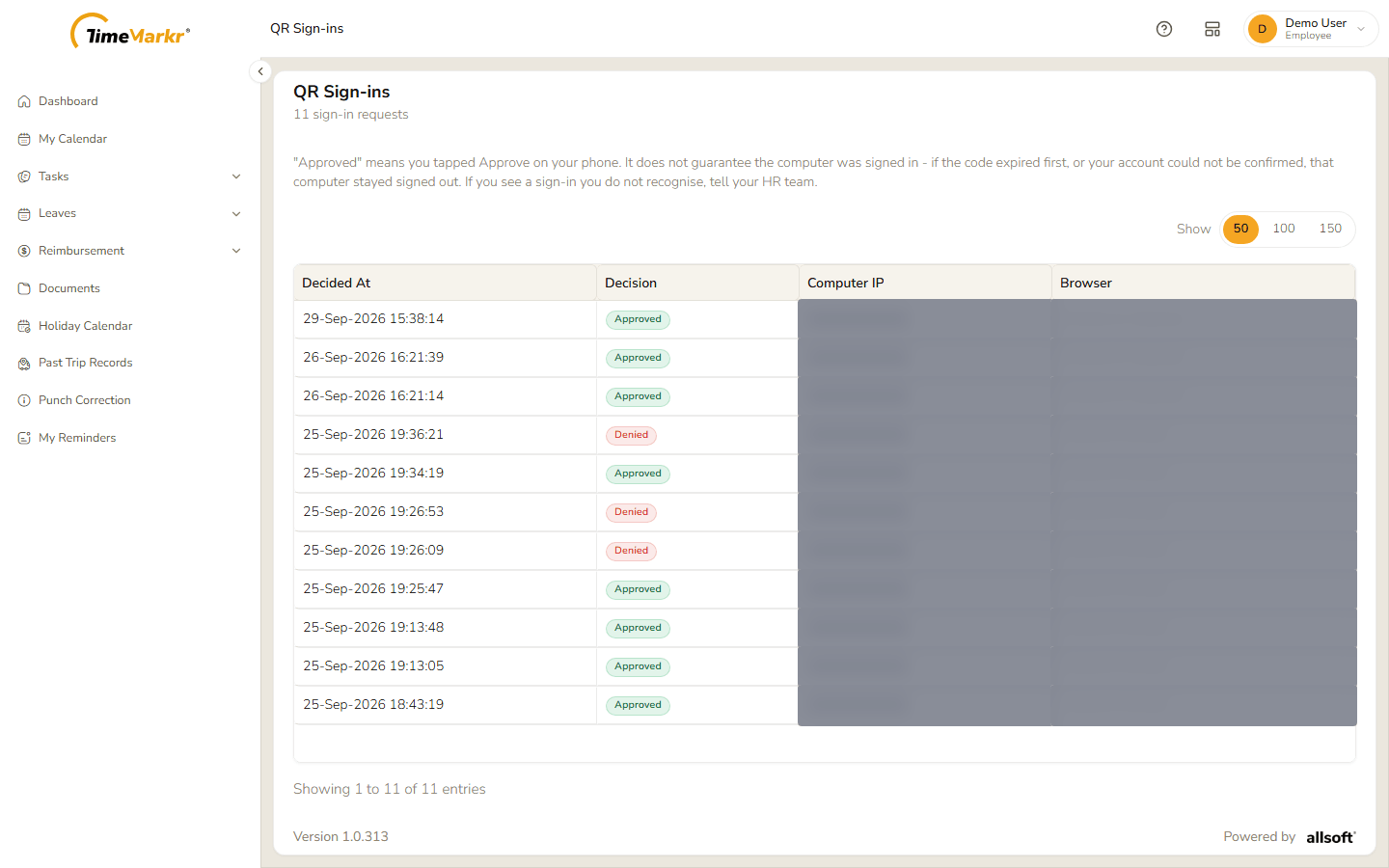
The line under the heading counts the requests – 11 sign-in requests. A note explains how to read the list:
"Approved" means you tapped Approve on your phone. It does not guarantee the computer was signed in – if the code expired first, or your account could not be confirmed, that computer stayed signed out. If you see a sign-in you do not recognise, tell your HR team.
| Column | What it shows |
|---|---|
| Decided At | When you answered on your phone. |
| Decision | Approved (green) or Denied (red). |
| Computer IP | The network address of the computer that asked to sign in. |
| Browser | The browser and system of that computer, for example Chrome on Windows, or Unknown browser. |
Show 50 / 100 / 150 chooses how many rows to see. If a row is not yours, tell your HR team.
Related: Signing in · Your account menu