
Company Profile
Where: Admin portal → Configuration → Company Profile (also My Profile in the user menu when you are signed in as an admin)
Route: /configuration/company-profile
Your company's own details: its name, address, contact numbers and the contact details of your HR manager. The page opens in view mode and nothing can be changed until you click Edit Profile.
Company, address, phone and email values are blurred in the screenshots.
1. View the profile
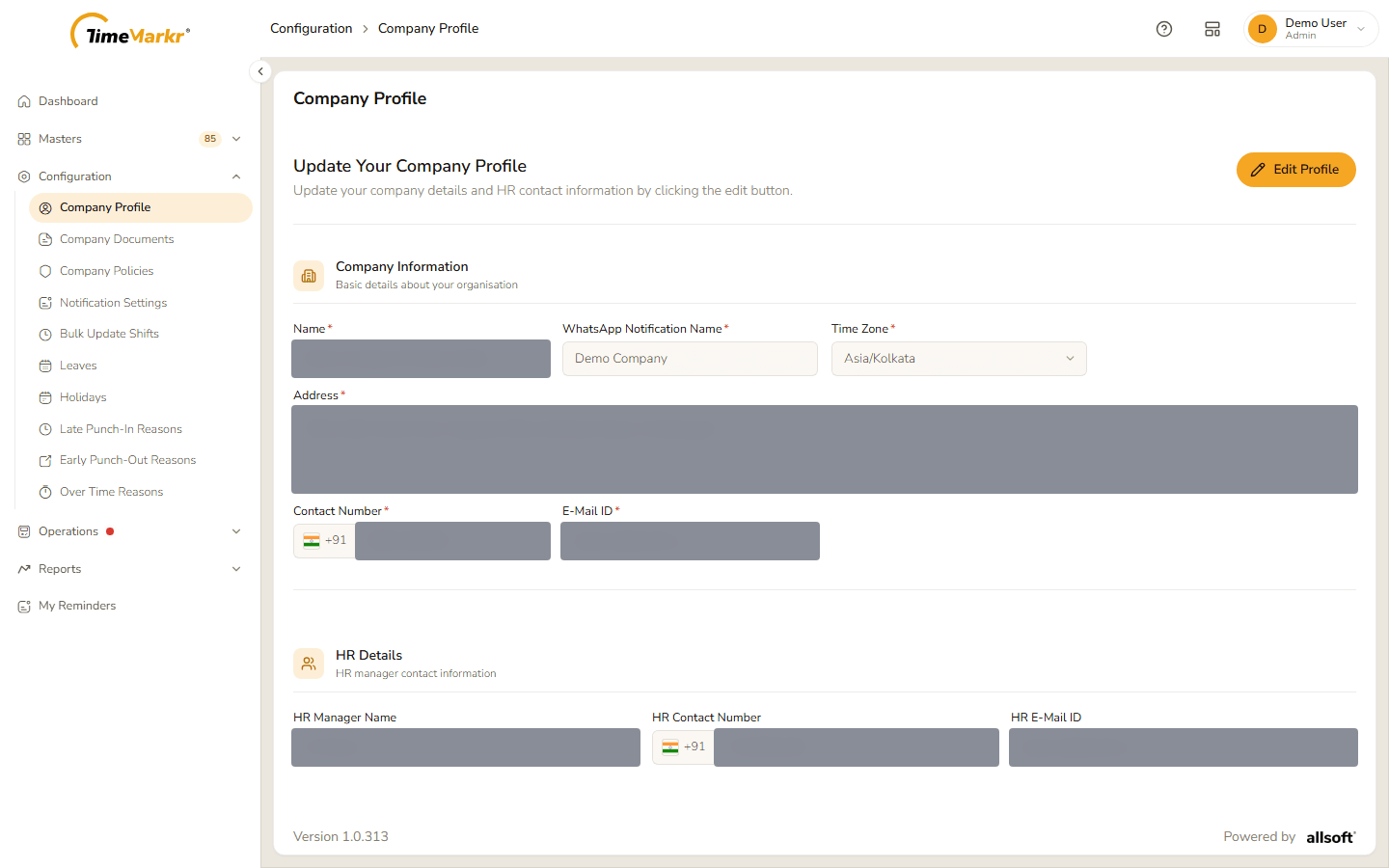
The page has two sections.
| Section | Fields |
|---|---|
| Company Information – Basic details about your organisation | Name*, WhatsApp Notification Name*, Time Zone* (a list of places with their UTC offset; the account shown uses Asia/Kolkata), Address*, Contact Number*, E-Mail ID* |
| HR Details – HR manager contact information | HR Manager Name, HR Contact Number, HR E-Mail ID |
2. Edit the profile
Click Edit Profile. The fields become editable and a bar appears at the bottom of the page with Cancel and Save Changes.
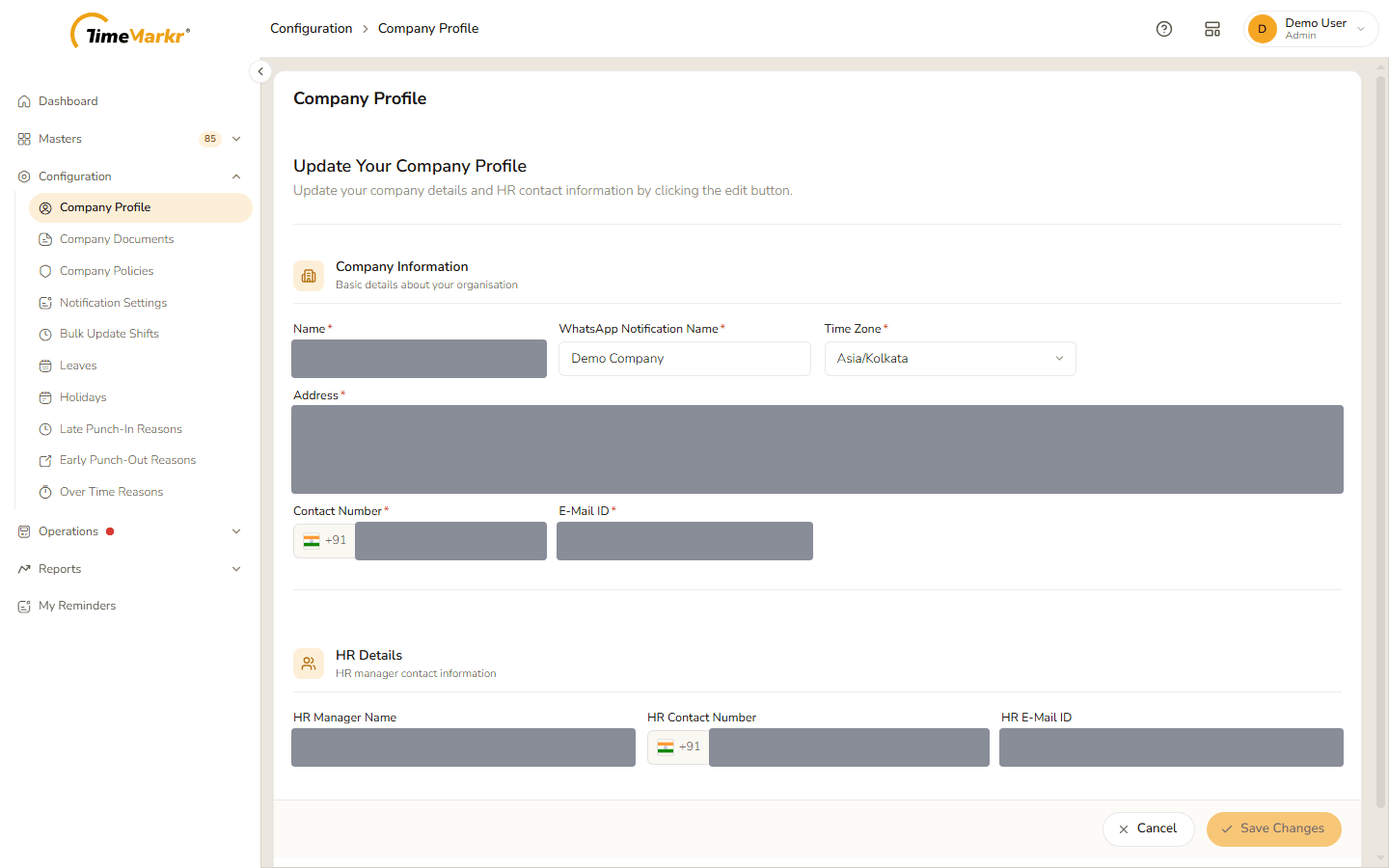
Company Profile in edit mode Change the fields you need. Save Changes stays switched off until you actually change something. The bar at the bottom counts your edits – "1 unsaved change" after one field.
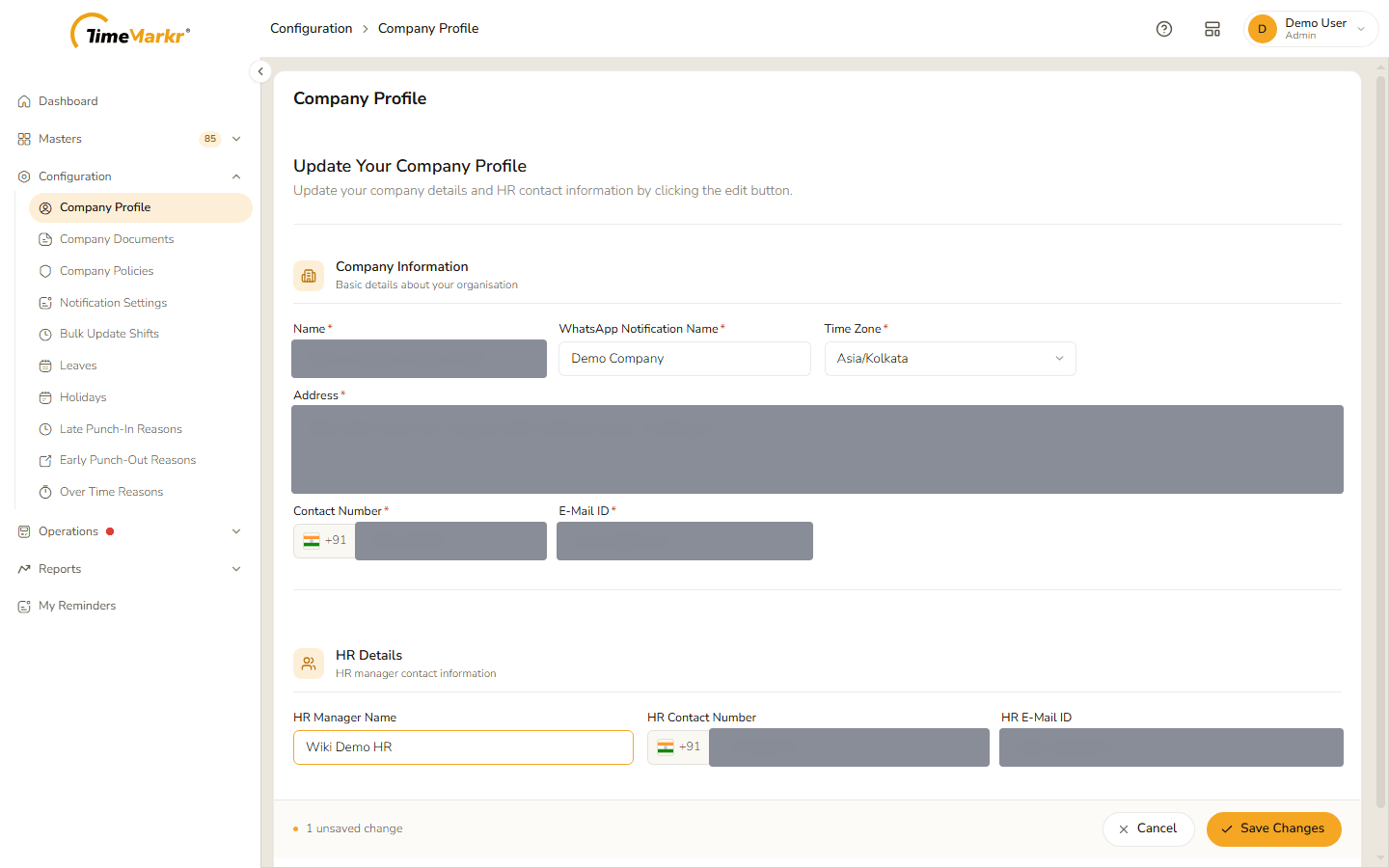
One unsaved change - Click Save Changes to keep the edits or Cancel to discard them and return to view mode.
Related: Setup Wizard · Notification Settings · Holidays