
Your account menu
The round button with your initial and your name, at the top right of every page, opens your account menu.
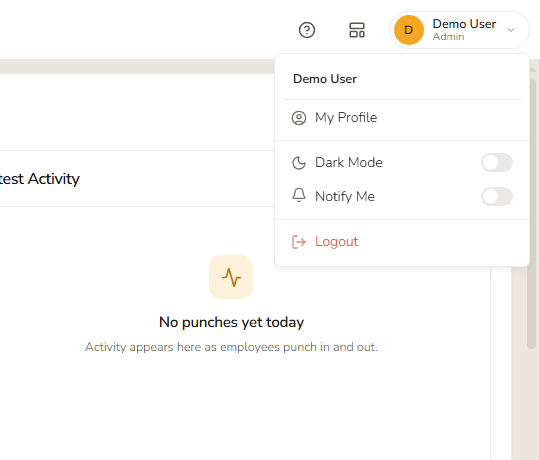
| Item | What it does |
|---|---|
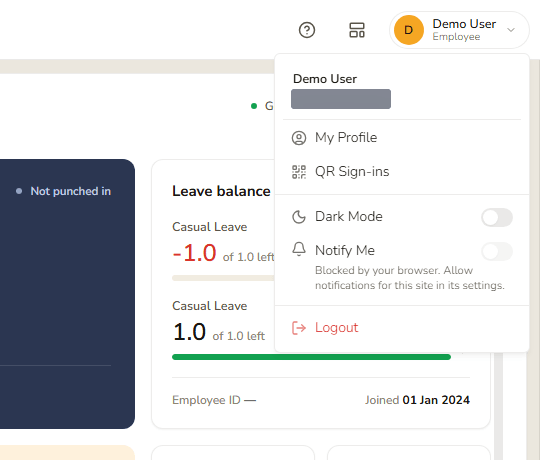
| Name (and e-mail) | Who you are signed in as. An employee's menu also shows their e-mail address. |
| My Profile | Opens your profile – for an employee My Profile; for an admin Company Profile. |
| QR Sign-ins | Employees only. Opens the list of QR sign-ins made to your account. |
| Dark Mode | A switch. On, the whole application uses a dark look; off, the light look. Your choice is remembered in this browser. |
| Notify Me | A switch for browser notifications from TimeMarkr. The browser must allow notifications for the site; if it has blocked them, the switch is greyed out and says "Blocked by your browser. Allow notifications for this site in its settings." |
| Logout | Signs you out at once and returns you to the sign-in page. |
Dark mode
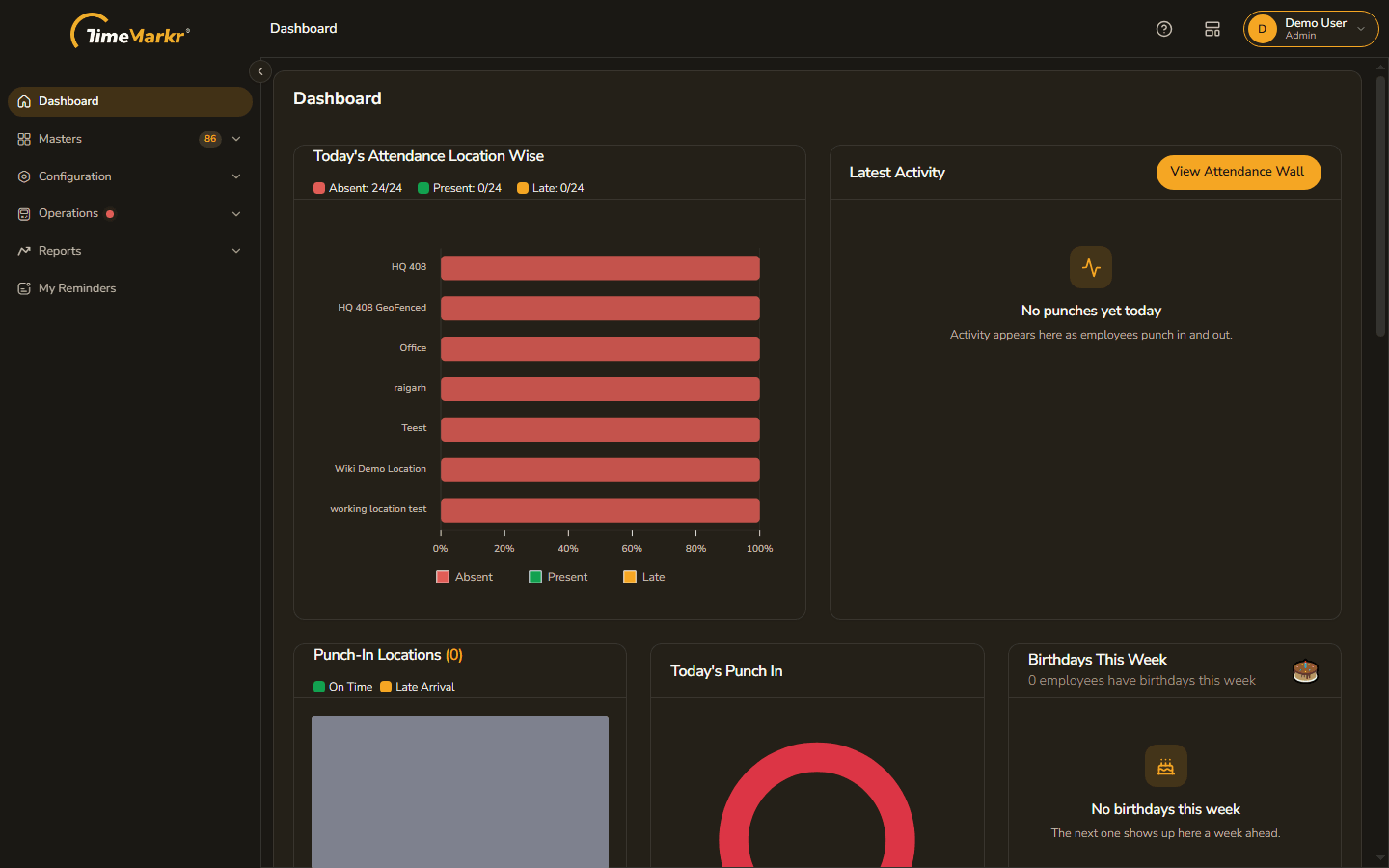
Switch Dark Mode on and every page changes to dark backgrounds with light text; the amber accent stays.
Notifications
Browser notifications also matter for My Reminders: the reminders page says "Reminders reach this tab while it is open. Turn on browser notifications and they reach you when it is not." Which events HR sends to employees is set under Notification Settings.
Related: Signing in · Finding your way around