
Punch Correction
Where: Employee portal → Punch Correction
Route: /employee/punch-correction
Use this page when your attendance for a day is wrong or missing – you forgot to punch in or out, the network dropped, or the punch was never saved – and you want HR to put it right. You pick the day, say which punch needs correcting and what the time should be, and HR approves or rejects the request. The page also lists every request you have raised.
1. The page
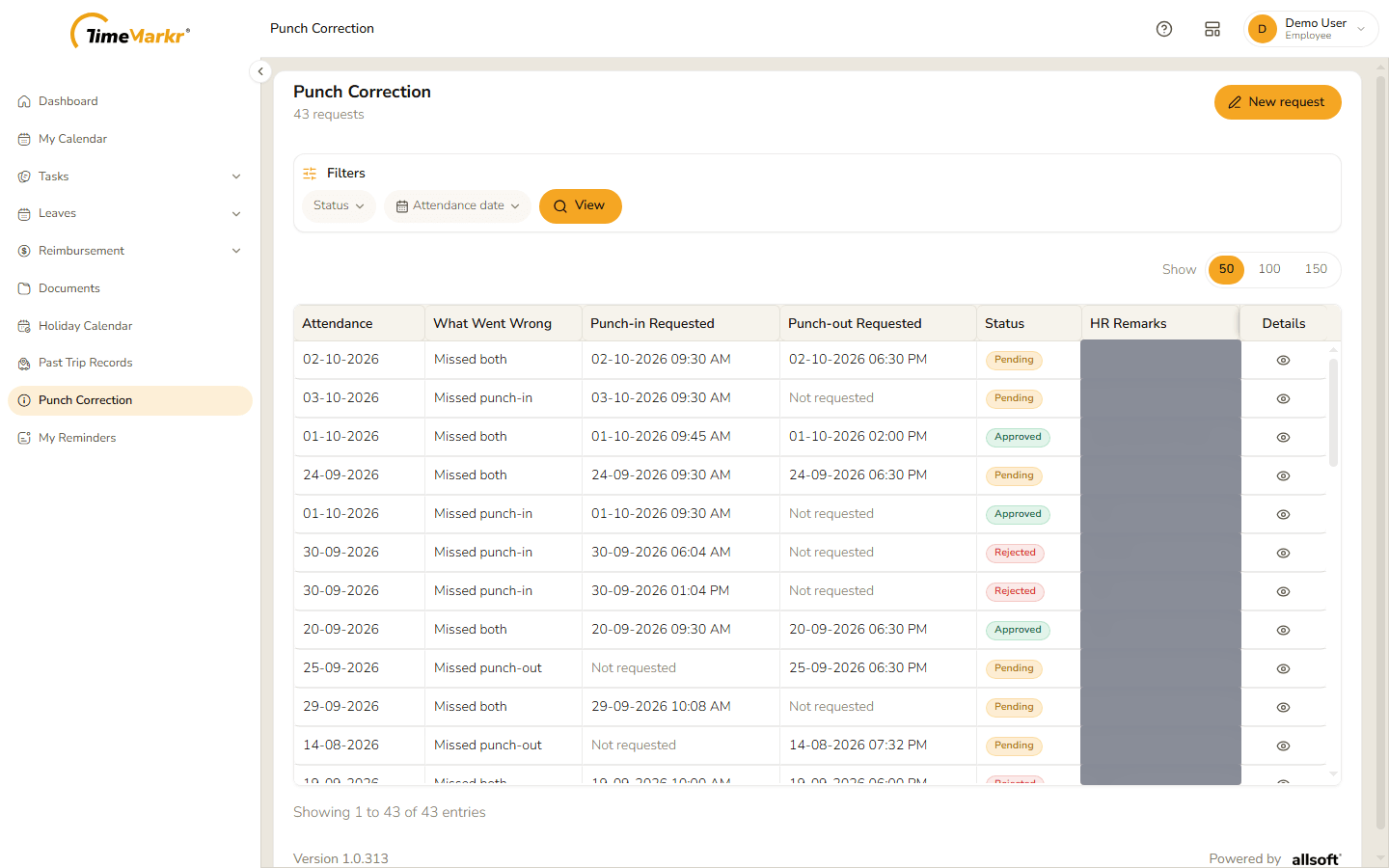
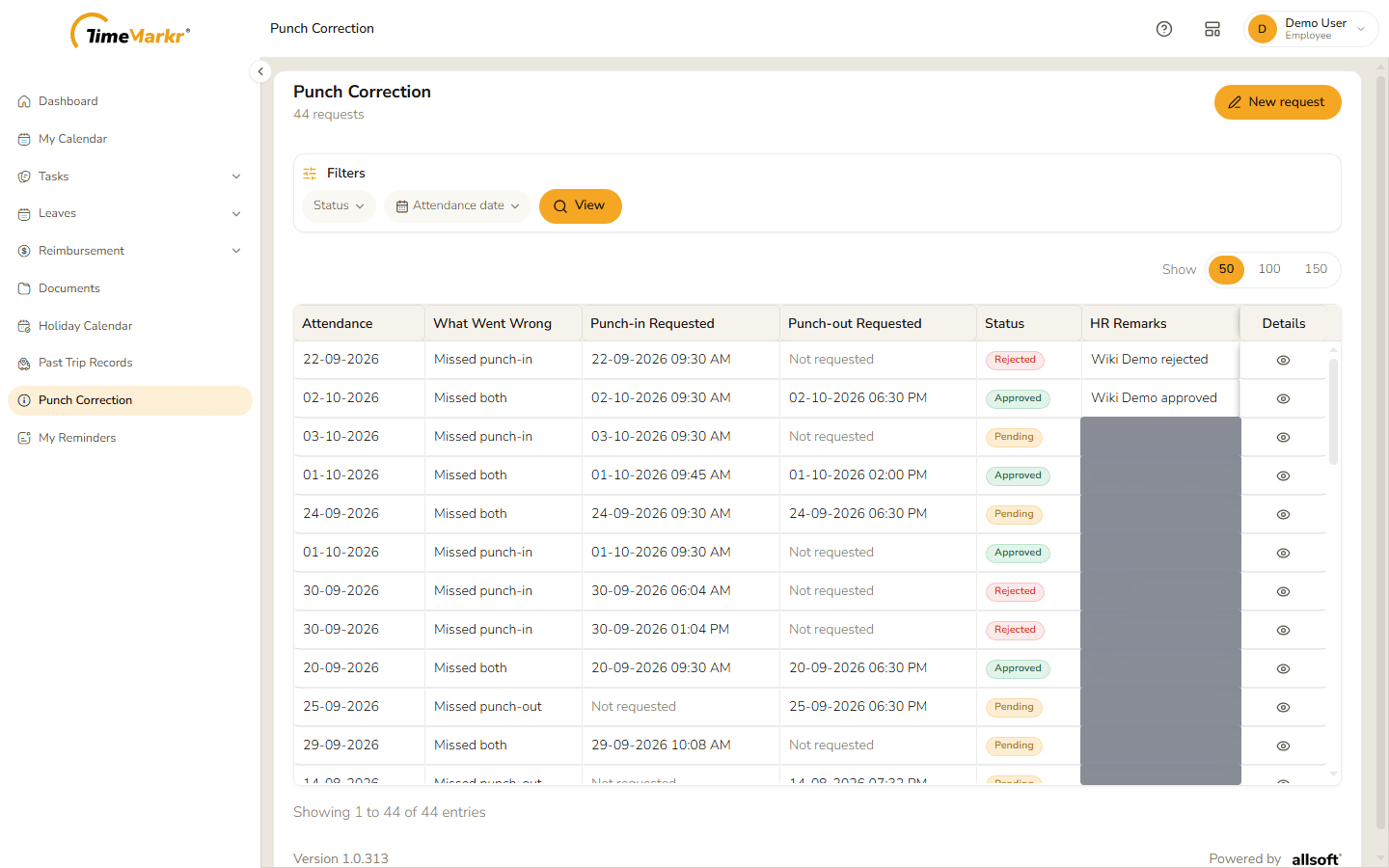
The line under the heading counts your requests ("43 requests"). New request starts a correction. Each row is one request:
| Column | What it shows |
|---|---|
| Attendance | The day being corrected. |
| What Went Wrong | Missed punch-in, Missed punch-out or Missed both, depending on the punches you ticked. |
| Punch-in Requested / Punch-out Requested | The times you asked for. Not requested means you did not correct that punch. |
| Status | Pending (waiting for HR), Approved, Rejected or Cancelled. |
| HR Remarks | What HR wrote when they handled the request. |
| Details | The eye icon opens the request (see Open a request). |
Use Show 50 / 100 / 150 to choose how many rows to see.
Filter the list
Status offers All statuses, Pending, Approved, Rejected and Cancelled.
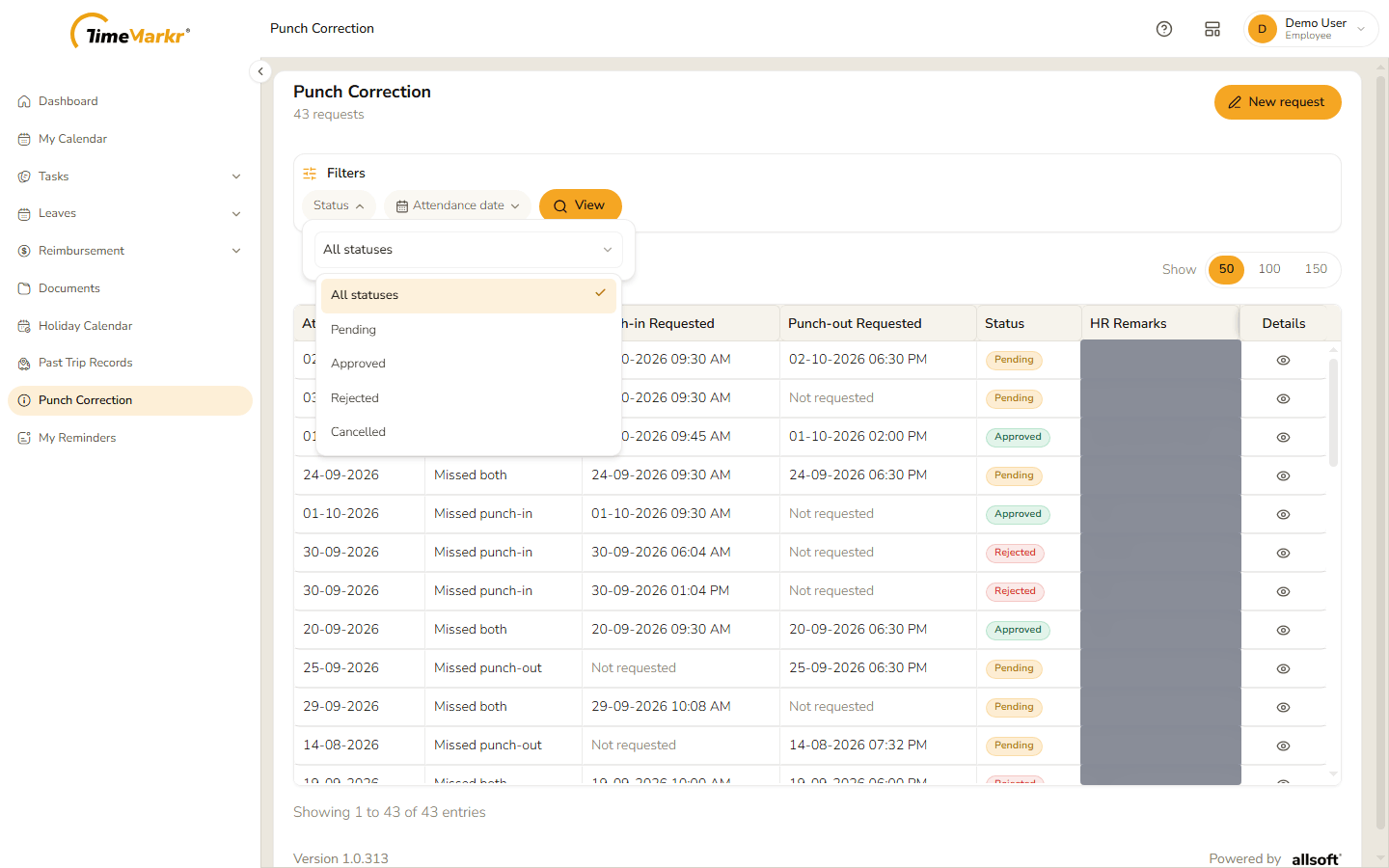
The Status filter Attendance date takes a from and a to date. It says "The days being corrected — not the day you raised the request. Leave a box empty for no limit. Press View to apply."
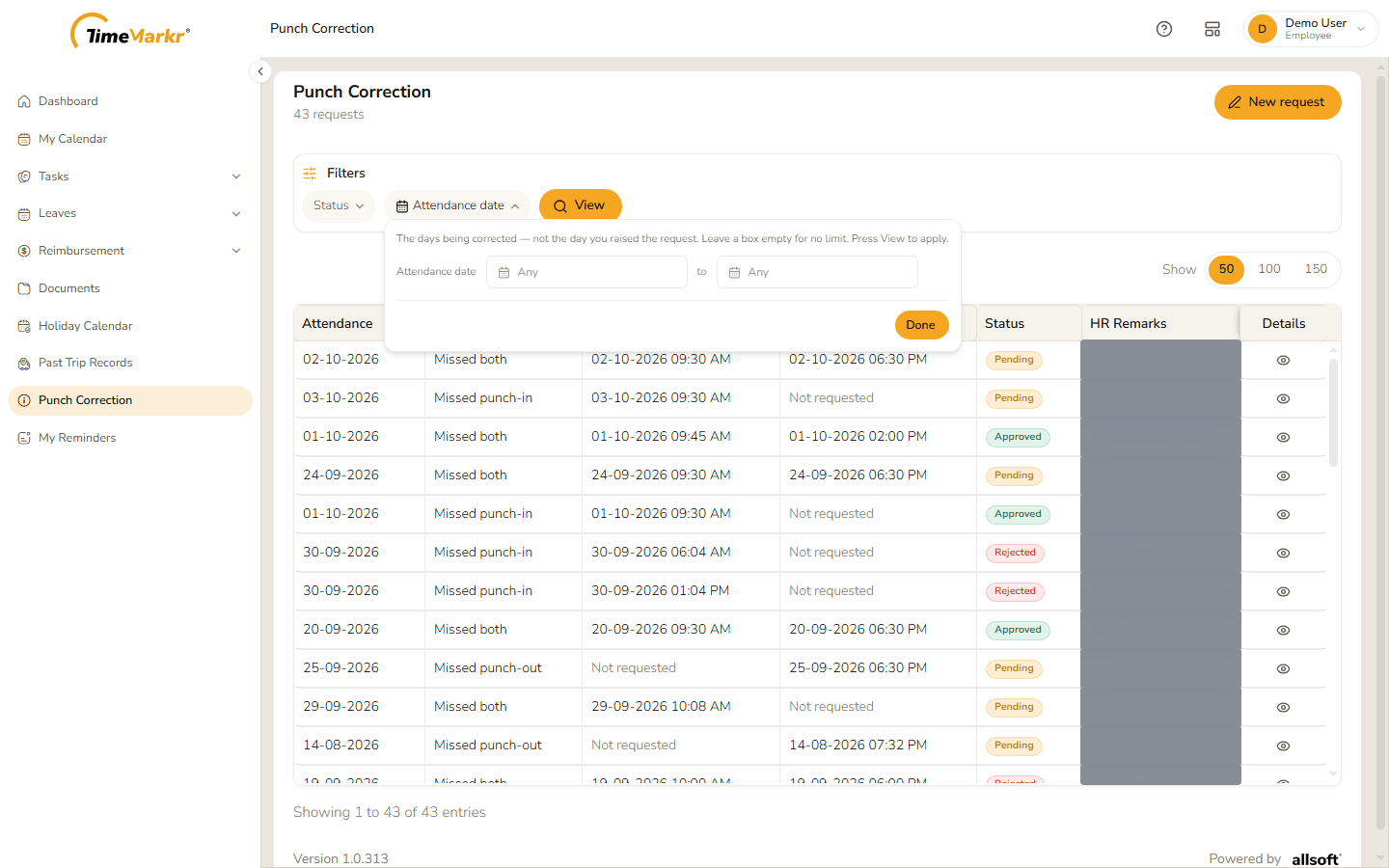
The Attendance date filter
Click View to apply what you chose.
2. Ask for a correction
Click New request. New Punch Correction – Ask HR to correct a punch on one attendance day opens with a calendar of the current month.
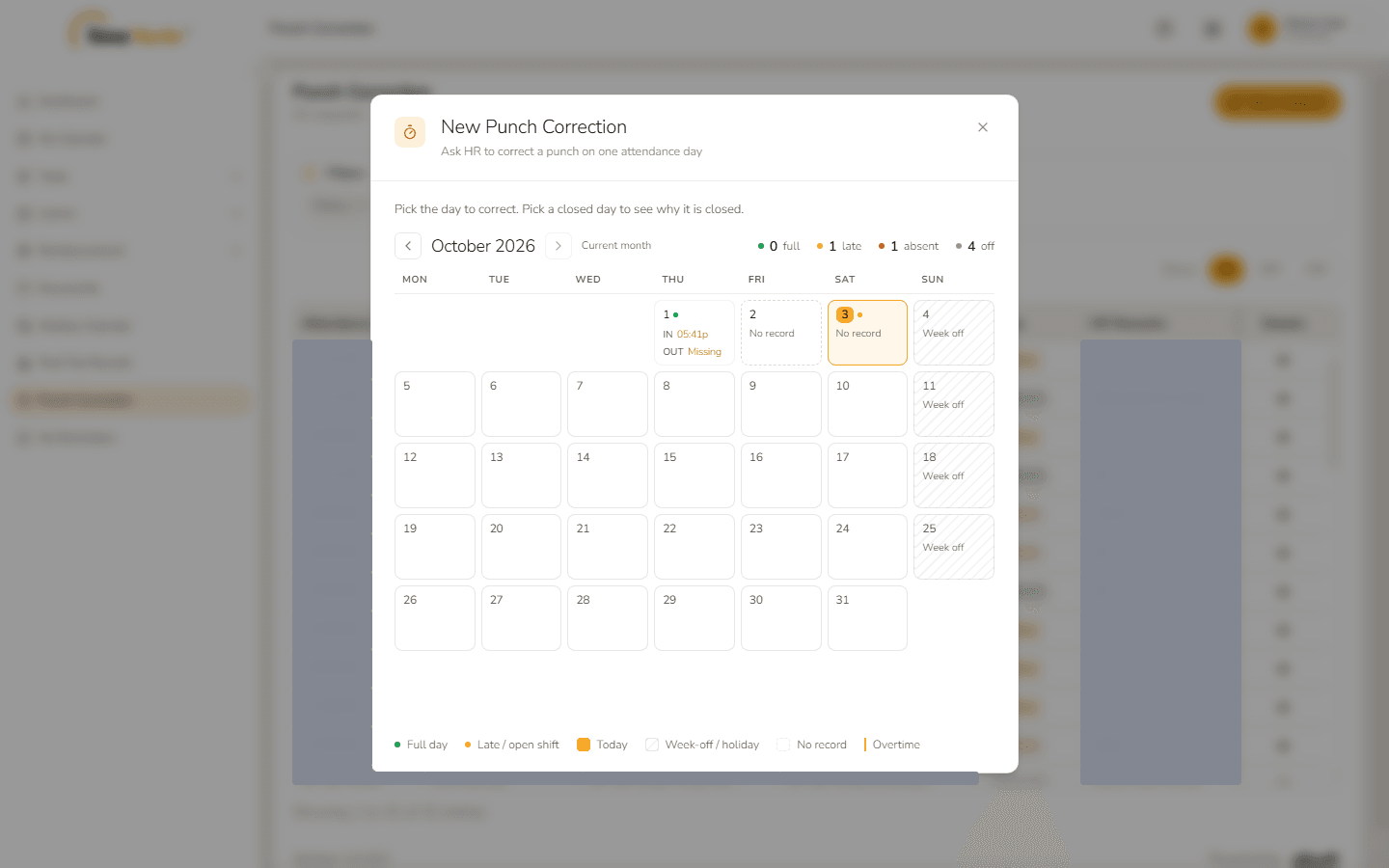
New Punch Correction calendar - The arrows beside the month name move to another month; Current month returns to this one.
- The counters at the top right sum up the month – for example 0 full, 1 late, 1 absent, 4 off.
- Each day carries what the app knows: the punch-in time and a missing punch-out, No record, Week off, and so on. The key at the bottom explains the marks: Full day, Late / open shift, Today, Week-off / holiday, No record and Overtime.
- "Pick the day to correct. Pick a closed day to see why it is closed."
Click the day you want to correct. A window opens for that day. For a day with no punches it says No attendance recorded – No punch data for this day – Neither a punch-in nor a punch-out was captured and, at the bottom, "Corrections are open for this date."
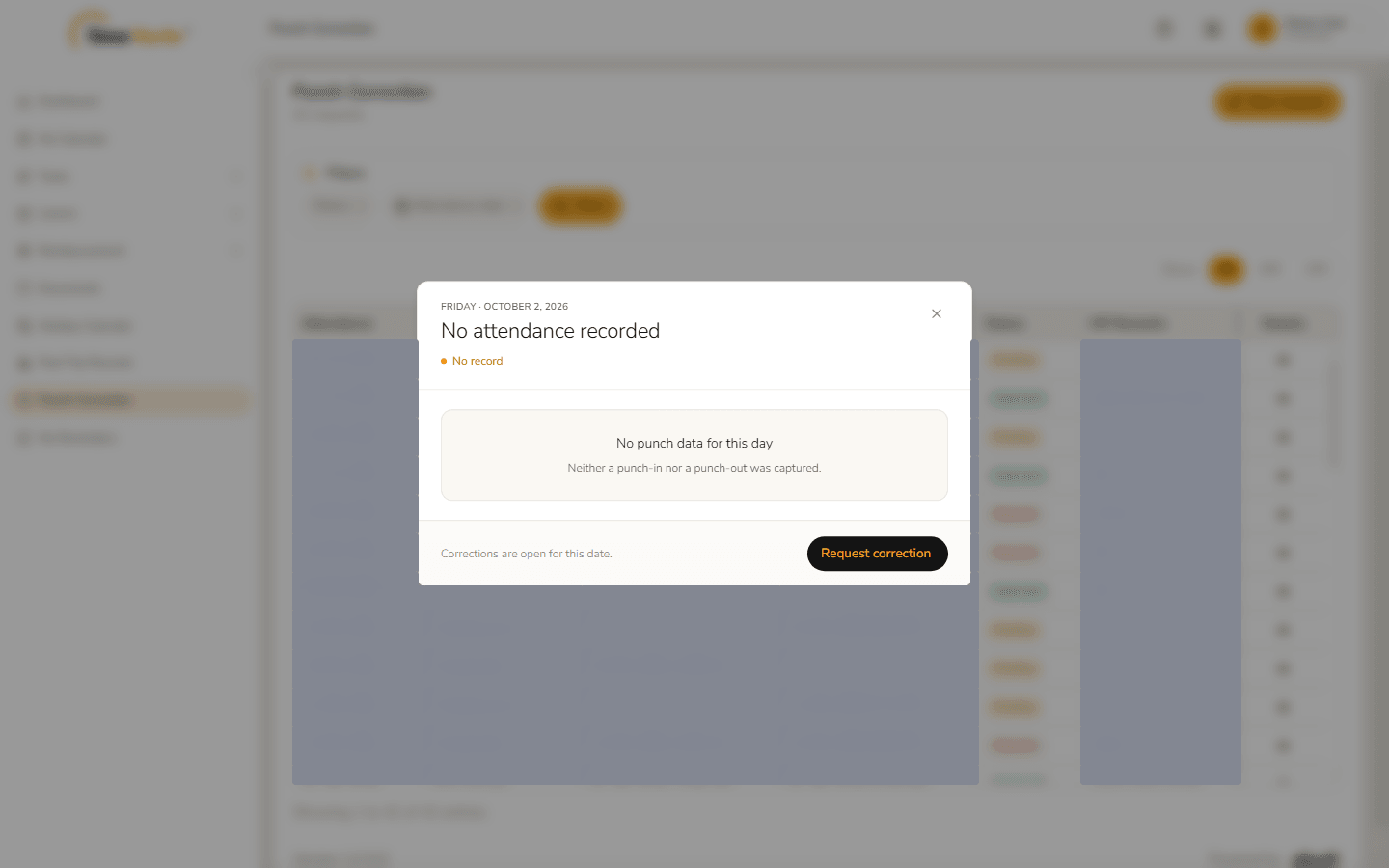
A day that can be corrected A day that has punches shows them, with the time, the place and the photo. For the same window on your own calendar see My Calendar.
Click Request correction. The Punch correction request form opens. The top bar shows the day (Regularization for Fri, 2 Oct 2026) and the ‹ button goes back to the day.
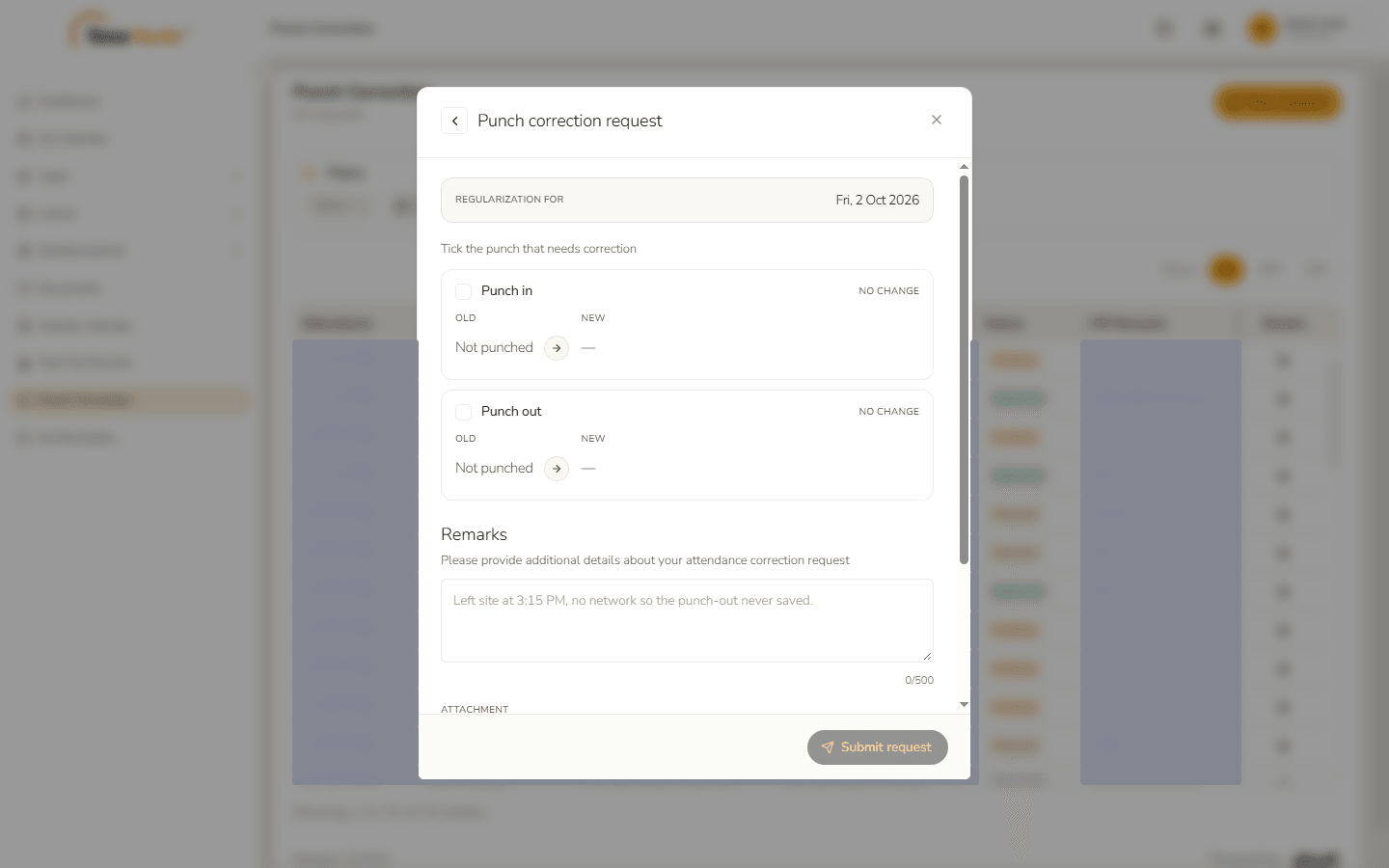
Punch correction request form Under "Tick the punch that needs correction" there is a box for Punch in and one for Punch out. Each shows the Old value (Not punched or the time that was saved) and the New one. Both start at No change.
Tick a box – it changes to Correcting and a time field appears with a suggested time. Type the hour, the minutes and AM/PM, or click the clock. Tick both to correct both punches. On a day with no punch at all, ticking Punch out ticks Punch in as well; untick it if you only want to correct the punch-out.
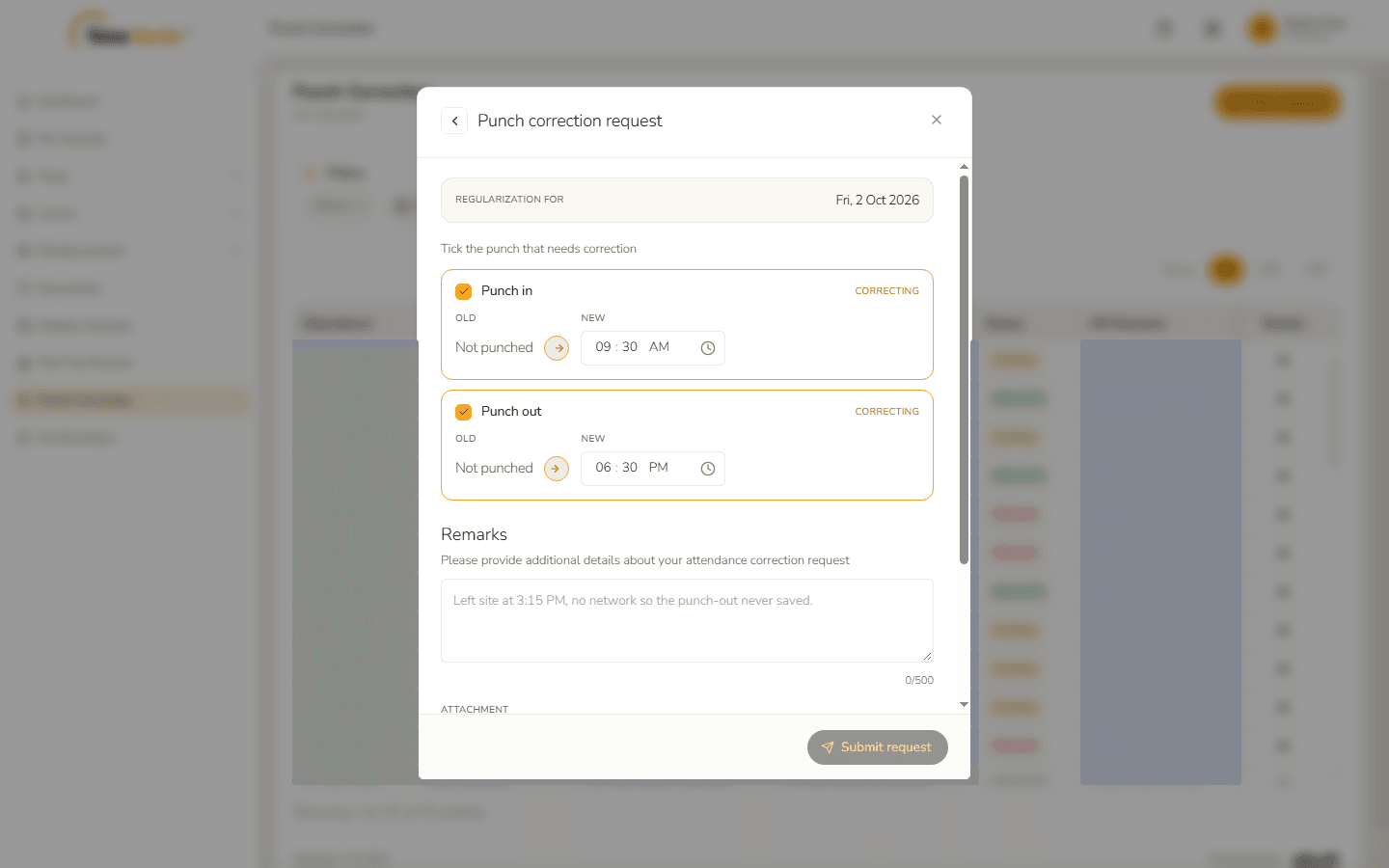
Both punches ticked Fill in the rest of the form.
Field Notes Remarks "Please provide additional details about your attendance correction request" – up to 500 characters (a counter such as 34/500shows how many you have used). Say what happened, for example "Left site at 3:15 PM, no network so the punch-out never saved."Attachment Optional – "A photo, a PDF, or an audio recording" that supports your request. Submit request stays greyed out until a punch is ticked and the remarks are written.
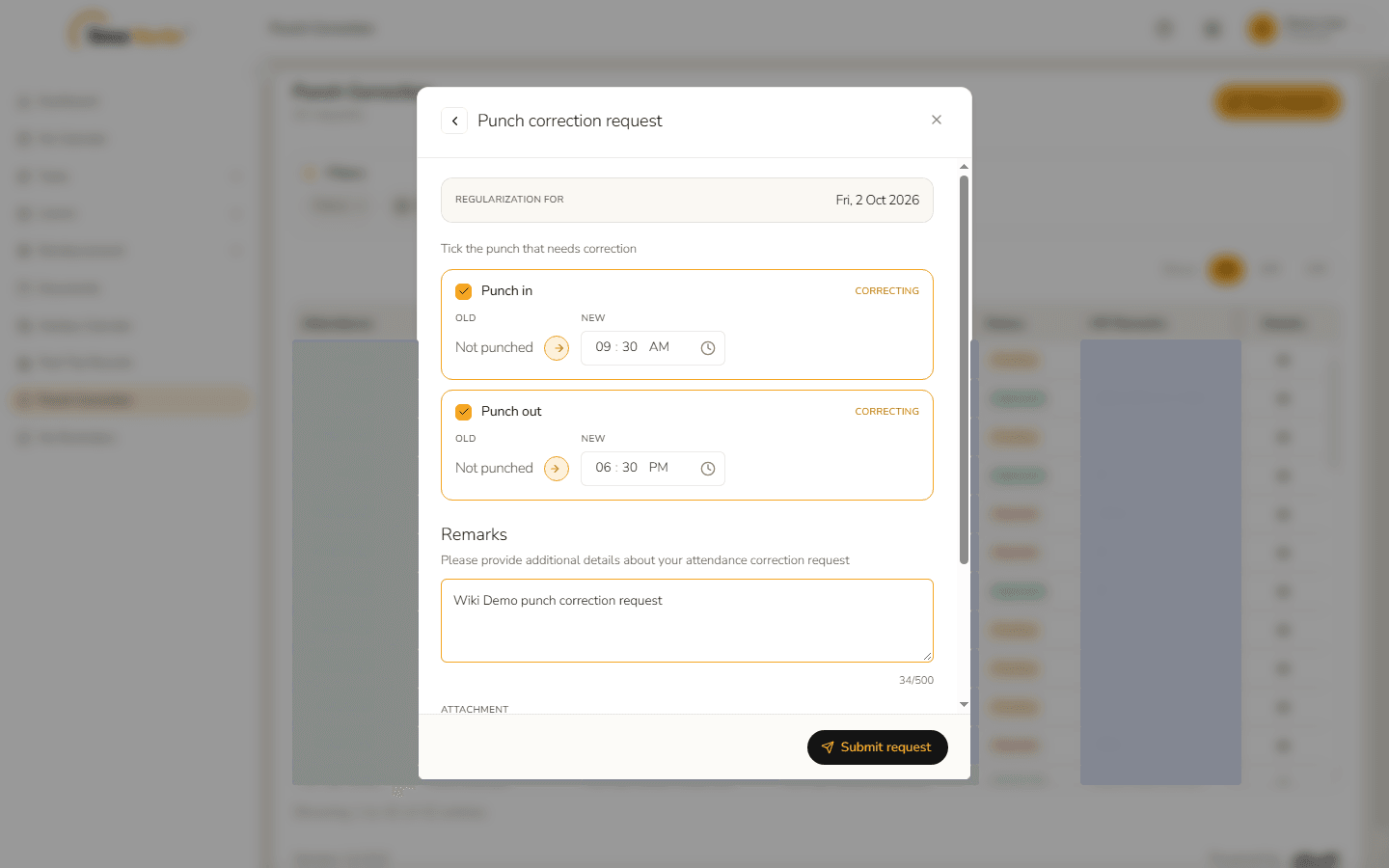
Form filled in Click Submit request. Request submitted confirms it, for example "Regularization request #96 submitted for 02-Oct-2026: punch-in 09:30 AM, punch-out 06:30 PM. It is now Pending with HR - you will be notified when it is approved or rejected." A chip shows the day and Pending approval. Click Done.
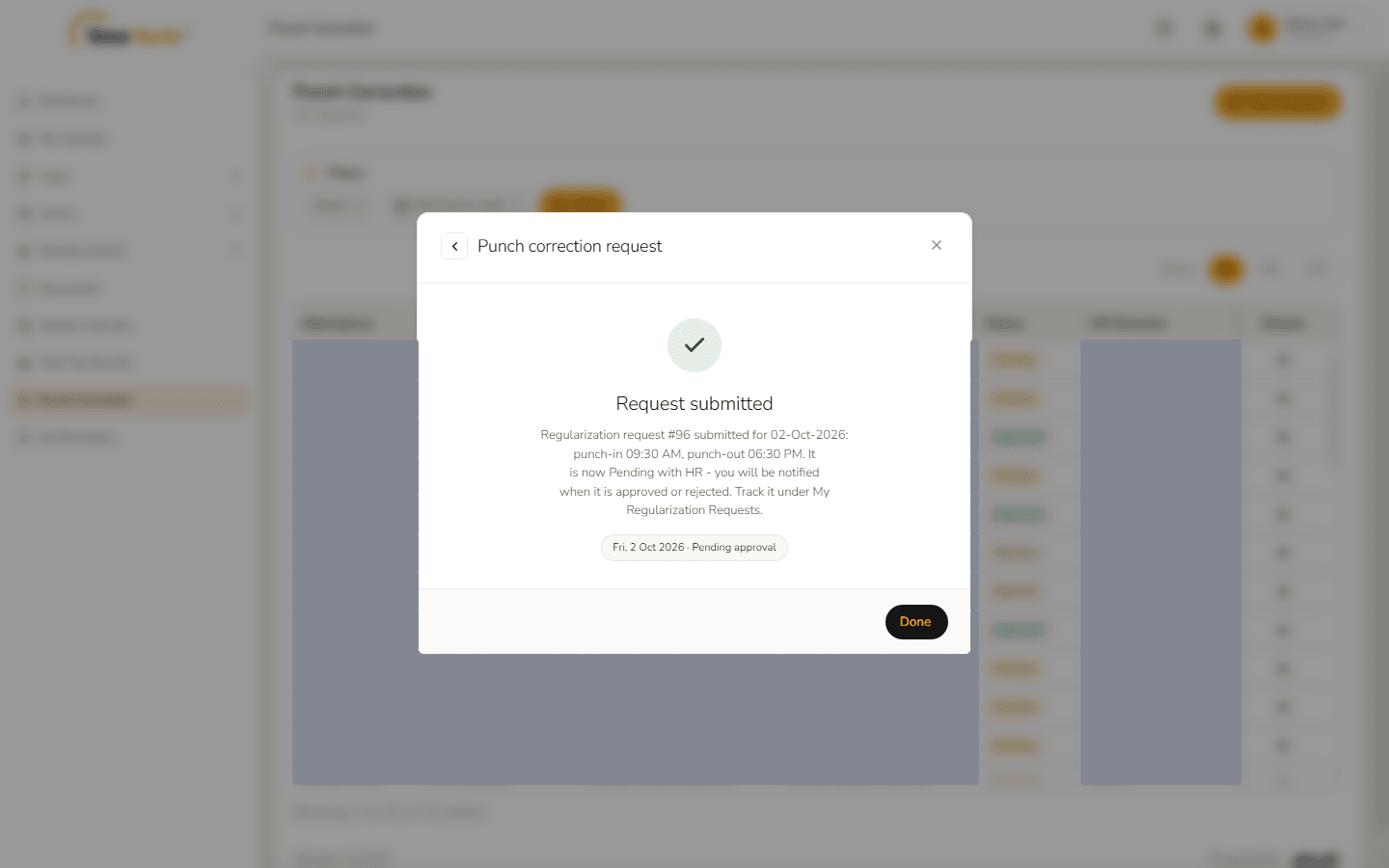
Request submitted - The request is in the list, with the status Pending. If the new row is not there yet, reload the page.
What happens next
HR looks at the request under Regularization Requests and either approves or rejects it. You are told by the app and by email.
- Approved – your attendance for that day is changed to the punch-in and punch-out you asked for, and the late, overtime and hours are worked out again.
- Rejected – your attendance is left as it was. HR must give a reason, and it appears in the HR Remarks column. You can raise a fresh request for the same day.
3. Days that are closed
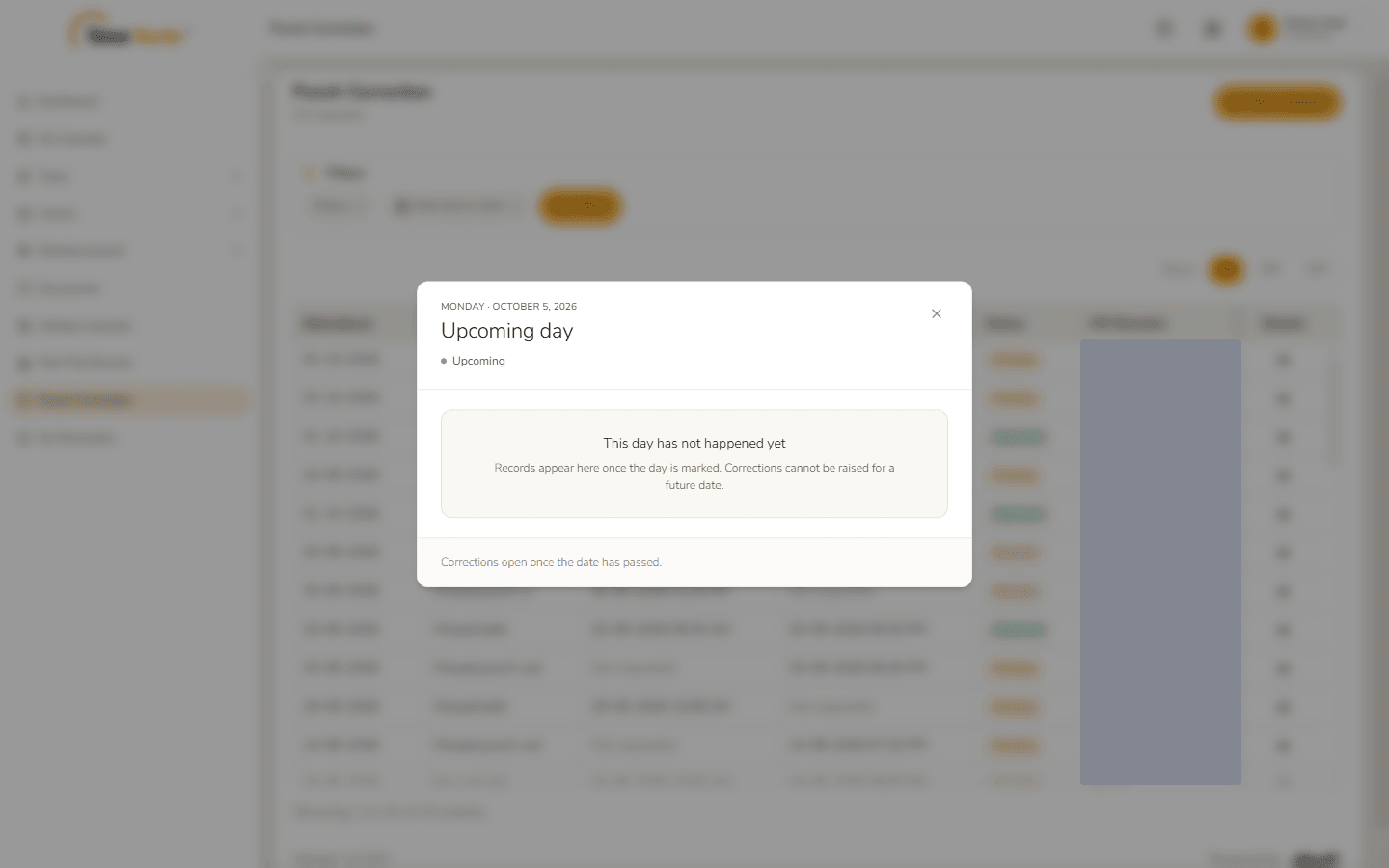
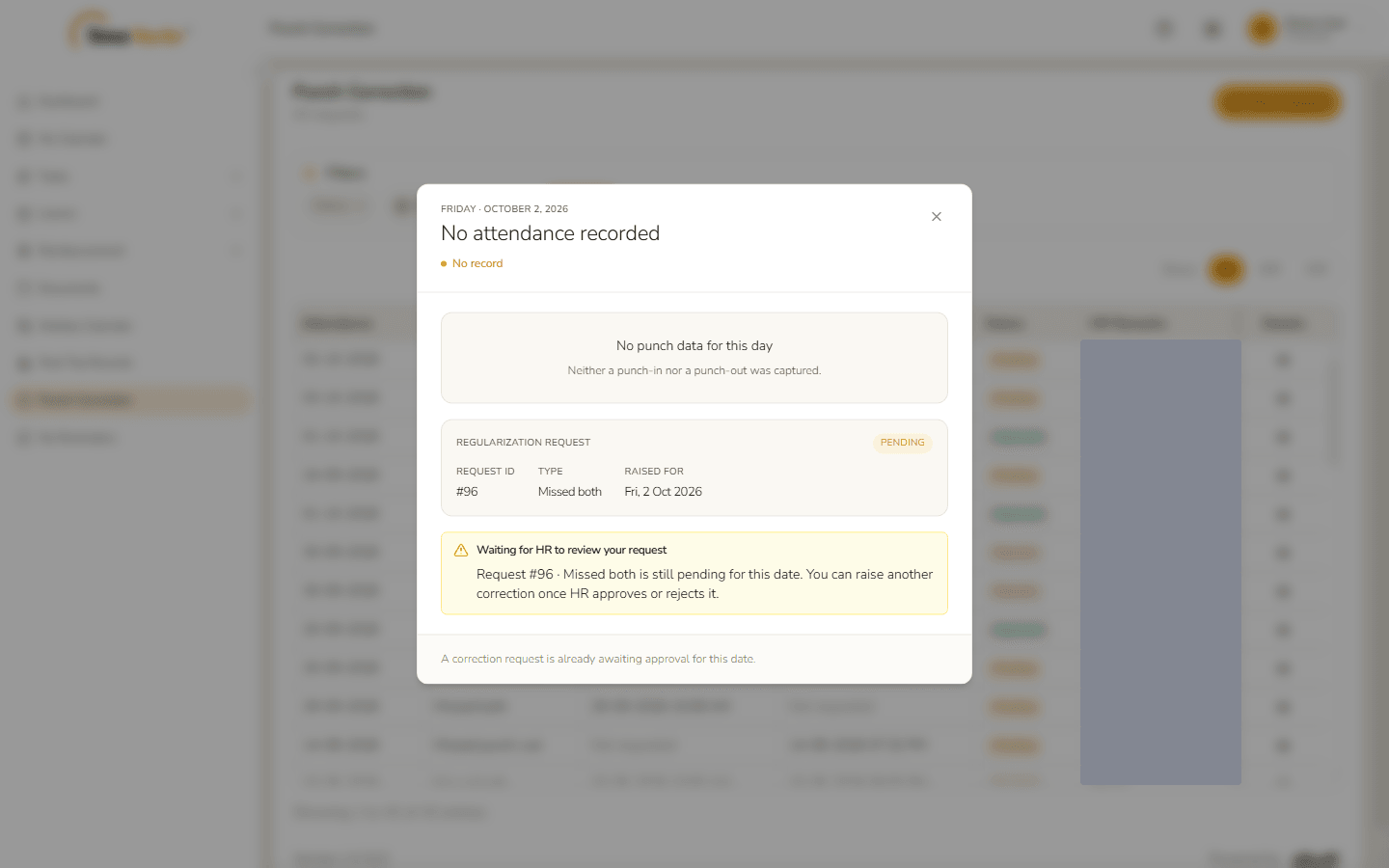
Not every day accepts a correction. Click a closed day on the calendar and the window tells you why, and the Request correction button is not offered.
| Day | What the window says |
|---|---|
| A day that has not happened yet | "This day has not happened yet – Records appear here once the day is marked. Corrections cannot be raised for a future date." and, at the bottom, "Corrections open once the date has passed." |
| A day that already has a pending request | "Waiting for HR to review your request – Request #96 · Missed both is still pending for this date. You can raise another correction once HR approves or rejects it." with the request's number, type and day. |
| A day with an approved request | "A correction was already approved – … a day is closed to new corrections once one is approved. If it was approved by mistake or the attendance still looks wrong, ask HR to review it." |
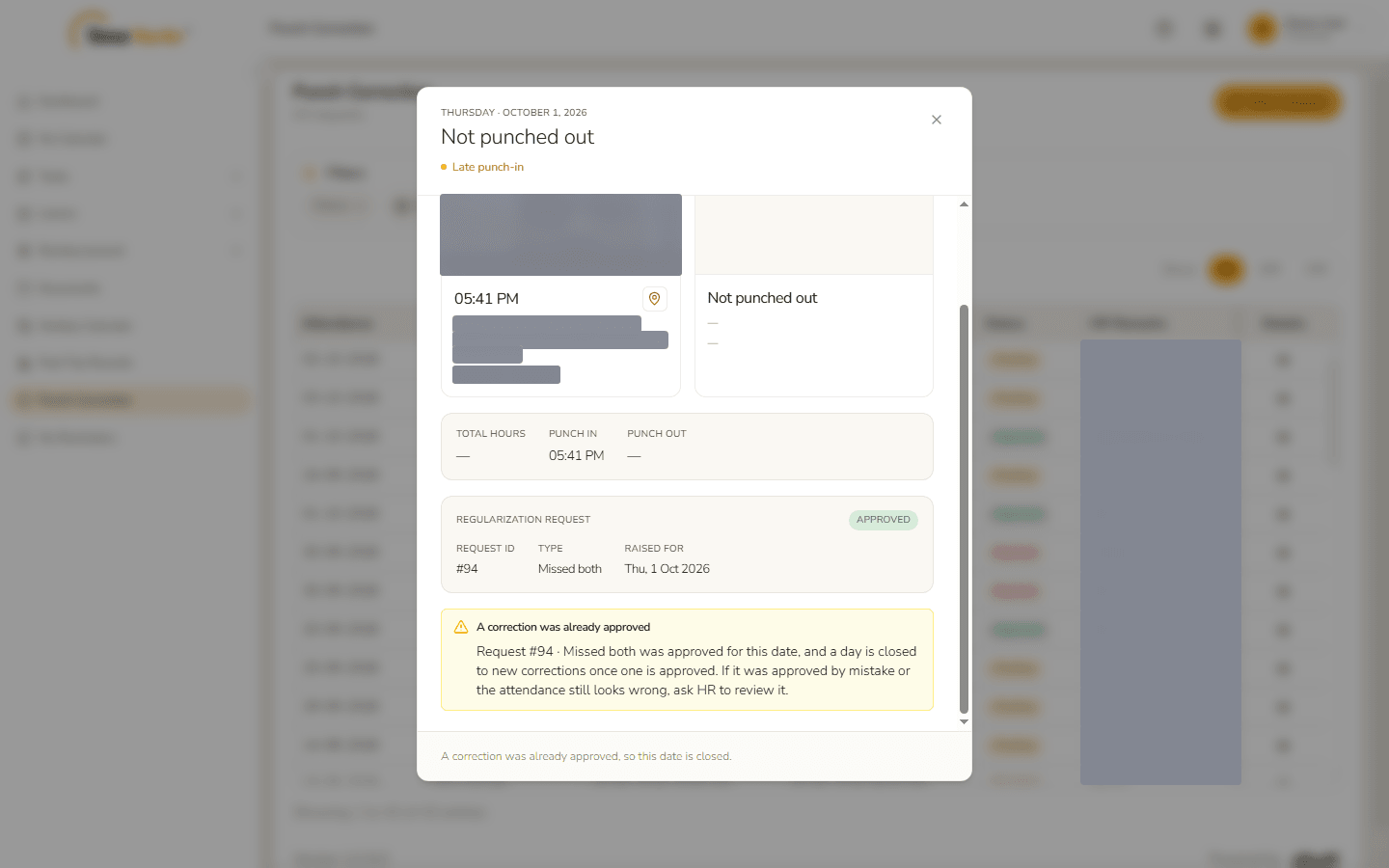
A rejected request does not close the day – you can raise a new one.
4. Open a request
Click the eye icon in the Details column. Correction for <date> shows:
| Item | What it tells you |
|---|---|
| Status | Pending, Approved, Rejected or Cancelled. |
| What went wrong | Missed punch-in, Missed punch-out or Missed both. |
| Raised on | When you sent the request. |
| Punch-in recorded / Punch-out recorded | What the system had for the day (Not requested when nothing was recorded). |
| Punch-in requested / Punch-out requested | The times you asked for. |
| Your remarks | What you wrote. |
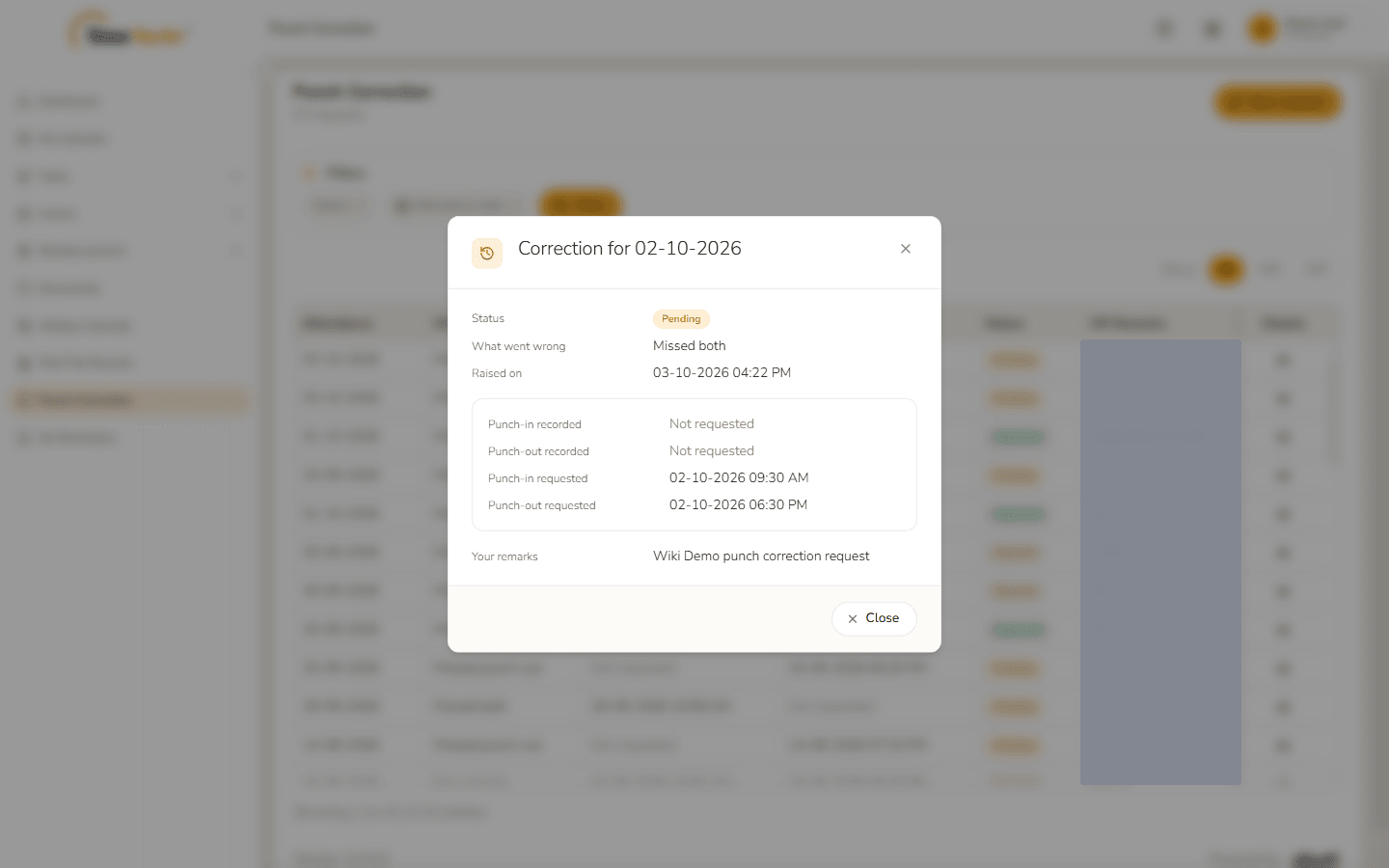
Click Close to return to the list.
Related: My Calendar · Regularization Requests (admin)